Get LibreOffice to Recognize Your Java Runtime

Install a compatible Java runtime, enable it in LibreOffice, and troubleshoot an empty JRE list without changing unrelated settings.
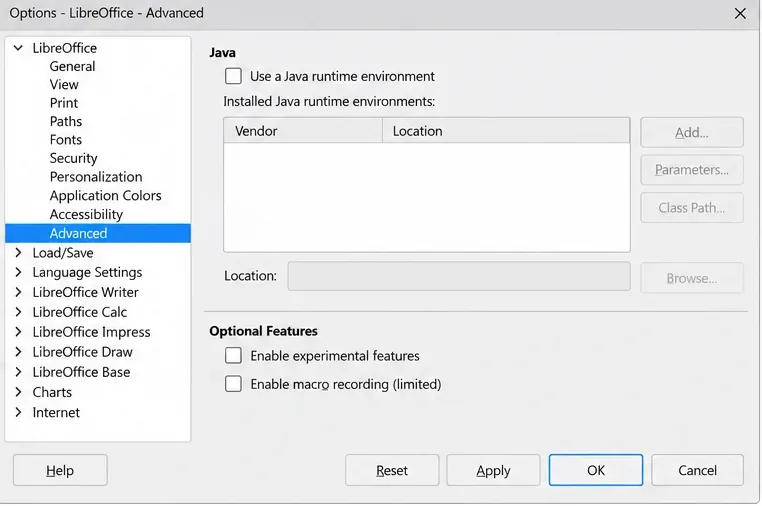
If LibreOffice says it “requires a Java Runtime Environment (JRE),” install a supported Java runtime that matches your LibreOffice architecture, then enable or select it under Tools > Options > LibreOffice > Advanced (Windows and Linux) or LibreOffice > Preferences > LibreOffice > Advanced (macOS). If Java is already installed, the usual fix is to enable Java support, wait for the runtime list to populate, and restart LibreOffice.
The warning does not mean every LibreOffice feature needs Java. It appears when you open a feature, database, extension, or wizard that depends on Java. LibreOffice’s help identifies the Advanced page as the place to activate Java support and choose an installed runtime. The exact Java version that works depends on your LibreOffice release, operating system, and Java distribution, so use compatibility guidance for your installed versions.
If you only use Writer, Calc, or Impress for ordinary documents, spreadsheets, and presentations, you may not need a JRE at all. Close the dialog and continue without Java if the feature you were trying to use is optional and you do not rely on it. Features such as some Base database configurations, Java-based extensions, and certain wizards can require Java; if that is the function you need, install and configure a runtime.
For example, someone opening a Base file that uses an embedded HSQLDB database may need Java, while someone editing a text document usually does not. Installing Java solely to remove a warning is unnecessary if you do not use the Java-dependent function.
Java and LibreOffice must use compatible architectures. LibreOffice’s Advanced options help specifically warns that a 64-bit LibreOffice needs a 64-bit JRE and a 32-bit LibreOffice needs a 32-bit JRE. A Java installer can complete successfully while LibreOffice still reports that no runtime is available if the architectures do not match.
Check the LibreOffice About dialog for the architecture marker, or consult the installation details for your operating system. On Windows, a label such as “x86_64” or “64-bit” means you should install 64-bit Java. On Linux, the package manager’s architecture and the installed LibreOffice package can help identify the correct match. On Apple silicon, select a Java build intended for your macOS and processor; do not assume that an Intel-only Java package will be detected by an Apple silicon LibreOffice build.
Use a trusted vendor or your operating system’s supported software repository. A JRE supplies the components needed to run Java applications; a JDK (Java Development Kit) includes a runtime plus development tools. LibreOffice needs Java runtime support, so a JDK can work when it contains a compatible runtime, but a JDK is not required just to use LibreOffice.
On Windows or macOS, download the JRE or JDK installer for the correct architecture from a reputable Java provider and complete its installer. On Linux, use your distribution’s software center or package manager and choose a supported Java runtime package. Package names and available Java releases differ by distribution, so do not copy a package command from another Linux version without checking your repository. The Eclipse Temurin project provides platform-specific builds and installation instructions; Oracle Java is another vendor option. Follow the vendor’s current instructions for your operating system.
Close LibreOffice before installing or updating Java. When installation finishes, reopen LibreOffice so it can scan for runtimes. Avoid old Java releases that no longer receive security fixes, and do not download installers from third-party download sites.
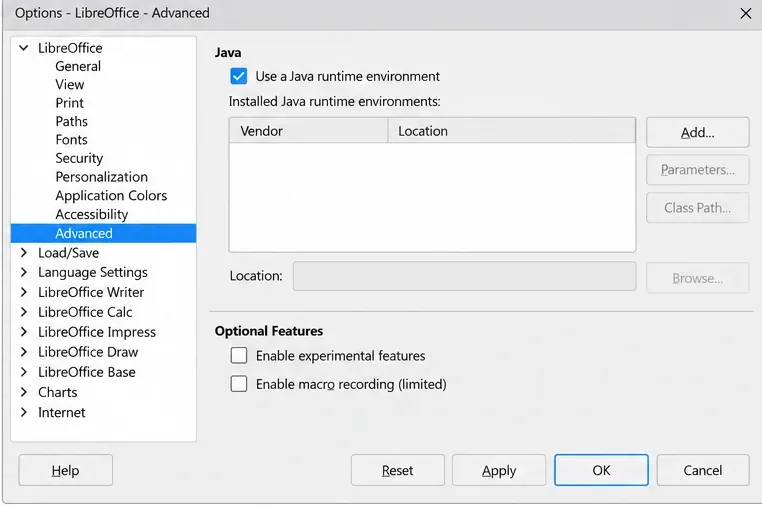
LibreOffice’s current help describes the checkbox, the list of installed JREs, and the need to restart in some cases. If Java support was already enabled, do not keep toggling it: check whether a runtime is listed and whether its architecture matches LibreOffice.
First confirm that Java installation completed and that the JRE architecture matches LibreOffice. Then close every LibreOffice window, reopen the application, and check the Advanced page again. On some systems detection is delayed until a restart.
If the runtime is installed but still does not appear, use the Add control in the Java options to browse to the JRE’s root folder, if that control is available in your LibreOffice build. Select the runtime directory itself, not a random subfolder such as its bin directory. The folder layout differs between vendors and operating systems, so use the installation location shown by the Java installer or package manager. LibreOffice’s help documents adding a path to a JRE root folder.
If the location cannot be selected or LibreOffice still rejects it, avoid editing internal configuration files as a first fix. Verify that the Java build supports your operating system and processor, update LibreOffice from its official source if appropriate, and check the Java support notes for that exact release. A portable, sandboxed, or Flatpak/Snap installation may not see a system Java runtime in the same way as a conventional package; consult the packaging provider’s documentation for runtime visibility before changing system paths.
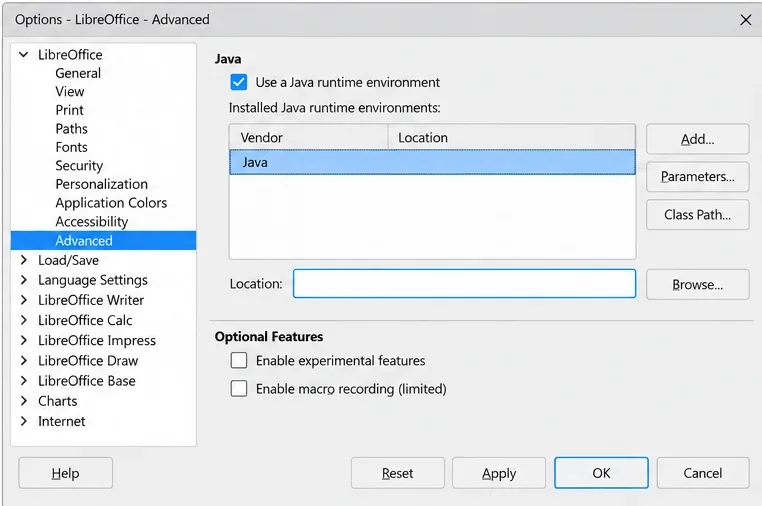
Quit and reopen LibreOffice, return to LibreOffice > Advanced, and confirm that Java support is checked and the intended runtime is listed or selected. Then retry the specific database, wizard, or extension that displayed the warning. If it opens without the JRE prompt, the configuration is working for that feature.
If the warning remains, record your LibreOffice version, operating system and architecture, Java vendor and version, and whether LibreOffice shows a runtime path. Those details identify the compatibility question to check in the official release documentation. Do not assume that reinstalling LibreOffice or changing JAVA_HOME is necessary before verifying those basics.
Install a compatible Java runtime, enable it in LibreOffice, and troubleshoot an empty JRE list without changing unrelated settings.
Build a small LibreOffice container, convert office documents without a GUI, and verify PDF output while limiting host-file access.
Reduce oversized LibreOffice presentation files by compressing embedded photos, choosing sensible image settings, and checking slide quality before sharing.
Match LibreOffice’s page dimensions to your printer, check printable margins, and correct scaling before printing a custom-size document.
Replace repeated cell access with bulk range reads and writes, then benchmark the result and protect formulas in large Calc workbooks.
Split a long manuscript into chapters, assemble them in Writer, and keep styles, contents, and export checks consistent.
Use Base’s direct PostgreSQL option to enter your server details, sign in, save an ODB connection file, and troubleshoot common access errors.
Install a font in your Linux user font folder, restart LibreOffice Flatpak, and confirm it appears in Writer without weakening the app sandbox.
Protect your work and isolate network-drive save crashes in LibreOffice on macOS Sonoma with a local-first workflow, permission checks, and targeted tests.
Preserve leading zeros in Calc by setting ID columns to Text during CSV import, checking the preview, and verifying the saved data.








