Get LibreOffice to Recognize Your Java Runtime

Install a compatible Java runtime, enable it in LibreOffice, and troubleshoot an empty JRE list without changing unrelated settings.
Need to update text, swap images, or adjust formatting inside a PDF? Knowing how to edit an Adobe PDF file lets you make those changes directly without recreating the document from scratch. Adobe Acrobat provides the most reliable tools for this task, whether you are fixing typos or redesigning pages.
Adobe Acrobat Pro or the free Acrobat Reader with editing permissions is required for full control. Make sure the PDF is not secured with editing restrictions, and create a backup copy first. You should also have the latest version of Acrobat installed from the official Adobe site to access all editing features.
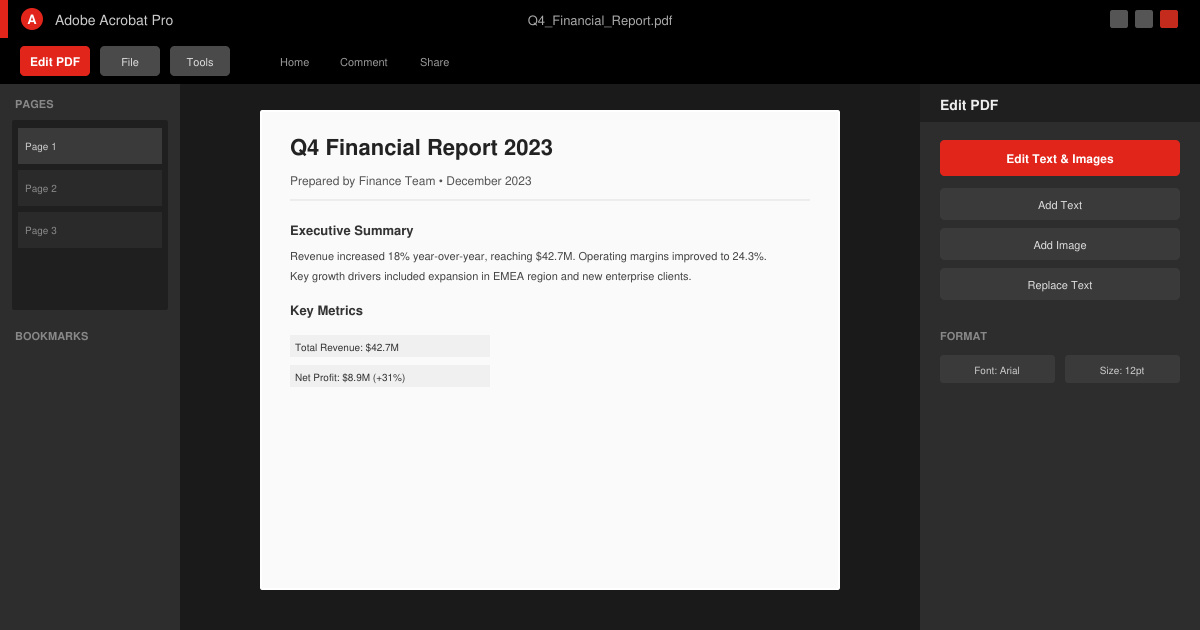
Launch Adobe Acrobat and go to File > Open. Select your PDF from the folder on your computer. Once the document appears, click the Edit PDF tool in the right-hand pane or choose Tools > Edit PDF from the top menu. This switches the view to editable mode and highlights all text blocks.
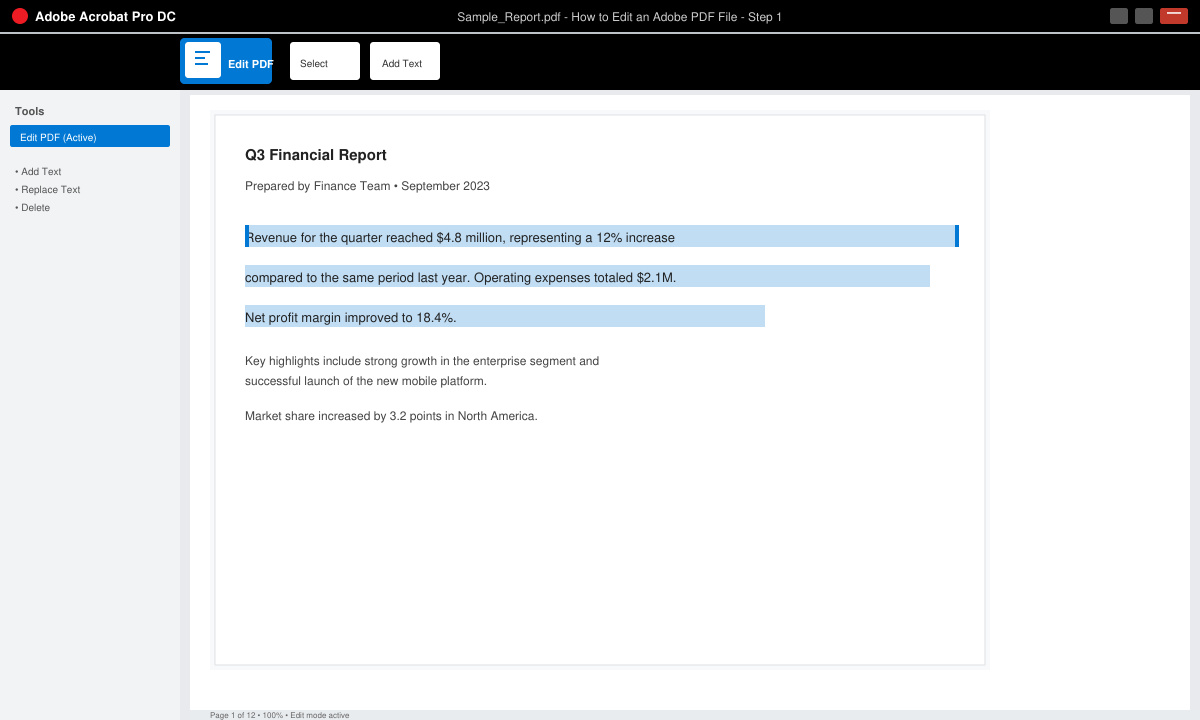
Click any text block you want to change. A bounding box appears around the text. Type directly over the existing words or paste new content from your clipboard. Use the formatting toolbar that appears above the text to adjust font size, color, or alignment without leaving the PDF.
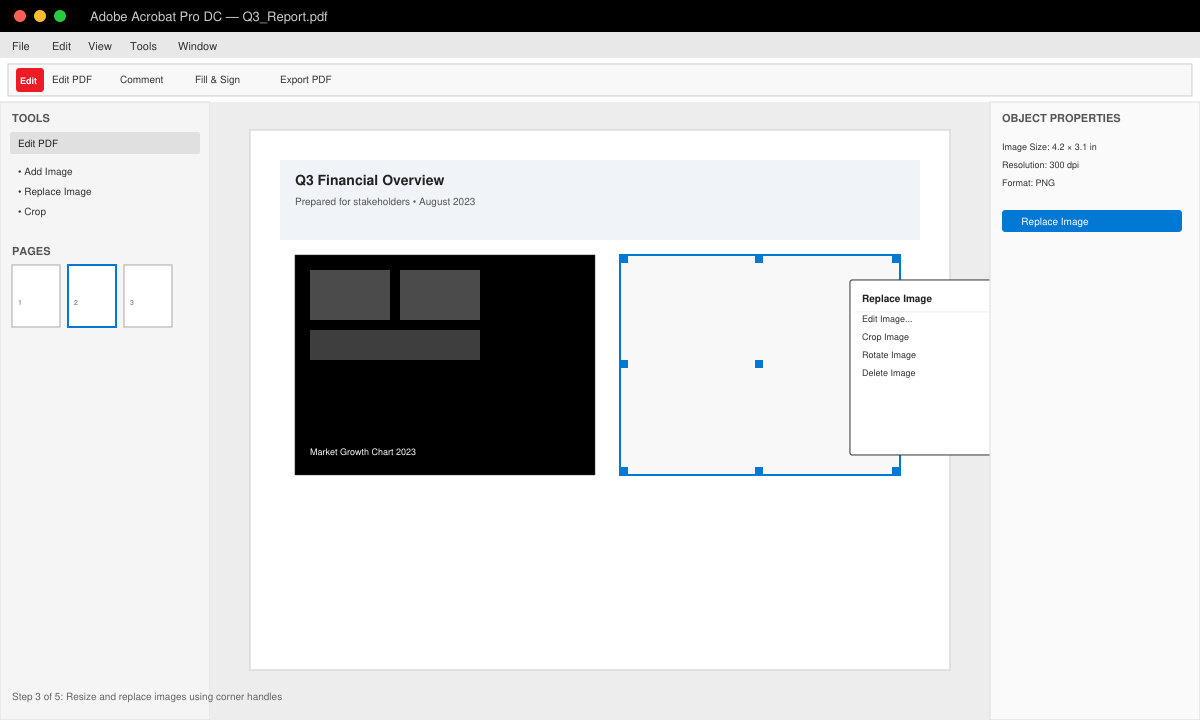
Click an image to select it. Drag the corner handles to resize, or right-click and choose Replace Image to swap it with a new file from your computer. Acrobat automatically adjusts surrounding text to match the new image dimensions when the reflow option is enabled.
To insert a new page, go to Organize Pages in the right pane and click Insert. Delete unwanted pages by selecting them and pressing Delete. You can also add text boxes, links, or watermarks using the Comment or Edit PDF tools for additional refinements.
Scroll through the entire document to check for layout shifts or formatting issues. When everything looks correct, choose File > Save As and name the edited version. Export to other formats if needed by selecting File > Export To.
Fonts sometimes do not match after editing. Install the original font on your system or use Acrobat's font substitution options under Edit > Preferences > Content Editing. If text reflows incorrectly, select the affected paragraph and choose the "Fix text reflow" option in the right-click menu. Large image replacements can increase file size dramatically, so compress images via Tools > Optimize PDF before saving the final version.
The free Acrobat Reader allows only basic commenting and form filling. Full editing of text and images requires Acrobat Pro or a subscription to Acrobat online services.
Acrobat tries to preserve fonts, but if the exact font is missing it substitutes a similar one. You can manually adjust spacing and alignment to restore the original appearance.
Yes. Run the Scan & OCR tool first to convert the scanned pages into editable text. After OCR processing, the standard Edit PDF tool becomes available.
Mastering how to edit an Adobe PDF file in Acrobat gives you direct control over content without extra software. Follow the steps above to handle text, images, and pages efficiently on any document.
Install a compatible Java runtime, enable it in LibreOffice, and troubleshoot an empty JRE list without changing unrelated settings.
Build a small LibreOffice container, convert office documents without a GUI, and verify PDF output while limiting host-file access.
Reduce oversized LibreOffice presentation files by compressing embedded photos, choosing sensible image settings, and checking slide quality before sharing.
Match LibreOffice’s page dimensions to your printer, check printable margins, and correct scaling before printing a custom-size document.
Replace repeated cell access with bulk range reads and writes, then benchmark the result and protect formulas in large Calc workbooks.
Split a long manuscript into chapters, assemble them in Writer, and keep styles, contents, and export checks consistent.
Use Base’s direct PostgreSQL option to enter your server details, sign in, save an ODB connection file, and troubleshoot common access errors.
Install a font in your Linux user font folder, restart LibreOffice Flatpak, and confirm it appears in Writer without weakening the app sandbox.
Protect your work and isolate network-drive save crashes in LibreOffice on macOS Sonoma with a local-first workflow, permission checks, and targeted tests.
Preserve leading zeros in Calc by setting ID columns to Text during CSV import, checking the preview, and verifying the saved data.








