Bluetooth Adapter Missing on Pardus 23? Start with These Checks

Find out whether Pardus 23 is blocking Bluetooth, missing BlueZ, or failing to detect adapter firmware, then confirm the controller works.
Sent an email to the wrong person or spotted a typo right after hitting Send? Outlook lets you recall a sent email — but only if both you and the recipient use Microsoft Exchange or Microsoft 365, and the message hasn't been read yet. Here's how to do it in under two minutes. How to Chromecast in Samsung TV works by connecting a Google Chromecast dongle to one of the TV's HDMI ports and using the Google Home app to manage the connection.
Your Samsung TV needs an available HDMI port and a stable Wi-Fi connection that matches the network your phone or computer uses. You will also need a Chromecast device (Chromecast, Chromecast Ultra, or Chromecast with Google TV) and the Google Home app installed on an Android or iOS device. Make sure your phone and the Chromecast are on the same 2.4 GHz or 5 GHz Wi-Fi network before beginning.
Update your Samsung TV firmware through Settings > Support > Software Update so the HDMI input recognizes the device without issues. Have your Wi-Fi password ready because the setup process requires it once.

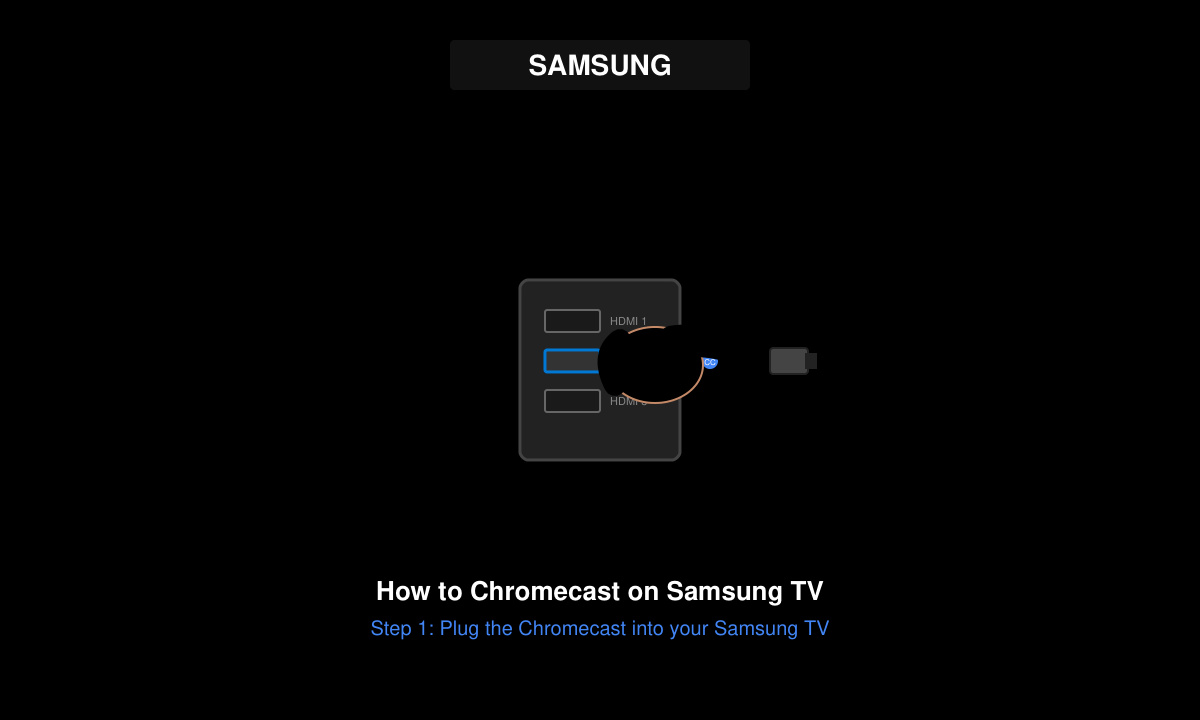
Power off the Samsung TV. Insert the Chromecast dongle into an HDMI port on the back or side of the TV. Connect the USB power cable from the Chromecast to either the TV's USB port or a wall charger. Turn the TV back on and switch the input source to the HDMI port you used.
Open the Google Home app on your phone. Tap the plus icon and select "Set up device" then "New devices." The app should detect the Chromecast. Follow the on-screen prompts to name the device and connect it to your Wi-Fi network by entering your password.
Open a supported app such as YouTube, Netflix, or Chrome browser. Tap the Cast icon inside the app and select your newly named Chromecast device. The content will appear on the Samsung TV screen within seconds.
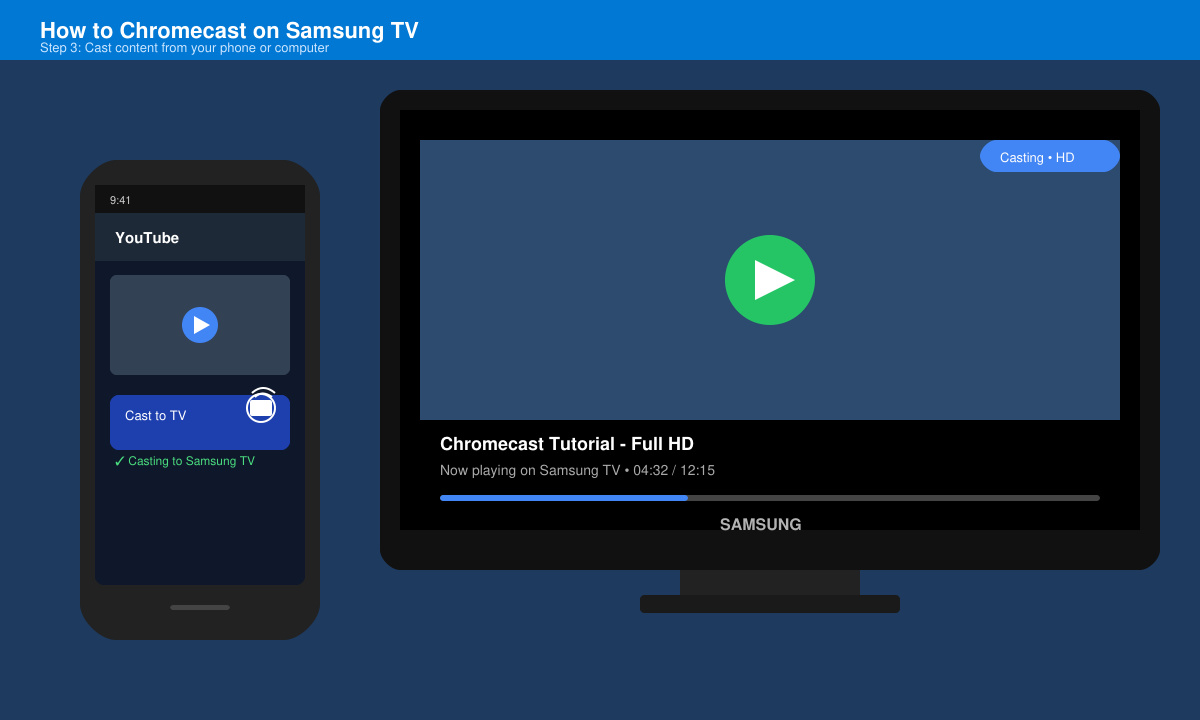
Use the controls in the casting app or the Google Home app to pause, skip, or adjust volume. To stop casting, tap the Cast icon again and choose "Stop casting" or simply close the app.
If the Chromecast does not appear in the Google Home app, restart both your router and the Samsung TV. Unplug the Chromecast for 30 seconds then plug it back in. Make sure the TV firmware is current and that no VPN is active on your phone during setup. Audio sync problems are usually fixed by changing the TV audio format to PCM in Settings > Sound > Expert Settings.
Low video quality usually means the Wi-Fi signal is weak. Move the router closer to the TV or use a 5 GHz band if your Chromecast supports it. Factory reset the Chromecast through the Google Home app if connection errors persist after multiple attempts.
No. The Google Home app is required for initial setup and device management even though casting itself works from individual apps afterward.
Yes, as long as the TV has an HDMI port. Older models may need the Chromecast powered by a separate wall adapter instead of the TV's USB port.
A black screen usually indicates an HDCP handshake failure. Try a different HDMI port, restart the TV, or lower the casting resolution in the Google Home app device settings.
Once the Chromecast is connected and set up, streaming to your Samsung TV becomes straightforward and reliable for daily use.
Find out whether Pardus 23 is blocking Bluetooth, missing BlueZ, or failing to detect adapter firmware, then confirm the controller works.
Learn how Gooroom separates trusted and untrusted browsing, what users can change, and how an administrator can safely update site policies.
Diagnose rotated, offset, or inconsistent touch input on a Harmonica OS tablet and choose a Linux calibration method that fits its session and driver.
Switch Gooroom’s desktop session to English, verify the locale, and identify when untranslated Korean labels need an app update instead.
Arrange Pardus XFCE as a familiar bottom taskbar with an app menu, pinned launchers, open-window buttons, and a system tray.
Check your Gooroom release and administrator rules, then follow the official Debian-based setup path for Flatpak or Snap without bypassing system controls.
Learn what Pardus Image Writer can do, how to prepare installation USB safely, and which tools fit custom live images or repeatable fleet deployments.
Install Pardus alongside Windows 11 by shrinking the Windows volume, using unallocated space, and preserving the existing EFI System Partition.
Identify the RTL8821CE, install Pardus-supported Realtek firmware, and verify the driver, Wi-Fi scan, and next troubleshooting step.
Use Pardus’s hardware-aware installer to enable the right NVIDIA driver, reboot safely, and verify the active kernel module.