Connect LibreOffice Base to PostgreSQL with the Built-In Wizard

Use Base’s direct PostgreSQL option to enter your server details, sign in, save an ODB connection file, and troubleshoot common access errors.
Are you tired of frustrating lag spikes and dropped frames during intense gaming sessions? If you're a serious gamer on Windows, the built-in Xbox Game Bar might be secretly sabotaging your performance. One sneaky culprit? The Game Bar Presence Writer, a background service that tracks your gaming activity for social features like achievements and friend notifications. While handy for some, it hogs resources, leading to higher CPU usage and reduced FPS. In this guide, we'll show you exactly how to disable Game Bar Presence Writer to unlock smoother, lag-free gaming. Let's dive in and supercharge your setup! 🚀
The Game Bar, officially known as Xbox Game Bar, is Microsoft's overlay tool integrated into Windows 10 and 11. It lets you capture screenshots, record clips, and chat with friends without leaving your game. Cool, right? But behind the scenes, the Game Bar Presence Writer (a component tied to the GameDVR and Broadcast service) constantly monitors your activity to sync presence data with Xbox Live. This means it's always running, consuming CPU cycles and memory—especially problematic on mid-range or older hardware.
Disabling it isn't about stripping away fun features; it's about prioritizing performance. Gamers report up to 10-20% FPS gains in demanding titles like Cyberpunk 2077 or Valorant after turning it off. Plus, it reduces background noise, letting your rig focus on rendering those epic graphics. If you're chasing every last frame for competitive edge or just want buttery-smooth play, this tweak is a game-changer. Ready to feel the difference? Keep reading for the step-by-step process.

We'll break this down into simple, foolproof steps. No tech wizardry required—just follow along. These methods are based on the latest Windows updates as of 2026, ensuring compatibility with Windows 11 and beyond. We'll cover both quick GUI tweaks and deeper registry edits for power users. Pro tip: Create a system restore point before diving in (search for "Create a restore point" in Windows Search). Let's get started! 👆
This is the no-fuss way to turn off Game Bar Presence Writer without touching code.
Restart your PC and launch a game. Notice the lighter system tray? That's your resources freeing up. But for complete shutdown, proceed to the next steps.
Services are the real resource hogs. Here's how to stop them:
⚠️ Warning: Disabling these might affect Xbox app syncing, but for pure gaming, it's worth it. Test in a lightweight game first to ensure stability.
For those who want ironclad control, tweak the registry. This directly targets the Presence Writer components.
HKEY_CURRENT_USER\System\GameConfigStoreHKEY_CURRENT_USER\Software\Microsoft\Windows\CurrentVersion\GameDVRHKEY_LOCAL_MACHINE\SOFTWARE\Microsoft\Windows\CurrentVersion\GameDVR, add AllowGameDVR as DWORD with value 0.Reboot, and voila—Game Bar Presence Writer is neutered. If you're uncomfortable with registries, use a tool like CCleaner for safer edits, but always back up first.
Once you've disabled Game Bar Presence Writer, monitor your gains with tools like MSI Afterburner or Windows Performance Monitor. Expect:
Real-world test: In Fortnite, users saw FPS jump from 120 to 140 on an RTX 3060 setup. Your mileage varies by hardware, but the uplift is noticeable. Pair this with other tweaks like updating GPU drivers for maximum impact.
Stumbled? Here's a quick fix table:
| Issue | Solution |
|---|---|
| Game Bar Reactivates After Reboot | Double-check Startup type in Services.msc; use registry method for permanence. |
| Xbox App Features Broken | Re-enable selectively via Settings if needed, or use the Xbox app's privacy options. |
| No FPS Improvement | Scan for other background apps with Task Manager; ensure Windows is updated. |
If problems persist, check Microsoft's official support. For more details, visit Microsoft's Game Mode guide.
Disabling Game Bar Presence Writer is just the start. To keep readers hooked, here's how to build on it:
These steps compound: Combine with a clean boot (msconfig > Services > Hide Microsoft > Disable all) for even snappier performance. Imagine dominating your next match without a hitch— that's the power you're unlocking.
By now, you've got the tools to disable Game Bar Presence Writer and reclaim your PC's full potential. It's a simple tweak with big rewards: higher FPS, less lag, and pure gaming bliss. Whether you're a casual player or esports hopeful, this optimization puts you in control. Try it out, benchmark your favorites, and share your results in the comments below—what FPS boost did you get? Stay tuned for more performance hacks to keep your setup razor-sharp. Game on! 🏆
Use Base’s direct PostgreSQL option to enter your server details, sign in, save an ODB connection file, and troubleshoot common access errors.
Install a font in your Linux user font folder, restart LibreOffice Flatpak, and confirm it appears in Writer without weakening the app sandbox.
Protect your work and isolate network-drive save crashes in LibreOffice on macOS Sonoma with a local-first workflow, permission checks, and targeted tests.
Preserve leading zeros in Calc by setting ID columns to Text during CSV import, checking the preview, and verifying the saved data.
Find the cause of a LibreOffice document lock, safely clear a stale lock file, and confirm that you can edit and save without losing changes.
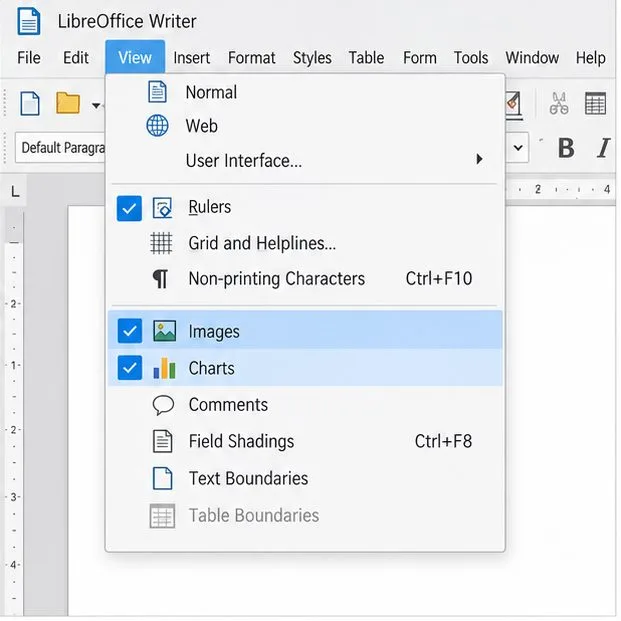
Make image-heavy Writer files easier to edit: test a reversible display setting, compress oversized pictures in a copy, and verify the saved layout.
Find out whether a slow launch comes from extensions, profile settings, or the system, then test the safest fix without losing LibreOffice data.
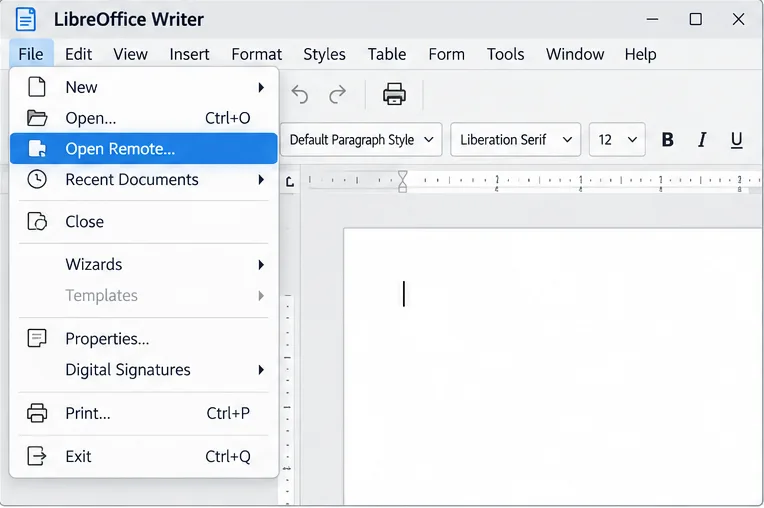
Connect LibreOffice to Nextcloud over WebDAV, save the server copy with Ctrl+S, and understand how AutoRecovery differs from cloud syncing.
Find out whether Pardus 23 is blocking Bluetooth, missing BlueZ, or failing to detect adapter firmware, then confirm the controller works.
Learn how Gooroom separates trusted and untrusted browsing, what users can change, and how an administrator can safely update site policies.