Connect LibreOffice Base to PostgreSQL with the Built-In Wizard

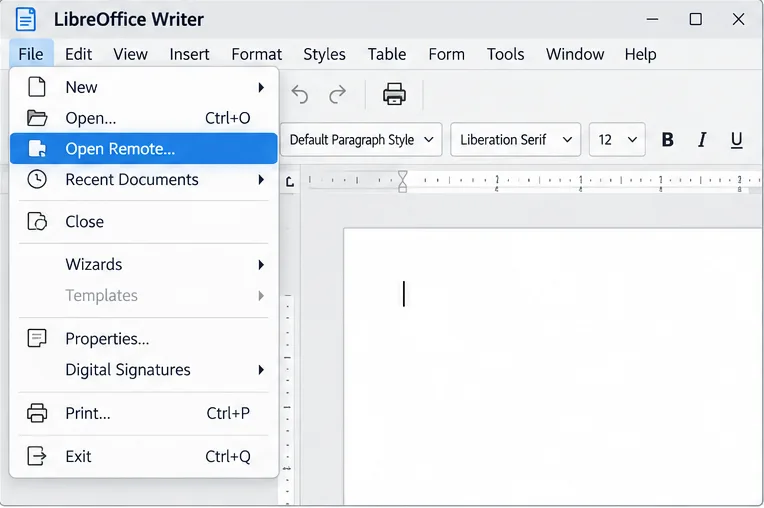
Use Base’s direct PostgreSQL option to enter your server details, sign in, save an ODB connection file, and troubleshoot common access errors.
Are you tired of that frustrating input lag in Windows 11 turning your Valorant clutches into misses or your CS2 headshots into near-misses? You're not alone. Many gamers face this issue, but the good news is it's fixable. In this guide, we'll dive straight into actionable steps to fix Windows 11 input lag specifically for Valorant and CS2. By the end, you'll have smoother controls, faster response times, and the edge you need to climb ranks. Let's get your setup optimized—your next win streak awaits! 😎
Input lag is that annoying delay between your mouse click or key press and the on-screen action in games like Valorant and CS2. On Windows 11, it often stems from high system overhead, driver conflicts, or background processes eating up resources. Recent updates have improved gaming performance, but tweaks are still needed for peak precision in fast-paced shooters.
Why does it hit these games hard? Both Valorant and CS2 demand low-latency inputs for split-second decisions. A laggy system can add 10-50ms of delay, which feels like an eternity in a duel. But don't worry—we'll target the root causes with fixes that work on the latest Windows 11 builds. Follow these steps in order for the best results.

Outdated drivers are a top culprit for input lag. NVIDIA, AMD, and Intel have released recent optimizations for Windows 11 gaming.
Pro tip: After updating, restart your PC. Test in-game—many users report a 20-30% reduction in input lag right away. If you're on an older GPU, consider if hardware upgrades are in your future, but these software fixes often suffice.
Windows 11 runs a ton of background services that can spike CPU usage, causing input lag in resource-intensive titles like CS2. Let's dial it back.
Feeling empowered yet? These changes alone can shave off precious milliseconds. Now, let's tackle hardware-specific tweaks to keep the momentum going.
Your mouse and monitor play huge roles in input lag. For CS2's flick shots or Valorant's sprays, every detail counts.
| Component | Optimization Tip | Expected Impact |
|---|---|---|
| Mouse | Use a high-polling-rate mouse (1000Hz+). Set it in device properties and enable raw input in-game. | Reduces lag by up to 8ms |
| Monitor | Enable G-Sync/FreeSync if compatible. Set refresh rate to max (144Hz+ recommended for CS2). | Smooths frame delivery, cuts perceived lag |
| USB Ports | Plug peripherals into motherboard USB 3.0 ports, not front-panel ones, to avoid interference. | Eliminates polling delays |
Bonus: Clean your mouse sensor and ensure a large, smooth mousepad. Gamers who've implemented these see their input lag drop dramatically—imagine landing those impossible aces without hesitation!
Now, let's get tailored. These games have unique demands, so custom tweaks will seal the deal.
Valorant pros swear by these; you'll feel the responsiveness boost in your next duelist run.
fps_max 0 for uncapped FPS, plus cl_forcepreload 1 to reduce stuttering.CS2's engine is picky with Windows 11, but these steps align it perfectly. Test in a deathmatch—your aim will thank you. 🎯
If basic fixes aren't enough, dive deeper. Warning: Back up your system first—these can impact stability.
These power-user moves can eliminate residual input lag, but start simple. If you're stuck, communities like Reddit's r/Valorant or r/GlobalOffensive offer real-player insights.
Don't stop at fixes—stay proactive. Use MSI Afterburner to monitor FPS and latency in real-time during Valorant or CS2 sessions. Aim for under 10ms input delay.
Regular maintenance: Close unnecessary apps with Task Manager, scan for malware, and keep your SSD free (at least 20% space). For deeper diagnostics, check out Intel's support page or NVIDIA's GeForce resources for official tools.
With these strategies, your Windows 11 rig will feel reborn. Imagine queuing up for CS2 without that dreaded hesitation—pure gaming bliss. If one fix clicks for you, drop a comment below; sharing wins the community! Ready to dominate? Jump in-game and test it out. You've got this! 🚀
Use Base’s direct PostgreSQL option to enter your server details, sign in, save an ODB connection file, and troubleshoot common access errors.
Install a font in your Linux user font folder, restart LibreOffice Flatpak, and confirm it appears in Writer without weakening the app sandbox.
Protect your work and isolate network-drive save crashes in LibreOffice on macOS Sonoma with a local-first workflow, permission checks, and targeted tests.
Preserve leading zeros in Calc by setting ID columns to Text during CSV import, checking the preview, and verifying the saved data.
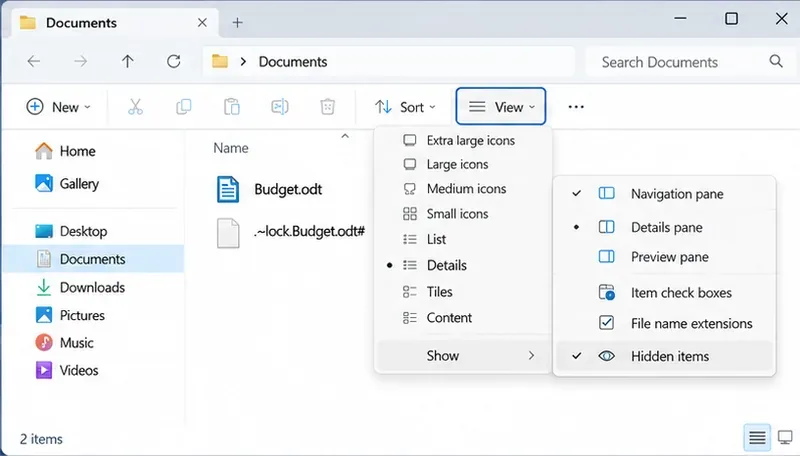
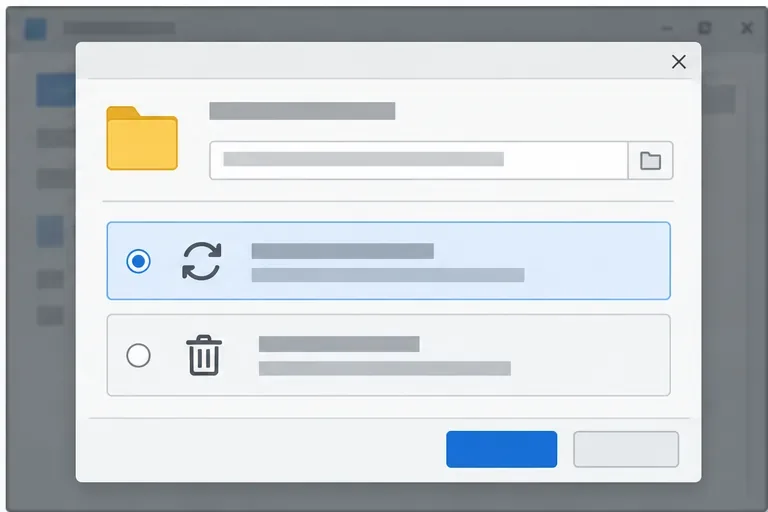
Find the cause of a LibreOffice document lock, safely clear a stale lock file, and confirm that you can edit and save without losing changes.
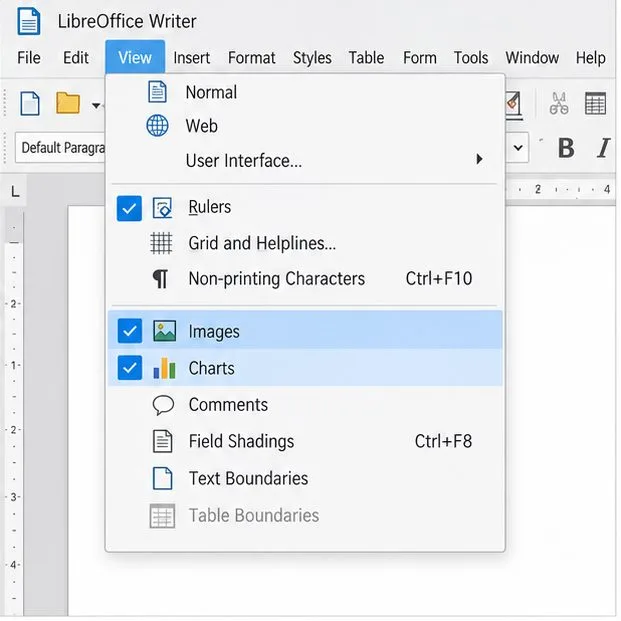
Make image-heavy Writer files easier to edit: test a reversible display setting, compress oversized pictures in a copy, and verify the saved layout.
Find out whether a slow launch comes from extensions, profile settings, or the system, then test the safest fix without losing LibreOffice data.
Connect LibreOffice to Nextcloud over WebDAV, save the server copy with Ctrl+S, and understand how AutoRecovery differs from cloud syncing.
Find out whether Pardus 23 is blocking Bluetooth, missing BlueZ, or failing to detect adapter firmware, then confirm the controller works.
Learn how Gooroom separates trusted and untrusted browsing, what users can change, and how an administrator can safely update site policies.