Enable NVIDIA on Pardus 23 with Its Driver Installer

Use Pardus’s hardware-aware installer to enable the right NVIDIA driver, reboot safely, and verify the active kernel module.
Imagine powering on your PC, only to watch it spiral into an endless cycle of "Preparing Automatic Repair" messages, followed by failed attempts and a return to square one. If you're trapped in the Windows 11 Automatic Repair loop in 2026, you're not alone—this common issue can stem from corrupted files, hardware glitches, or recent updates gone awry. But don't worry; with this focused guide, you'll troubleshoot and resolve it efficiently, getting back to your day without the frustration. We'll walk you through practical, up-to-date steps based on the latest Windows diagnostics, keeping things straightforward so you can follow along effortlessly.
The Automatic Repair feature in Windows 11 is designed as a safety net, kicking in when the system detects boot failures. It scans for issues like damaged system files or driver conflicts and attempts fixes. However, when it gets stuck in a loop—restarting repeatedly without progress—it's often a sign of deeper problems. In 2026, with Windows 11's ongoing updates emphasizing stability (like the latest security patches), this loop might trigger after a forced shutdown, malware infection, or incompatible software.
Key symptoms include:
Stay with us—these insights will empower you to break free. Next, we'll dive into preparation before troubleshooting.
To tackle the troubleshooting Windows 11 Automatic Repair loop, arm yourself with the right tools. First, ensure you have access to another working computer for creating bootable media. You'll need a USB drive (at least 8GB) and the official Windows 11 ISO from Microsoft's site.

Download the Media Creation Tool from Microsoft's official page. This ensures you're using the most current version compatible with 2026 builds. Back up any accessible data if possible—though in a loop, this might require safe mode access later. Ready? Let's move to the fixes.
We'll prioritize non-destructive methods first, escalating only if needed. Follow these in order for the best results. Each step builds on the last, so if one works, you can stop and celebrate! 🚀
Safe Mode loads Windows with minimal drivers, often bypassing the loop. From the Automatic Repair screen:
Once in, open Command Prompt as admin (search for "cmd" in the Start menu). Run these commands one by one:
sfc /scannow
DISM /Online /Cleanup-Image /RestoreHealth
These scan and repair corrupted system files—a common culprit in Windows 11 boot loops. Restart normally after. If it boots, great! If not, proceed.
If Safe Mode fails, boot from your USB media:
Let it run—it targets boot configuration data (BCD) issues. In 2026, this tool has improved AI-driven diagnostics for faster resolutions.
Hard drive errors can trigger loops. From the Recovery Environment's Command Prompt:
chkdsk C: /f /r
Replace C: with your system drive. This scans for bad sectors and fixes file system issues. For SSDs (common in modern PCs), it also optimizes health checks. Patience is key—this can take 30+ minutes.
If disks are fine, corrupted updates might be the issue. In Recovery:
For stubborn cases, boot to Command Prompt and rebuild BCD:
bootrec /fixmbr
bootrec /fixboot
bootrec /scanos
bootrec /rebuildbcd
These commands refresh the Master Boot Record and scan for Windows installations. Pro tip: If you're on a BitLocker-encrypted drive, you'll need your recovery key from your Microsoft account.
Sometimes, the loop signals hardware woes like failing RAM or overheating. Test RAM using Windows Memory Diagnostic (from Advanced options). For drivers, in Safe Mode, use Device Manager to update or roll back recent changes—especially graphics or storage drivers, which often clash post-2026 updates.
If all else fails, consider a clean install from USB, but back up first via external tools like Linux live USB if needed.
Once fixed, protect your setup:
| Tip | Why It Helps | How to Implement |
|---|---|---|
| Regular Updates | Patches fix known boot bugs | Settings > Windows Update > Check for updates |
| Disable Fast Startup | Prevents hybrid shutdown issues | Power Options > Choose what power buttons do > Uncheck |
| Antivirus Scans | Blocks malware-induced corruption | Use Windows Security or trusted third-party |
| Hardware Monitoring | Catche early failures | Tools like HWMonitor for temps and health |
Implementing these keeps your Windows 11 stable. Feeling relieved already? You've got this!
Breaking out of the Automatic Repair loop in Windows 11 doesn't have to be daunting. By following these targeted steps—rooted in the latest 2026 diagnostics—you'll likely resolve it without losing data. If issues persist, reach out to Microsoft Support for personalized help. Your smooth-booting PC awaits; start troubleshooting now and enjoy the win. 👏 What's your next tech adventure?
Use Pardus’s hardware-aware installer to enable the right NVIDIA driver, reboot safely, and verify the active kernel module.
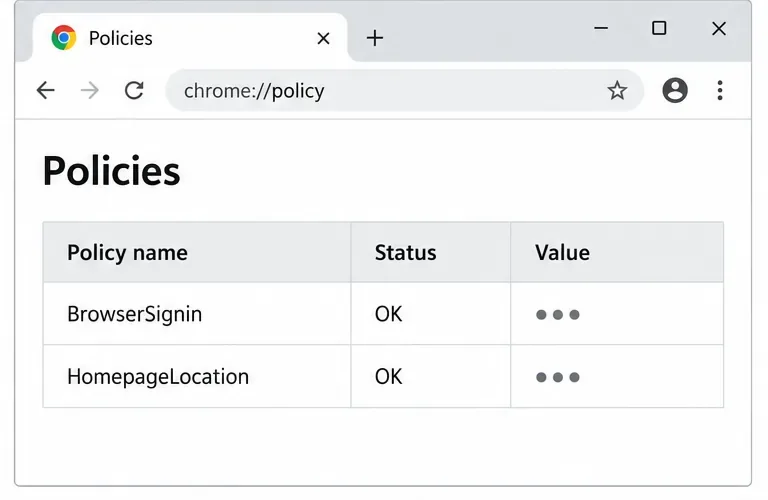
Install the official Chrome package safely on Gooroom OS, check compatibility, preserve device controls, and verify browser policies before use.
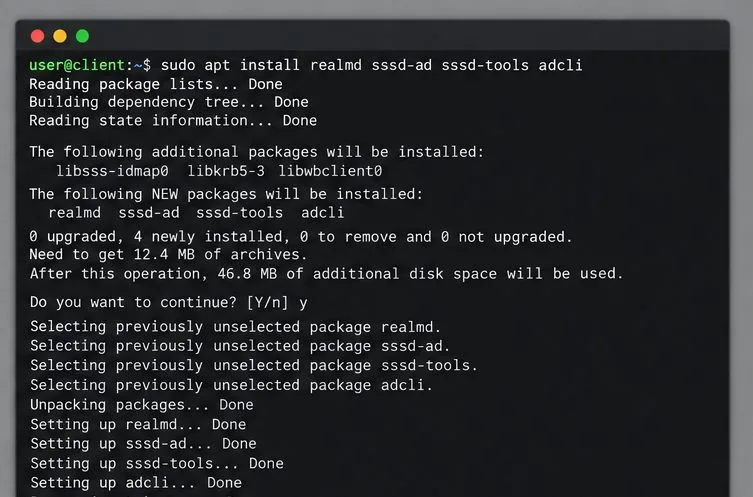
Prepare DNS and time, enroll Pardus with realmd and SSSD, and verify domain membership and user lookup before relying on AD sign-in.
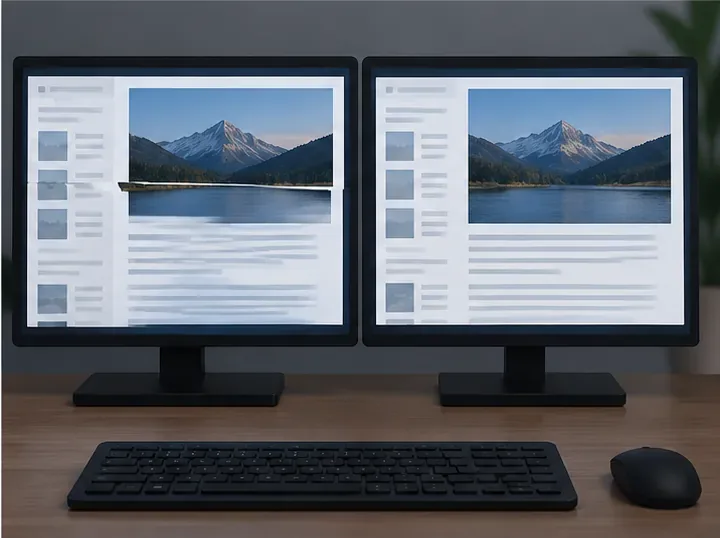
Reduce horizontal tearing in Pardus XFCE by checking your display session, enabling compositor synchronization, and applying Intel’s Xorg TearFree option only when the active driver supports it.
Add an OpenVPN profile to NetworkManager on Pardus, install the right plugin, protect credentials, and verify the VPN is active.
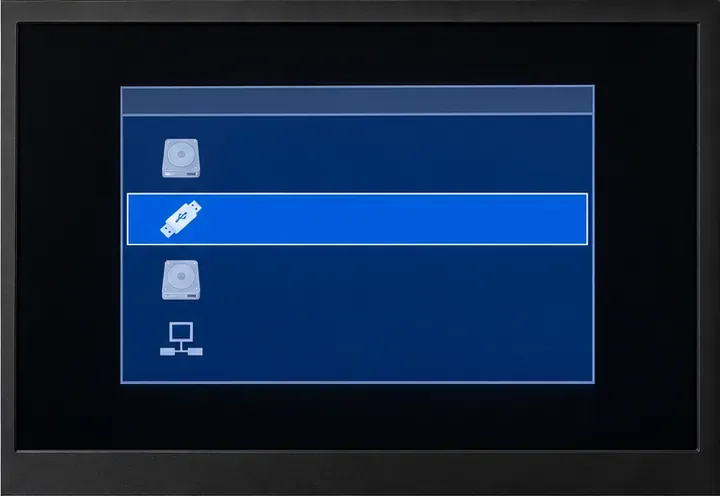
Prepare a bootable USB, check 64-bit hardware compatibility, and install Pardus 23 XFCE while protecting existing files and avoiding common legacy BIOS pitfalls.
Distribute a custom wallpaper to Pardus clients, configure Xfce or GNOME desktops, and apply Lider Ahenk user policies with safe pilot checks.
Fix a 1024 × 768 ceiling by checking SPICE, virtual video, the guest channel, and spice-vdagent—with safe checks when Pardus lacks a package candidate.
Set up the Lider server, configure its installer safely, register Ahenk endpoints, and verify a pilot before expanding central management.
Download the official Pardus 23 desktop ISO, write it safely with Rufus, and boot a Windows PC into a temporary Live session.