Enable NVIDIA on Pardus 23 with Its Driver Installer

Use Pardus’s hardware-aware installer to enable the right NVIDIA driver, reboot safely, and verify the active kernel module.
Imagine your PC suddenly freezing or crashing, and you're left scrambling to recover important settings. That's where a proper Windows 11 registry backup comes in—it's your safety net against system glitches and unexpected errors. As Windows 11 powers more devices with its sleek interface and advanced features, safeguarding the registry (the heart of your system's configuration) is crucial. In this guide, we'll walk you through how to setup Windows 11 registry backup safely, using built-in tools and best practices to keep your data secure. Whether you're a tech newbie or a seasoned user, these steps will empower you to protect your PC with confidence. Let's dive in and ensure your system stays rock-solid! 🚀
The Windows registry is like a massive database storing everything from software settings to hardware configurations. Messing with it without a backup can lead to boot failures or lost customizations. With recent Windows 11 updates enhancing security and performance, backing up the registry has become even more vital to prevent data loss during tweaks or malware attacks.
Setting up a registry backup isn't just about safety—it's about peace of mind. You'll avoid hours of troubleshooting and keep your workflow smooth. Ready to get started? We'll cover manual methods first, then explore automated options for hassle-free protection.

Microsoft's native tools make Windows 11 registry backup straightforward and secure. No third-party software needed for the basics—let's break it down into simple steps. Follow along, and you'll have your backup ready in minutes.
Press Windows key + R to open the Run dialog, type regedit, and hit Enter. This launches the Registry Editor. If prompted by User Account Control (UAC), click Yes. Pro tip: Always run this as an administrator for full access—it's the safest way to avoid permission errors.
In the Registry Editor, go to the menu bar and select File > Export. This is your gateway to creating a safe registry backup. Choose "All" under Export range to capture the entire registry, or select specific branches if you're focusing on certain settings (like HKEY_CURRENT_USER for user-specific data).
Pick a folder on an external drive or cloud-synced location for your backup file (.reg format). Name it something descriptive, like "Windows11_Registry_Backup_[Date]". Avoid saving directly to the system drive to protect against disk failures. Encrypt the file if possible using Windows BitLocker for added security.
After exporting, double-check the file size—it should be several megabytes for a full backup. To test, create a restore point via System Properties (search for "Create a restore point" in the Start menu). This ensures your Windows 11 registry backup integrates with system recovery features.
That's it! You've now set up a basic registry backup. But for ongoing safety, schedule regular exports—Windows Task Scheduler can automate this. Feeling empowered? Let's level up with advanced methods. ⭐
For users tweaking the registry often (think developers or power users), manual backups are just the start. Explore these enhanced strategies to make your setup Windows 11 registry backup safely routine bulletproof.
Windows 11 shines with System Restore, which snapshots the registry alongside other system files. To enable:
This method is ideal because it rolls back the entire system state, not just the registry. If something goes wrong, boot into Safe Mode and restore from there.
For automation pros, PowerShell offers precision. Open PowerShell as admin and run this command to export the registry:
reg export HKLM\SOFTWARE C:\Backups\HKLM_SOFTWARE.regCustomize paths and keys as needed. To schedule, use Task Scheduler: Create a task triggered daily, pointing to your script. This keeps your Windows 11 registry backup fresh without lifting a finger.
While we prioritize native methods, tools like CCleaner or EaseUS Todo Backup can enhance safety with one-click registry exports and integrity checks. Always download from official sites to avoid malware—safety first!
Curious about restoring? We'll cover that next to complete your protection toolkit.
Backups are useless without restoration know-how. If your system acts up, here's how to safely revert using your registry backup.
regedit again.sfc /scannow in Command Prompt (admin) to check for issues.If restoration fails, use System Restore as a fallback. This process minimizes downtime and gets you back on track fast. Remember, test restores periodically to ensure reliability.
To maximize safety, follow these golden rules:
| Practice | Why It Matters | Tip |
|---|---|---|
| Backup Before Changes | Prevents irreversible damage | Always export before editing keys |
| Store Offsite | Protects against hardware failure | Use external HDD or OneDrive |
| Regular Schedules | Keeps backups current | Automate weekly via Task Scheduler |
| Limit Access | Enhances security | Use strong passwords for encrypted backups |
Incorporate these, and your Windows 11 setup will be fortified against common pitfalls. For official guidance, check Microsoft's support docs on registry management.
Even pros slip up—don't let these trip you:
By steering clear, you'll ensure your registry backup is truly safe and effective.
Setting up a Windows 11 registry backup safely is a small step with massive rewards—think fewer headaches and a more reliable PC. You've got the tools and knowledge now; implement them to stay ahead of any system hiccups. If you're tweaking settings or just maintaining your setup, regular backups are your best friend. What's your next move? Start with that first export and feel the security boost! If you have questions, the comments are open—let's keep the conversation going. 👏
Use Pardus’s hardware-aware installer to enable the right NVIDIA driver, reboot safely, and verify the active kernel module.
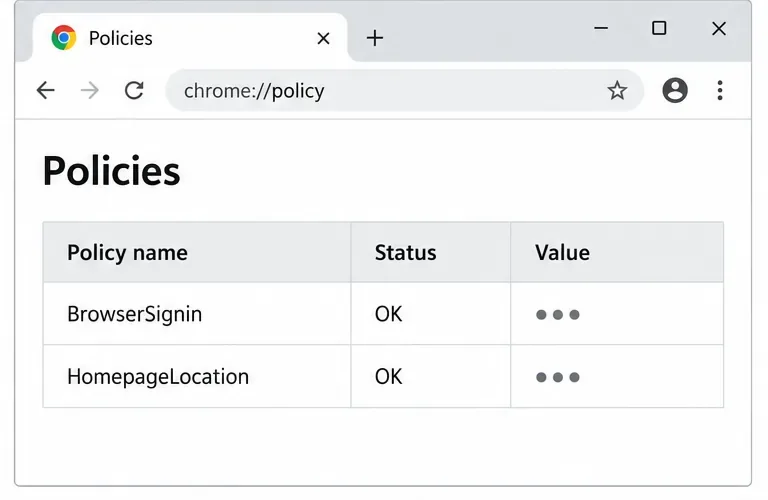
Install the official Chrome package safely on Gooroom OS, check compatibility, preserve device controls, and verify browser policies before use.
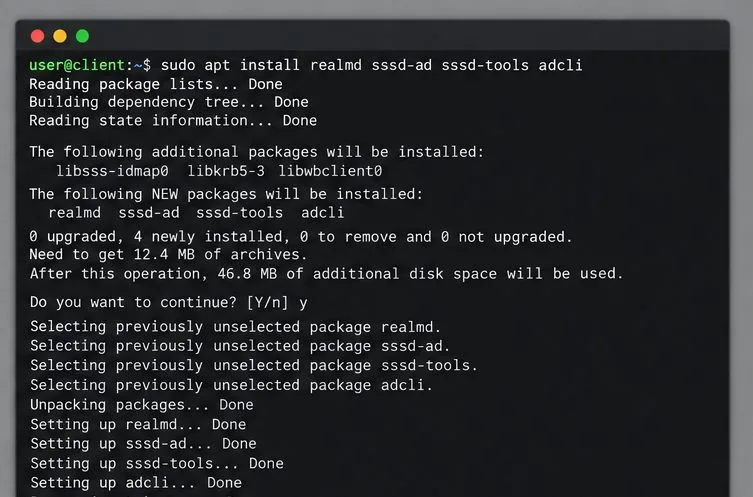
Prepare DNS and time, enroll Pardus with realmd and SSSD, and verify domain membership and user lookup before relying on AD sign-in.
Reduce horizontal tearing in Pardus XFCE by checking your display session, enabling compositor synchronization, and applying Intel’s Xorg TearFree option only when the active driver supports it.
Add an OpenVPN profile to NetworkManager on Pardus, install the right plugin, protect credentials, and verify the VPN is active.
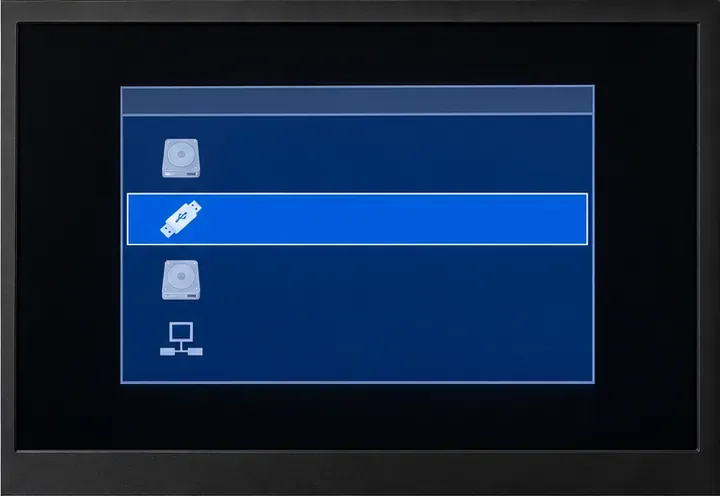
Prepare a bootable USB, check 64-bit hardware compatibility, and install Pardus 23 XFCE while protecting existing files and avoiding common legacy BIOS pitfalls.
Distribute a custom wallpaper to Pardus clients, configure Xfce or GNOME desktops, and apply Lider Ahenk user policies with safe pilot checks.
Fix a 1024 × 768 ceiling by checking SPICE, virtual video, the guest channel, and spice-vdagent—with safe checks when Pardus lacks a package candidate.
Set up the Lider server, configure its installer safely, register Ahenk endpoints, and verify a pilot before expanding central management.
Download the official Pardus 23 desktop ISO, write it safely with Rufus, and boot a Windows PC into a temporary Live session.