Home
» PC Tips
»
How to force time synchronization in Windows using command
How to force time synchronization in Windows using command
Sometimes Windows can act strangely and display the wrong time. This is especially true if you’re dual booting or if some programs are messing with the time settings. If this ever happens to you, you can force Windows to sync the time with a single command.
Note:
You must be logged in as an admin to be able to synchronize your PC's time.
If your PC is on a domain, you can't synchronize your time with an Internet time server using Internet Time Settings. Instead, your clock automatically synchronizes with your domain controller. You can still use the time sync command in Command Prompt to manually synchronize with your domain controller at any time.
Windows time synchronization command
To force time sync in Windows using Command Prompt, all you have to do is execute a single command line.
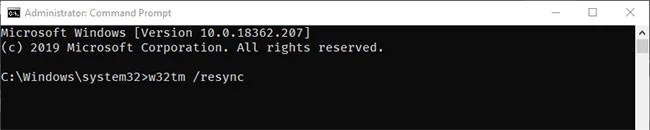
In the Command Prompt window , execute the command:
w32tm /resync
As soon as you execute the command, Windows will resynchronize the time based on your current time zone. In case you are wondering, the time zone is set automatically based on your location. Additionally, the time details are updated from the default time.windows.com server (Windows Internet Time Server).
Windows time synchronization command
If your Windows system is on a domain, the above command may not work. In those situations, use the command:
w32tm /domain
Note : Sometimes you may see the error "The computer did not resync because no time data was available”. This is quite common. Especially in Windows 7 and 8. Just try to execute the command multiple times and it will eventually work.
Use custom time server
As mentioned before, Windows uses time.windows.com as the default time server. If that time server doesn’t work for you or if you want to use some other custom time server, you can do that too.
Open Command Prompt with admin rights and execute the following command. Don't forget to replace time.server.url.com with the actual time server URL. You can use the NTP Pool Project (https://www.ntppool.org/zone/@) to find the time server addresses for different countries and locations.
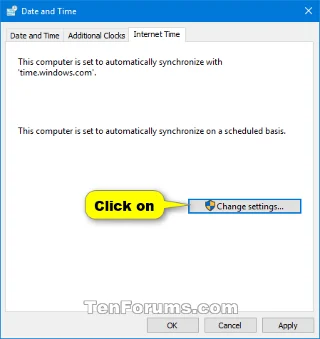
2. Click the Internet Time tab and click the Change settings button.
Note:
This will also show you the date and time when the clock was last successfully synchronized, along with the name of the Internet server used.
If your PC is on a domain, you won't have an Internet Time tab.
Click the Internet Time tab and click the Change settings button
3. If prompted by UAC, click Yes to confirm.
4. Check the Synchronize with an Internet time server box , select a time server and click Update now.
Check the Synchronize with an Internet time server box, select a time server and click Update now
5. If an error occurs, click Update now again to see if it can sync successfully now. If the date or time on your PC is set too inaccurately, it may cause an error when trying to sync the time.
If an error occurs, click Update now again to see if it can sync successfully now.
6. When the time is successfully synchronized, tap OK.
7. Click OK.
Synchronize time with Internet Time Server in Settings
Alternatively, you can also sync the time through Windows 10's Settings app . In fact, compared to Command Prompt or Control Panel , the new options in the Settings app are much easier to access and use.
To sync time via the Settings app , first open the Settings app by pressing the Win+ shortcut I.
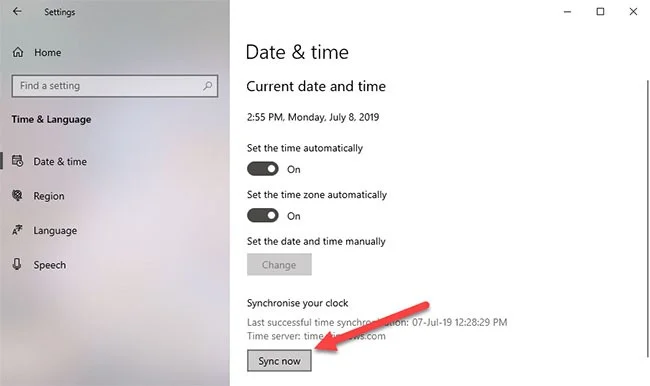
In the Settings app , go to Time & Language > Date & Time . On the right, click the Sync button under Synchronize your clock .
Click the Sync button in the Synchronize your clock section
As soon as you click this button, Windows will synchronize the time. Again, as mentioned before, Windows uses the default time server to synchronize the time. If you want to synchronize the time through a custom time server, use the above command to synchronize the Windows time. At the time of this writing, the Settings app does not have an option to change the default time server.