Couples Costume Ideas for 2026: Iconic Pairs and Clever Tropes

Find a couples costume that fits your style, budget, and comfort level, from Addams Family classics to original inside-joke duos.
Listening to Hi-Res music doesn't have to be expensive. With a few smart choices and simple upgrades, you can dramatically improve your audio experience without spending a fortune on expensive equipment.
Table of Contents
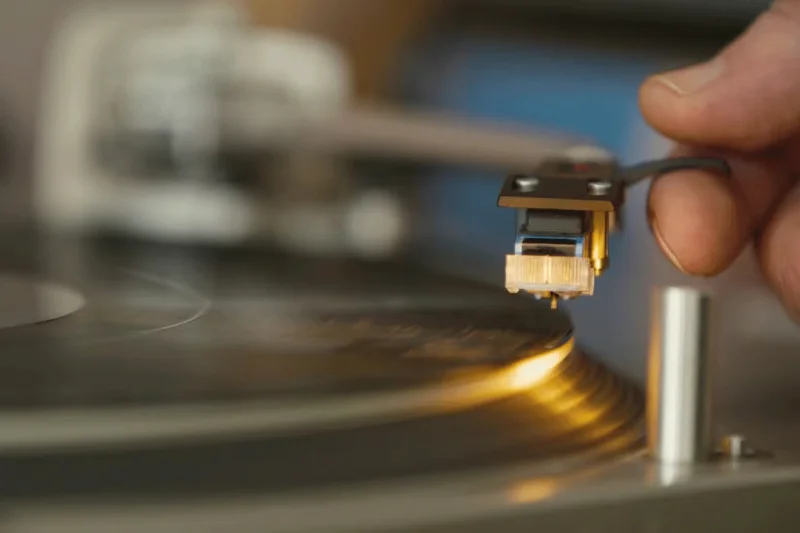
If the audio itself is highly compressed, expensive hardware or a professionally installed audio setup is not an issue. There are many different audio formats. If you want to listen to Hi-Res music, you have to listen to lossless audio formats.
While compressed audio formats like MP3 and M4A require less storage space and are available in all music streaming apps, you'll have to skip them if you want to enjoy high-resolution music.
Use lossless audio formats like FLAC , ALAC , or WAV . These audio formats require more storage space because they are uncompressed and contain more data. You can find lossless music on streaming services like Amazon Music HD , Tidal , and Apple Music .
Make sure your playback device supports these formats. Many modern devices do, so this upgrade may not cost you anything extra.
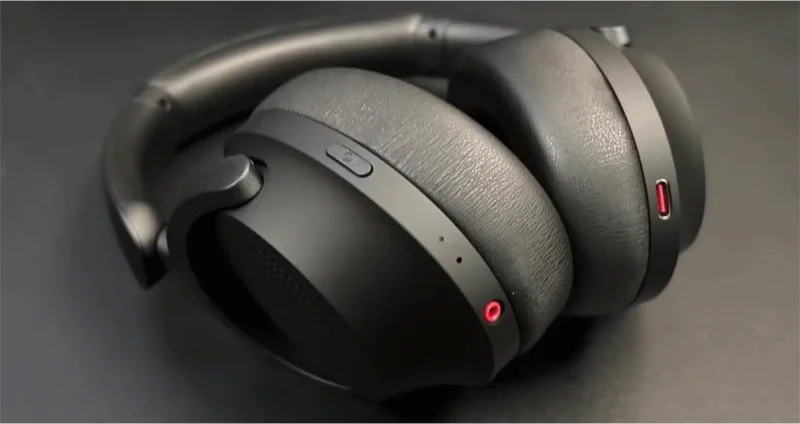
The original ear pads on most headphones are made of cheap, wear-and-tear materials. Replacing them can significantly improve comfort and sound quality. Look for memory foam ear pads with a velvet coating for better balance and durability. Then, experiment and test to find the pads that fit your head and create a tight seal around your ears. This will improve bass response and reduce outside noise that can interfere with your listening experience.
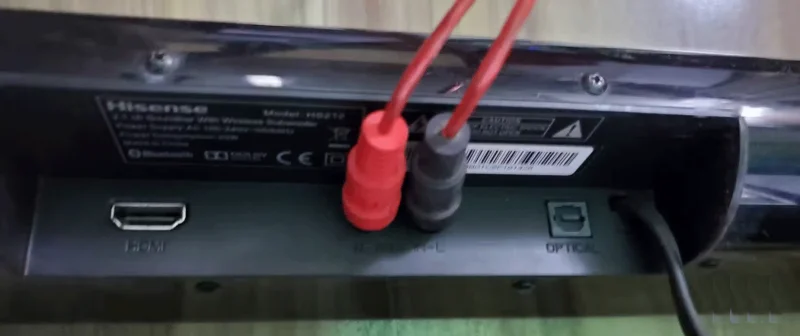
Most Bluetooth audio devices compress music to reduce signal bandwidth and deliver a consistent experience. This ensures faster response times and longer battery life. While convenient, compression reduces audio resolution. Many higher-end wireless headphones and speakers support LDAC, but unless you’re willing to pay for it, you’ll want to stick with a wired connection when playing Hi-Res music.
No audio device sounds perfect out of the box. Equalizer (EQ) software lets you tweak audio frequencies and customize your listening experience. You can start with free EQ tools like Equalizer APO (Windows) or eqMac (macOS). Many smartphones also have built-in EQ settings.
Boost the bass for electronic or hip-hop tracks and boost the treble for classical or acoustic tracks. When using EQ on Hi-Res audio, keep in mind that too much bass can make the treble sound muddy, and too much treble can make the sound harsh or unpleasant to listen to over time. Aim for a balanced approach that complements your audio type and personal preferences. Experiment with small adjustments and test them on different tracks to find the ideal setting for your ears.
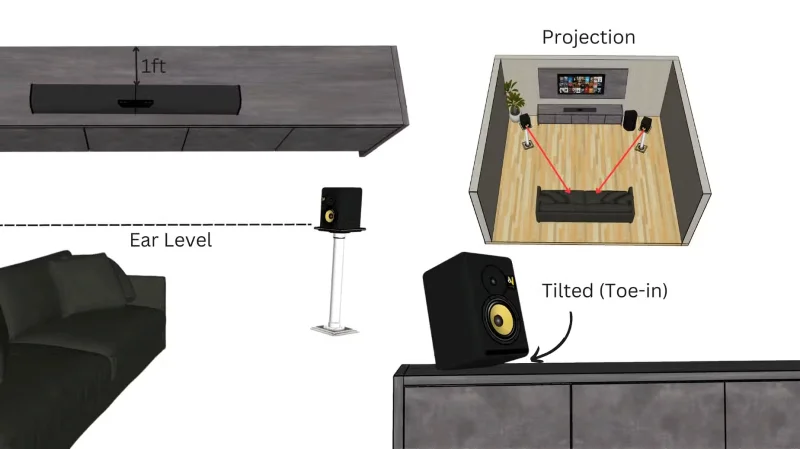
Speaker placement has a huge impact on sound quality. Even the best speakers won’t work well if they’re not placed properly. Here’s how you want to place your speakers:
Experiment with different positions until you find the layout that works best for your room.
Cheap speakers often vibrate or resonate, which distorts the sound. Adding damping material inside can help reduce these problems. You’ll need to open up the speaker’s cabinet/case and line the inside with foam or polyfill. These materials absorb unwanted vibrations, creating a cleaner sound.
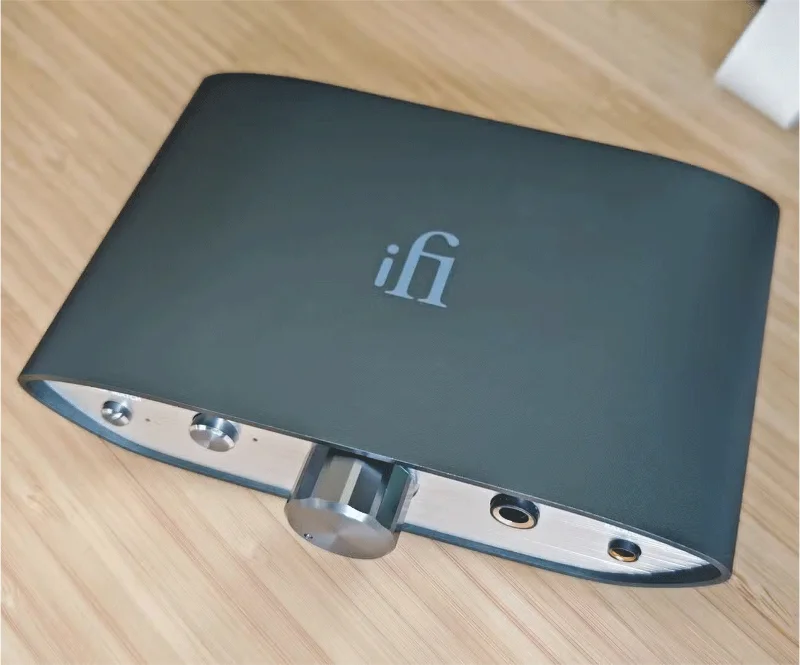
If you’ve done everything on this list and you’re still not happy with the sound quality, you’ll need to buy a dedicated DAC (Digital-to-Analog Converter). Most built-in DACs in phones and laptops prioritize cost over performance, which can impact sound quality. Upgrading to a dedicated DAC can transform your listening experience.
A good DAC uses “audio-specific components,” making them the most expensive upgrade on this list. However, some DACs are relatively cheap for what they offer. For an affordable DAC, check out the FiiO JadeAudio KA3 for phones and laptops, or the AIYIMA+DAC+A1 for speaker setups.
Improving the sound quality of your music doesn't have to be a huge budget. Try these tips and rediscover your favorite songs in a whole new way! Great sound doesn't have to require expensive equipment; it's about making the most of what you have.
Find a couples costume that fits your style, budget, and comfort level, from Addams Family classics to original inside-joke duos.
Need a last-minute high school Halloween costume? Compare 10 easy closet-based ideas by prep time, comfort, school-day practicality, and simple safety checks.
Use a simple 2026 Halloween decorating timeline for indoor décor, outdoor displays, and fresh pumpkins, with practical adjustments for weather and events.
Mix five vivid, approachable Halloween cocktails with measured recipes, simple prep tips, and an alcohol-free option for your party guests.
Find 15 office-friendly Halloween costume ideas for 2026, with practical checks for dress codes, respectful themes, comfort, and workplace safety.
Plan a fun elementary school Halloween party with easy crafts, games, inclusive treats, costume tips, and a sample 75-minute classroom schedule.
Compare realistic side hustles for 2026 by startup cost, fees, flexibility, and income control, with current tax and scam guidance from official sources.
Upgrade your home office ergonomics with current OSHA and NIOSH guidance on chair fit, monitor height, laptop setup, lighting, and movement.
Learn why emotional intelligence matters in leadership, where it helps most, how to strengthen it, and how to tell whether your approach is working.
A practical roadmap for moving into tech without a degree: choose an accessible role, build job-ready skills, prove them with projects, and use hiring feedback to improve.








