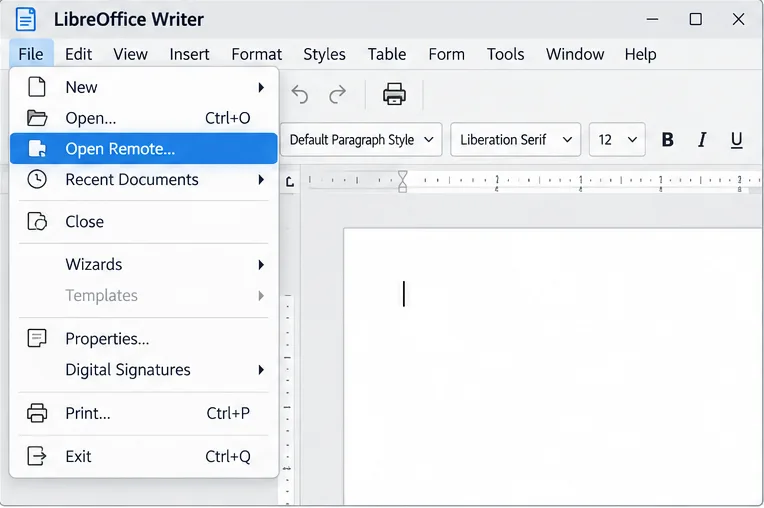
Speed Up LibreOffice Startup on Windows 11 and Linux
Find out whether a slow launch comes from extensions, profile settings, or the system, then test the safest fix without losing LibreOffice data.
Are you diving into Java development on Windows 11 and hitting roadblocks with environment variables? Don't worry! Setting up the JAVA_HOME environment variable is a crucial step that ensures your Java applications run smoothly. Whether you're a beginner developer or troubleshooting an existing setup, this guide will walk you through the process with clarity and precision. By the end, you'll have your Java environment configured perfectly, saving you time and frustration. Let's get started! 🚀
Before we jump into the steps, let's quickly cover why JAVA_HOME matters. This environment variable points to your Java Development Kit (JDK) installation directory, allowing tools like Maven, Gradle, and even your IDE to locate Java executables without hassle. On Windows 11, with its modern interface and enhanced security, getting this right prevents common errors like "JAVA_HOME is not defined" or path mismatches.
Imagine launching your first Java project without compilation issues— that's the peace of mind JAVA_HOME brings. It's especially vital in the latest Windows 11 updates, where system paths are more streamlined but still require manual tweaks for optimal performance.
To set up JAVA_HOME correctly, ensure you have:
java -version. You should see output like "openjdk version '21.0.1'".If Java isn't installed yet, head over to the Oracle JDK downloads or Adoptium for a free, open-source option. Installation is straightforward—just run the .exe and note the install path (usually C:\Program Files\Java\jdk-21).

Now, the heart of our guide. Follow these steps meticulously to configure JAVA_HOME on Windows 11. We'll use the built-in System Properties interface, which is reliable and user-friendly.
1️⃣ Open File Explorer (Win + E).
2️⃣ Navigate to the Java installation directory, typically C:\Program Files\Java\jdk-[version]. For example, if you installed JDK 21, it might be C:\Program Files\Java\jdk-21.
3️⃣ Right-click the JDK folder, select Properties, and copy the full path from the Location field. This is your JAVA_HOME value—something like C:\Program Files\Java\jdk-21. Avoid including \bin here; that's for the PATH variable.
Pro Tip: If you're using multiple Java versions, tools like SDKMAN! can help manage them, but for a standard setup, stick to one primary JDK.
1️⃣ Right-click the Start button (or press Win + X) and select System.
2️⃣ Click About on the right sidebar.
3️⃣ Under "Related links," click Advanced system settings. This opens the System Properties window.
4️⃣ In the window, click the Environment Variables button at the bottom.
Windows 11 makes this interface snappier than ever, with dark mode support if you're in that vibe. If you're on a laptop, ensure you're plugged in to avoid interruptions.
In the Environment Variables window:
1️⃣ Under "System variables" (bottom section), scroll and look for JAVA_HOME. If it exists, select it and click Edit. If not, click New.
2️⃣ In the Edit (or New) window:
C:\Program Files\Java\jdk-21)3️⃣ Click OK to save.
Feeling good? This step locks in your Java root directory. Double-check for typos—paths are case-sensitive on some tools.
JAVA_HOME alone isn't enough; you need to link it to your system's PATH for commands like javac to work globally.
1️⃣ Still in Environment Variables, under "System variables," find and select Path, then click Edit.
2️⃣ Click New and add %JAVA_HOME%\bin. This dynamically references your JAVA_HOME path.
3️⃣ If there's an existing Java path (like C:\Program Files\Java\jdk-21\bin), remove it to avoid conflicts—let %JAVA_HOME%\bin handle it.
4️⃣ Click OK on all windows to apply changes.
Why %JAVA_HOME%\bin? It's flexible—if you update Java versions, you only change JAVA_HOME, and PATH updates automatically. Smart, right? 😊
Time to test! Close all Command Prompts or PowerShell windows (new ones inherit changes).
1️⃣ Open a new Command Prompt (Win + R, type cmd, Enter).
2️⃣ Type echo %JAVA_HOME%—it should display your JDK path.
3️⃣ Run java -version and javac -version—both should show your Java version without errors.
4️⃣ For extra assurance, type
If everything checks out, congratulations! 🎉 Your Windows 11 Java environment is ready for action. If Even with a solid guide, hiccups happen. Here's how to fix them: These tips should cover 90% of issues. For deeper dives, the official Oracle Java installation docs are gold—always up-to-date for the latest releases. With JAVA_HOME set, level up your setup: These enhancements will make your development experience feel effortless and professional. Ready to code your next big project? Setting the JAVA_HOME environment variable in Windows 11 is a game-changer for any Java enthusiast. You've now got the tools to avoid setup headaches and focus on what you love—building amazing applications. If you run into snags or have tips to share, drop a comment below. Happy coding! 🌟 Stay tuned for more Windows 11 dev guides—we're just getting started.where java to confirm it points to your JAVA_HOME%\bin\java.exe.java isn't recognized, restart your PC or log out/in—Windows 11 sometimes needs a nudge.Common Pitfalls and Troubleshooting Tips
Issue
Solution
JAVA_HOME not recognized
Ensure no trailing slashes in the path. Restart your terminal and check with
echo %JAVA_HOME%.
Multiple Java versions conflicting
Use
where java to identify duplicates. Edit PATH to prioritize %JAVA_HOME%\bin. Consider jEnv or similar tools for management.
Permission errors on Windows 11
Run as admin when editing variables. If UAC blocks, temporarily disable it (not recommended long-term).
IDE not picking up JAVA_HOME (e.g., IntelliJ, Eclipse)
In your IDE settings, explicitly set the JDK path to match JAVA_HOME. Restart the IDE.
Advanced Tips: Enhancing Your Java Workflow on Windows 11
%JAVA_HOME%\bin to its config if needed. Gradle auto-detects it—test with gradle --version.export JAVA_HOME=/mnt/c/Program Files/Java/jdk-21.Conclusion: Master JAVA_HOME and Unlock Java's Potential
Find out whether a slow launch comes from extensions, profile settings, or the system, then test the safest fix without losing LibreOffice data.
Connect LibreOffice to Nextcloud over WebDAV, save the server copy with Ctrl+S, and understand how AutoRecovery differs from cloud syncing.
Find out whether Pardus 23 is blocking Bluetooth, missing BlueZ, or failing to detect adapter firmware, then confirm the controller works.
Learn how Gooroom separates trusted and untrusted browsing, what users can change, and how an administrator can safely update site policies.
Diagnose rotated, offset, or inconsistent touch input on a Harmonica OS tablet and choose a Linux calibration method that fits its session and driver.
Switch Gooroom’s desktop session to English, verify the locale, and identify when untranslated Korean labels need an app update instead.
Arrange Pardus XFCE as a familiar bottom taskbar with an app menu, pinned launchers, open-window buttons, and a system tray.
Check your Gooroom release and administrator rules, then follow the official Debian-based setup path for Flatpak or Snap without bypassing system controls.
Learn what Pardus Image Writer can do, how to prepare installation USB safely, and which tools fit custom live images or repeatable fleet deployments.
Install Pardus alongside Windows 11 by shrinking the Windows volume, using unallocated space, and preserving the existing EFI System Partition.