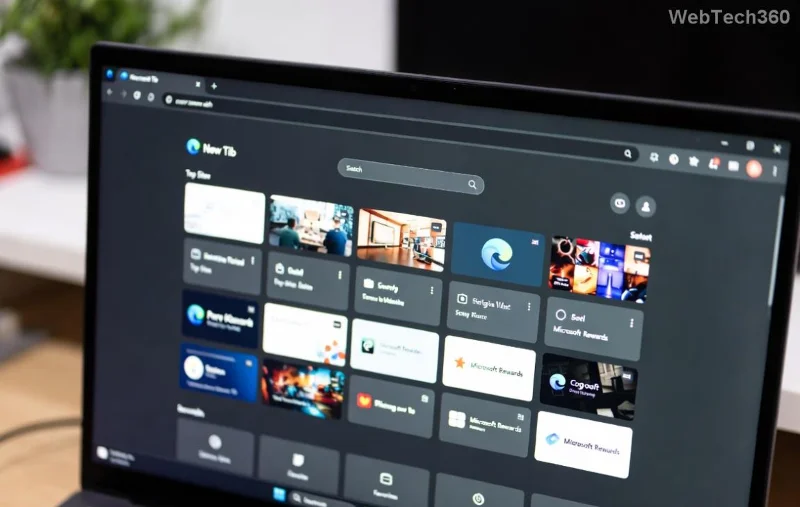
Are you fed up with Microsoft Edge reinstalling automatically every time you delete it? 😤 You're not alone. This stubborn browser keeps coming back via Windows Updates or system processes, frustrating millions of users. But don't worry— we've got your back with proven, safe methods that work on the latest Windows versions. Follow these steps to reclaim control and enjoy a clutter-free PC. Let's dive in and banish Edge for good! 👍
Why Does Microsoft Edge Reinstall Automatically?
Microsoft bundles Edge deeply into Windows. It reinstalls through:
- Windows Updates (especially Edge WebView2 runtime).
- EdgeUpdate service running in the background.
- System reset or feature updates.
Understanding this helps you target the root cause. Now, let's fix it step-by-step. These methods are tested on current Windows builds—no guesswork.
Method 1: Complete Uninstall + Block Edge Updates (Easiest for Home Users)
This stops Microsoft Edge from reinstalling automatically by removing it fully and disabling its updater. Perfect for Windows 10/11 Home.
- ✅ Uninstall Edge: Go to Settings > Apps > Installed apps. Search "Microsoft Edge," click the three dots, and select Uninstall. Repeat for all Edge versions (stable, beta, etc.).
- 🔒 Kill EdgeUpdate Service: Press Win + R, type
services.msc. Find "Microsoft Edge Update service," right-click > Properties > Stop > Set Startup type: Disabled.
- 🛡️ Registry Tweak (Power User): Open Registry Editor (Win + R >
regedit). Navigate to HKEY_LOCAL_MACHINE\SOFTWARE\Microsoft\EdgeUpdate. Create DWORD DoNotUpdateToEdgeWithChromium = 1. Also add under HKEY_LOCAL_MACHINE\SOFTWARE\WOW6432Node\Microsoft\EdgeUpdate.
- 📂 Delete Remnants: Navigate to
C:\Program Files (x86)\Microsoft\Edge\Application and %LOCALAPPDATA%\Microsoft\Edge. Delete folders (take ownership if needed).
Reboot and test—no more auto-reinstalls! If Edge sneaks back, proceed to advanced methods.
Method 2: Group Policy Editor (Pro/Enterprise Power Move)
For Windows Pro or higher, Group Policy is your best friend to prevent Microsoft Edge auto reinstall.
- Press Win + R >
gpedit.msc.
- Navigate: Computer Configuration > Administrative Templates > Windows Components > Microsoft Edge Update.
- Enable Update policy override default > Set to Updates disabled.
- Bonus: Under Windows Update > Manage updates offered from Windows Update > Enable Do not include drivers with Windows Updates (blocks Edge bundles).
| Policy Path | Setting | Effect |
|---|
| Microsoft Edge Update | Updates disabled | Blocks all Edge reinstalls |
| Windows Components/AppRuntime | Block non-admin app installs | Prevents WebView2 auto-install |
| Windows Update | Select when updates install | Manual control over Edge pushes |
This locks it down enterprise-style. 💪 Pro tip: Apply to both User and Computer configs for full coverage.
Method 3: PowerShell Script for Total Annihilation
Want automation? Use this script to stop Microsoft Edge from reinstalling automatically forever.
iwr -useb https://raw.githubusercontent.com/OttoYiu/edge-about-blank/master/edgeaboutblank.ps1 | iex
Or custom script:
- Run PowerShell as Admin.
Get-AppxPackage *edge* | Remove-AppxPackageStop-Service -Name "MicrosoftEdgeUpdate" -Force- Set-Service -Name "MicrosoftEdgeUpdate" -StartupType Disabled
For WebView2 (common culprit): wmic product where name='Microsoft Edge WebView2 Runtime' call uninstall.
![PowerShell commands and Group Policy screenshots to block Microsoft Edge from reinstalling automatically]()
Method 4: Block via Hosts File & Firewall (Nuclear Option)
Extra layer: Edit C:\Windows\System32\drivers\etc\hosts (Admin Notepad):
127.0.0.1 edgeupdates.microsoft.com
127.0.0.1 msedge.api.cdp.microsoft.com
Firewall: Block outbound for EdgeUpdate.exe in Windows Defender Firewall.
Troubleshooting Common Issues
- ❌ Still Reinstalling? Check for pending Windows Updates—pause them via Settings > Update & Security.
- Safe Mode Uninstall: Boot to Safe Mode for stubborn remnants.
- WebView2 Persists: Use Microsoft's WebView2 docs for manual removal.
Final Thoughts: Freedom Achieved! 🎉
Congrats—you've mastered how to stop Microsoft Edge from reinstalling automatically! Pick Method 1 for quick wins or combine for ironclad protection. Your PC feels lighter already, right? 😊 Stay vigilant with updates, and if issues pop up, revisit these steps. Share your success in comments below—what browser are you switching to? Chrome? Firefox? Let's keep the conversation going!
These fixes are based on latest Windows behaviors and Microsoft policies. Always back up Registry before edits.