Couples Costume Ideas for 2026: Iconic Pairs and Clever Tropes

Find a couples costume that fits your style, budget, and comfort level, from Addams Family classics to original inside-joke duos.
Apple has released its own event management app called Invites. This app allows you to create events, send invitations, and manage RSVPs. The person who responds and receives the invitation does not need to have an Apple device or an Apple account to respond. Here's how to use Apple Invites to manage events.
How to use Apple Invites to create events
Note, to create an event you need the Apple Invites app from the App Store. You also need to sign up for iCloud+ to create a new event.
Step 1:
You download the Apple Invites app for iPhone from the link below.
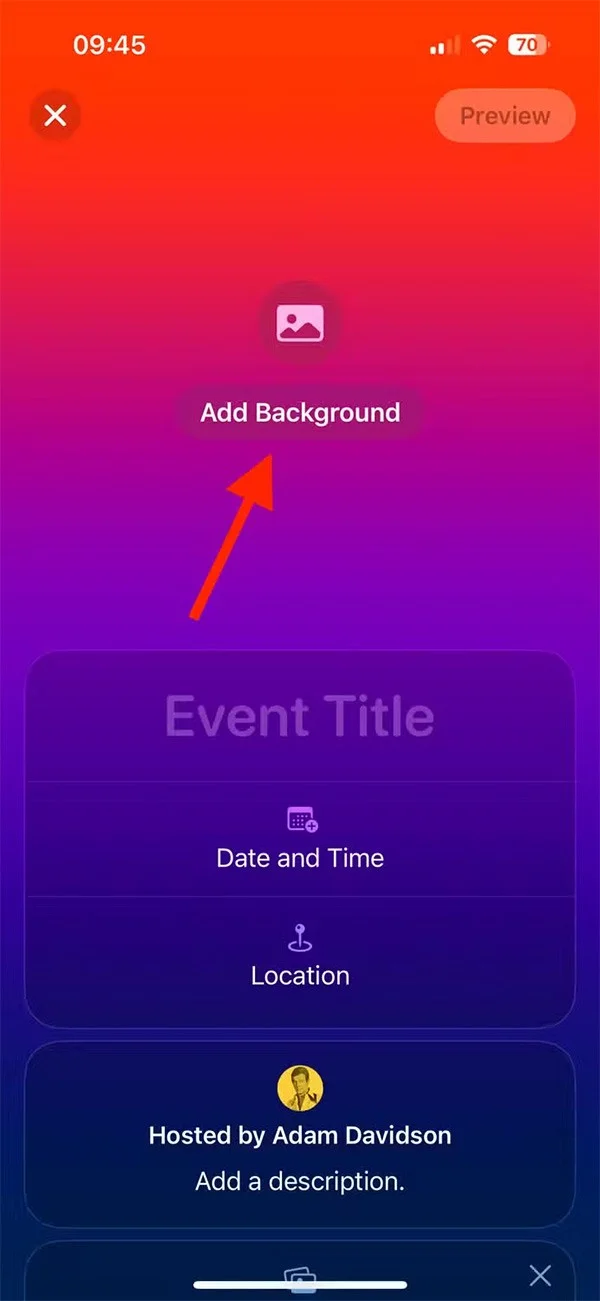
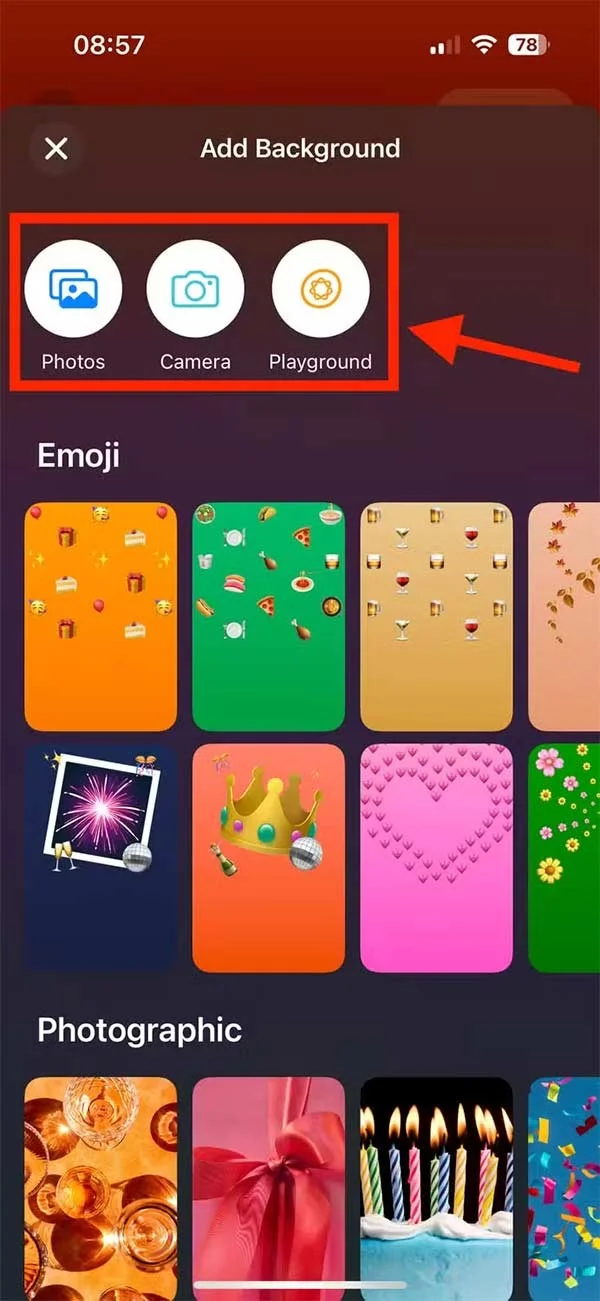
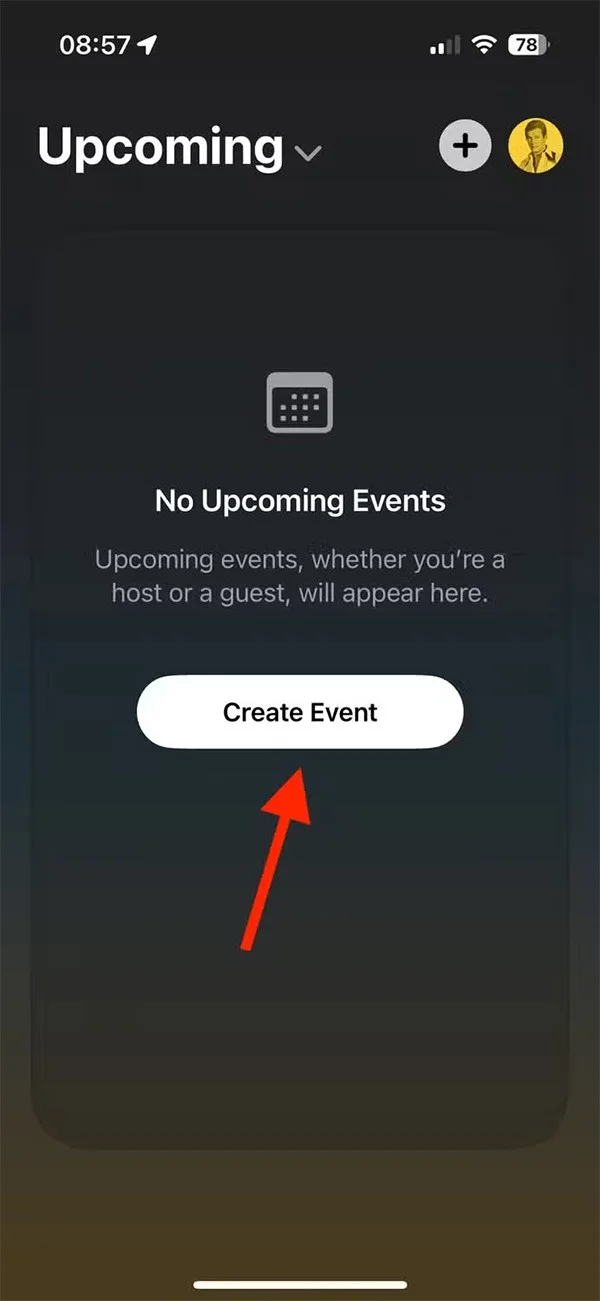
Next, open the app and click Create Event and then click Add Background to create a background for the invitation. Users can choose a pre-made background or click your own background.
Step 2:
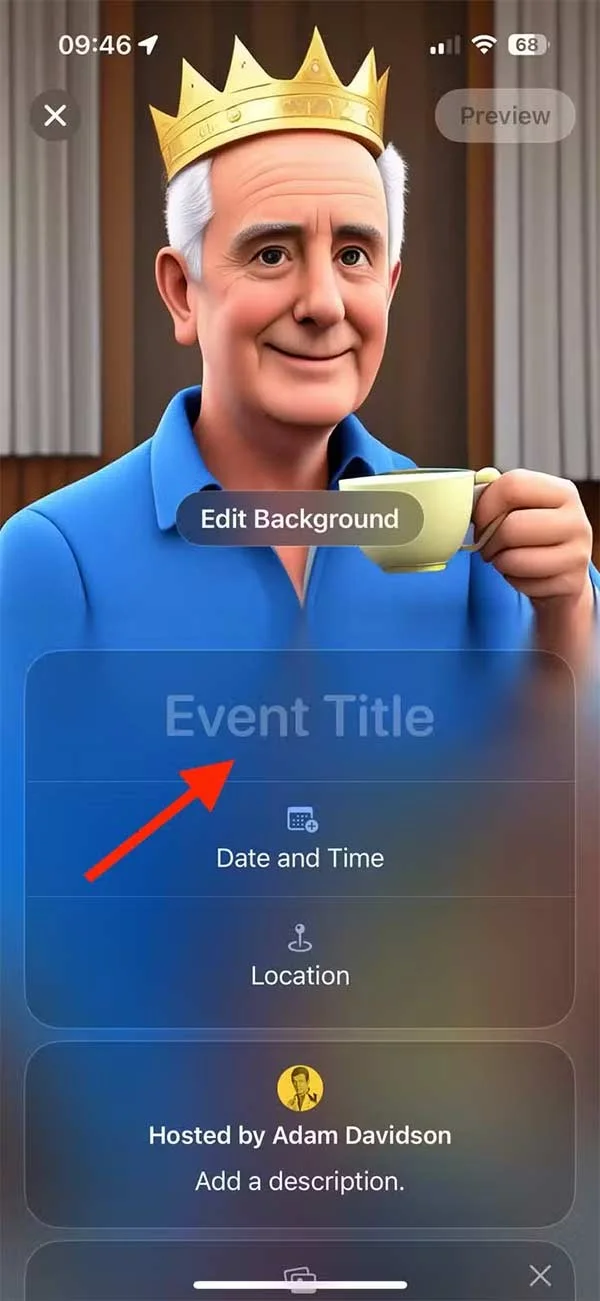
After creating the wallpaper, we fill in the event name , time , or location .
Step 3:
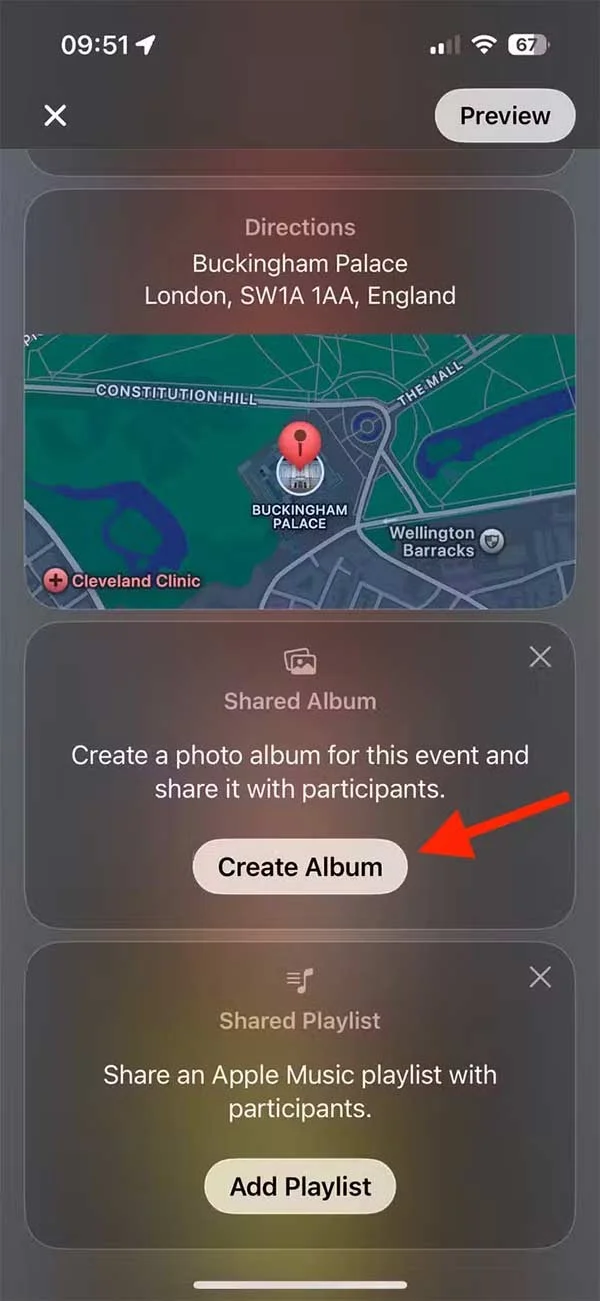
In the event customization interface, users also have the option to add a shared photo album to their event. This allows you and other invitees to upload photos that everyone who receives an invitation can see.
Tap Create Album and give the app access to your photos. Then tap Add Photos and select the photos you want to add to the album and tap Post to post.
Step 4:
Next you set up a shared Apple Music playlist for the event, but the recipient needs to have an Apple Music account.
Step 5:
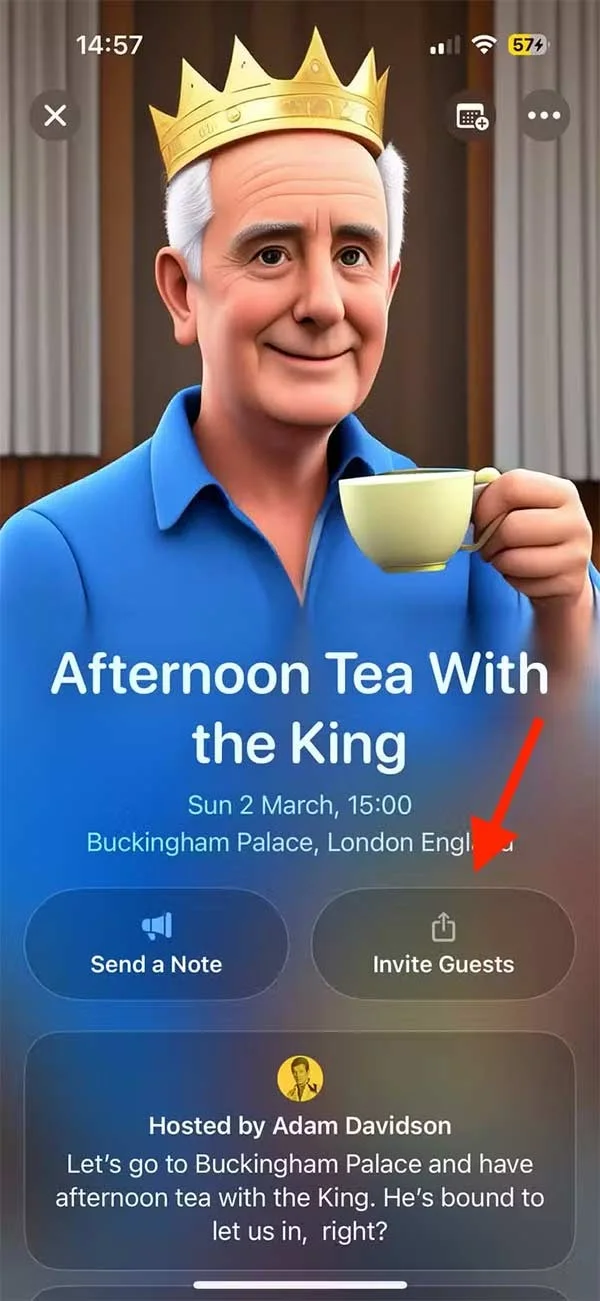
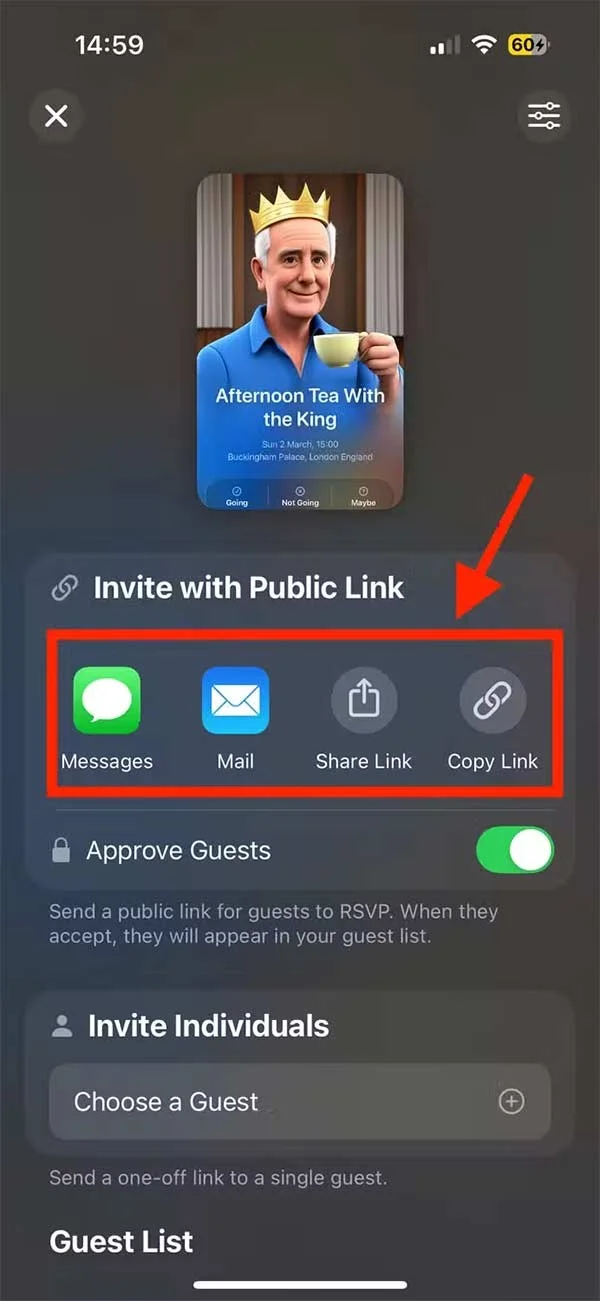
After setting up the event, click Next to move to the next step, click Invite Guests to invite others. Now there are options to send the event as shown. Approve Guests will activate the respondent mode.
Step 6:
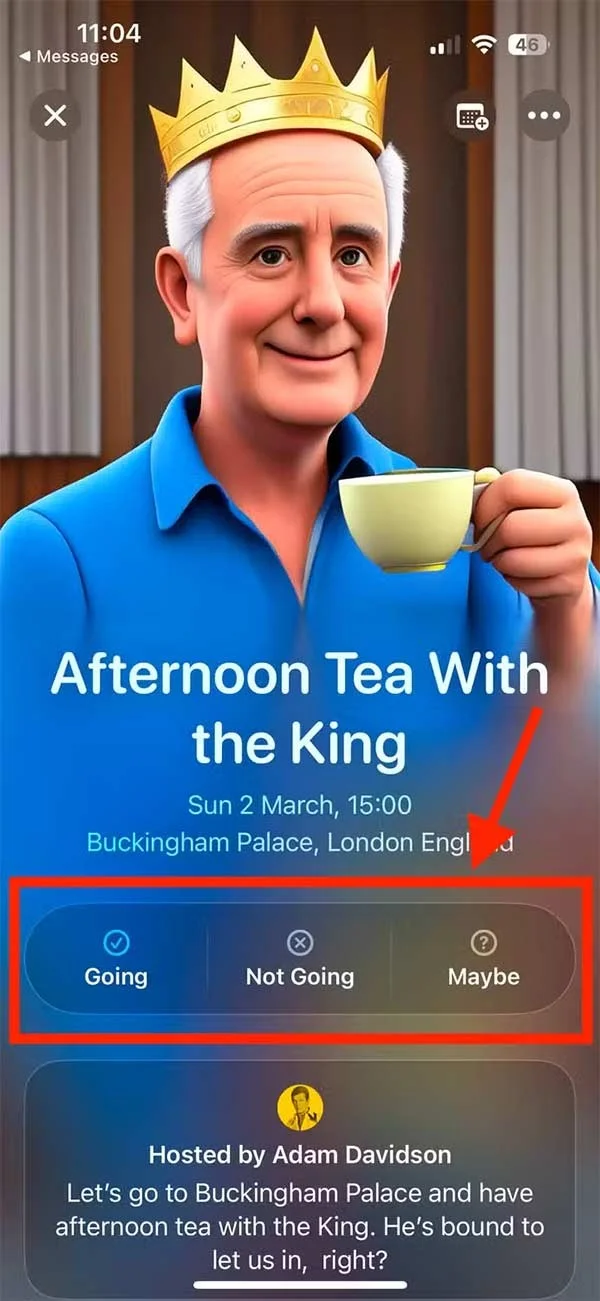
The invitation recipient taps Open Invitation to view the invitation and taps Going, Not Going, or Maybe to respond.
Find a couples costume that fits your style, budget, and comfort level, from Addams Family classics to original inside-joke duos.
Need a last-minute high school Halloween costume? Compare 10 easy closet-based ideas by prep time, comfort, school-day practicality, and simple safety checks.
Use a simple 2026 Halloween decorating timeline for indoor décor, outdoor displays, and fresh pumpkins, with practical adjustments for weather and events.
Mix five vivid, approachable Halloween cocktails with measured recipes, simple prep tips, and an alcohol-free option for your party guests.
Find 15 office-friendly Halloween costume ideas for 2026, with practical checks for dress codes, respectful themes, comfort, and workplace safety.
Plan a fun elementary school Halloween party with easy crafts, games, inclusive treats, costume tips, and a sample 75-minute classroom schedule.
Compare realistic side hustles for 2026 by startup cost, fees, flexibility, and income control, with current tax and scam guidance from official sources.
Upgrade your home office ergonomics with current OSHA and NIOSH guidance on chair fit, monitor height, laptop setup, lighting, and movement.
Learn why emotional intelligence matters in leadership, where it helps most, how to strengthen it, and how to tell whether your approach is working.
A practical roadmap for moving into tech without a degree: choose an accessible role, build job-ready skills, prove them with projects, and use hiring feedback to improve.








