Ever scrolled endlessly through a webpage, wishing you could snag the entire page in one crisp screenshot? Say goodbye to fragmented images and hello to Microsoft Edge Web Capture – the built-in powerhouse that makes capturing full-page screenshots a breeze. Whether you're documenting articles, creating tutorials, or sharing long threads, this tool saves time and delivers pro-level results. Ready to dive in? Let's capture magic! ⭐
What is Microsoft Edge Web Capture and Why It Beats Traditional Screenshots
Microsoft Edge Web Capture is Edge's native tool (powered by the latest Chromium engine) for grabbing full-page screenshots without extensions or third-party apps. Unlike basic snipping tools that miss scrollable content, it automatically stitches the whole page – headers, footers, everything – into a single, editable image.
- ✅ Instant full-page capture: No manual scrolling required.
- ✅ Built-in editor: Crop, annotate, and highlight on the spot.
- ✅ Seamless sharing: Copy to clipboard, save as PNG, or send to OneDrive/Teams.
- ✅ Privacy-focused: Captures only what you see, no data sent externally.
Pro tip: It's faster and lighter than browser extensions, perfect for quick workflows. Now, let's get hands-on! 🚀
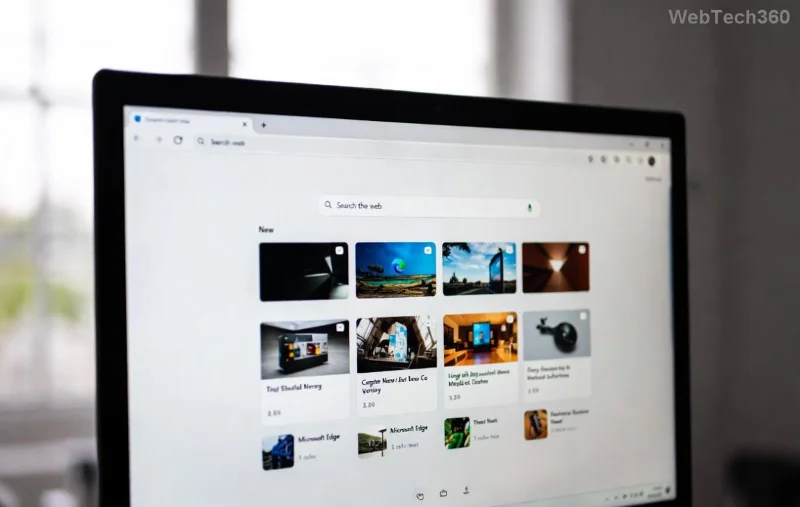
Step-by-Step: How to Take Full-Page Screenshots with Microsoft Edge Web Capture
Fire up the latest Microsoft Edge (ensure it's updated via Settings > About Microsoft Edge). Follow these numbered steps for flawless captures every time.
- Navigate to Your Target Page
Open any webpage in Edge. Long articles? Social feeds? It handles them all. 👀
- Launch Web Capture
Press Ctrl + Shift + S (or right-click > Web Capture). The sidebar pops up instantly – no hunting required!
- Select Full Page Mode
Click the 📸 Capture full page button. Edge intelligently scrolls and grabs everything, even infinite-scroll sites. Watch the progress bar – it's lightning-fast!
- Preview and Capture
A live preview appears. Zoom, pan, or switch modes if needed. Hit Capture to lock it in. Boom – your full-page screenshot is ready! 🎉
![Step-by-step full-page capture in Microsoft Edge Web Capture with preview]()
Edit Your Full-Page Screenshots Like a Designer
Capture done? The magic continues in the editor. No need to switch apps!
| Tool |
What It Does |
Quick Tip |
| Crop ✂️ |
Trim edges precisely |
Drag handles for pixel-perfect cuts |
| Highlight 🖍️ |
Draw arrows, shapes, text |
Use colors to emphasize key sections |
| Blur 🔒 |
Redact sensitive info |
Ideal for privacy in demos |
| Spotlight 🔦 |
Focus on one area |
Dim the rest for drama |
After edits, Copy, Save as PNG, or Share directly. Want to copy text from the image? Right-click > Copy image text – OCR magic included!
![Editing full-page screenshot in Microsoft Edge Web Capture with crop and annotate tools]()
Advanced Tips for Pro Full-Page Screenshots Mastery
Level up your game with these insider hacks:
- Mobile-Friendly Captures: On Edge for Android/iOS, tap the three-dot menu > Web Capture for on-the-go full pages.
- Batch Mode Hack: Capture multiple tabs? Pin the sidebar and switch tabs without closing.
- Dark Mode Screenshots: Toggle Edge's dark theme first for sleek, modern captures.
- Automation: Assign a custom shortcut via edge://settings/shortcuts.
Troubleshooting? If capture fails on dynamic sites:
- Disable extensions temporarily.
- Try Capture region as fallback.
- Update Edge – latest builds fix scroll glitches.
For official details, check Microsoft's guide: Microsoft Edge Support.
Why Microsoft Edge Web Capture Will Be Your New Go-To Tool
From bloggers to devs, everyone loves how it simplifies full-page screenshots. It's free, integrated, and evolves with Edge updates – no subscriptions, no ads. Next time you're knee-deep in research, hit those keys and capture confidently.
Mastered it? Experiment with annotations on your next project and share your wins below. What's your favorite use case? Stick around for more Edge tips to supercharge your browsing! 🚀