

Use Regex in LibreOffice Writer to Edit Text in Batches
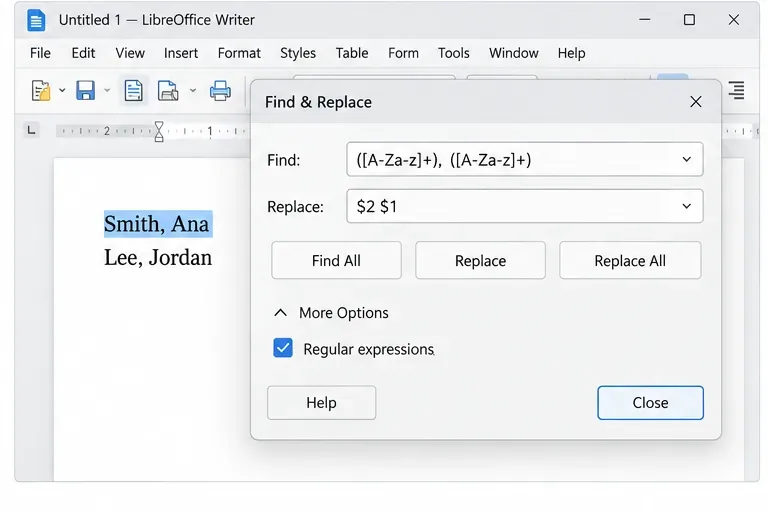
Clean spacing, find structured text, and rearrange names with Writer regex patterns you can preview before replacing.
Imagine transforming your thoughts into polished documents without ever touching a keyboard. That's the magic of Windows 11 Voice Typing—a built-in feature that lets you dictate text directly into apps like Microsoft Word, Notepad, or even emails. Whether you're battling writer's block, dealing with repetitive strain injury, or simply want to speed up your workflow, this tool is a game-changer. In this guide, we'll walk you through everything you need to set up and use Windows 11 Voice Typing for documents, with practical tips to make your experience smooth and enjoyable. Let's dive in and get you dictating like a pro! 😊
Windows 11 Voice Typing is Microsoft's advanced dictation tool powered by natural language processing. It converts your spoken words into typed text in real-time, supporting over 100 languages and accents for global accessibility. Unlike older speech recognition, it uses cloud-based AI for higher accuracy, even in noisy environments.
Why bother? For starters, it's faster than typing—up to three times, according to user reports. It's inclusive for those with disabilities and frees your hands for multitasking. Plus, it's free and integrated into Windows 11, so no extra software needed. Ready to feel the productivity boost? Let's start with setup.
Getting voice typing up and running is straightforward. Follow these steps to activate it on your Windows 11 PC.
Once set up, you're ready to dictate. Pro tip: Speak clearly and at a natural pace—think conversational, not robotic. 🚀

Now, the fun part: dictating into your documents. Windows 11 Voice Typing works in any text field, but shines in word processors. Here's how to make it work seamlessly.
Open your document in Word, Google Docs (via browser), or Notepad. Place your cursor where you want text to appear. Then:
For example, dictate: "Hello, this is a test document created with voice typing." Watch it appear instantly! It auto-adds punctuation if you say "period," "comma," or "new line."
Don't stop at basic typing—use commands to edit on the fly. This keeps your flow uninterrupted.
| Command | What It Does | Example |
|---|---|---|
| "Delete that" | Removes the last spoken phrase | After dictating a wrong sentence, say this to erase it. |
| "New paragraph" | Inserts a line break | Perfect for structuring essays or reports. |
| "Select [word/phrase]" | Highlights text for editing | "Select previous sentence" then "Delete." |
| "Bold that" | Applies formatting | Works in supported apps like Word for emphasis. |
These commands make voice typing for documents feel intuitive, like having an assistant. Experiment in a blank doc to build confidence. If accuracy dips, train the system by correcting errors—it learns your voice over time.
To get the most from Windows 11 Voice Typing for documents, follow these expert tips:
Feeling empowered? Users report finishing reports in half the time once they master these. Keep practicing, and you'll wonder how you ever typed manually. 👏
Voice Typing isn't just convenient—it's transformative for accessibility. If typing is challenging due to mobility issues, this feature levels the playing field. Combine it with Windows 11's Narrator for full voice-controlled workflows.
For productivity pros, pair dictation with auto-save in OneDrive or export to PDF. Imagine brainstorming ideas aloud during a walk, then refining them later. It's not just typing; it's freeing your creativity.
No tool is perfect. Windows 11 Voice Typing may struggle with technical jargon or heavy accents initially, but it improves with use. Offline mode is limited to select languages, so online is recommended for complex docs.
If you need more, consider third-party options like Dragon NaturallySpeaking for specialized fields. For mobile, the SwiftKey keyboard offers similar dictation. But for everyday voice typing for documents, Windows 11 nails it.
For official details, check Microsoft's support page: Use voice typing.
With Windows 11 Voice Typing, writing documents becomes effortless, accurate, and even fun. From setup to advanced commands, you've got the tools to dictate with confidence. Try it in your next email or report—what will you create first? Share your successes in the comments below, and happy dictating! 🌟
(Word count: approximately 950)
Clean spacing, find structured text, and rearrange names with Writer regex patterns you can preview before replacing.
Enable Writer’s bidirectional controls, set RTL paragraph flow, and check mixed Arabic or Hebrew text without disrupting English words and numbers.
Install metric-compatible Linux fonts or map LibreOffice fallbacks, while keeping Microsoft font licensing and layout differences in view.
Add usable text fields, check boxes, and drop-downs in Writer, then export a PDF recipients can complete and save.
Fix missing or substituted fonts in LibreOffice Writer PDFs, choose the right export profile, and verify which fonts are embedded before sharing.
Convert a folder of Word documents to PDF with LibreOffice commands, handle nested folders safely, and verify the output before sharing.
Set a custom LibreOffice Writer template as the default so new documents open with your preferred styles and page layout.
Install a compatible Java runtime, enable it in LibreOffice, and troubleshoot an empty JRE list without changing unrelated settings.
Build a small LibreOffice container, convert office documents without a GUI, and verify PDF output while limiting host-file access.
Reduce oversized LibreOffice presentation files by compressing embedded photos, choosing sensible image settings, and checking slide quality before sharing.









Quân Bike -
I've tested voice typing on various Windows 11 builds, and the latest update fixed most recognition issues I had with technical terms. Great for programmers dictating function descriptions. Suggestion: add headset mic for better results. Everyone should try this feature—it's free and powerful!
Yến Flower -
OMG YES! struggled for hours, now done in minutes 🎉
Huy IT -
Does voice typing support accents? Like British English or something else
Tuấn Star -
Any way to customize voice commands? Like "new paragraph" or insert emojis automatically
Long Gamer -
hey, anyone else get lag? my setup: i7, 16gb ram. tips
Bảo 2023 -
Worked great on my laptop. What about multiple languages? Need it for French docs too
Kim Chi -
thanks author! shared this with my team 👍
Linh Code -
thx a lot! gonna try for my blog posts now
Mai KT -
perfect timing, needed this for my thesis. voice typing is magic ✨
Nam Cali -
Game changer for writers. Dictated a whole chapter today without errors. Windows 11 speech-to-text is underrated
Hoàng 456 -
brilliant guide! 100% agree, windows 11 dictation beats google docs sometimes
Bé Mèo -
Excellent post. This voice typing method works seamlessly in Word and Notepad. Boosted my daily output hugely. For beginners: go to Settings > Time & Language > Speech first. Author, please do a follow-up on mobile integration!
Phong Sai Gon -
I've been using Windows 11 dictation for months now, and it's improved my productivity by 3x. No more sore fingers from typing code comments or long emails. Pro tip: speak clearly and pause between sentences for better accuracy. Highly recommend enabling auto-punctuation
Hương Lizzie -
This is gold! As a student, voice typing in Windows 11 lets me dictate essays hands-free while multitasking. Setup was easy, accuracy 95% after training. One issue: background noise messes it up, so use a quiet room. Thanks for the step-by-step!
Ngọc Hà Nội -
Super helpful! Just tried it and it transcribed my meeting notes flawlessly. Windows 11 rocks!
Việt Dev -
lol my cat walked over the mic and it typed "meow meow emergency" 😂 best feature ever
Sunny Girl -
Finally found a solution for my dysgraphia. This voice typing tutorial is a lifesaver! Been using it for essays all week
Lan Mèo -
awesome! i was struggling with typing long docs, now dictation works perfectly 😻
Thảo Wild -
Question: can i use it offline? traveling soon no wifi
Minh Anh -
Thanks for this guide! Voice typing in Windows 11 has saved me so much time on reports
Đạt Pro -
love it! faster than typing thumbs up