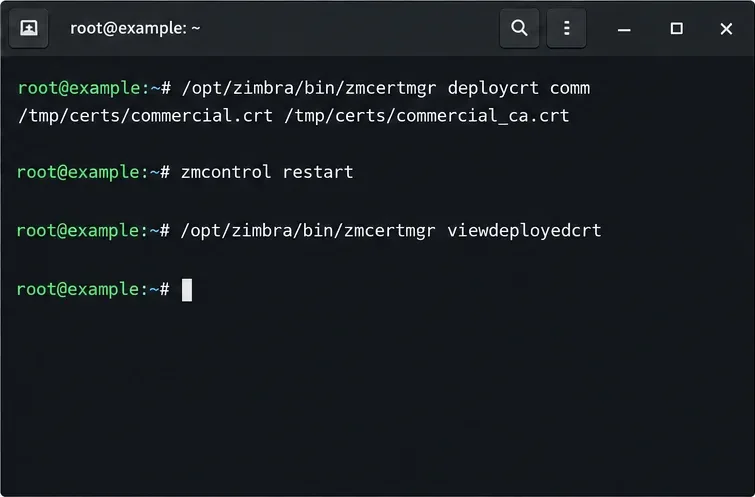
Install a Commercial SSL Certificate on Zimbra Safely
Prepare the matching key and CA chain, verify the certificate with zmcertmgr, and deploy it on Zimbra with a service and hostname check.
In Zimbra Daffodil 10, enable two-factor authentication (2FA) for each administrator account in the Admin Console, then have that administrator enroll from the Zimbra Web Client. Once the administrator has set up a factor, Zimbra can require a code for both Web Client and Admin Console sign-ins. Start with a pilot account, confirm recovery access, and only then make enrollment mandatory for the rest of your administrators.
The Admin Console controls whether 2FA is available and required; it does not scan the authenticator app for the user. The administrator completes enrollment in their own mailbox interface. The labels below follow Zimbra’s Daffodil 10 documentation; older releases or web-client themes can show different menu names and available methods.
Use the account-level setting when you are securing a specific global or delegated administrator. In the Admin Console, open Manage → Accounts, select the administrator account, choose Edit, then open Advanced and scroll to Two Factor Authentication. This lets you apply the policy to the privileged account without changing every mailbox in the same Class of Service (COS).
Use a COS when you want consistent 2FA availability or requirements for a group of regular mailbox users. The documented path is Configure → Class of Service → [COS] → Advanced → Two Factor Authentication. A COS-wide “Require” policy affects users assigned to that COS, so confirm which accounts inherit it before saving. If your goal is specifically to protect Admin Console access, verify the settings on each administrator account as well.
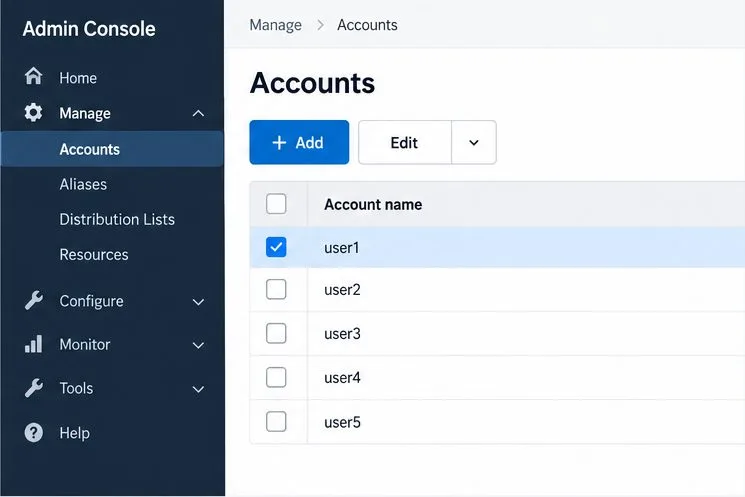 Accounts page with one generic account row selected and the Edit control visible.">
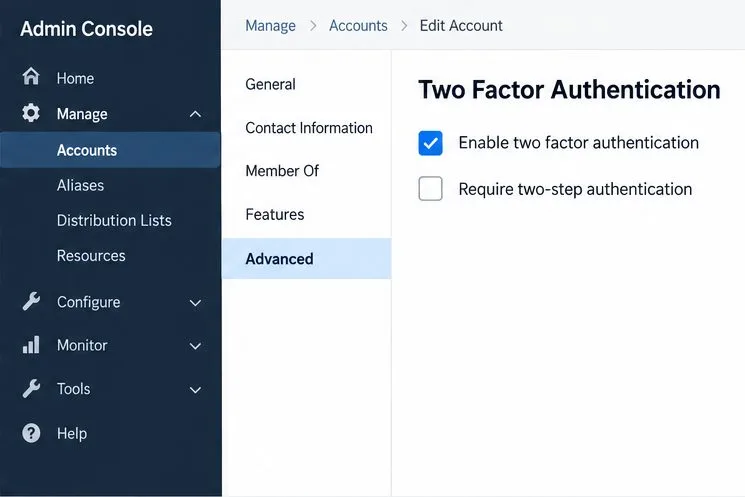
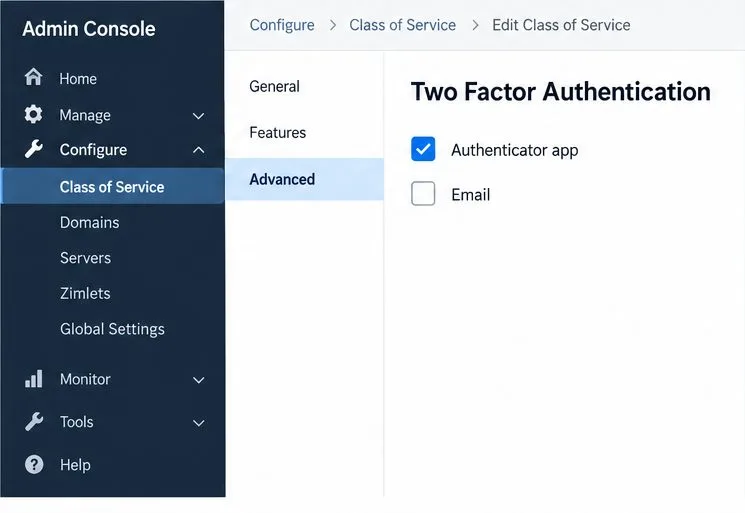
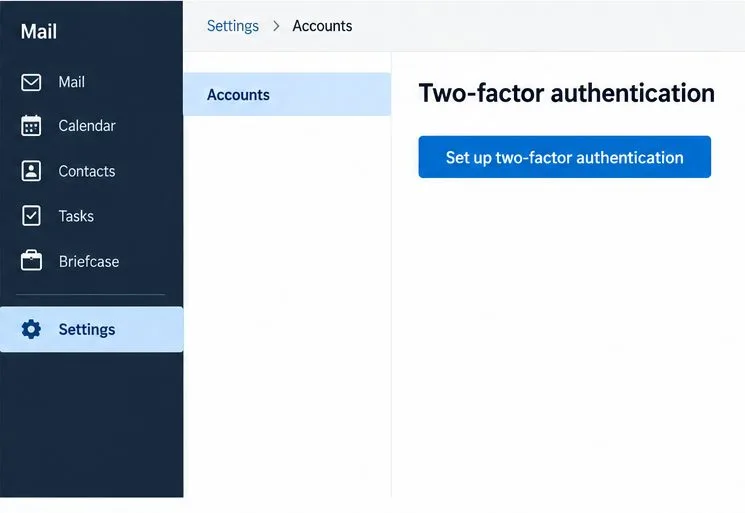 Accounts page with the Set up two-factor authentication button visible.">
Before making 2FA mandatory for all admins, confirm that the pilot administrator can sign in to the Web Client, complete a new Admin Console login with a current code, and use a recovery code or the approved alternate method. Keep another authorized administrator available during rollout so one lost device does not block all management access. Generate recovery codes after enrollment and store them securely; do not leave them in a mailbox or shared document that the same factor protects.
If the account has 2FA enabled but its setup button is missing, check whether the account’s COS makes the feature available and whether the selected method is allowed. If login behavior differs from these steps, verify your Zimbra release and web-client version before changing settings. Consult the Zimbra Daffodil 10 Administrator Guide for administrator login and account/COS controls, and the Modern Web App User Guide for enrollment and recovery codes. Zimbra also documents the administrator workflow in its 2FA setup guidance.
Prepare the matching key and CA chain, verify the certificate with zmcertmgr, and deploy it on Zimbra with a service and hostname check.
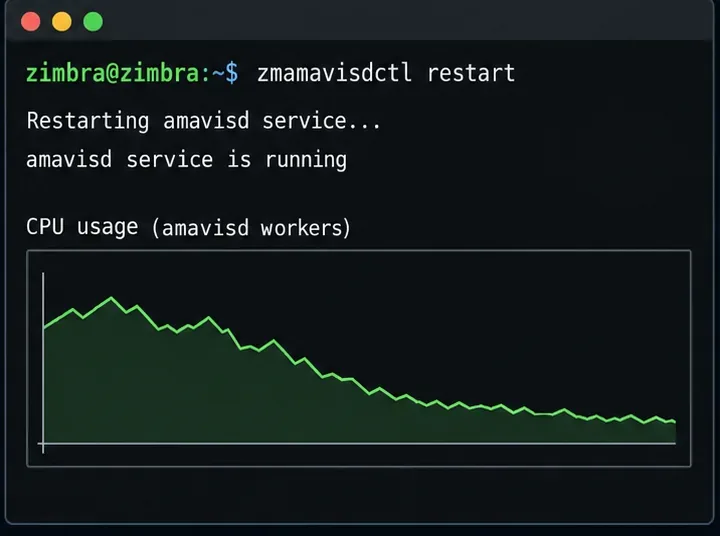
Trace high Amavis CPU to a stuck scan, inspect Zimbra logs and queues, and recover mail filtering safely with release-aware checks.
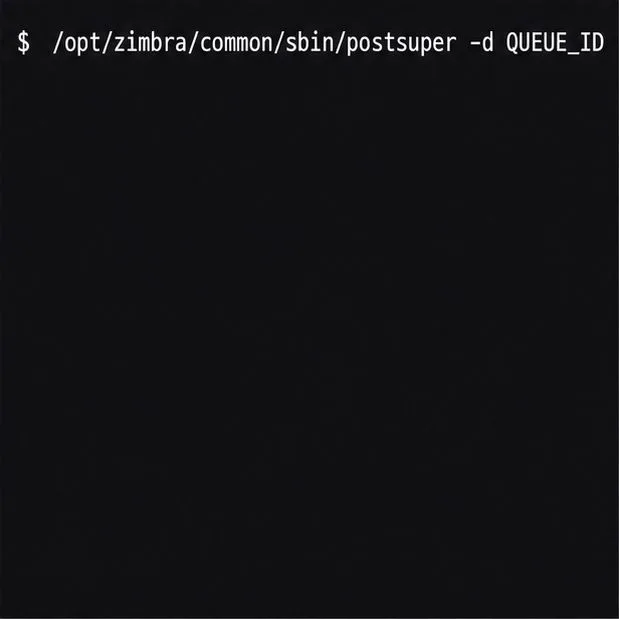
Inspect the Zimbra Postfix queue, fix the cause of delayed delivery, and safely request a retry. Learn when to remove a specific message and what never to purge blindly.
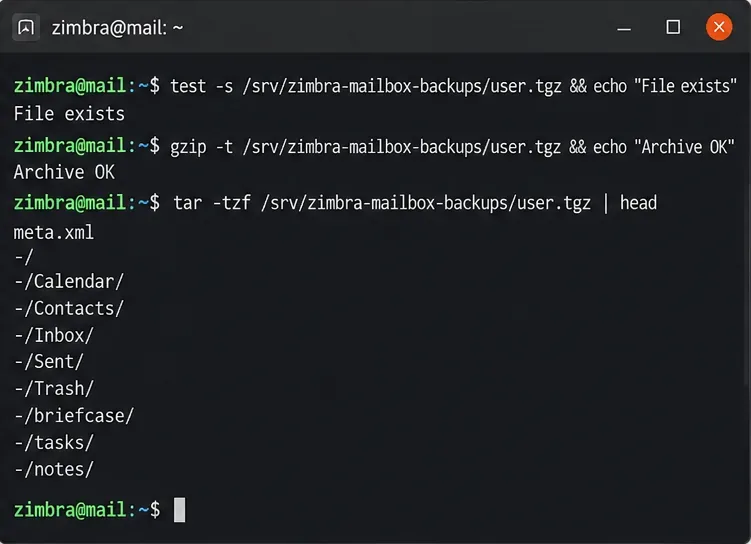
Export an individual Zimbra Community Edition mailbox, validate its TGZ backup, and restore missing items without overwriting existing mail.
Plan your Art Basel Miami visit with this 5-step guide to ticket prices, transit, and dining costs, calculating a realistic daily budget of $145 to $550.

Follow these 6 steps to navigate an American office holiday party with confidence, connect with coworkers, and leave a professional impression.
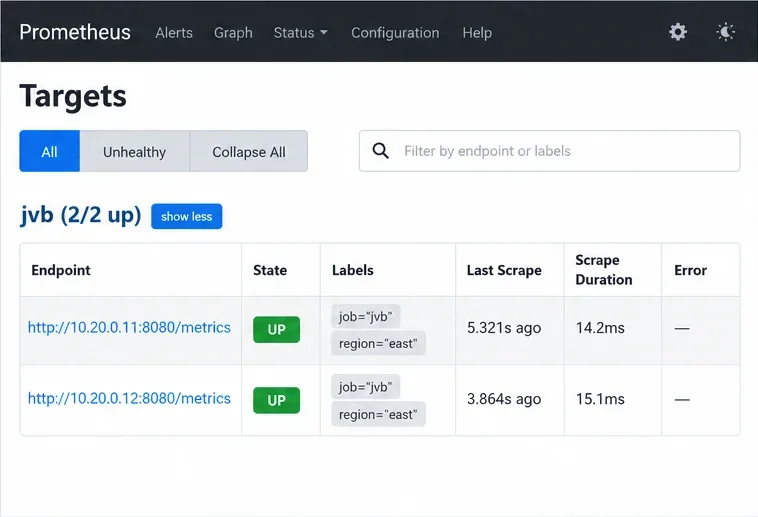
Scrape each JVB’s private metrics endpoint securely, confirm Prometheus targets are healthy, and build Grafana panels for bridge load and meeting traffic.
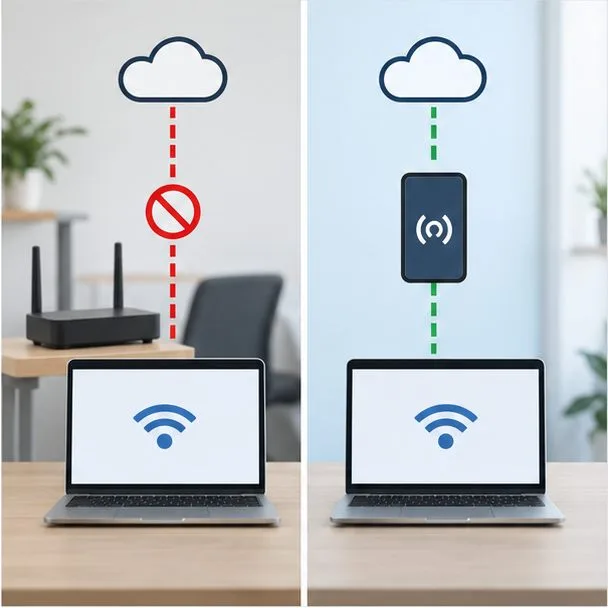
Trace webcam failures to browser permission, a restricted network, or the BigBlueButton server’s UDP and NAT setup, then verify the stream in a live meeting.
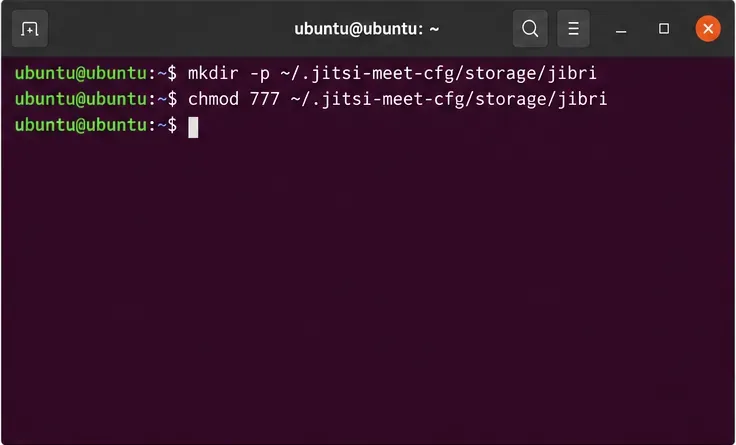
Enable Jitsi Meet recording and live streaming with the official Docker Compose Jibri service, secure XMPP credentials, writable storage, and practical verification steps.