Raise Nextcloud’s Web Upload Limit Past 2 GB
Allow larger Nextcloud browser uploads by aligning PHP, Nginx or Apache, temporary storage, and timeout settings—and verify which limit is blocking the file.
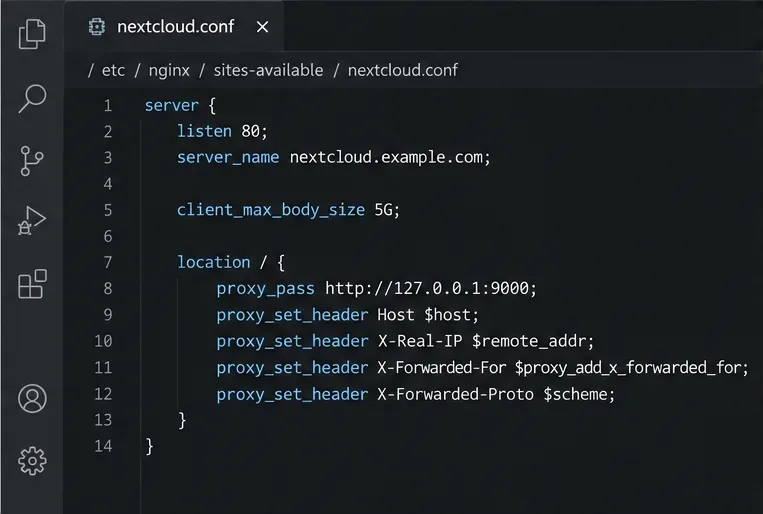
If a Nextcloud browser upload stops at 2 GB, raise the limit at every layer that handles the request: PHP, the web server or reverse proxy, and any temporary storage in use. For a 5 GB target, a typical PHP-FPM and Nginx setup needs upload_max_filesize = 5G, post_max_size = 6G, and client_max_body_size 5G, plus enough disk space and time for the transfer.
There is no universal 2 GB Nextcloud cap. The current administration manual says the default maximum upload size is 512 MB, while a limit below 2 GB is a hard ceiling on 32-bit systems. A server that stops at exactly 2 GB is more likely hitting a configured limit or an intermediary. The steps below use 5 GB as an example; substitute the largest file size you actually need.
Often, the visible limit is set by PHP or the web server rather than by a Nextcloud setting. Nextcloud’s supported maximum also depends on the operating system, filesystem, account quota, and available temporary disk space. Its desktop sync client is a separate case: it transfers files in smaller chunks and is not subject to the same single-request upload limits described here.
First identify the request path. Check whether users upload through the browser, WebDAV, or the desktop client, and whether the site passes through Nginx, Apache, a load balancer, or a hosting provider’s proxy. If you do not administer the server, send the administrator the failing file size, upload method, time of failure, and any error code; only they can change server-side limits.
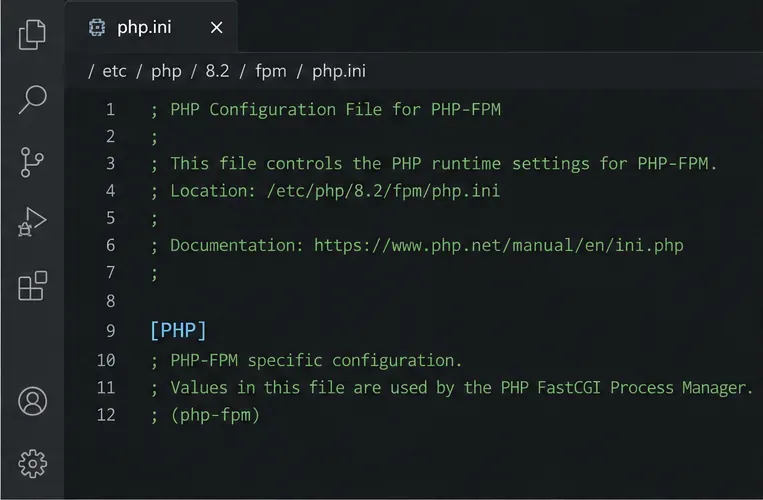
For PHP-FPM, edit the configuration used by the PHP-FPM service that serves Nextcloud—not just the command-line PHP configuration. On Debian or Ubuntu, a common path is /etc/php/8.2/fpm/php.ini; replace 8.2 with the installed PHP version. Your distribution or container may use a different path. The PHP manual notes that post_max_size must be larger than upload_max_filesize, so leave room for request overhead.
Set values appropriate to your server. For the 5 GB example:
upload_max_filesize = 5G
post_max_size = 6G
max_input_time = 3600
max_execution_time = 3600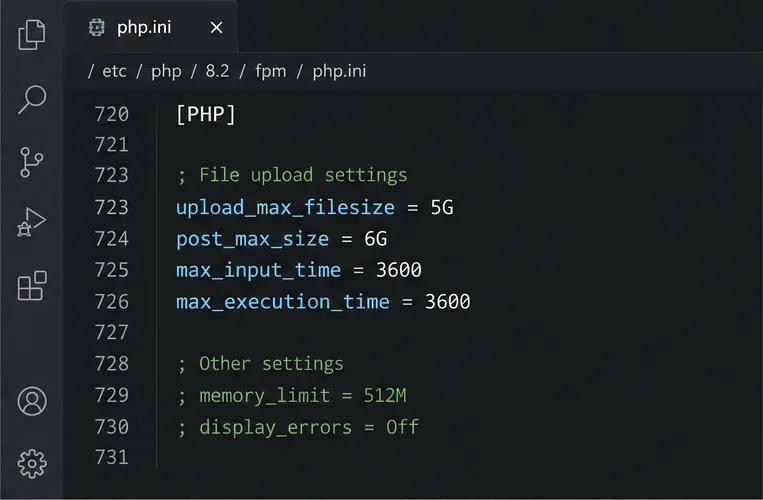
The timeout values are examples, not universal requirements. Slow connections, busy servers, and uploads that must be assembled at the end may need longer. PHP memory settings and per-worker resource limits still matter: do not automatically set every PHP-FPM worker’s memory limit to several gigabytes. Nextcloud’s PHP guidance calls for at least 512 MB of memory per process; monitor the host and its PHP-FPM pool before raising resource limits.
Save the file and restart the relevant PHP-FPM service so it reads the new settings. For example, on a system using PHP 8.2, the service may be php8.2-fpm:
sudo systemctl restart php8.2-fpmService names vary. In containers, update the mounted configuration or image and recreate the PHP container according to that deployment’s process.
For Nginx, put the body-size directive in the active server block for Nextcloud, or a more specific applicable location block:
client_max_body_size 5G;Then validate the configuration and reload Nginx:
sudo nginx -t
sudo systemctl reload nginx
If Nginx reports a syntax error, fix it before reloading. If another proxy, ingress controller, or hosting gateway sits in front, it may enforce its own request-body limit; raise that limit too. A limit on an upstream proxy can reject the upload even when the Nextcloud host is configured correctly.
For Apache, inspect LimitRequestBody in the applicable virtual host or directory configuration. Current Nextcloud documentation notes that Apache HTTP Server 2.4.54 and later default this directive to 1 GiB; this can block a single-request upload above that size. Set an intentional byte limit appropriate for the host, or use 0 only if you deliberately want no Apache body-size limit. Apache may also need longer request timeouts, especially if mod_reqtimeout is enabled.
Yes. PHP’s upload temporary directory, Nextcloud’s configured temporary directory, and Nginx’s client_body_temp_path must have enough free space and be writable. Leave room for concurrent uploads and, in some storage configurations, assembly of uploaded chunks. Check the relevant filesystem with df -h, and confirm the service account can write to the configured temporary directory. Do not point a temporary setting at a full or read-only volume.
Also check the user’s Nextcloud quota and the server’s free storage. Raising a request-size limit does not increase a user’s quota or create disk capacity. Increase a quota only when the account is meant to have room for the file. If the error occurs near the end of an upload or reports a timeout or gateway error, inspect PHP, web-server, proxy, and Nextcloud logs before raising more limits. The Nextcloud manual specifically identifies PHP timeouts and Nginx’s fastcgi_read_timeout as possible causes, including during final MOVE requests.
One caveat: PHP’s upload_max_filesize and post_max_size may not govern a WebDAV single-file PUT or Nextcloud’s chunked-upload requests in the same way; for those paths, PHP and web-server timeouts can be the limiting factor. Diagnose the upload method before changing values that do not apply to it.
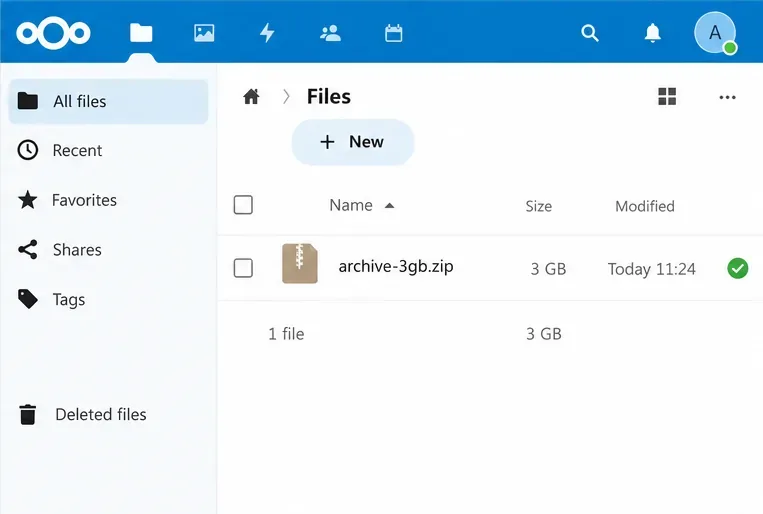
Start with one test file comfortably above the old limit, then test a file near the new target. Upload through the same browser or client that originally failed. Confirm that the transfer completes, the file appears with the expected size, and it can be downloaded or opened. A green completed-upload indicator in the Files view is a useful first check, but compare the stored file size as well.
If the test still fails, use the error to find the next limiting layer: an HTTP 413 points to a request-body limit, a 504 or failure near completion suggests a timeout, and a quota or disk-space message points to storage capacity. Review the logs for the same timestamp, then adjust only the setting responsible. Keep the limit close to the largest expected upload and retain enough temporary space for concurrent activity.
Allow larger Nextcloud browser uploads by aligning PHP, Nginx or Apache, temporary storage, and timeout settings—and verify which limit is blocking the file.
Set the PHP memory limit Nextcloud actually uses, restart the right service, and confirm the 512 MB setting in Admin Overview.
Mount a compatible object-storage bucket in Nextcloud using its S3 backend, with the right endpoint, credentials, access scope, and verification steps.
Safely move a Linux Nextcloud data directory to an external drive using a persistent UUID mount, maintenance mode, a verified copy, and the original-path symlink.
Restore Nextcloud access after an update by diagnosing SQL errors, checking database connectivity, and safely completing interrupted migrations.
Use Nextcloud’s OCC command to reset an administrator password from the server shell, with guidance for usernames, permissions, and external login providers.
Clear Nextcloud’s HSTS warning by setting the header at Apache, NGINX, or your TLS proxy, then verify the public HTTPS response safely.
Trace App Store installation failures to DNS, HTTPS, proxy, TLS, or configuration issues from the Nextcloud server itself.
Move thumbnail work to a controlled background schedule, trim unused preview sizes, and verify the queue without overwhelming your Nextcloud server.
Find the file, exclusion rule, connection issue, or client database state holding up Nextcloud sync, then verify uploads and downloads safely.