The biggest problem Roblox users encounter is getting stuck in a game. This is because of the UI Navigation you might have accidentally turned on while playing. You only need to turn off this feature to continue playing the game and finish your quests and tasks. Since you can’t move freely with UI Navigation on, you need to disable it.
Read on to learn how to unstuck yourself in a Roblox game by turning off the UI Navigation button.
Turning Off UI Navigation in Roblox With Backslash
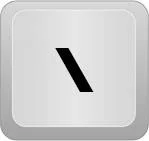
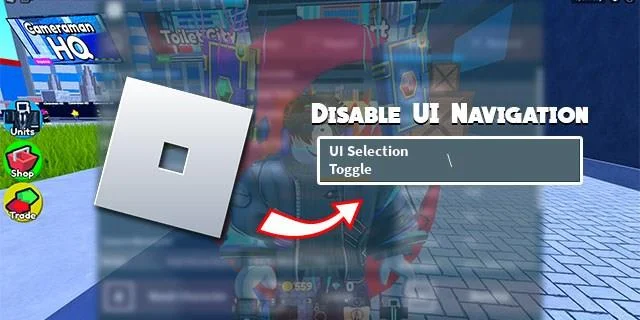
Disabling UI Navigation Key you turned on accidentally or on purpose is simple. Usually, the key bind for the ”UI Selection Toggle” setting is backslash (“\”). If you accidentally pressed backslash while gaming, your UI Navigation got turned on, and you received the notification at the bottom left of your screen. The notification has instructions on how to toggle this key: “Backslash to toggle.”
However, if you were in a fight or doing something meaningful and didn’t see the notification on your screen, you won’t know the culprit behind the bug. But turning off the UI Navigation can be done by tapping on the “\” again. Or, if you have a different key bound to this option, tap that one.
Finding the Bind for UI Selection Toggle
In most cases, just pressing the backslash will fix the problem, but this section will answer you if you’re still stuck and don’t know what to do. Before you can turn off this feature, you need to know which button is bound for UI Navigation. This is how you can go on about it:
- Go to the menu by tapping “Escape.“
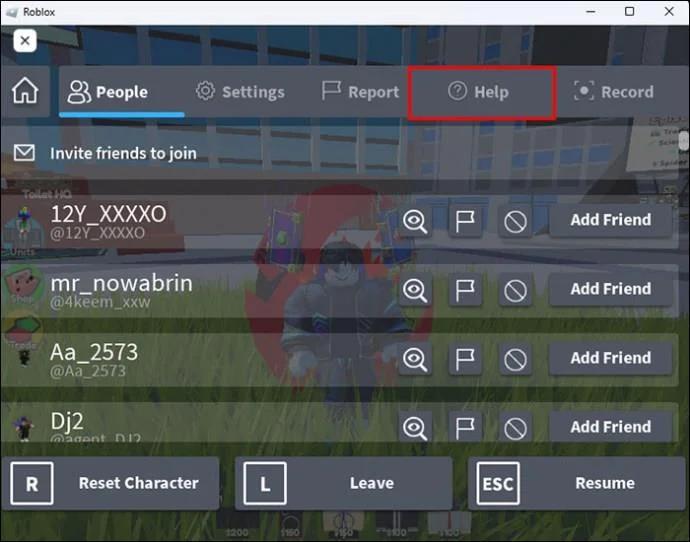
- Tap the “Help“ section.

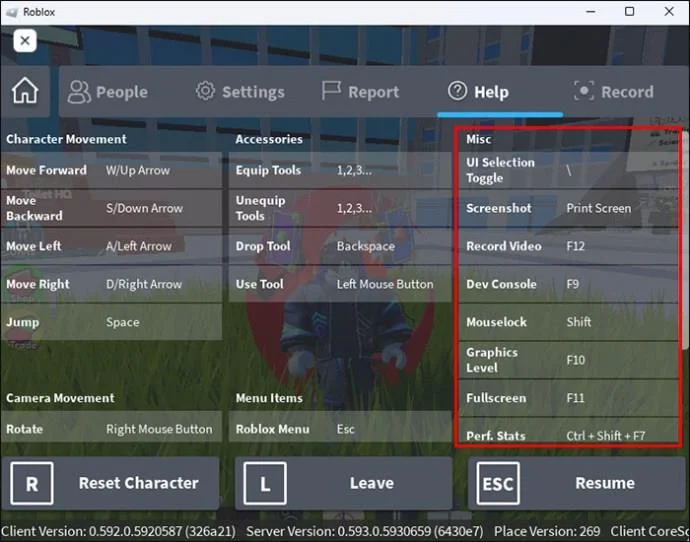
- Click on the “Misc“ tab.

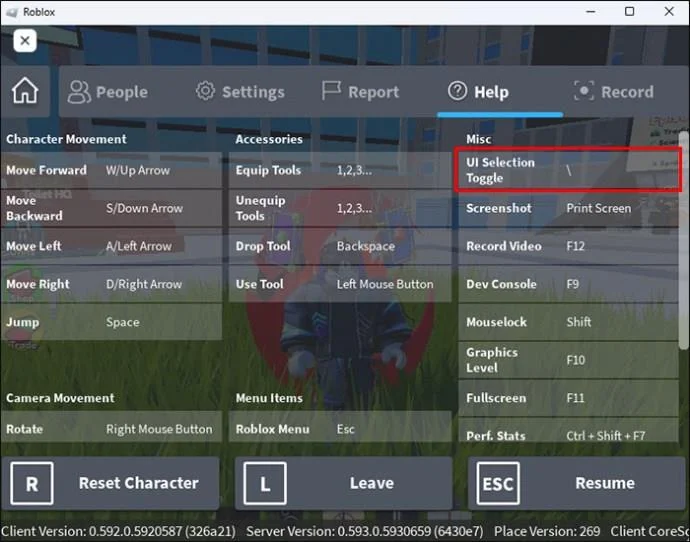
- Under the “Misc“ tab, you can find the setting “UI Selection Toggle.“

- See which key you need to press to turn this option off and tap the button indicated.

The button for the “UI Selection Toggle“ option will depend on how you configured the game’s settings. Some players might have changed the initial backslash key to something else, so the backslash won’t get you unstuck.
Adjusting Control Settings in Roblox on PC
If you’re playing a variety of Roblox games on your computer, you can adjust the controls and keybindings to fit your style and the particular game. Apart from changing the key bind for “UI Selection Toggle,“ you can do the same with other settings and controls. This can’t be done for mobile devices (Android and iOS) or consoles (in this case, Xbox).
Some Roblox games have inadequate control settings, and it’s necessary to change them, while others have basic controls that players are used to. This includes the classic WSAD buttons for movements, spacebar key for jump, escape key for menu and settings, tab for information on players, frontslash for chat, etc.
Customizing Sensitivity
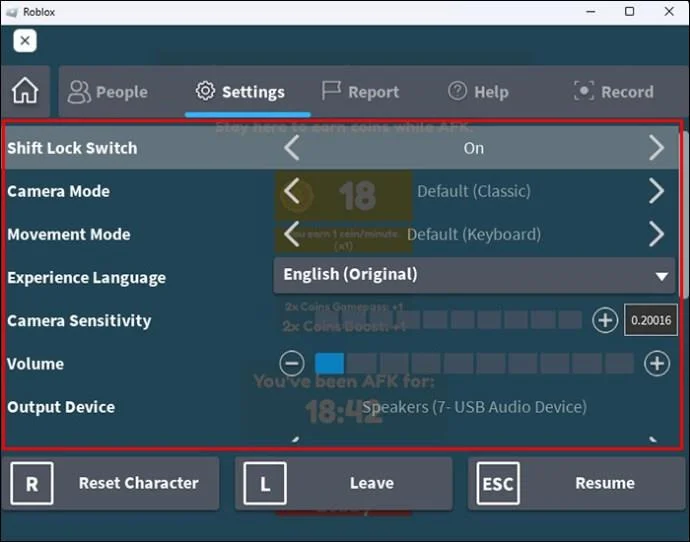
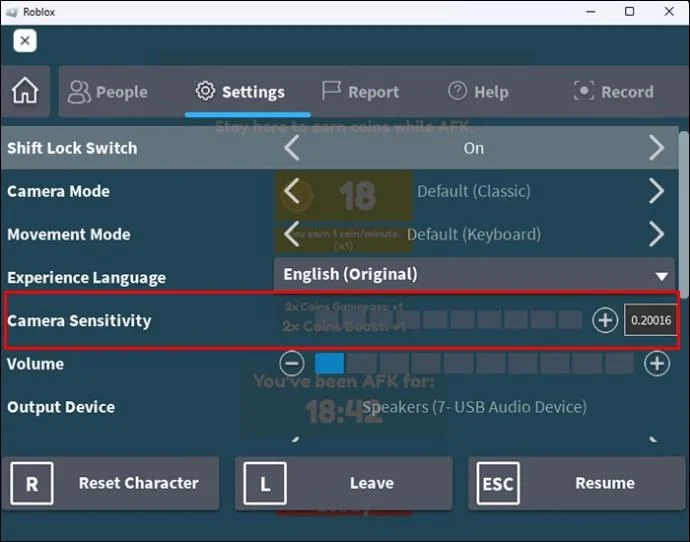
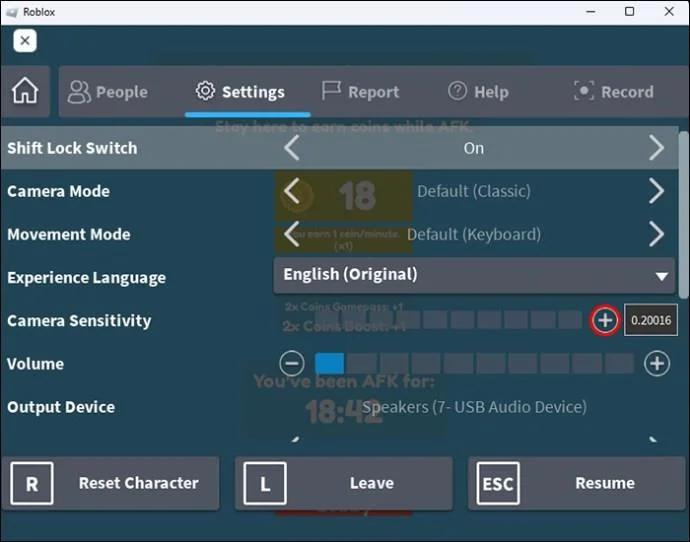
One of the controls you can adjust in Roblox games is mouse sensitivity. This is important as it affects the camera and its movement. The default sensitivity is 0.5. There are 10 levels you can change and adjust the sensitivity.
The lowest sensitivity you can have in Roblox games is zero, while the highest one is one. However, it’s not only possible to set the sensitivity to either zero or one, but you can set it in between, for example, at 0.25 or 0.75, depending on your needs.
Note that, for perfect mouse sensitivity, you also have to change the DPI on your mouse. This should be done first before checking on mouse sensitivity in the game. The DPI level will depend on the type of game, your gaming style, and your gaming habits.
You can also adjust the settings to fit your mouse, as some mouses have buttons on the side for easier access and gaming that can be helpful in certain games where you have too many options and setting them all to keyboard buttons is not optimal.
Making Keyboard Adjustments
If you don’t like the default key binds in a specific Roblox game, you can change them and adjust them to your liking. However, in some games on Roblox, you can’t do this. But for those games where this option is available, this is what you have to do:
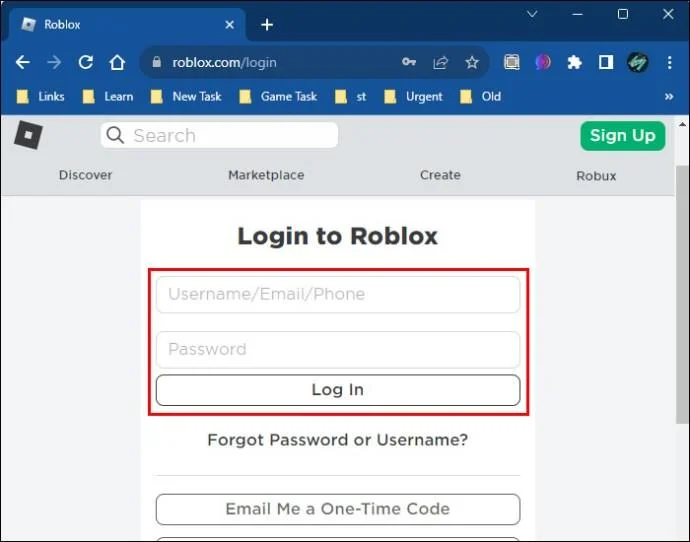
- Open Roblox on your computer and log in.

- Open the game where you want to make the adjustments and tap “Esc“ on the keyboard while in the game.

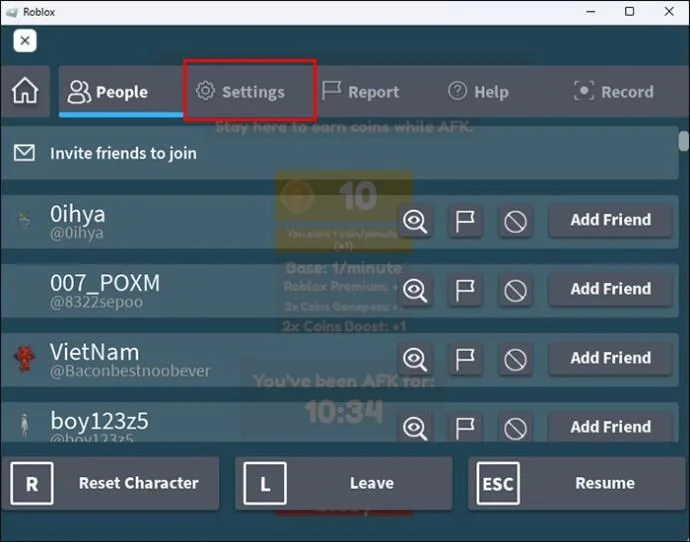
- In the menu, click on the “Settings“ option.

- Click on the “Controls“.

- To change the key binding, Select any control.

- Tap the button you want to bind instead of the default one.

These adjustments can come in handy in different games and allow the player to customize the settings to fit the specific game style, whether it’s a driving game or an FPS. However, since you can’t change the settings in some games, plugging in the controller is one of the alternatives.
FAQs
What is UI on Roblox?
UI means “User Interface,“ and it represents the objects on the screen you see while playing games. You can see UI elements, such as 2D interface objects and GuiObjects, which are labels, buttons, frames, and so on. You can make and customize these objects in Roblox Studio.
Can I change my GUI to default?
Yes, you can. This can be done from Roblox Studio.
1. You must open your profile in the “My Roblox“ section and click the “Edit my place“ option.
2. Navigate to “Insert.“
3. Go to “Objects“ and “ScreenGui.“
4. Move the “ScreenGui“ to the “StarterGui“ file in the File Explorer to finish the process.
What is the difference between UI and GUI in Roblox terms?
While UI means “User Interface,“ GUI stands for “Graphical User Interface.“ Most players use either one since, in Roblox, it has no real difference, and the options are interchangeable. However, GUI’s interact with different menus, while their counterpart deals with software.
Avoid Getting Stuck in Dangerous Situations
Knowing how to disable UI Navigation is crucial since you can accidentally press the button for “UI Selection Toggle“ and get stuck in a risky situation without being able to move. Navigating the settings is recommended to check which button is bound to UI Navigation. If you accidentally press it, you can quickly turn it off without compromising the process in your game. It’s equally important to know how to adjust and change settings to improve the gaming experience in Roblox.
Which key bind do you use for UI Navigation? Do you often change control settings when playing a new game? Let us know in the comments section below.