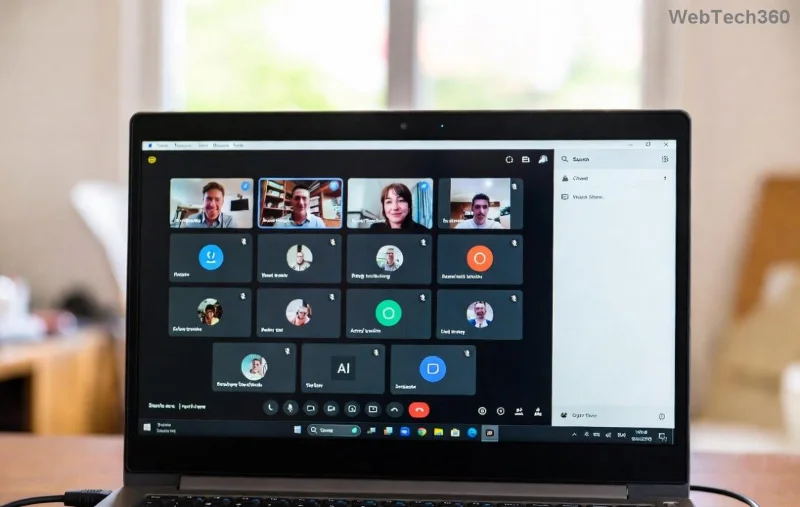
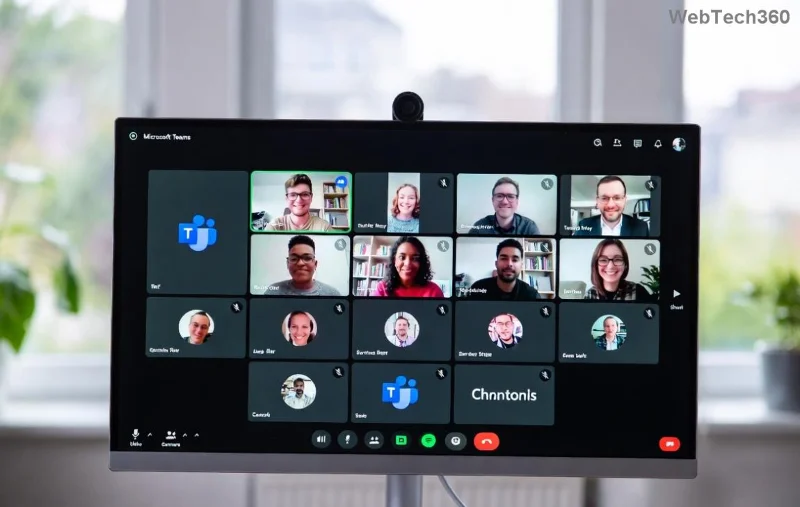
Frustrated because your Microsoft Teams download for PC not working? You're not alone—millions face this issue daily, from stalled progress bars to cryptic error codes. But don't worry! 😊 This guide delivers targeted troubleshooting steps to get you back to seamless video calls and chats. We'll cover the most common culprits and fixes, so you can resolve it fast without tech headaches.

Why Is Microsoft Teams Download for PC Not Working? Top Causes
Understanding the root problem speeds up fixes. Here are the usual suspects:
- Network glitches: Unstable Wi-Fi or firewalls blocking the download.
- Antivirus interference: Security software flagging Teams as suspicious.
- Corrupted cache/temp files: Leftover data from failed installs.
- Outdated Windows: Missing updates breaking compatibility.
- Insufficient permissions: Running without admin rights.
- Proxy/VPN issues: Corporate networks or VPNs slowing things down.
Ready to dive in? Follow these steps in order—most users fix it by step 3! 👆
🔧 Step-by-Step Troubleshooting Microsoft Teams Download for PC Not Working
1️⃣ Verify Your Internet and Browser
Start simple: Switch to a wired connection if on Wi-Fi. Test speed at Speedtest.net. Use Microsoft Edge or Chrome for downloads—avoid outdated browsers.
- Open teams.microsoft.com/download-app.
- Clear browser cache: Ctrl+Shift+Delete > Select "Cached images and files."
- Disable VPN/proxy temporarily.
Pro tip: Download the latest Teams for work or school or new Teams version directly.
2️⃣ Run as Administrator & Disable Antivirus
Right-click the installer > "Run as administrator." Temporarily pause real-time protection in Windows Defender or third-party antivirus like Norton/McAfee.
- Windows Defender: Settings > Virus & threat protection > Manage settings > Turn off Real-time protection.
- Add Teams folder to exclusions post-install.
![Running Teams installer as admin on Windows PC]()
3️⃣ Clear Temp Files and Reset Windows Components
Corrupted files are a top villain. Here's how to nuke them:
- Press Win+R > Type
%temp% > Delete all files (skip locked ones).
- Win+R >
temp > Delete contents.
- Run Disk Cleanup: Search "Disk Cleanup" > Select C: drive > Check "Temporary files."
Reset Microsoft Store cache (if downloading via Store):
wsreset.exe
4️⃣ Update Windows and .NET Framework
Outdated OS = failed installs. Go to Settings > Update & Security > Windows Update > Check for updates. Install all, including optional ones.
Ensure .NET 6+ or latest runtime: Download from Microsoft .NET.
📊 Common Teams Download Errors & Fixes Table
| Error Code/Message |
Quick Fix |
| "Download failed" or 0x80070005 |
Run as admin + disable antivirus |
| Stuck at 0% / "Something went wrong" |
Clear temp files + switch browser |
| C0000135 or MSI errors |
Update Windows + repair .NET |
| Proxy authentication required |
Disable proxy in Settings > Network |
| "Teams is already installed" |
Uninstall via Apps & features > Reboot |
Still stuck? Check official help at Microsoft Teams Install Troubleshooting. ⭐
![Successful Microsoft Teams installation on PC]()
Advanced Fixes for Stubborn Microsoft Teams Download Issues
5️⃣ Uninstall Old Versions Completely
If remnants linger:
- Settings > Apps > Search "Teams" > Uninstall all (machine-wide and user versions).
- Delete folders: %appdata%\Microsoft\Teams, %programfiles%\Teams, %programfiles(x86)%\Teams.
- Reboot & retry download.
6️⃣ Use PowerShell for Clean Install
For pros: Open PowerShell as admin > Run:
winget uninstall --id Microsoft.Teams --uninstall-protocol usedirect
Then:
winget install --id Microsoft.Teams --source msstore
7️⃣ SFC and DISM Scans
Repair system files:
- Admin Command Prompt:
sfc /scannow
- Then:
DISM /Online /Cleanup-Image /RestoreHealth
- Reboot.
Prevent Future Teams Download for PC Not Working Problems 🎉
- Keep Windows updated automatically.
- Whitelist Teams in antivirus.
- Use official Microsoft Teams download links only.
- Schedule weekly temp file cleanups.
Congrats—you've conquered the download drama! 🚀 Your PC should now hum with fresh Teams. If issues persist, drop a comment below—what error are you seeing? We'll help refine these steps.
FAQ: Troubleshooting Microsoft Teams Download for PC Not Working
- Does Teams work on Windows 10/11?
- Yes, both supported with latest updates.
- Why is the download so slow?
- Server load or network—try off-peak hours.
- New Teams vs Classic?
- New is default; switch in installer if needed.
Stay productive! 👏