Skype Free Phone Calls
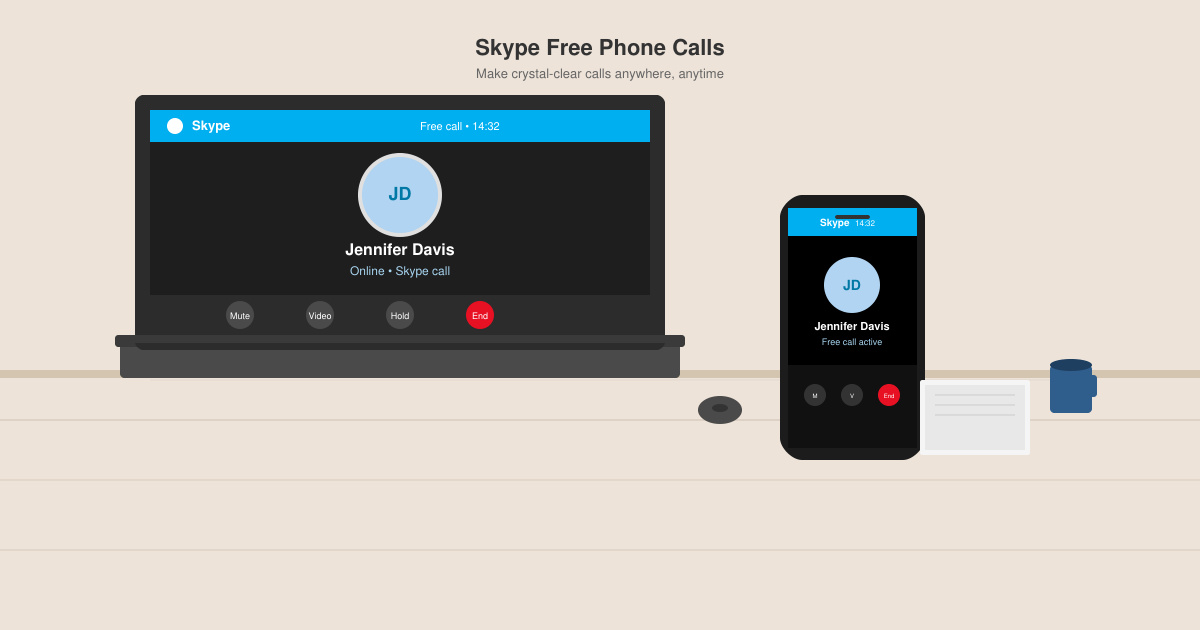
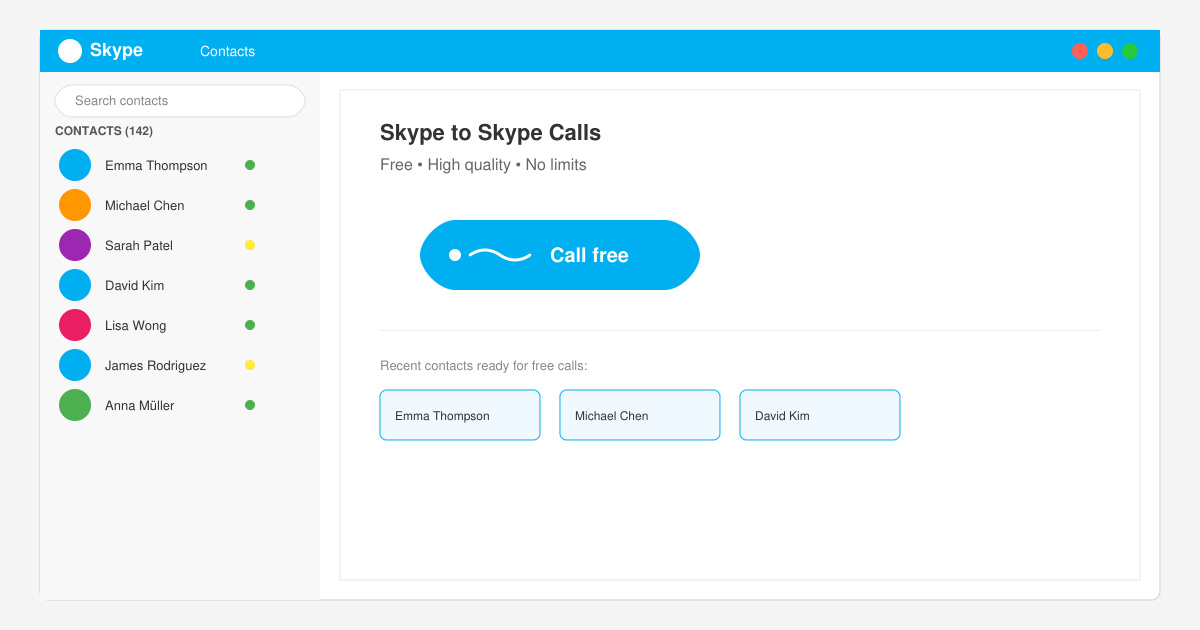
Skype Free Phone Calls let you connect with friends and family worldwide at no cost. Follow this guide to set up and start making free calls quickly and easily.
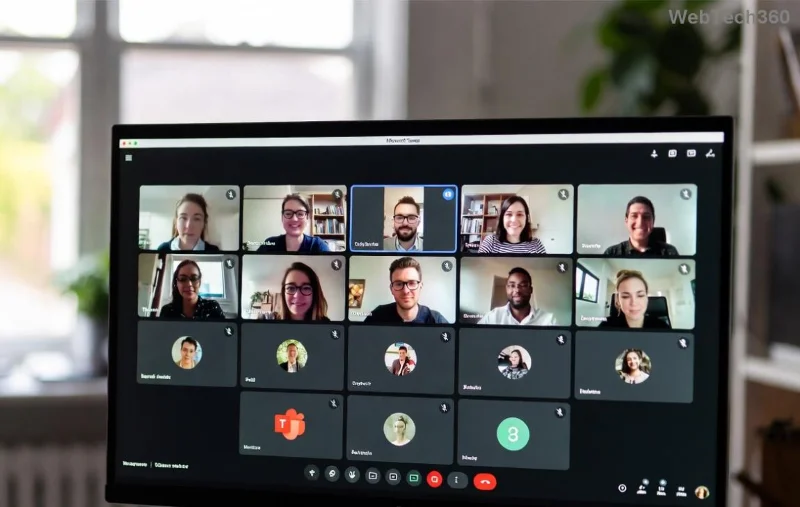
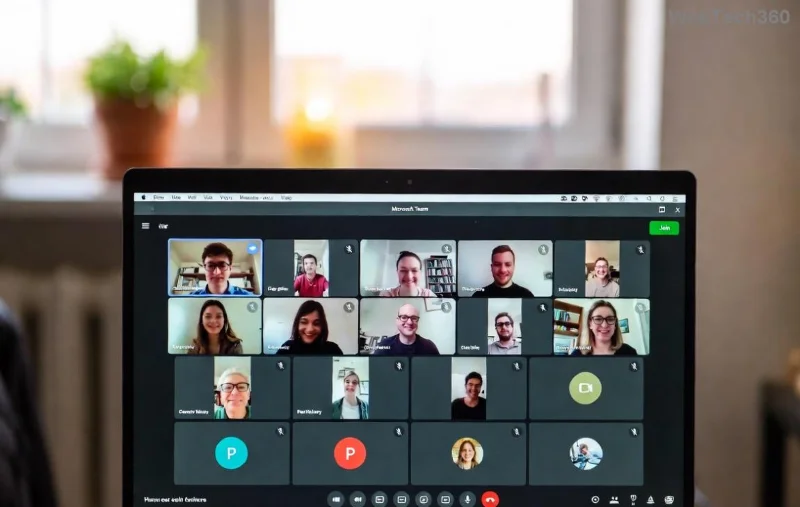
Imagine joining a crucial Microsoft Teams meeting only for your audio to vanish or echo endlessly. Frustrating, right? 😩 You're not alone—Microsoft Teams voice and VOIP errors plague millions, but most are quick fixes away from smooth calls. This guide delivers targeted troubleshooting steps, empowering you to restore crystal-clear audio effortlessly. Let's dive in and get your Teams VOIP back on track! 🔧
Understanding the problem is half the battle. Here's a breakdown of frequent Teams voice issues:
| Error Type | Symptoms | Likely Cause |
|---|---|---|
| No Audio / One-Way Audio | Silence on your end or theirs; calls connect but no sound. | Permissions, mute, or hardware glitch. |
| Echo or Feedback | Your voice loops back loudly. | Speaker/mic proximity or multiple devices. |
| Choppy / Delayed Audio | Broken sound, lag in VOIP stream. | Network bandwidth or jitter. |
| Call Drops | Sudden disconnections during VOIP calls. | Firewall, VPN conflicts, or poor signal. |
| Mic/Camera Not Working | Devices grayed out or unresponsive. | Driver updates or app permissions. |
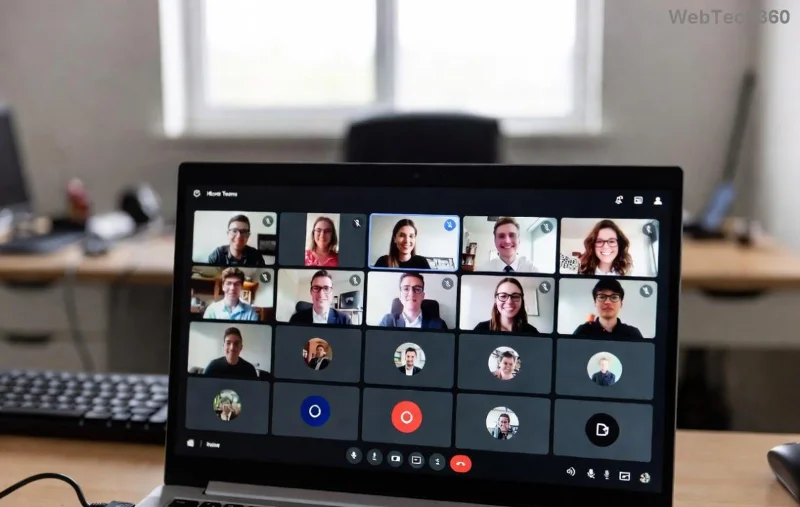
Recognize your issue? Great—now let's fix it step-by-step. Follow these in order for 90% success rate! ✅
Quick wins first. These resolve most Teams VOIP errors in under 5 minutes:
If basics fail, hardware might be the culprit. Update audio drivers via Device Manager or your manufacturer's site.
Microsoft Teams voice relies on stable internet. Jitter, packet loss, or high latency kill VOIP quality. Here's how to bulletproof your connection:
Pro Tip: Use Microsoft's Teams Network Assessment Tool for deep diagnostics. It'll pinpoint Teams VOIP errors like magic! 🔍
Still echoing or dropping? Level up:
| Advanced Fix | Steps | When to Use |
|---|---|---|
| Clear Teams Cache | %appdata%\Microsoft\Teams → Delete contents. Restart. | Persistent glitches. |
| Reset Teams | Settings > Apps > Teams > Advanced > Reset. Or reinstall. | App corruption. |
| Codec Tweaks | Disable "Auto-adjust mic sensitivity." Set SILK codec priority. | Choppy audio. |
| Group Policy Check (Admins) | Enable "DisableMediaRedirection" via gpedit.msc. | Enterprise setups. |
For official deep dives, check Microsoft's Teams Audio Troubleshooting. Always updated for latest patches!
Don't just fix—prevent! 🎯
Audio woes banished? High-five! 👏 Your Microsoft Teams voice calls are now pro-level. If issues persist, drop a comment below—we're here to help. Stay connected! 🚀
Skype Free Phone Calls let you connect with friends and family worldwide at no cost. Follow this guide to set up and start making free calls quickly and easily.
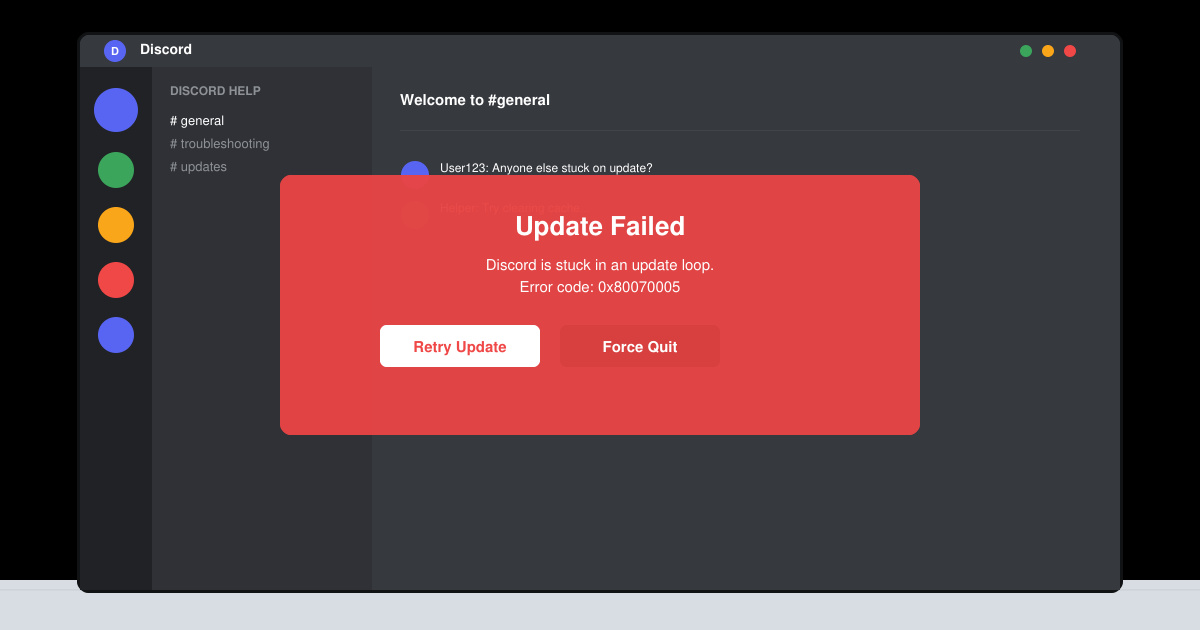
Stuck in the Discord Update Failed Loop? Follow these targeted fixes to break the cycle and complete the update without repeated failures or reinstalls.
Travel planning used to mean folders full of printed confirmations, handwritten notes, guidebooks, and a slightly terrifying number of browser tabs. Now, pretty much everything you need for a trip can live on the device already in your pocket.
Discover how Canva Free for Teachers gives educators full access to premium design tools at no cost. Verify your status and start creating classroom materials in minutes.
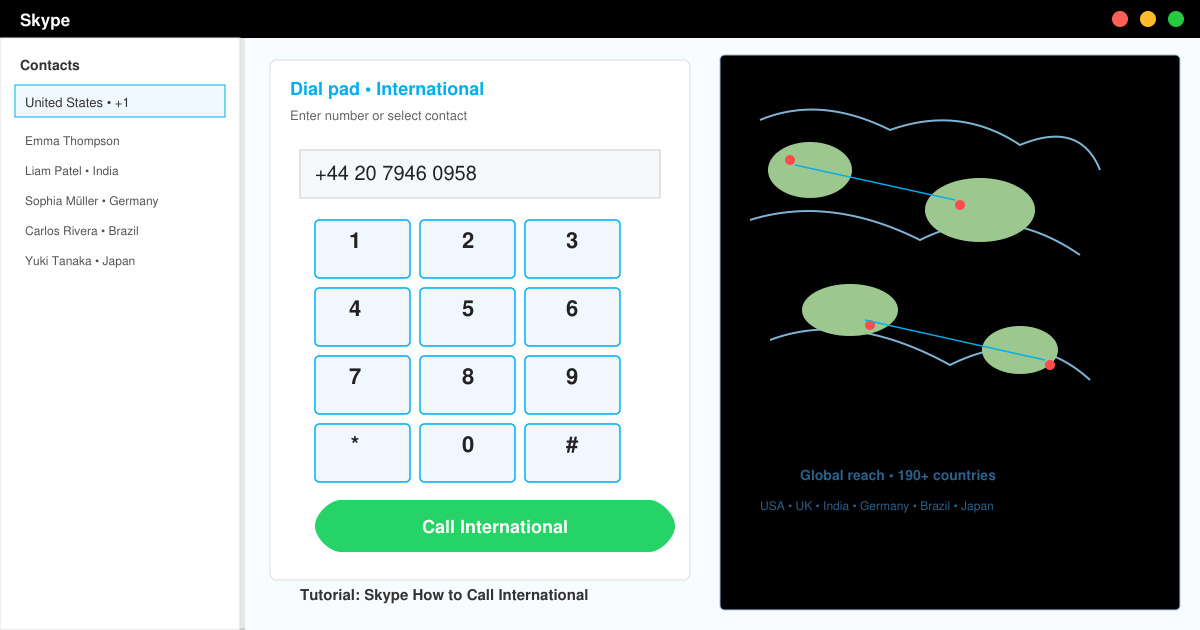
Skype How to Call International is simple and cost-effective once you set up credit and use the right country codes. Follow this guide to place clear calls from anywhere.
Make Skype to Skype Calls Free in minutes with this clear guide. Set up your account, add contacts, and start unlimited voice and video calls at no cost.
Fix the Your Connection is Not Private Chrome error quickly with these exact steps. Restore secure browsing by addressing certificate and settings issues in minutes.
Record heat has lifted air-conditioning demand while gas-market shocks have returned volatility to power prices. That creates a real risk of painful bills—but not a guaranteed, Europe-wide price explosion.
Large format printing has long faced criticism for its environmental impact. Traditional substrates, solvent-based inks, and short-lived promotional campaigns have all contributed to the perception that eye-catching graphics come at a high environmental cost.
Long-distance travel can involve heavy traffic, changing weather conditions, and rider fatigue. If you are also dealing with the responsibilities of moving home, such as packing belongings or coordinating accommodation, a long ride may add unnecessary pressure to an already busy schedule.