How AI Checkers Work: Behind the Detection Process

As AI writing tools become more advanced, many people want a reliable way to identify machine-written text. This is where an AI checker comes into the picture.
Windows applications often store their data and settings in an AppData folder, and each Windows user account has its own folder. It is a hidden folder so you will only see it if you display the files in the File Manager. So what is the AppData folder and how does it play the role? Let's find out through the following article.
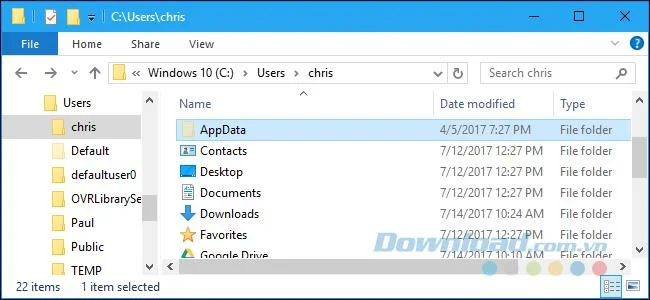
Each user account has an AppData folder with its own content. This allows Windows programs to store multiple installation packages if one computer is used by more than one person. The AppData folder was introduced on Windows Vista and it is still used on Windows 10 , 8 and 7.
You will find the AppData folder of each user account in that user's catalog. For example, if the user is named An, you will find the application data folder at C: \ Users \ An \ AppData by default. You can enter this address into the address bar to view it or display hidden folders and browse the list of user accounts at C: \ Users \ NAME . (You can also type % APPDATA% in the address bar of File Explorer to go directly to the AppData \ Roaming folder ).
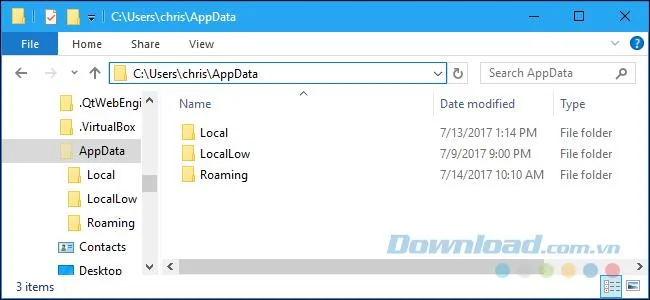
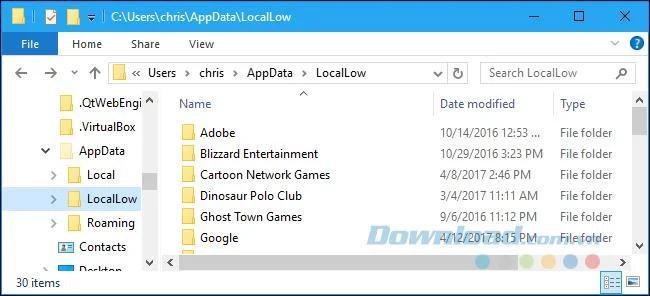
They are actually three directories in AppData and are different programs that store different types of settings. Open the AppData folder and you will see three folders: Local, LocalLow and Roanming .
The Roaming folder contains data that "follows" a user account from one computer to another if your computer is connected to a domain name with a roaming profile , often for important settings. For example, Firefox stores its user profile here, allowing bookmarks and other browsing data to "follow" you from one computer to another.
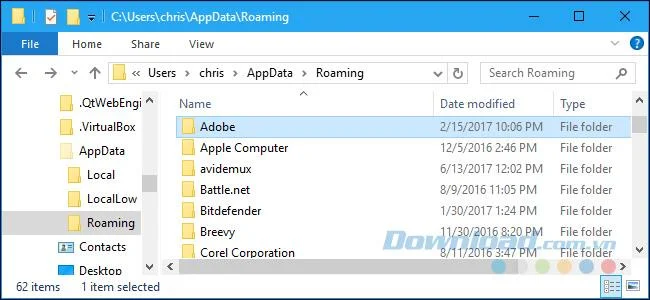
The Local folder contains data specified for a separate computer. It is never synchronized from one computer to another, even when you log into a domain. This data is usually assigned to a computer or contains too large files. Data can include either downloaded cache files or other large files or just settings that developers don't think they need to sync between computers.
If you are not connected to a domain, there is no difference between the Roaming and Local folders . They are all stored on your computer. However, application developers still divide different types of data between different directories.
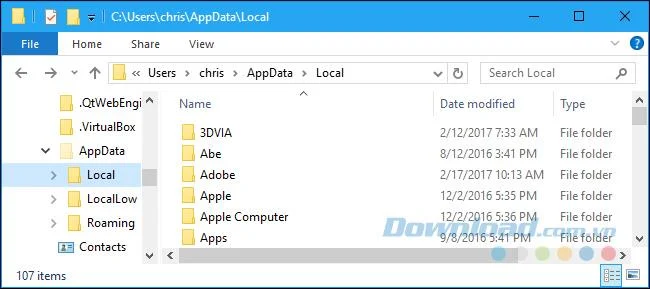
The LocalLow folder is similar to the Local folder , but it is designed for "low integrity" applications to run with more restrictive security settings. For example, Internet Explorer when running in Protected Mode only has access to the LocalLow folder . The difference is not really important for your personal use, but some applications only need a folder to write because they do not have access to the Local folder.
If a program wants to have separate installation packages or files used by many people, it should use the ProgramData folder . ProgramData is known as the "all users" AppData folder in previous versions of Windows. For example, an antivirus application can keep scan logs and settings in ProgramData and share them with all users on the PC.
Most Windows users do not need to know the existence of this directory. That is why it is hidden by default. You don't need to back up an entire folder, though you might want to include it in a backup just so you have everything in case you need to restore it.
However, if you want to back up specific program settings or computer game archive files, you can do this by digging into the AppData folder, finding the program's directory, and copying Copy it to another location. You can then copy that folder to the same place on a new computer and the program will use the same settings.
Many programs provide a way to synchronize their data between computers, or at least export it. Very rarely do you have to dig into the AppData folder, but sometimes you can do that too.
As AI writing tools become more advanced, many people want a reliable way to identify machine-written text. This is where an AI checker comes into the picture.
Frustrated by Microsoft Edge "Can't Read and Write to Data Directory" error? Get step-by-step fixes, from quick resets to advanced troubleshooting, to restore your browser fast. Works on latest versions!
Tired of the frustrating Microsoft Edge "Windows Update Catalog" Error blocking your updates? Discover proven, step-by-step fixes that work on the latest Windows versions. Get back online in minutes!
Struggling with Microsoft Edge black screen in OBS Studio? Discover step-by-step fixes for hardware acceleration issues, capture settings, and more. Get your stream crystal clear today!
Master how to link your Microsoft Edge account to your phone for seamless syncing of tabs, passwords, and bookmarks. Step-by-step guide for Android and iOS with troubleshooting tips.
Struggling with Microsoft Edge "System Sounds" missing? Our ultimate guide provides step-by-step fixes to restore notifications, alerts, and browser sounds quickly and easily. Works flawlessly on the latest versions.
Struggling with Microsoft Edge "DNS Probe Finished No Internet" error? Discover step-by-step fixes to restore your browsing instantly. Flush DNS, change servers, and more – no tech skills needed!
Tired of the frustrating Microsoft Edge "Profile is Already in Use" error blocking your browsing? Follow our proven, step-by-step troubleshooting fixes to resolve it quickly and regain smooth performance. Works on latest versions!
Facing Microsoft Edge "Stream Deck" app not opening? Discover proven troubleshooting steps, quick fixes, and expert tips to resolve crashes, freezes, and launch issues fast. Get back to streaming seamlessly.
Tired of Microsoft Edge Error 0x8004210b blocking your updates? Follow our expert, step-by-step guide with quick fixes to resolve it fast. No tech skills needed – get Edge running smoothly again!