Webex Meetings: How to install, create rooms and Join classrooms for free

Webex Meetings from the famous software company Cisco is a very powerful and professional application for use in online meetings . Recently, with the significant increase in online learning and working caused by the epidemic, Webex has been trusted and used by many people. Let's learn about how to register, install and use Webex in the following article.
Webex Meetings: How to install, create rooms and Join classrooms for free

Instructions for registering and installing Webex Meeting for online learning and meetings

Note: This is a guide to installing and using Webex software for PC.

Instructions for installing Webex

First you need to download the Cisco Webex Meetings software version for PC.

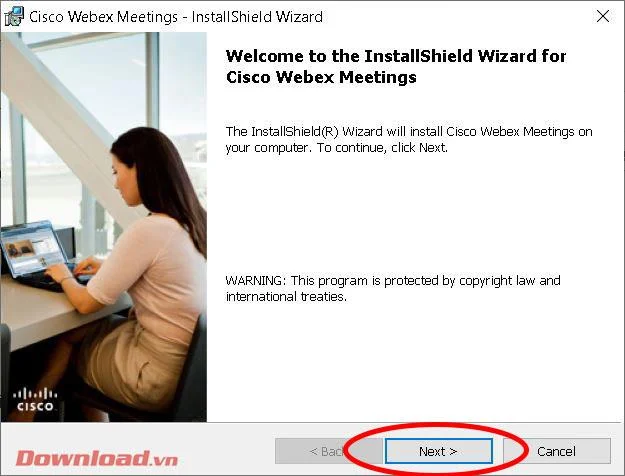
After downloading, run the downloaded file to open the installation window. Click the Next button .

Webex Meetings: How to install, create rooms and Join classrooms for free

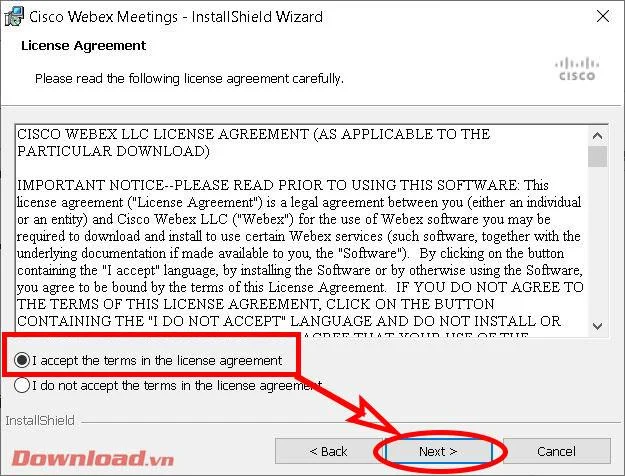
Check the line I accept the terms in the license agreement then click Next .

Webex Meetings: How to install, create rooms and Join classrooms for free

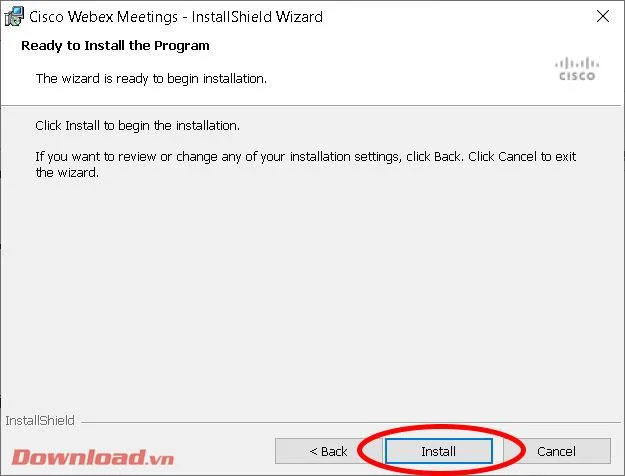
In the next window, click Install to proceed with the installation.

Webex Meetings: How to install, create rooms and Join classrooms for free

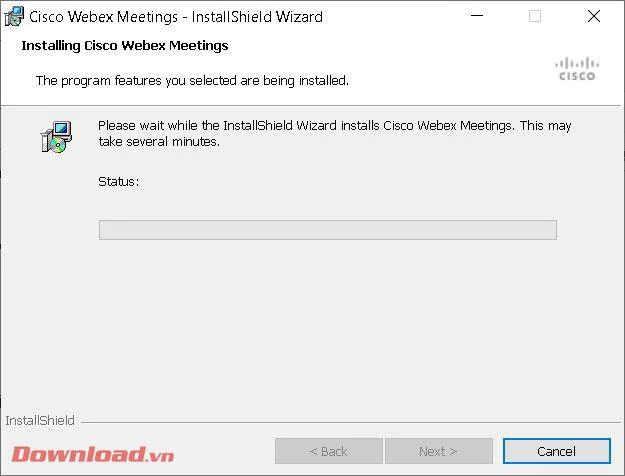
Wait a moment for the installation process to complete. If Windows displays a dialog box asking if you want to install the software, click Yes .

Webex Meetings: How to install, create rooms and Join classrooms for free

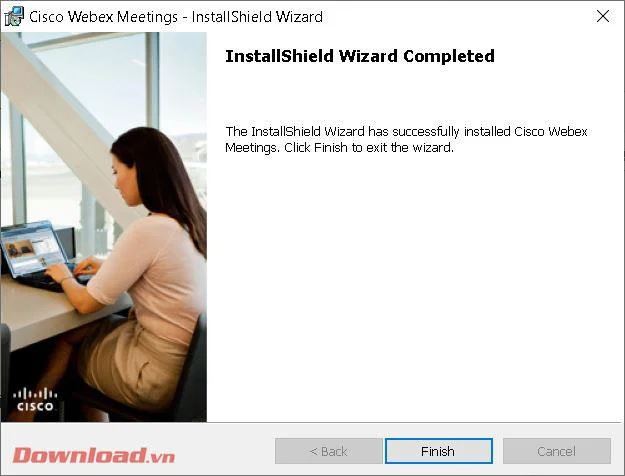
After successful installation, click the Finish button to close the window and start the Webex software immediately afterwards.

Webex Meetings: How to install, create rooms and Join classrooms for free

Sign up for a Webex account

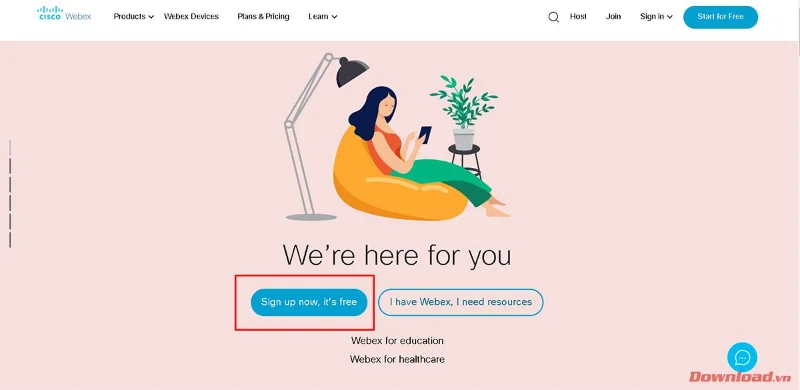
To be able to use Webex, you need to register for an account. Visit the application's homepage at: https://www.webex.com/ then press the Sign up now, It's free button .

Webex Meetings: How to install, create rooms and Join classrooms for free

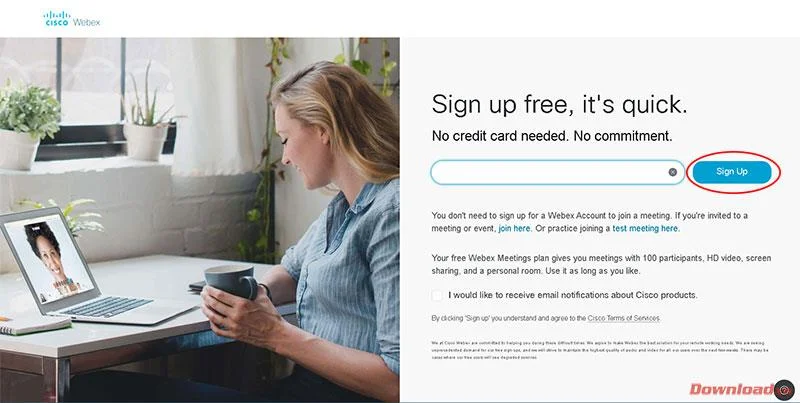
Enter your Email address in the blank box then press the Sign Up button next to it.

Webex Meetings: How to install, create rooms and Join classrooms for free

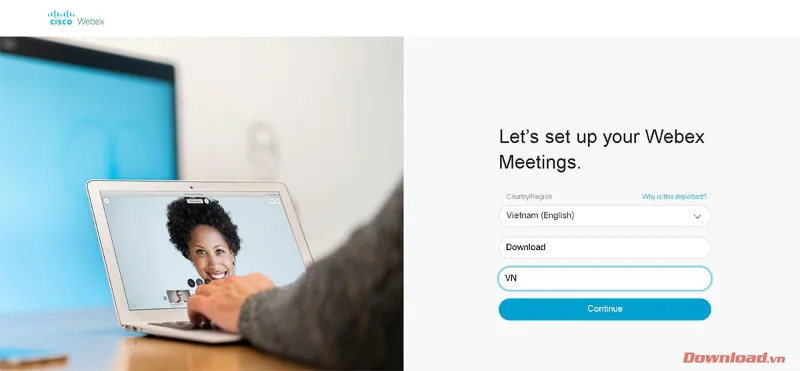
Select Country, language and fill in full name in the blank boxes then click Continue .

Webex Meetings: How to install, create rooms and Join classrooms for free

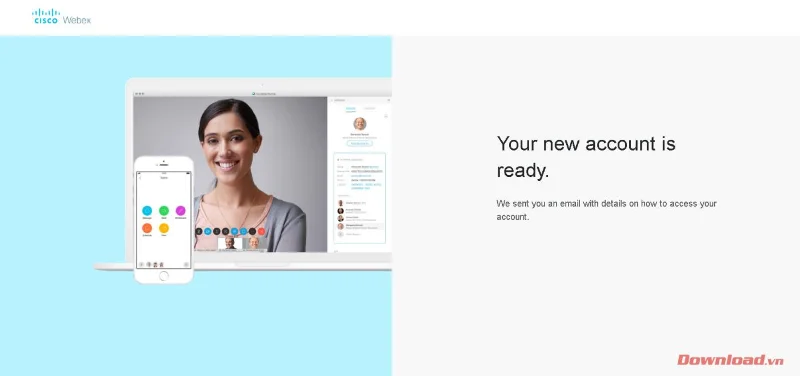
The system will send an email to your mailbox to confirm account creation.

Webex Meetings: How to install, create rooms and Join classrooms for free

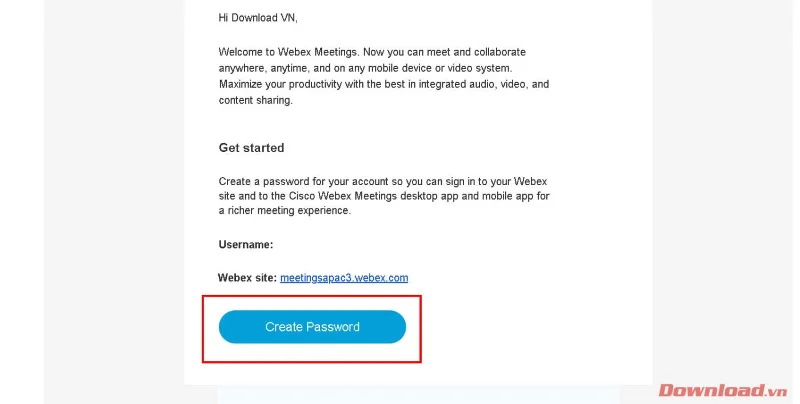
Check your Email sent by Webex, click the Create Password button at the end of the message.

Webex Meetings: How to install, create rooms and Join classrooms for free

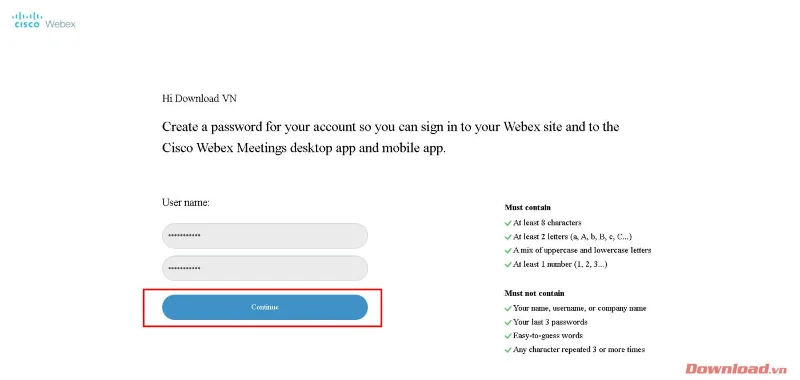
Next, you will be redirected to Webex's account management page to create a login password. Enter your password and confirm your password in the 2 blank boxes under User Name and click Continue to complete the account registration process.

Webex Meetings: How to install, create rooms and Join classrooms for free

Create a Webex classroom/meeting room

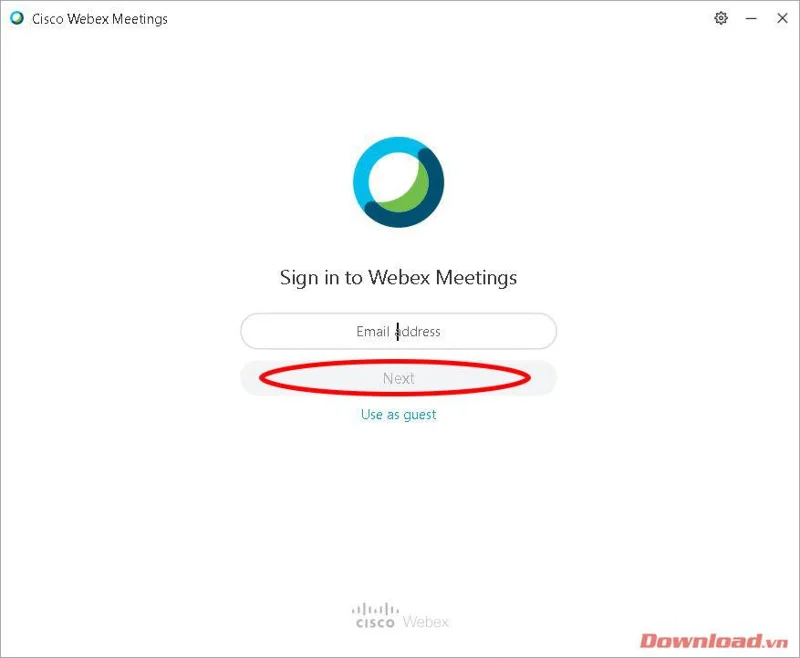
To create a classroom or meeting room, after opening the Webex software, enter the registered Email in the Email Address box then click Next .

Webex Meetings: How to install, create rooms and Join classrooms for free

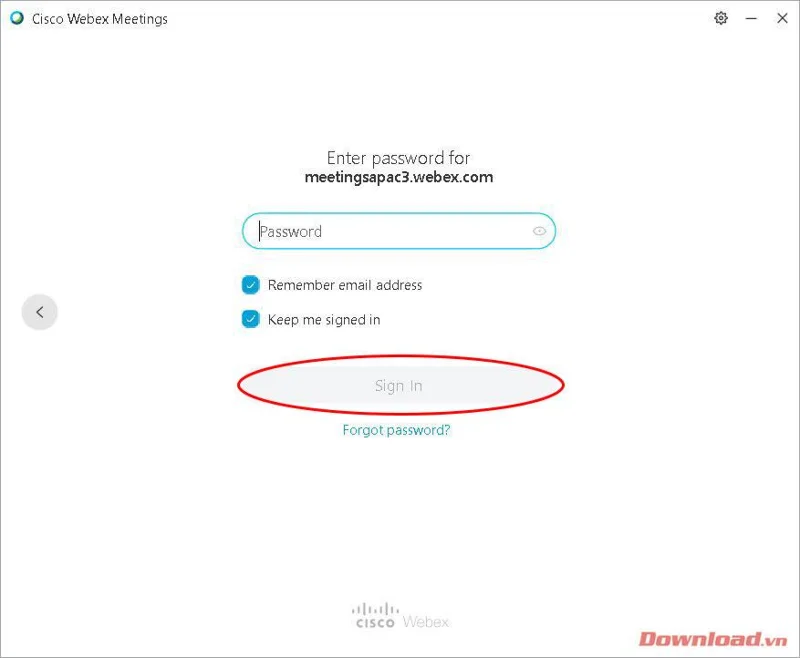
Next, enter your password in the Password box then press the Sign in button .

Webex Meetings: How to install, create rooms and Join classrooms for free

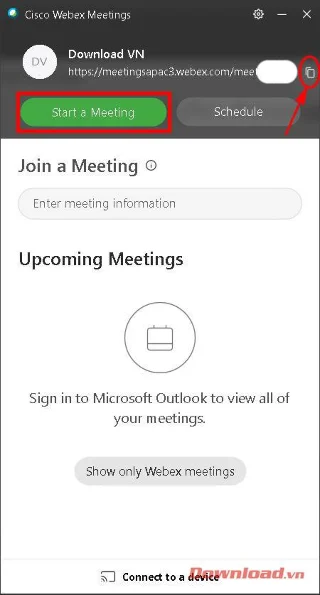
After successfully logging in, the main window of the software will appear. Click on the copy icon next to the room link as shown below to copy the link and send it to the participants. Then, press the Start a Meeting button to start a class/meeting.

Webex Meetings: How to install, create rooms and Join classrooms for free

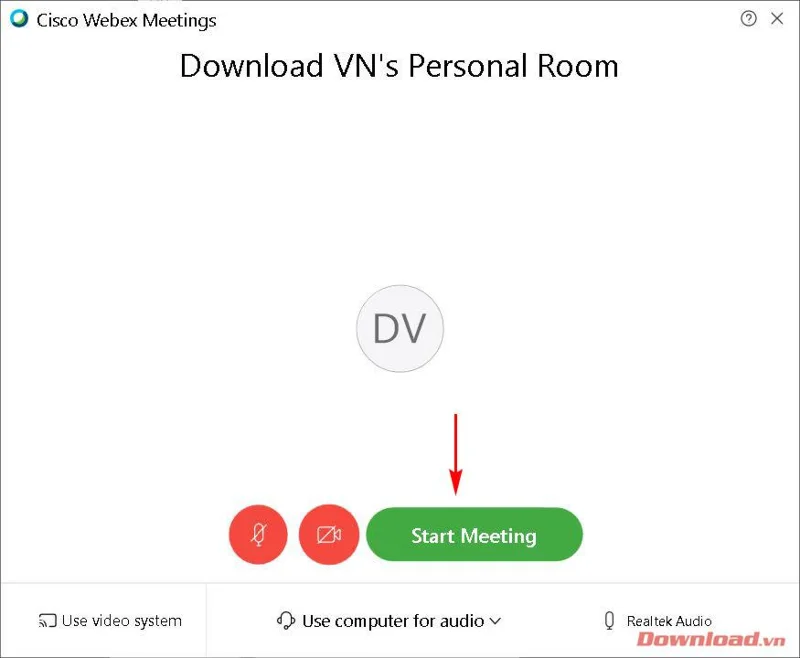
At this time, the user will be transferred to the personal meeting room to prepare for the meeting or study session. After turning off or on the sound and image with the corresponding button on the screen; Click Start Meeting .

Webex Meetings: How to install, create rooms and Join classrooms for free

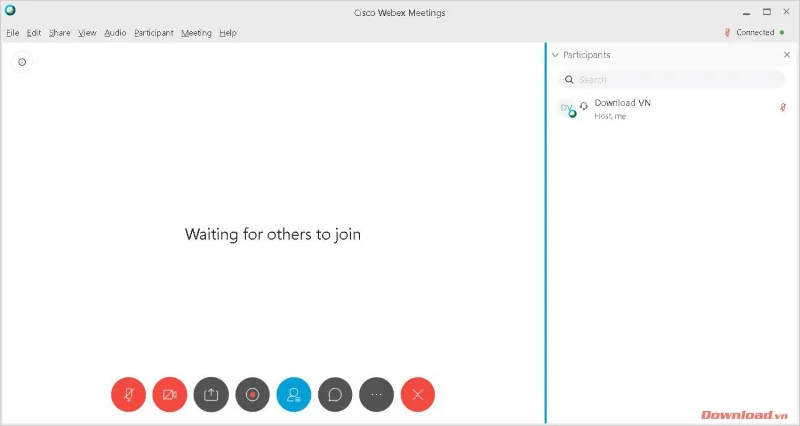
The classroom/meeting room window will appear as shown below. We can manage members participating in the room in the menu on the right hand side. The classroom interface is very friendly and easy to use with quite complete basic functions such as muting, turning off video, recording, uploading data files...

Webex Meetings: How to install, create rooms and Join classrooms for free

Join a Webex classroom/meeting room

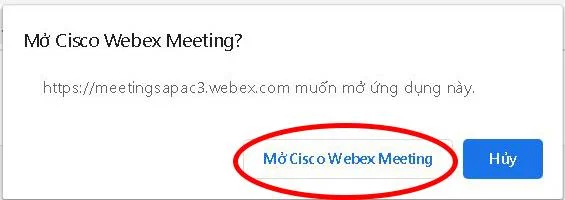
Joining a room After receiving the classroom link , click on it. At this point, you will be redirected to edit the browser window. Click Open Cisco Webex Meeting in the dialog box that appears to open the Webex software and enter the room.

Note: You need to install the Webex software to be able to join the room. If you have not installed it, the website will also ask you to download the file and install it. See the installation instructions at the beginning of the article.

Webex Meetings: How to install, create rooms and Join classrooms for free

So with just a few simple steps, you can create and join a classroom or meeting room to serve your online exchange needs.

Wishing you success!
Leave a Comment

How to Fix Microsoft Edge Cant Read and Write to Data Directory

How to Fix Microsoft Edge Cant Read and Write to Data Directory

Frustrated by Microsoft Edge "Can't Read and Write to Data Directory" error? Get step-by-step fixes, from quick resets to advanced troubleshooting, to restore your browser fast. Works on latest versions!

How to Fix Microsoft Edge Windows Update Catalog Error

How to Fix Microsoft Edge Windows Update Catalog Error

Tired of the frustrating Microsoft Edge "Windows Update Catalog" Error blocking your updates? Discover proven, step-by-step fixes that work on the latest Windows versions. Get back online in minutes!

How to Fix Microsoft Edge OBS Studio Black Screen

How to Fix Microsoft Edge OBS Studio Black Screen

Struggling with Microsoft Edge black screen in OBS Studio? Discover step-by-step fixes for hardware acceleration issues, capture settings, and more. Get your stream crystal clear today!

How to Link Your Microsoft Edge Account to Your Phone

How to Link Your Microsoft Edge Account to Your Phone

Master how to link your Microsoft Edge account to your phone for seamless syncing of tabs, passwords, and bookmarks. Step-by-step guide for Android and iOS with troubleshooting tips.

How to Fix Microsoft Edge System Sounds Missing Fix

How to Fix Microsoft Edge System Sounds Missing Fix

Struggling with Microsoft Edge "System Sounds" missing? Our ultimate guide provides step-by-step fixes to restore notifications, alerts, and browser sounds quickly and easily. Works flawlessly on the latest versions.

How to Fix Microsoft Edge DNS Probe Finished No Internet

How to Fix Microsoft Edge DNS Probe Finished No Internet

Struggling with Microsoft Edge "DNS Probe Finished No Internet" error? Discover step-by-step fixes to restore your browsing instantly. Flush DNS, change servers, and more – no tech skills needed!

Troubleshooting Microsoft Edge Profile is Already in Use

Troubleshooting Microsoft Edge Profile is Already in Use

Tired of the frustrating Microsoft Edge "Profile is Already in Use" error blocking your browsing? Follow our proven, step-by-step troubleshooting fixes to resolve it quickly and regain smooth performance. Works on latest versions!

Troubleshooting Microsoft Edge Stream Deck App Not Opening

Troubleshooting Microsoft Edge Stream Deck App Not Opening

Facing Microsoft Edge "Stream Deck" app not opening? Discover proven troubleshooting steps, quick fixes, and expert tips to resolve crashes, freezes, and launch issues fast. Get back to streaming seamlessly.

How to Fix Microsoft Edge Error 0x8004210b During Update

How to Fix Microsoft Edge Error 0x8004210b During Update

Tired of Microsoft Edge Error 0x8004210b blocking your updates? Follow our expert, step-by-step guide with quick fixes to resolve it fast. No tech skills needed – get Edge running smoothly again!

Troubleshooting Microsoft Edge Laptop Battery Drain Fix

Troubleshooting Microsoft Edge Laptop Battery Drain Fix

Tired of Microsoft Edge draining your laptop battery fast? Get instant fixes with this step-by-step troubleshooting guide for Microsoft Edge laptop battery drain fix. Boost battery life now!