How to upgrade UHQ audio on Samsung Galaxy Note FE
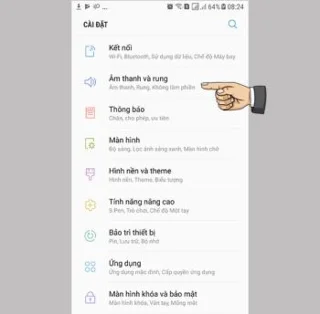
When using a headset, the feature helps to increase the audio resolution of music and video for a clearer listening experience.
When using a headset, the feature helps to increase the audio resolution of music and video for a clearer listening experience.
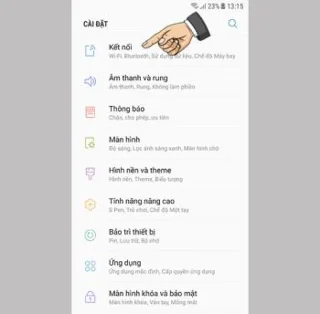
This feature allows for faster stable downloads by combining WiFi and mobile networks.
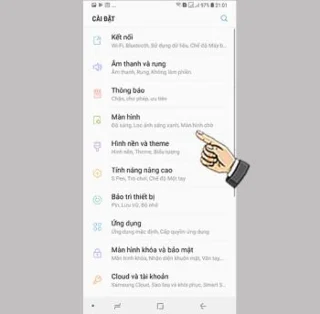
You can select the application you want to use in full screen aspect ratio.
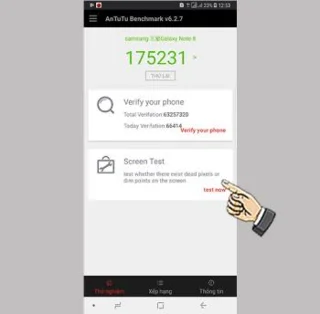
When buying a phone you can check your phone screen has dead spots, bright spots to see if there are errors or not?
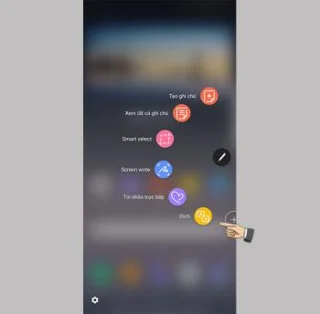
Translate words with the S Pen is to use the pen's translation feature to translate the words you want.
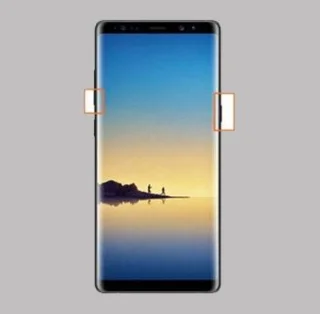
Screen capture on Samsung Galaxy Note 8 helps you capture images at the screen you are working on.
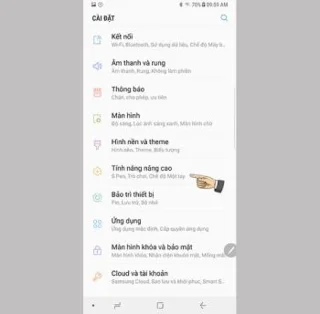
Note on the Note 8's screen off is to use the S Pen to take notes directly on the screen even when the screen is off.
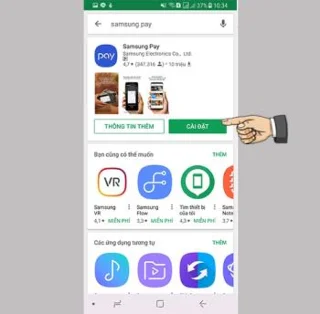
Samsung Pay After becoming a popular payment platform in developed countries such as the US, Singapore, and South Korea, Samsung has officially introduced Samsung Pay service to Vietnam market.<!--{cke_protected}% 3Cmeta%20charset%3D%22utf-8%22%20%2F%3E-->

Since the Note series, the S Pen has been a handy accessory with many functions indispensable for Samsung users.
A data connection will help you stay connected wherever you are without Wi-Fi.
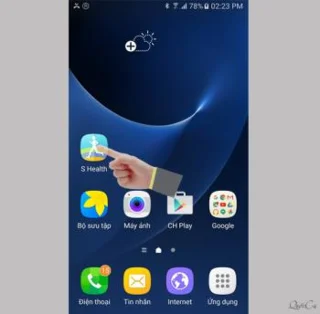
Heart rate monitor on Samsung Galaxy S7 helps you to measure your current heart rate at all times.
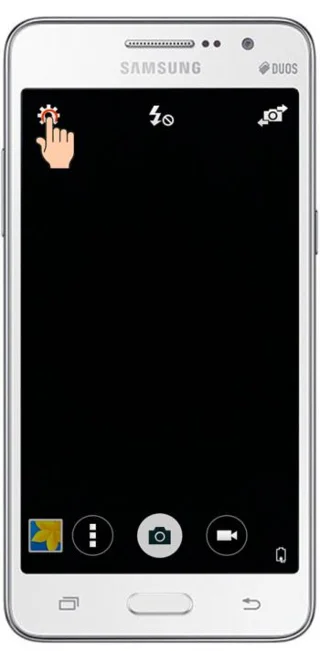
Controlling photography by voice on the Samsung Galaxy Grand Prime is an interesting feature, you will not need to use the key on the device and still take pictures.
You can use the OTG connection to connect to other external peripherals such as a mouse, keyboard or USB.
Optimize your device by automatically restarting with the set time. Any unsaved data will be lost when the device reboots.
Factory reset helps you to reset all settings of your tablet to factory defaults.
Connecting your Samsung Galaxy Tab E 9.6 SM-T561 to your computer simplifies data transfer, enhancing your productivity.
Software updates help the machine add new features or improve the machine's performance in the user experience.
You can change the default sounds when a call comes in with your favorite music.
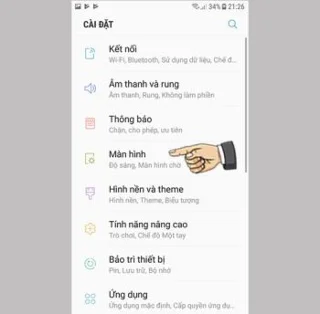
Displaying battery percentage in the status bar makes it easy to control how much battery you are using.
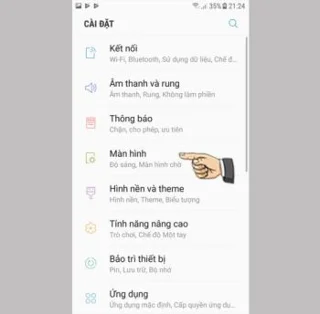
The feature allows you to hide apps that you want to keep from being seen by others.
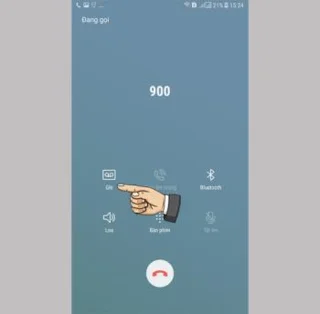
In some special cases you need to save the call recordings.
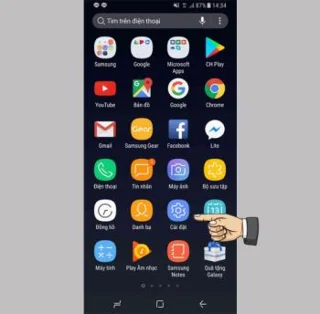
The device displays a data usage warning message with a triangle icon with an exclamation point and cannot use 4G or 3G. What to do next to fix?
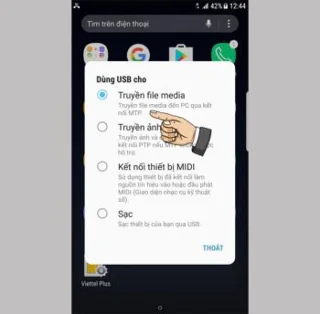
You can connect your phone to your computer via a USB cable to retrieve and copy data.
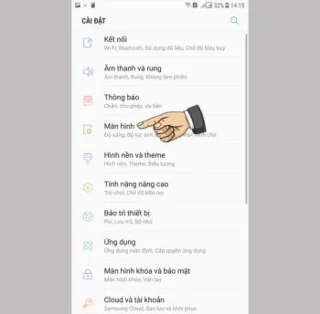
Samsung Galaxy J7 Pro battery percentage display makes it easy to keep an eye on your device's power consumption.
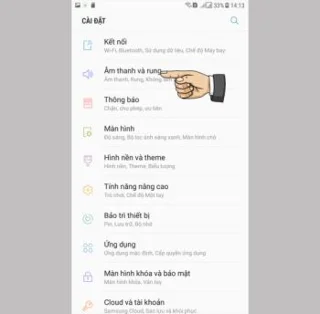
You can change the default sounds for incoming calls with your own downloaded songs.
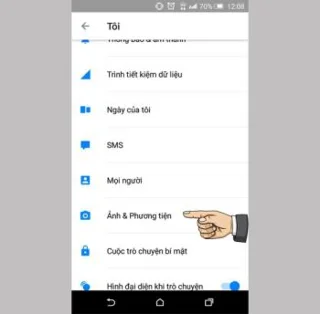
You delete photos and videos, but automatically it's all restored back to your phone. What is the cause and how to turn it off?
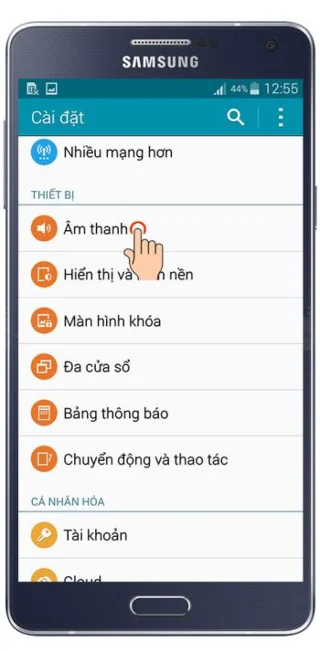
Set to vibrate on keyboard touch on Samsung Galaxy A7
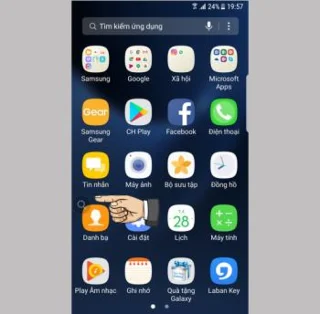
Recently, many smartphone users, especially Samsung, have a magnifying glass icon on the screen. What is that icon and how to turn it off?

Samsung Galaxy J7 screen brightness setting helps you to set the time when the device will automatically turn off when not in use.
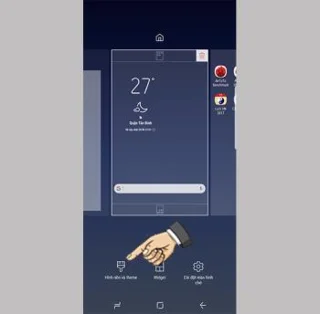
The feature allows the wallpaper to change every time you open the lock screen.