How to send fax from Gmail

Are you tired of having to leave your desk to go to the fax machine in the middle of a meeting? Then immediately apply the method to send fax from Gmail below.
How to send fax from Gmail

Instructions on how to send fax via email

You have a tight work schedule, so you can't always put documents into the fax machine. Luckily, we can now take advantage of the Internet to make it simpler. In just a few minutes, you can send a fax from Gmail - no need for a fax machine. The following are detailed instructions on how to send a fax using Gmail.

Can you send faxes using Gmail?

Google currently does not allow users to send or receive faxes directly from Gmail. However, you can use an online service to do it, such as eFax, GotFreeFax, MyFax, FaxZero...

How to send fax using Gmail

After signing up for a service that supports faxing through Gmail, follow these steps:

1. Compose a message to fax

To compose a new message, go to the Gmail app or its website at mail.google.com, click Compose in the upper right corner.

2. Add the recipient's fax number along with the area code

How to send fax from Gmail

Send faxes from Gmail

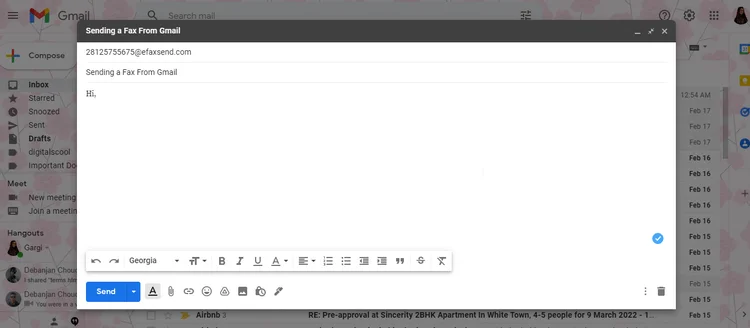
Include the recipient's fax number and the fax provider's area code and domain name in the To field. For example, if you have an eFax account, you would send a fax to 2-812-575-5675 by entering [email protected] .

This domain value is the personal fax service you are using. In this case, it is efaxsend.com. However, you must verify the correct syntax to fax the document.

3. Attach files

Now you can add fax content and attach files. Content must be in attachments in supported formats, such as DOC, JPG, PDF, and TXT. Fax services often allow users to use multiple documents and combine the content of files when sending faxes.

To add files to an email message, click the Attach Files icon (paperclip icon and located near the bottom of the New Message window).

If using the Gmail app, tap the paperclip icon located in the upper right corner of the screen.

4. Add detailed content

This is not required, however, you should do it to make the information clearer.

5. Send fax

After double-clicking on the fax content, you can click Send. Your fax will be transmitted immediately. You will receive a confirmation message on the fax server's screen.

As you can see, sending a fax using Gmail is not too difficult , right? Hope the article is useful to you.

Leave a Comment

How to Fix Microsoft Edge Cant Read and Write to Data Directory

How to Fix Microsoft Edge Cant Read and Write to Data Directory

Frustrated by Microsoft Edge "Can't Read and Write to Data Directory" error? Get step-by-step fixes, from quick resets to advanced troubleshooting, to restore your browser fast. Works on latest versions!

How to Fix Microsoft Edge Windows Update Catalog Error

How to Fix Microsoft Edge Windows Update Catalog Error

Tired of the frustrating Microsoft Edge "Windows Update Catalog" Error blocking your updates? Discover proven, step-by-step fixes that work on the latest Windows versions. Get back online in minutes!

How to Fix Microsoft Edge OBS Studio Black Screen

How to Fix Microsoft Edge OBS Studio Black Screen

Struggling with Microsoft Edge black screen in OBS Studio? Discover step-by-step fixes for hardware acceleration issues, capture settings, and more. Get your stream crystal clear today!

How to Link Your Microsoft Edge Account to Your Phone

How to Link Your Microsoft Edge Account to Your Phone

Master how to link your Microsoft Edge account to your phone for seamless syncing of tabs, passwords, and bookmarks. Step-by-step guide for Android and iOS with troubleshooting tips.

How to Fix Microsoft Edge System Sounds Missing Fix

How to Fix Microsoft Edge System Sounds Missing Fix

Struggling with Microsoft Edge "System Sounds" missing? Our ultimate guide provides step-by-step fixes to restore notifications, alerts, and browser sounds quickly and easily. Works flawlessly on the latest versions.

How to Fix Microsoft Edge DNS Probe Finished No Internet

How to Fix Microsoft Edge DNS Probe Finished No Internet

Struggling with Microsoft Edge "DNS Probe Finished No Internet" error? Discover step-by-step fixes to restore your browsing instantly. Flush DNS, change servers, and more – no tech skills needed!

Troubleshooting Microsoft Edge Profile is Already in Use

Troubleshooting Microsoft Edge Profile is Already in Use

Tired of the frustrating Microsoft Edge "Profile is Already in Use" error blocking your browsing? Follow our proven, step-by-step troubleshooting fixes to resolve it quickly and regain smooth performance. Works on latest versions!

Troubleshooting Microsoft Edge Stream Deck App Not Opening

Troubleshooting Microsoft Edge Stream Deck App Not Opening

Facing Microsoft Edge "Stream Deck" app not opening? Discover proven troubleshooting steps, quick fixes, and expert tips to resolve crashes, freezes, and launch issues fast. Get back to streaming seamlessly.

How to Fix Microsoft Edge Error 0x8004210b During Update

How to Fix Microsoft Edge Error 0x8004210b During Update

Tired of Microsoft Edge Error 0x8004210b blocking your updates? Follow our expert, step-by-step guide with quick fixes to resolve it fast. No tech skills needed – get Edge running smoothly again!

Troubleshooting Microsoft Edge Laptop Battery Drain Fix

Troubleshooting Microsoft Edge Laptop Battery Drain Fix

Tired of Microsoft Edge draining your laptop battery fast? Get instant fixes with this step-by-step troubleshooting guide for Microsoft Edge laptop battery drain fix. Boost battery life now!








