Podcasting Trends You Need to Know in 2026: A Beginner’s Roadmap

New to podcasting? Learn the 2026 trends shaping video, discovery, transcripts, AI, analytics, monetization, and a practical launch plan.
Did you know that Windows 10 allows you to change shortcuts by adding command-line parameters to them? Or that you can also make new shortcuts with arguments, so that they open their target applications with some of their features turned on or off, automatically? If you want to learn how to add launch options to your Windows 10 applications, using their shortcuts, read on:
Contents
What is a shortcut parameter, also known as shortcut argument?
Before we show you how to create shortcuts with parameters and how to add arguments to shortcuts that are already available, you should first know what they are. Shortcut parameters are special commands that can alter the way apps run when you launch them using their shortcuts. Thus, a shortcut with launch arguments can enable or disable certain features of the app it opens.

A shortcut with command-line arguments
For example, by adding a special parameter to a browser's shortcut, you can make it launch in its Incognito mode automatically. Similarly, some games allow you to use shortcut arguments for enabling cheats, configure their graphics settings, and others, automatically.
How to add launch parameters to a shortcut, in Windows 10
First, find the shortcut to which you want to add launch parameters, or create a shortcut towards the executable file of the program that you intend to open using command-line arguments. If you don't know how to create a shortcut, you can find all the information here: Create shortcuts for apps, files, folders, and web pages in Windows 10.

Creating a new shortcut in Windows 10
Then, right-click or touch and hold on your shortcut, and select Properties on its contextual menu to open the shortcut's Properties window. Alternatively, you can also select the shortcut and simultaneously press the Alt + Enter keys on your keyboard.

Opening the Properties of a shortcut
The shortcut's Properties window is the place where you can add command-line parameters for that shortcut. Select the Shortcut tab and look for the Target field.
Target tells the shortcut what app it should launch. In the example below, you can see that we chose to create and use a shortcut that points to Firefox.

The Target of a shortcut tells it what app to launch
To add launch parameters to the shortcut, click or tap inside the Target text field, and type all the arguments you want to add to it, at the end of the line. Each of the additional launch parameters must be preceded by a blank space and a hyphen.
In our case, because we wanted to create a shortcut that opens Firefox in its private mode, we had to add the "-private-window" command-line parameter. So, for our Firefox Incognito shortcut, we ended up with a Target that looked like this: "C:Program FilesMozilla Firefoxfirefox.exe" -private-window.

To create a Windows 10 shortcut with parameters, you have to add the arguments to its target
NOTE: When writing the parameters, make sure you search for the list of command-line parameters supported by the application for which you create the custom shortcut. Using unsupported parameters can cause problems when you start the application.
When you are done editing the shortcut, click or tap Apply or OK to save the changes you've made.

Saving a shortcut with parameters
From now on, whenever you're double-clicking or double-tapping the shortcut, it launches its target app using the command-line parameters that you've added to it.

A browser shortcut with a parameter for launching it in incognito mode
P.S. Although you can leave your modified shortcut where it was or where you've created it, now you might also want to pin your shortcut with parameters anywhere you want to: on your taskbar, Start Menu, the desktop, and so on.
For what shortcuts did you want to add launch parameters?
As you can see, adding command-line parameters to shortcuts in Windows 10 is easy, and it doesn't require much work. What shortcuts with arguments did you create? Did you want to customize some of your existing shortcuts by adding command-line parameters? Why did you want to know how to create shortcuts with parameters in Windows 10?
New to podcasting? Learn the 2026 trends shaping video, discovery, transcripts, AI, analytics, monetization, and a practical launch plan.
A practical UGC masterclass for sourcing, permissioning, briefing, publishing, and measuring customer and creator content without losing authenticity.
Community building can deepen trust, retention, feedback, and advocacy, but it is not a replacement for every marketing channel. Compare the tradeoffs and choose the right model.
Learn what major social platforms have actually confirmed about ranking changes in 2026, what depends on context, and how to adapt without chasing myths.
Learn how to make brand storytelling feel credible, human, and specific—using proof, real tension, ethical customer stories, and a practical authenticity check.
Build a smarter Q4 email strategy by balancing reach, frequency, discounts, automation, deliverability, and measurement for profitable holiday growth.
Learn how to create short-form video that converts by balancing hooks, format, authenticity, CTA, platform fit, and testing across TikTok, Reels, and Shorts.
Why are brands testing KOCs instead of relying only on influencers? Learn what KOCs are, why social commerce favors them, common myths, and how to run a measurable pilot.
Learn a practical TikTok SEO workflow for 2026: find real search demand, match search intent, optimize each video, and measure what improves visibility.
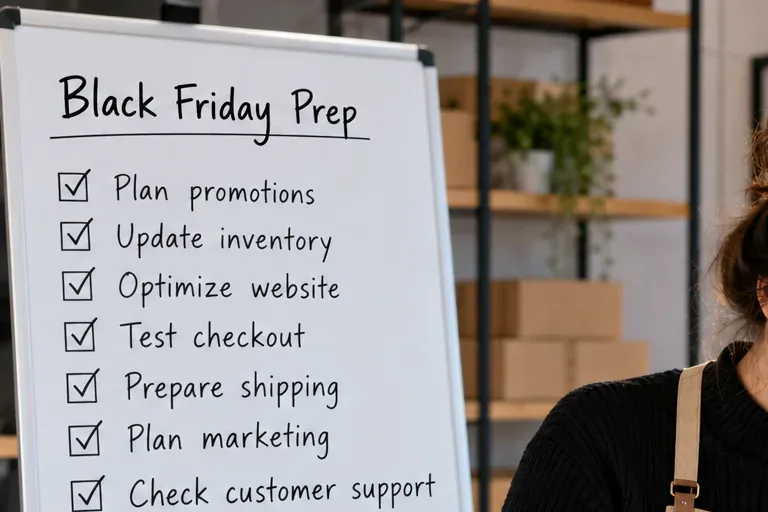
Prepare your e-commerce store for Black Friday with a practical checklist for offers, site speed, checkout, inventory, fulfillment, analytics, security, and support.