Layers in Procreate often hold a few or even only one object. When you need to adjust several elements simultaneously, each might be on a separate layer. Working on layers one at a time isn’t particularly productive. Selecting multiple layers is the perfect answer to this issue. Once you have selected several layers, your adjustments will reflect on each layer. Luckily, layer selection in Procreate is straightforward.
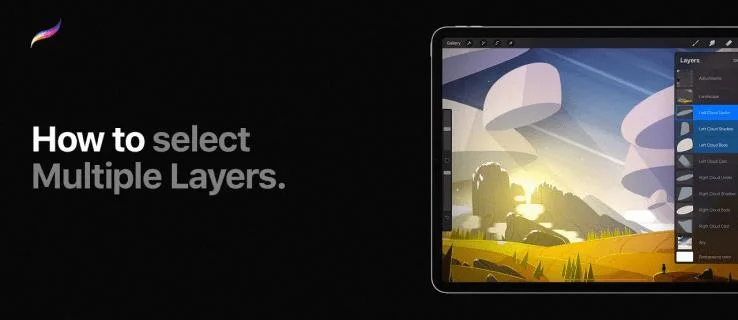
This article will explain how to select multiple layers in Procreate, both in the iPhone and iPad versions. You’ll also read about different ways to manipulate the selected layers, including how to copy and paste or delete them.
How to Select Multiple Layers in Procreate on an iPhone
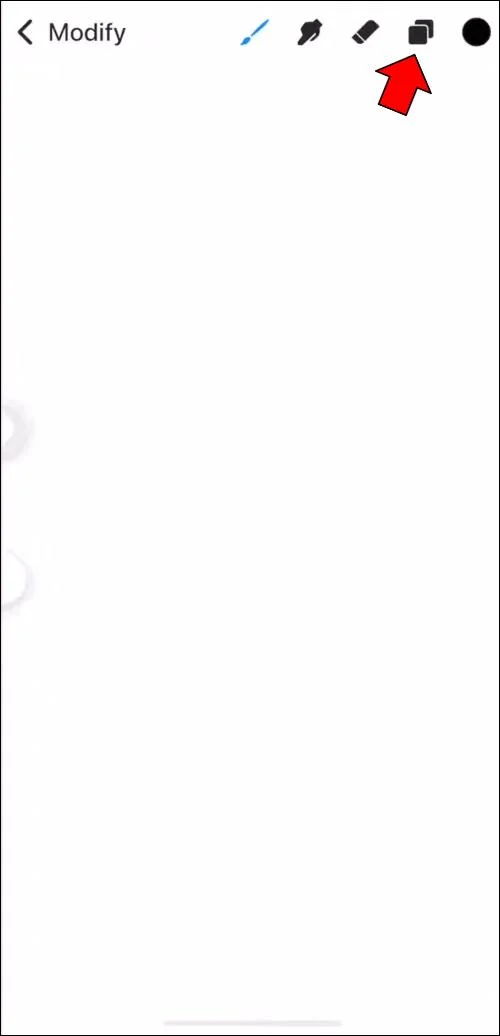
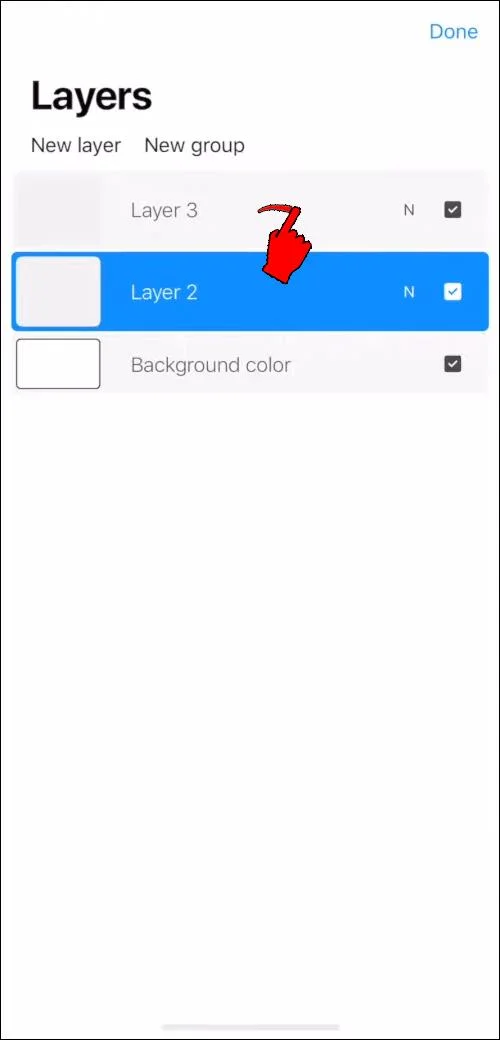
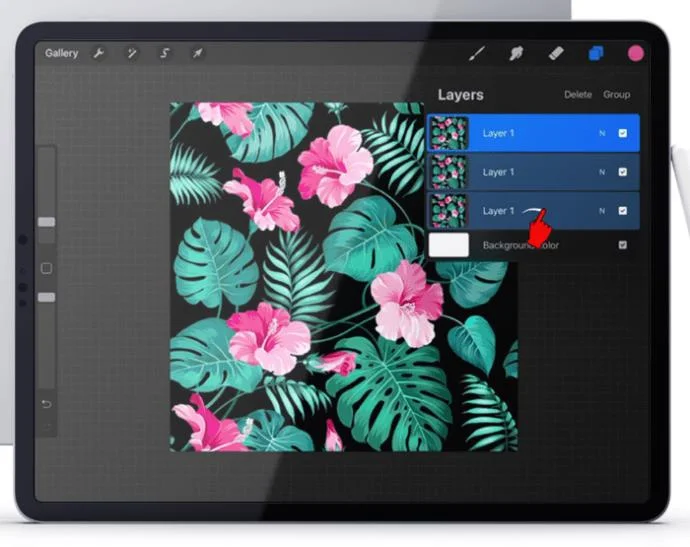
- Go to the Layers panel and locate the layers you wish to select. You’ll see one of the layers is already selected, as indicated by its blue color. This happens by default.

- To select a layer, simply drag it to the right. Once the layer changes to blue, you’ll know it’s been selected.

- Selecting additional layers will be just as straightforward. You can repeat the previous step for each layer. As new layers get selected, the previous ones won’t get deselected.
How to Select Multiple Layers in Procreate on an iPad
Selecting multiple layers in Procreate on an iPad will be the same process as with an iPhone. We’ll outline the method here for the sake of clarity.
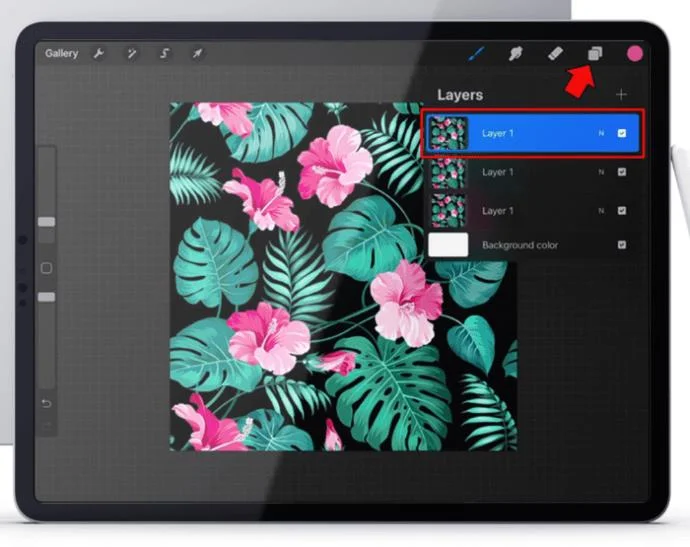
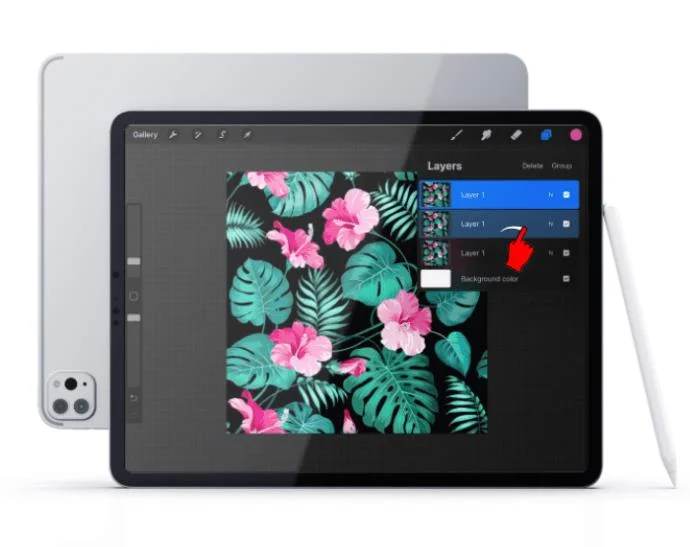
- Tap on the Layers panel to bring down the layers menu. You’ll see a list of layers with one already selected. You’ll recognize the selected layer since it’ll be highlighted in blue.

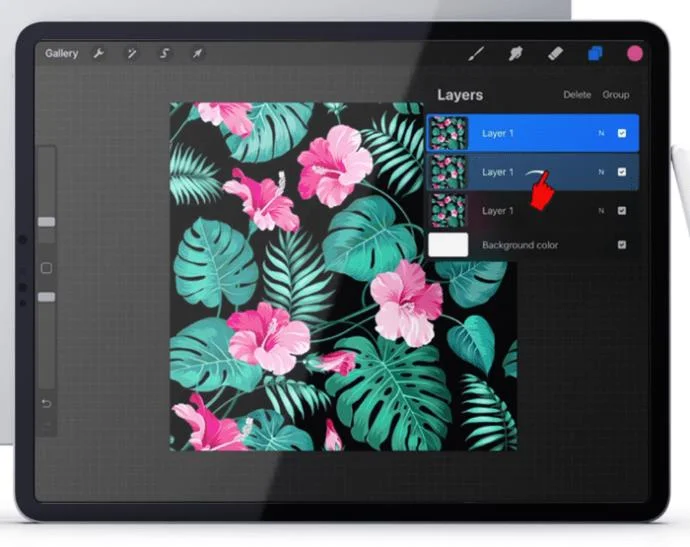
- Drag your finger to the right across a layer you want to select. If the action is done correctly, the layer will turn blue.

- Repeat step 2 for any additional layers you wish to select. You can do this for as many layers as you want – selecting new layers won’t deselect the previous ones.

Copying and Pasting Selected Layers
Copying and pasting a single layer in Procreate is relatively simple. However, the fastest technique used for that won’t work on multiple selected layers. This is because you would need to tap on one layer to open the copy-and-paste settings. Done this way, the method wouldn’t apply to all layers.
The same goes for the Duplicate option. This tool requires you to swipe left on a single layer. This means you won’t be able to duplicate several layers using that method.
To copy and paste multiple layers, you’ll need to create a new canvas and drag the layers there. Here’s how it’s done.
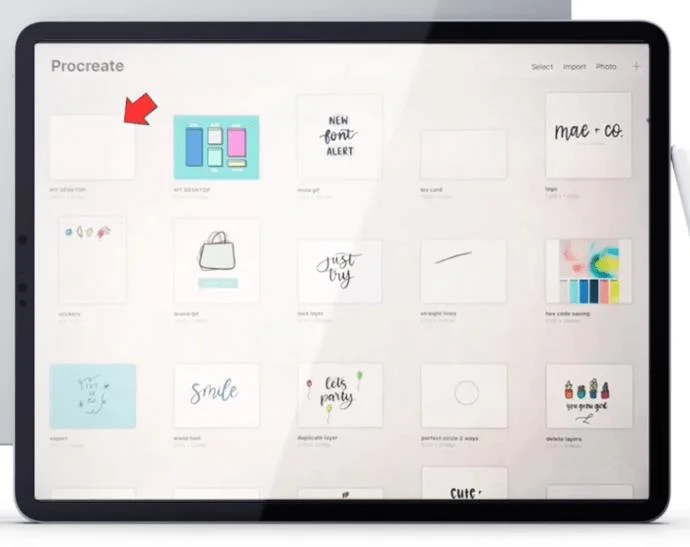
- Create a new canvas and make sure it’s formatted properly. It would be best to use the same format as the original canvas, as this will ensure the objects on the layers don’t get distorted.

- Go back to the original canvas where you’ve selected the desired layers. If you haven’t selected multiple layers, now would be a good time for that.

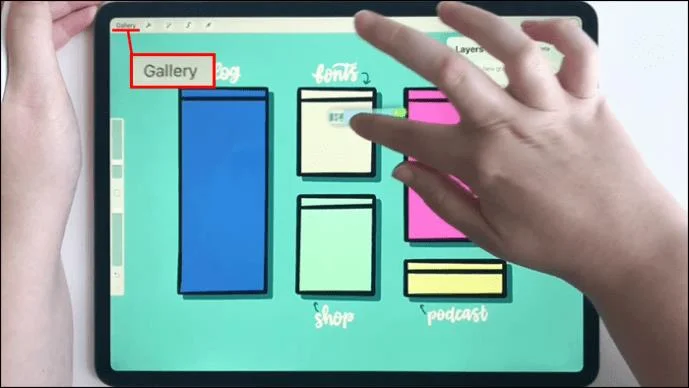
- Tap and hold any selected layers. The action will apply to the entire selection.

- Once you’re holding the selection, use your other hand to tap on Gallery, located in the upper left.

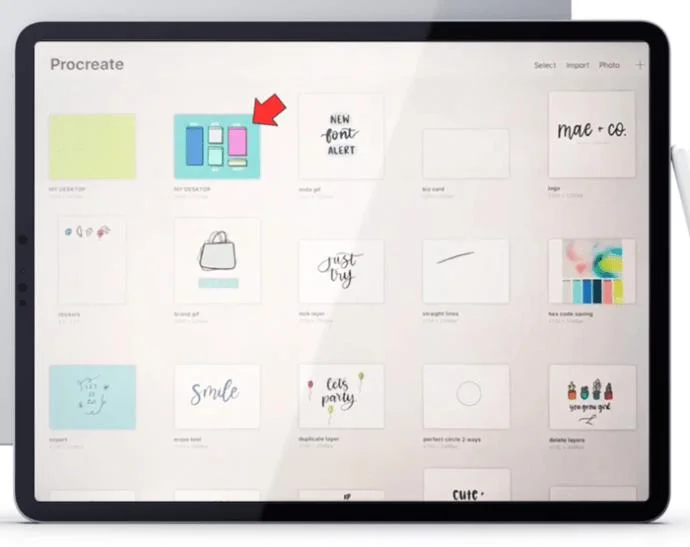
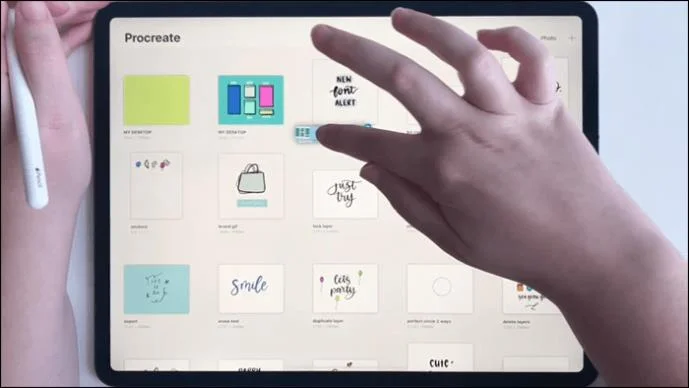
- With the gallery open, start dragging the selected layers until you reach an empty space within the gallery. Don’t release the selection yet.

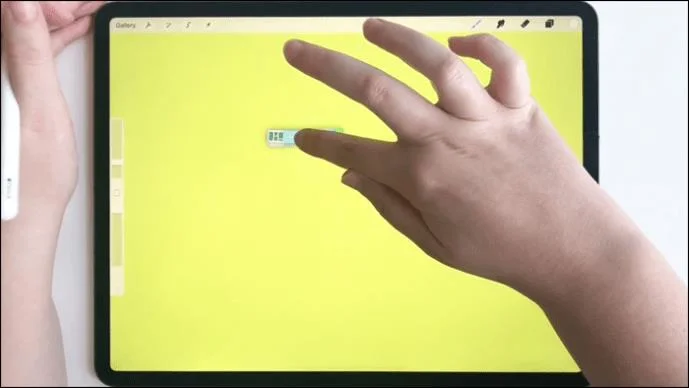
- While still holding the selected layers, open the new canvas you created in step 1.

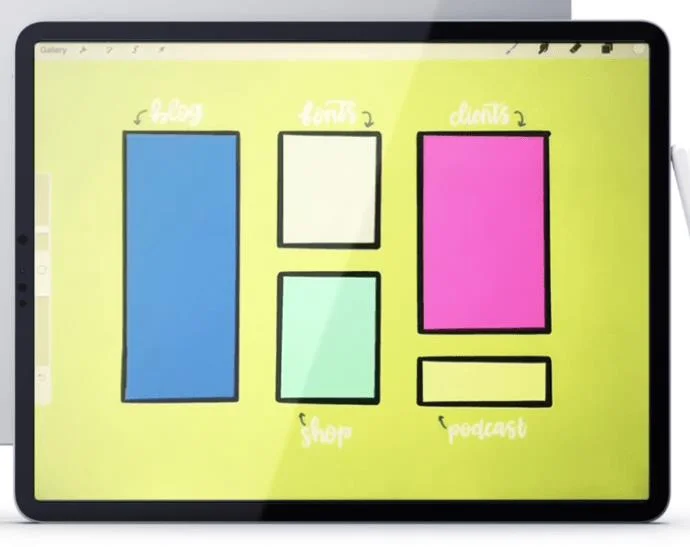
- Finally, position the layers at the center of the new canvas and lift your finger. You’ll know the layers are being imported if a loading screen appears.

Copying and Pasting Selected Layers by Grouping
An alternative method to the one outlined above would be to group all the layers you wish to copy. This will allow you to keep working on the same canvas, but it does have a downside.
Merging multiple layers will make it impossible to work on individual layers. Instead, they will represent a single object in Procreate, and any changes you make to it will reflect on the whole.
On the plus side, this method will be much more straightforward, and provide you with a backup version of your project.
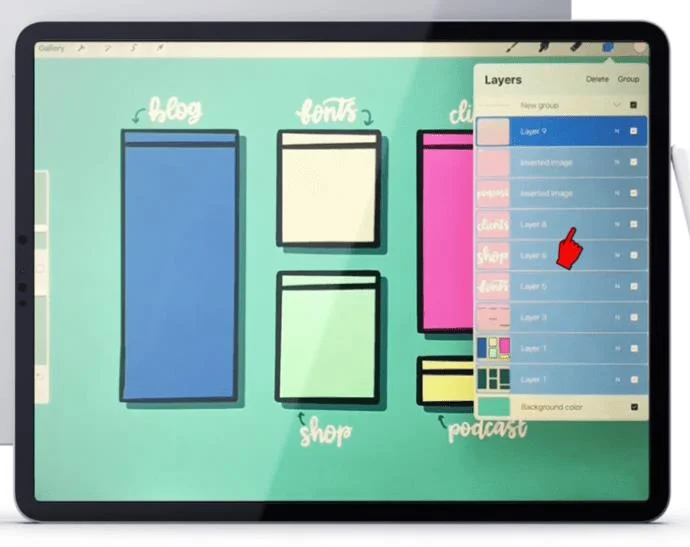
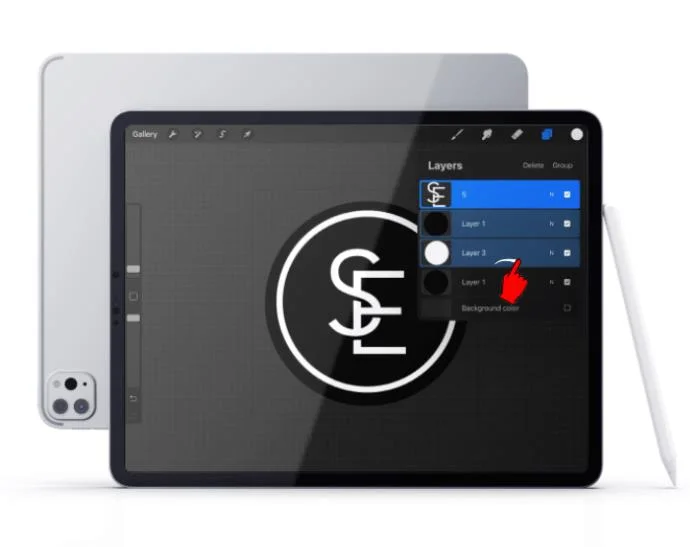
- In the Layers panel, select every layer you want to copy by swiping right.

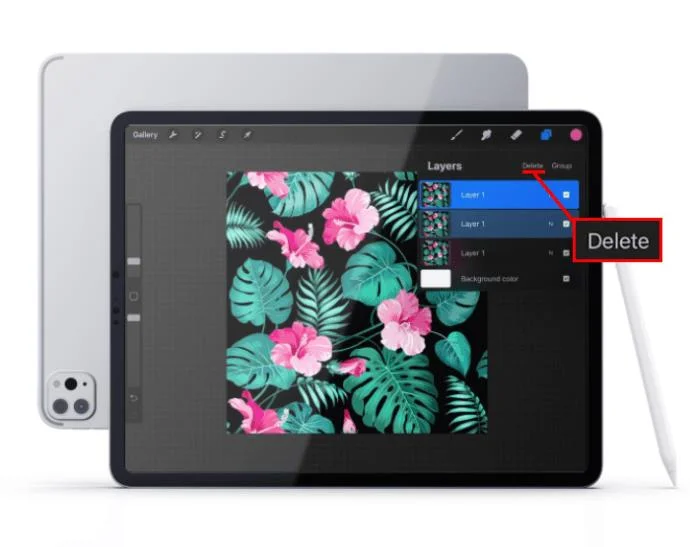
- When multiple layers are selected, you’ll see two options at the top of the Layers panel, “Delete” and “Group.” Use the Group option. Note that this step won’t merge the layers.

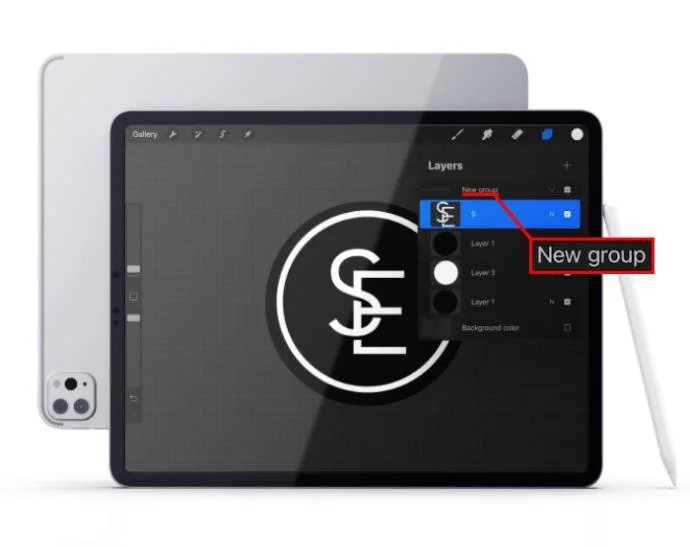
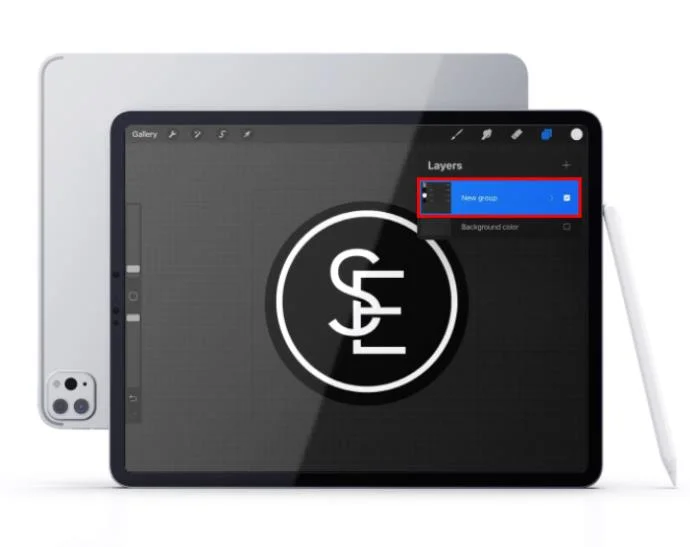
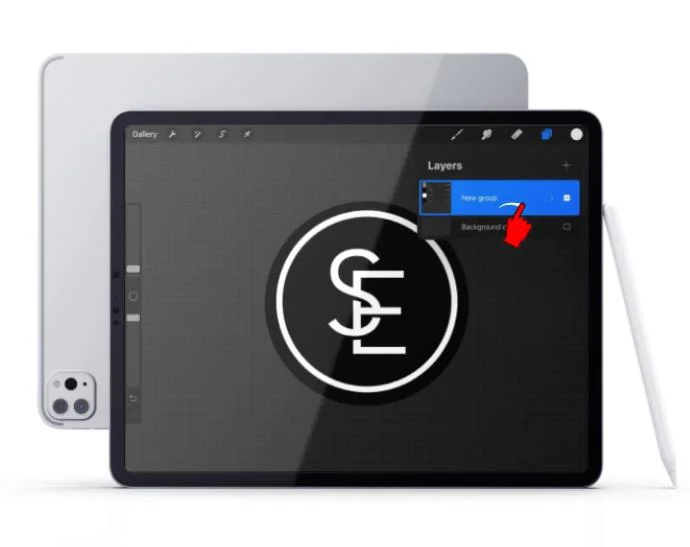
- At this point, you can copy the group. This option will be available under the group actions. As soon as you choose to copy, you’ll see “New Group” appear in the panel.

- Once the group has been copied, each individual layer in it will still be available. If you want to merge all layers into one, you can do that while they’re grouped.

- To merge layers, you can use the Flatten option. Note that working on individual layers won’t be possible after merging.

Selecting All Layers
Procreate doesn’t feature a “Select All” option when it comes to layers. You won’t be able to select every layer on your canvas automatically.
This means you’ll need to manage the selection manually. While the method for this is very straightforward – all you need to do is swipe right on each layer – it might be time-consuming if you’re working on a large number of layers.
You can make the process a bit easier if you make a habit of merging layers that have been completed. For instance, if you have two layers with two objects that don’t require any further work, you can group and then flatten those layers into one.
The selection method will still require you to select each layer manually, but you’ll be able to handle fewer layers.
Deleting Selected Layers
Unlike selecting all layers, deleting multiple layers in Procreate is not only possible but quite easy. You can do that using two different methods: deleting the selection or deleting groups.
Here’s how to delete a selection of layers.
- Select the layers you want to delete by swiping right on each.

- As soon as the layers are selected, you’ll see the “Delete” and “Group” options at the top of the Layers panel. Choosing Delete will remove the selected layers.

The layers may be in a group, or you could have several groups of layers. In that case, the process will be even easier.
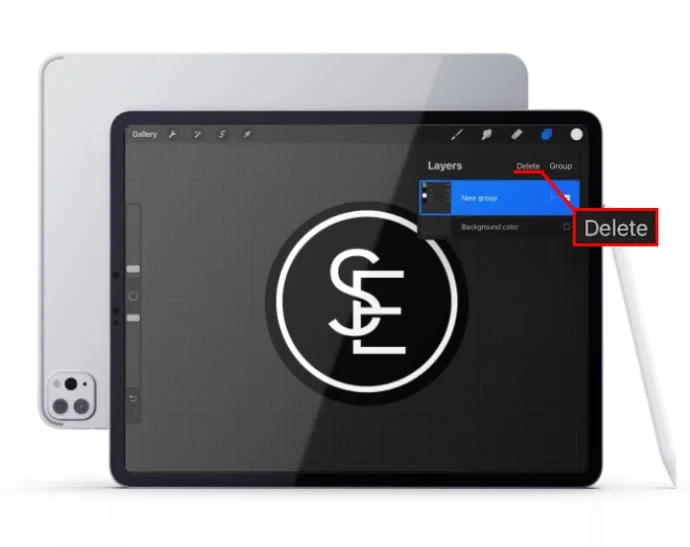
You can delete a single-layer group the same way you would delete a layer.
- Open the Layers panel and find the group.

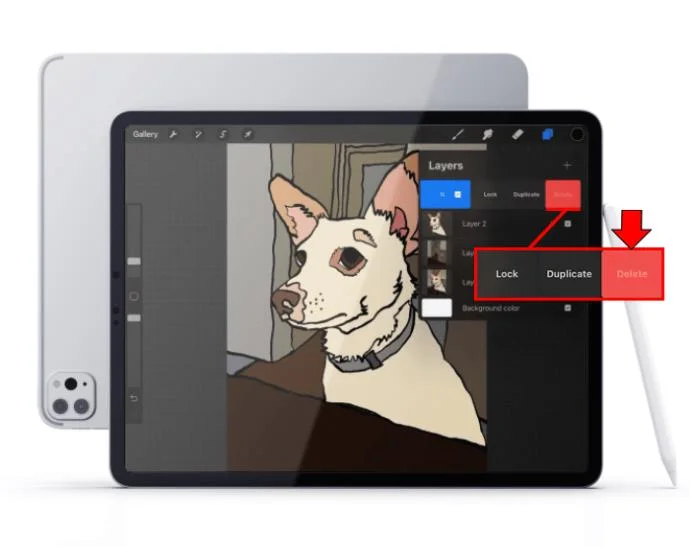
- Swipe left to reveal the menu. You’ll see the Lock, Duplicate, and Delete options. You’ll want to tap Delete. Once you do that the group, and all layers within it, will be deleted.

If you have multiple groups, the process for deleting them will be the same as deleting multiple layers.
- In the Layers panel, select the groups you want to delete by swiping right. Note that you can also select additional individual layers.

- Tap on the Delete option in the upper right.

Deselecting Layers and Groups in Procreate
Selecting multiple layers is a very useful function, but you won’t be able to use it fully if you don’t know how to do the opposite – deselect layers.
Working in multiple layers can be confusing, and you may select the wrong layers. In that case, you’ll want to know how to reverse the action before moving forward. Deselecting layers in Procreate is practically effortless.
You’ll deselect a layer the same way you selected it – by swiping right on the layer. This method will work the same for groups too.
Keeping Your Project Safe While Working With Multiple Layers
The changes you make to multiple layers will be complicated to reverse in the best case or permanent in the worst case. This means you’ll need a backup in case something goes wrong.
The best way to back up your project before you start working with multiple layers will be to simply make a copy of the entire project. Once you do that, you’ll be free to take any drastic action and feel safe knowing that you can fall back to the previous version.
Unlock the Possibilities of Layer Selection
Once you master selecting and working with multiple layers, various processes in Procreate will become much faster. By manipulating several layers at once, you’ll be able to apply significant changes to your artwork without a major time investment.
In this article, we’ve given you all the essential tools for working with multiple layers. We’ve shown you how to select layers, deselect layers, copy and paste them, as well as delete them. Along with the rest of the tools in Procreate, this knowledge will prove a powerful asset for your creative efforts.
Did you manage to select multiple layers? What did you do with the selection? Let us know in the comments section below.