

Skype Free Phone Calls
Skype Free Phone Calls let you connect with friends and family worldwide at no cost. Follow this guide to set up and start making free calls quickly and easily.
Merging two completely different faces from photographs is always a great way to have fun. Blending two separate images to create a brand-new look has become a piece of cake, thanks to a great variety of photo editing apps.
While you can do this in just a few clicks if you use the face mashup tools like FaceApp, if you want a more precise way to merge faces in photos, or even merge photos into one collection according to the subject, you may choose to use advanced editing programs like the ones listed below.
Here are step-by-step walkthroughs on how to merge two different faces into a brand new one using different programs.
How to Merge Two Faces in Blender
Blender is a powerful open-source tool for creating 3D computer graphics. It’s a jack-of-all-trades program allowing users to edit, model, render, animate, sculpt, and more in a solid workspace. Working in Blender is like sculpting, using geometrical shapes to create models.
Creating 3D models, particularly when editing and playing with humanoid-like features, can be challenging. Making 3D portraits in Blender obviously requires some knowledge about the program, but still, it’s not quantum physics. If you want to merge two different faces into one, you must learn how to join the basic shapes that build them.
To blend one portrait into another, you will need to select multiple elements from one model, transfer them to another model, and merge them. This way, you will achieve a smooth look for your model. Most importantly, your new, blended 3D portrait will not look like you simply copied and pasted the features.
While there are a few ways to do this, here is how to perform some hacks.
Multiple Selections
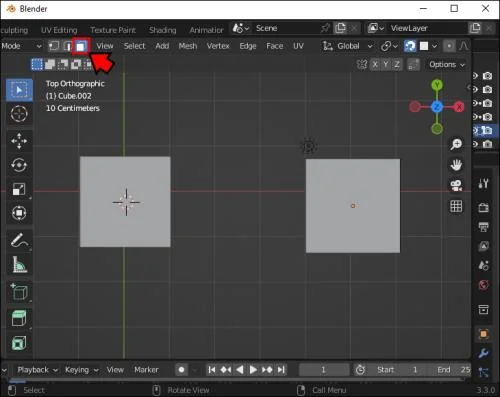
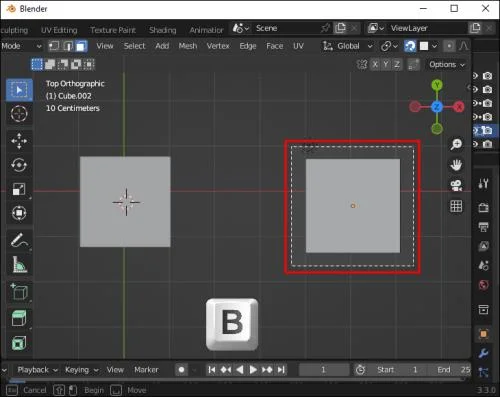
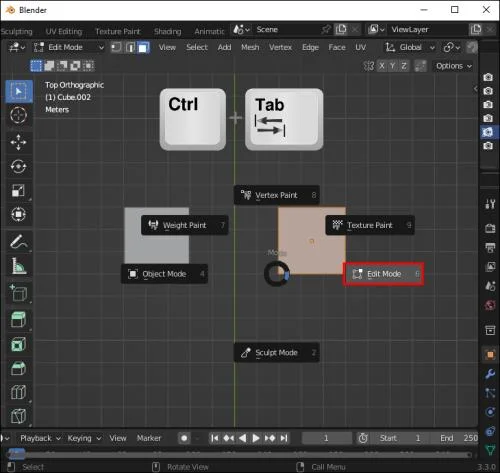
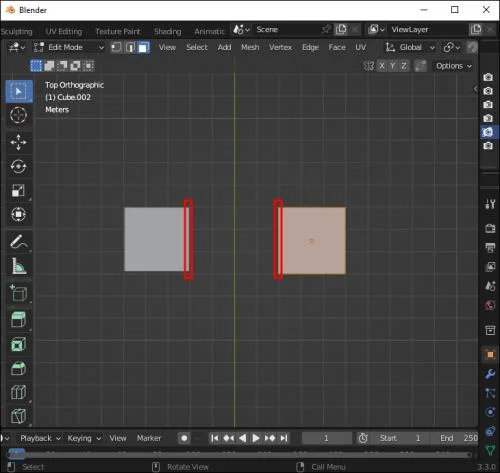
For Blender 2.9 or higher versions, you can join the images in the midpoint between the two faces, then select them both simultaneously using the box select tool. Here is how to use it.
Mesh Tool
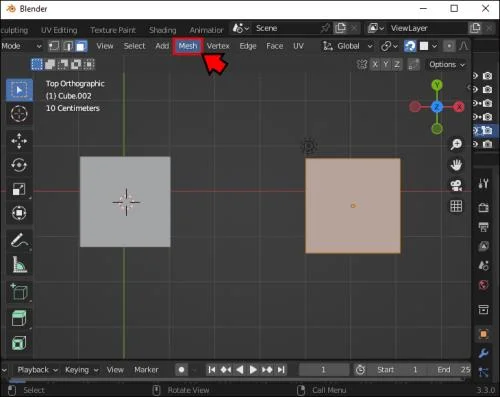
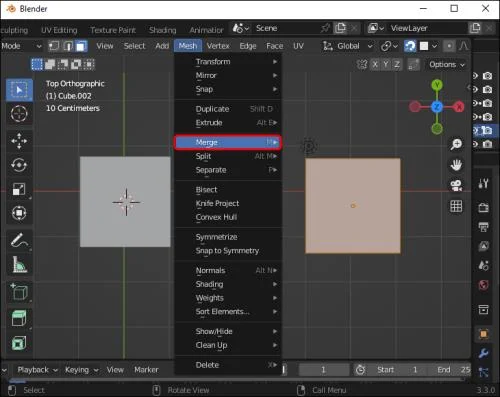
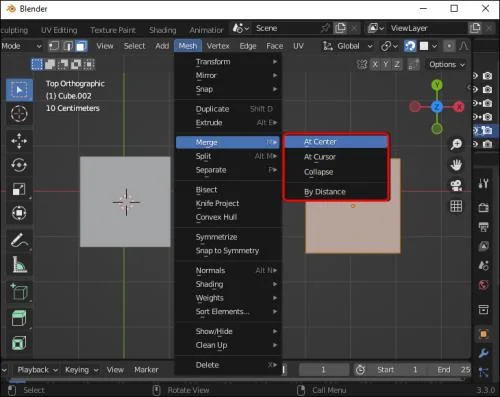
To blend portraits into one another, you will need the merging tool. Using this requires making a vertex, edge, or face selection. You can blend shapes in Blender 2.8 by going through the following steps.
Note that in older versions of Blender 2.8. you can merge the selected elements through the Vertex menu. Once there, you should choose “Merge verticles.” An alternative way to access this option is to press the “alt+M” keys.
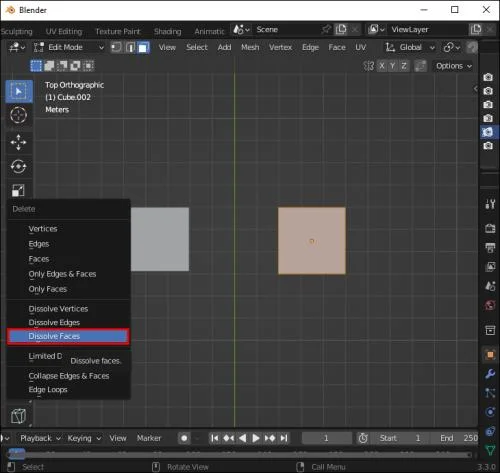
Here is how to dissolve multiple faces into a single image.
You can apply the same steps to dissolving faces, edges, and verticles by selecting the corresponding options in the menu.
How to Merge Two Faces in Photoshop
Adobe Photoshop is the most popular tool for editing photos or any other non-video content. It is also a necessary skill for both professional and personal use, and knowing its basics is something most people interested in photo editing should know.
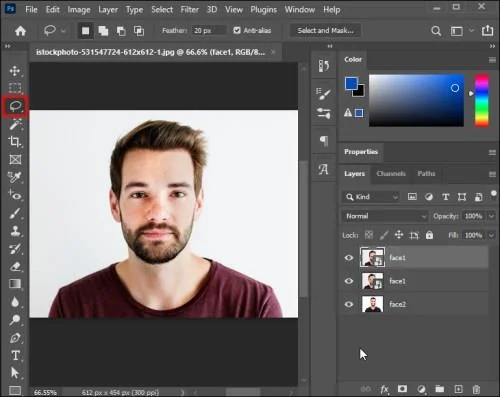
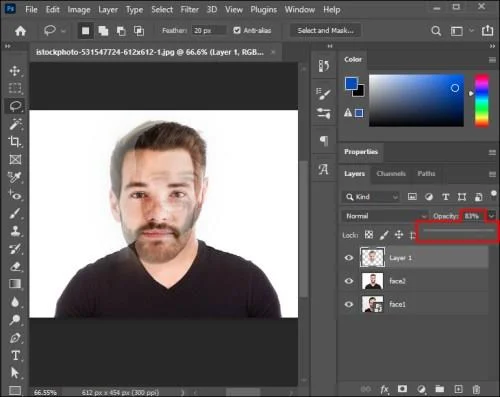
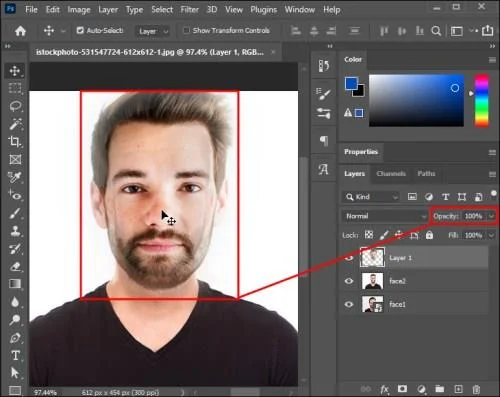
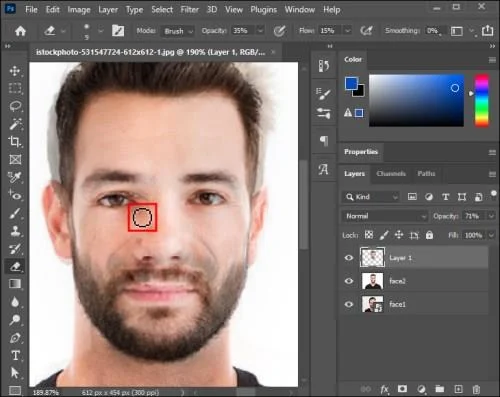
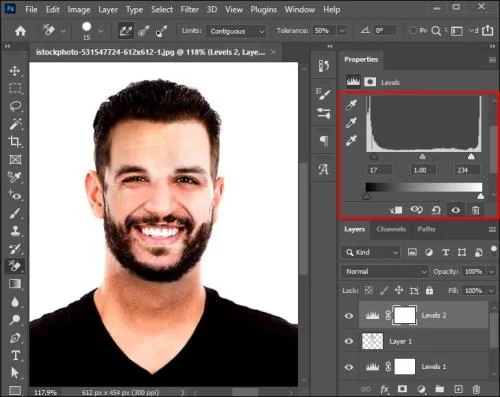
Photoshop allows you to play with the editing process. Knowing how to use essential tools and work with layers can help you do wonders if you are creative enough. You can put a person’s face onto the head of another person or blend the features of two different people into an original image.
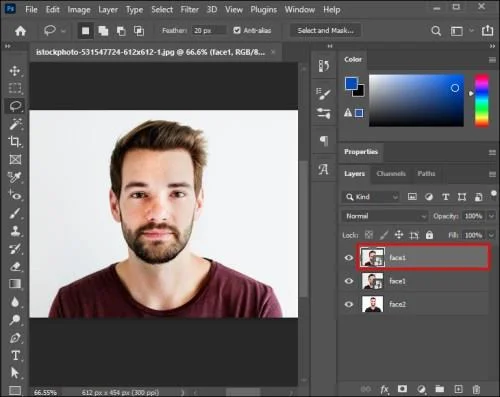
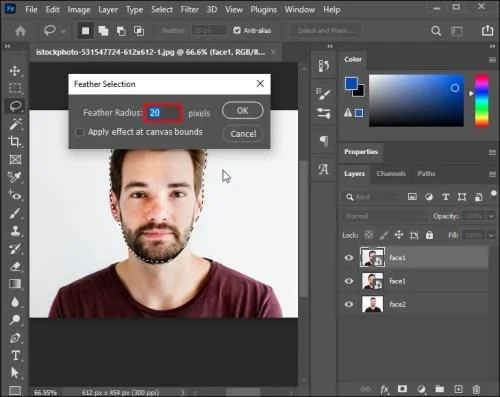
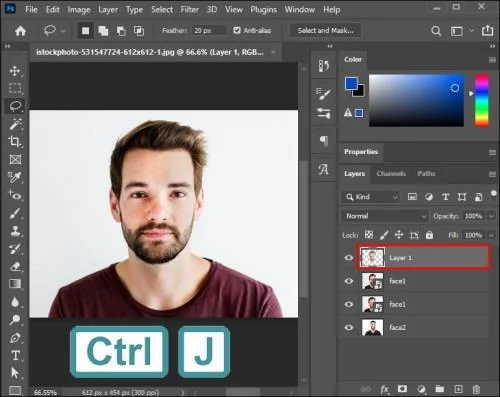
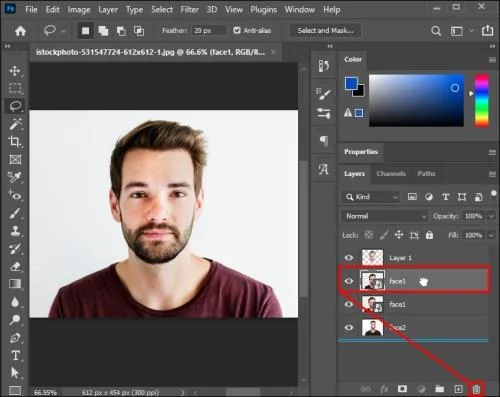
You will need both the photos of the two people to be in high resolution and, if possible, with similarly positioned heads, as that will make the result look more realistic. Once you have the photos, open them in Photoshop and do the following.
How to Merge Two Faces on FaceApp
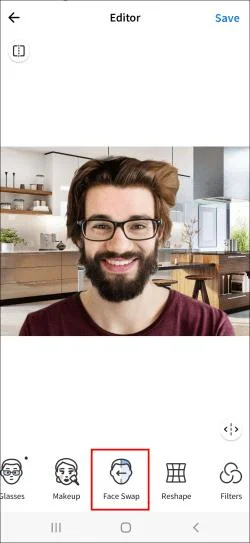
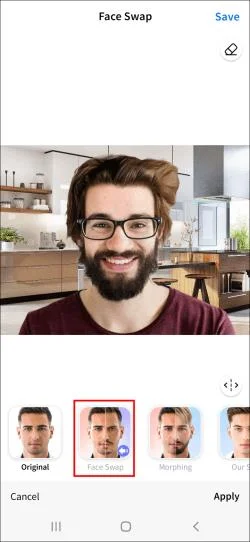
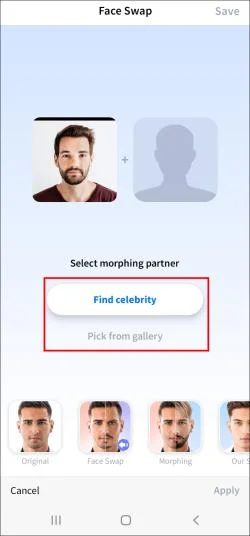
FaceApp is pure fun. FaceApp creations have become a viral trend, are incredibly easy to create, and the app offers many features for a fun experience. The mobile app provides various morphing tools, letting you put your face onto a celebrity’s head or merge the faces of your friends.
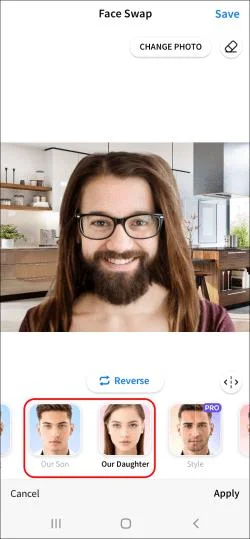
FaceApp allows you to merge two faces to create an image of your hypothetical future child. You can do this by accessing the “Our Kids” effect.
Here’s how to do this on FaceApp.
Now you’ll get an idea of what your future children look like – the faces will be blended into a new one.
How to Merge Two Faces in Google Photos
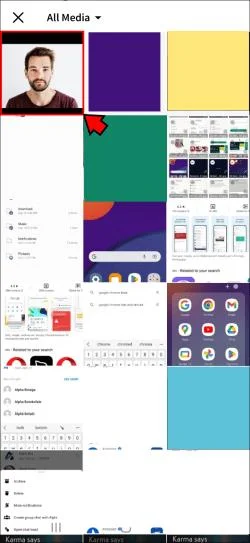
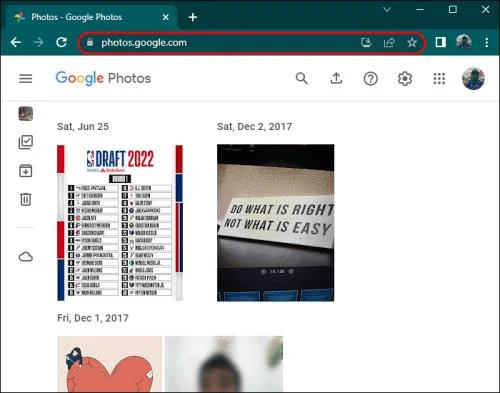
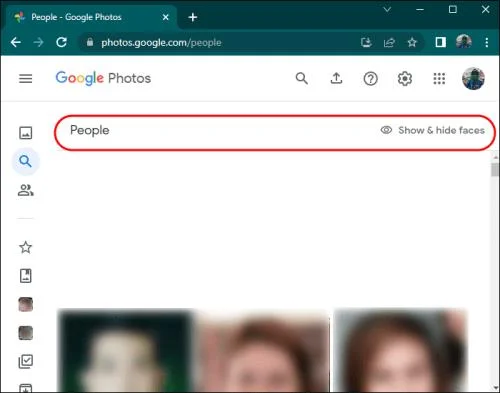
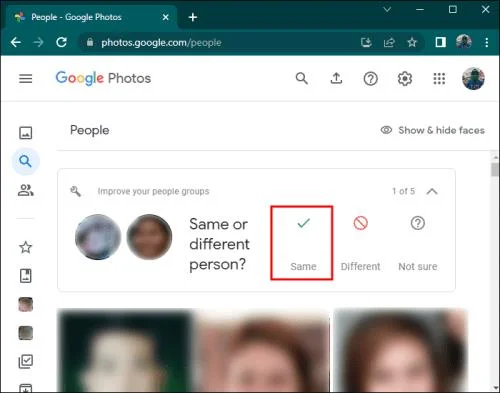
Google Photos has an automatic face recognition feature that comes in helpful when you want to group, or merge, photos of an individual into one collection. However, many people have a problem with Google Photos and its tendency to create multiple templates for the same person.
Here’s how to merge, or group, different photos of the same person into one collection in Google Photos.
It’s Morphing Time!
Merging two faces on a photo can be done for various reasons, but the most common one is for fun. Sometimes, if you share a close bond with a friend, merging your faces in a photo is a funny way to express this closeness. Or you would like to have your visage on the head of a celebrity you admire.
As many face-morphing tools emerge on the app market today, this has never been easier and faster to perform. Choose what tool fits your needs best and get creative!
What tools do you use for merging the faces in images? Tell us in the comments section below!
Skype Free Phone Calls let you connect with friends and family worldwide at no cost. Follow this guide to set up and start making free calls quickly and easily.
Stuck in the Discord Update Failed Loop? Follow these targeted fixes to break the cycle and complete the update without repeated failures or reinstalls.
Travel planning used to mean folders full of printed confirmations, handwritten notes, guidebooks, and a slightly terrifying number of browser tabs. Now, pretty much everything you need for a trip can live on the device already in your pocket.
Discover how Canva Free for Teachers gives educators full access to premium design tools at no cost. Verify your status and start creating classroom materials in minutes.
Skype How to Call International is simple and cost-effective once you set up credit and use the right country codes. Follow this guide to place clear calls from anywhere.
Make Skype to Skype Calls Free in minutes with this clear guide. Set up your account, add contacts, and start unlimited voice and video calls at no cost.
Fix the Your Connection is Not Private Chrome error quickly with these exact steps. Restore secure browsing by addressing certificate and settings issues in minutes.
Record heat has lifted air-conditioning demand while gas-market shocks have returned volatility to power prices. That creates a real risk of painful bills—but not a guaranteed, Europe-wide price explosion.
Large format printing has long faced criticism for its environmental impact. Traditional substrates, solvent-based inks, and short-lived promotional campaigns have all contributed to the perception that eye-catching graphics come at a high environmental cost.
Long-distance travel can involve heavy traffic, changing weather conditions, and rider fatigue. If you are also dealing with the responsibilities of moving home, such as packing belongings or coordinating accommodation, a long ride may add unnecessary pressure to an already busy schedule.