Remote desktop tools have made working out of the office much more convenient. They’ve also made students’ lives easier by providing easy lab access. Splashtop is one such remote desktop solution.
It comes with extensive features and is easy to connect to virtually every platform. If you’re using the Splashtop premium packages, you can also access the remote print feature.
It’s a convenient option to have, especially if you don’t want to store sensitive documents in cloud storage. In this article, we’ll tell you everything you need to know about how to remote print with Splashtop.
How To Remote Print in Splashtop
Imagine arriving home from work when your co-worker calls to say they need a document urgently. The file is safely stored at your work computer, and there’s no way you’re going back to the office now.
If your work computer has Splashtop installed, this minor issue doesn’t have to turn into a crisis. However, it might be a little bit daunting if you haven’t used remote access software before. Fortunately, Splashtop has an incredibly user-friendly interface.
Requirements
The remote printing is undoubtedly practical and often a lifesaver, but it’s not the standard feature for all Splashtop plans. For now, remote printing is available for:
- Splashtop Enterprise
- Splashtop Business Access Plans
- Splashtop Remote Support (Plus and Premium plan)
- Splashtop SOS+
Furthermore, you can only print documents remotely if you have a desktop or laptop computer with the following operating systems:
- Windows 7 or up
- MacOS X 10.7 or up
Also, keep in mind that you can only use the remote print feature if a remote session is currently active. If it’s not, then the printing feature won’t appear on your Splashtop dashboard.
Finally, to use Splashtop, you’ll need to download it from two different locations. Firstly, you will need to install Splashtop Streamer on the computer you’ll remote into. Secondly, you’ll have to download the Splashtop Business App from the computer you’ll remote from.
Printing From Windows to Windows and From Mac to Mac
The steps below describe the process of remotely printing from Windows to Windows and from Mac to Mac. Using Splashtop between devices with the same operating system is a more straightforward process. Here is what you have to do:
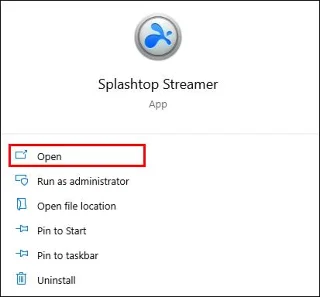
- Open Splashtop Streamer on your computer.

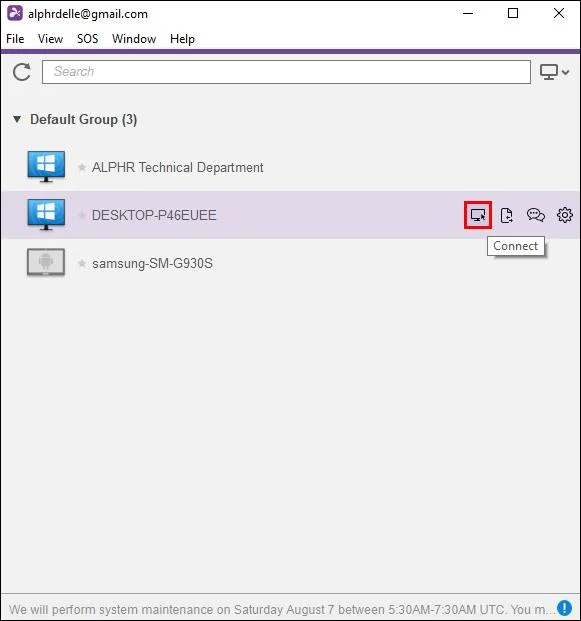
- Start a remote session.

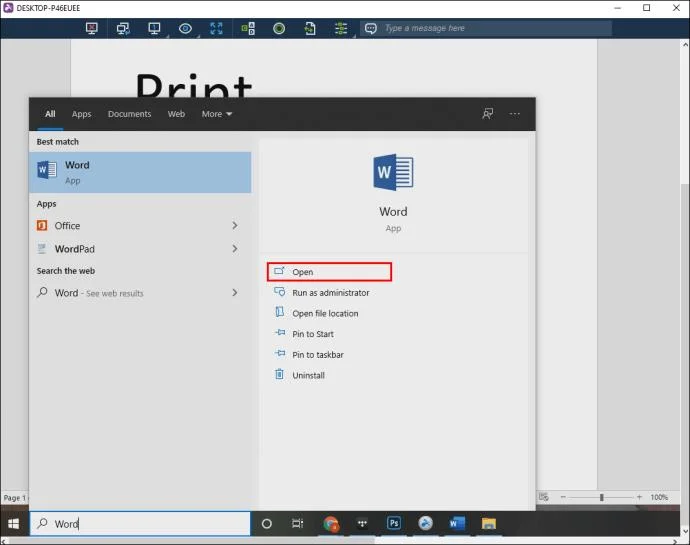
- On the remote device, open the application you usually use for printing.

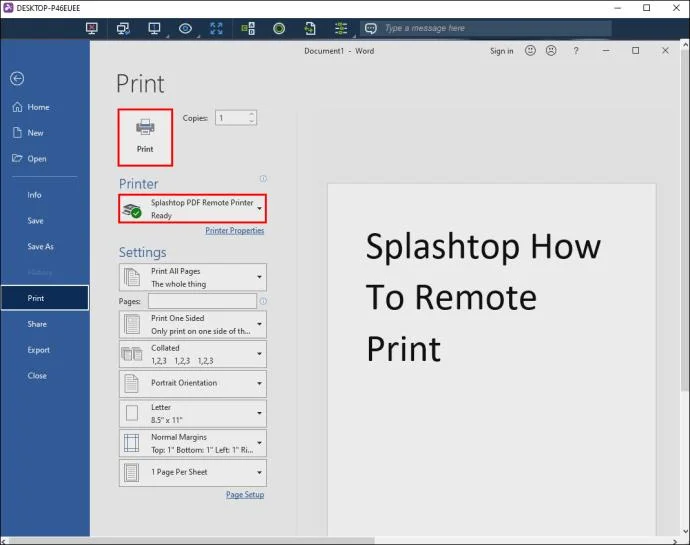
- Select “Splashtop PDF Remote Printer” in the dialog box and click “Print.”

- In a couple of seconds, the print window will appear on your Splashtop Business App.
- Select the local printer and press “Print” again.
However, if you’re using Windows 7, you will have to install additional print drivers. All you have to do is access the Splashtop Streamer and select the “Install Printer Driver” option.
Printing From Remote Windows to Your Local Mac Computer
But what happens if you’re using a Mac computer at home and the computer you’re remoting into runs of Windows? It’s a small hiccup that can be easily solved by installing the correct reader.
You need to install an XPS reader in your local Mac to enable the printing feature from Windows. Here’s what you need to do:
- On your Mac computer, click on the “App Store” option.
- Search for any XPS reader and when you find it, click on “Get.”
- Install the reader on your Mac computer.
Once you’re done, all you have to do is establish a new remote connection to the Windows computer and print your files.
Printing From Remote Mac to Your Local Windows Computer
If you’re dealing with a reverse situation and trying to access a Mac device from your local Windows computer, you’ll need a different reader. If you don’t have it already, make sure to download Adobe Acrobat PDF reader. Here’s how:
- If you have any other versions of the reader, make sure to close them. Also, close any browsers that might have PDFs opened.
- Go to Adobe Acrobat Reader’s official page and hit “Install Now.”
- Save the installer on your Windows computer and then click on the “.exe” file to start the installation.
- After a few moments, when the installation is done, click on “Finish.”
The latest version of Adobe Acrobat Reader on your local Windows computer will enable you to print remotely to a Mac device.
Additional FAQs
How do I fix an unsupported printer format error?
One of the reasons so many users like Splashtop is that it doesn’t require a complicated setup and is easy to access. Unfortunately, from time to time, even the best remote desktop software experiences glitches.
An issue you might run into with the Splashtop remote printing feature is the “Unsupported Printer Format” error. Basically, this message will pop up whenever you’re trying to access a Mac computer remotely from a local Windows computer and vice versa.
It means additional software is necessary, and you’ll need to download and install either an XPS reader or Adobe Acrobat Reader to your computer.
How do I disable the remote printing feature?
The owner of the Splashtop plan that supports remote printing can disable this feature if they choose to. For example, teachers might not want their students to have free reign when it comes to remote printing. Here’s how the feature can be disabled:
1. The owner of the Splashtop account needs to log into my.splashtop.com with their credentials.
2. Then, go to “Management” followed by “Settings.”
3. From this location, they can disable the remote printing, copy-paste feature, file transfer, and much more.
Easy Remote Printing With Splashtop
We’re gradually moving away from paper in a corporate and educational setting, but there are still times when printing a document is absolutely necessary. Splashtop has incorporated this excellent feature for more convenience for users when working or studying from home.
It’s not only about saving time by not having to organize sending a contract via courier service either, though. You might even prefer remote printing with Splashtop at home.
You don’t have to email a document from one computer to another or use cloud storage. A few clicks with the Splashtop, and your document is printed and ready.
Do you require remote access to a work or school computer? Let us know in the comments section below.