

How to Use Google Lens on Chromebook

How to Use Google Lens on Chromebook lets you scan objects, translate text, and solve problems directly from your device. Follow these steps to get started quickly.
While WhatsApp is more popular than Telegram, the latter packs a lot more useful features that make it stand out. But Telegram is not perfect, and every once in a while, you might run into an issue where you cannot send messages to your contacts. If that’s the case, worry not. This guide will show you some easy ways to fix Telegram’s inability to send messages.

There are certain prominent reasons why you suddenly can’t send messages to your Telegram contacts. It can happen due to an app glitch, corrupted data, a recent change in permissions, an unstable network, or an active server outage. Alternatively, if your sent messages are only marked with a single (sent) tick instead of a double (delivered) tick, it’s possible the contact might have blocked you on Telegram.
Before we dive deeper to troubleshoot Telegram’s can’t send messages error, check the status of Telegram servers, ensure you have a stable internet connection on your phone, and update to the latest Telegram release from the Play Store or the App Store.
How to Fix Telegram Not Sending Messages Error
Basic troubleshooting solutions such as enabling/disabling the Airplane and battery-saver mode can quickly help you fix Telegram’s can’t send messages issue. Additionally, you can provide unrestricted data usage, disable background limitations, and remove the app’s cache files to resolve the problem quickly. If that doesn’t solve it, you can access Telegram’s official client app, Telegram X, or use its web version to send new messages without interruption.
1. Enable and Disable Airplane Mode
An inconsistent network is a common reason behind most messaging issues on Telegram. Thankfully, enabling and disabling airplane mode soft-resets all network services on your device, which could potentially fix the error.
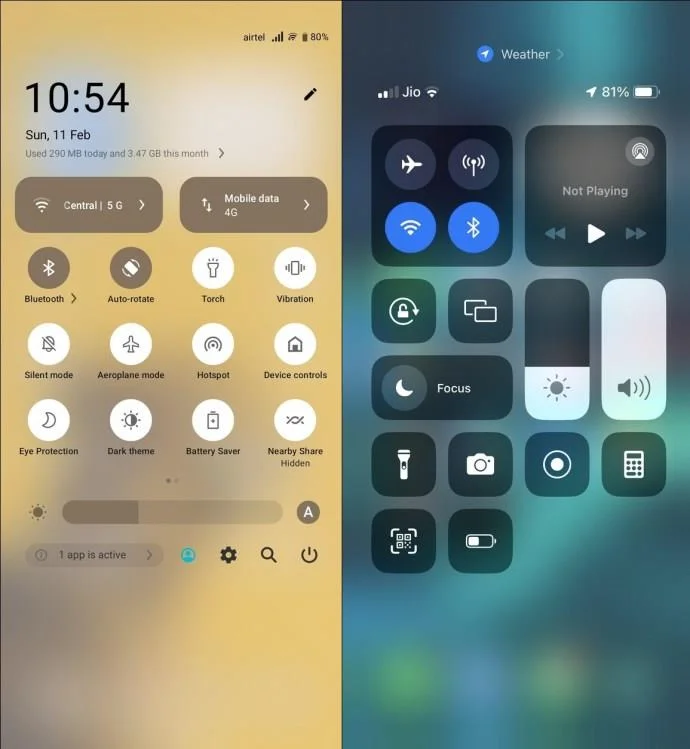
On Android, swipe down the notification panel and tap the Aeroplane/Airplane mode quick toggle to enable/disable it. Similarly, expand the Control Centre on your iPhone and use the Airplane mode to turn it on/off quickly.
2. Enable Background Data for Telegram
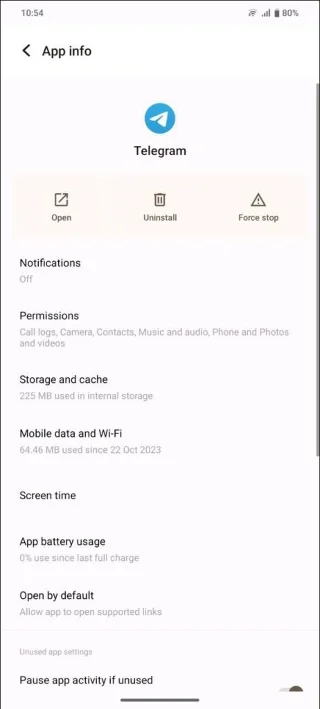
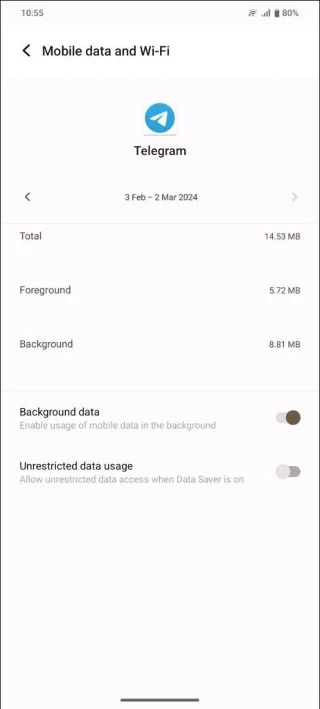
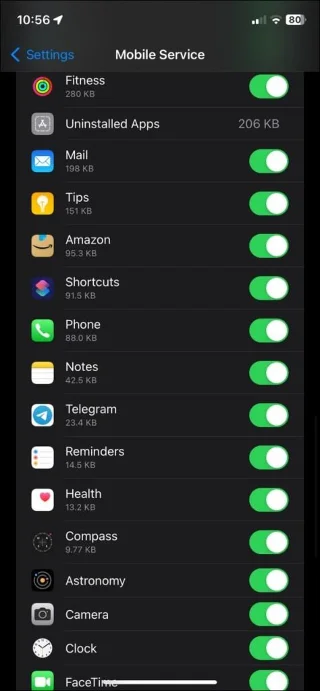
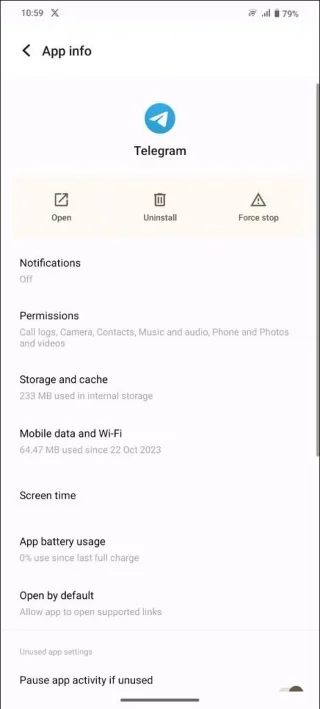
Messaging apps like Telegram require continuous data services to work properly (e.g., sending messages, real-time notifications, etc.) even when you’re not actively using them. This is why it’s important your phone always has access to the internet and that you have not disabled Telegram from accessing data in the background. This could otherwise prevent the app from sending (or receiving) messages in the background. So, you must ensure that Telegram’s background data access is enabled on your Android or iPhone.
On Android
On iPhone
3. Turn Off Background Limitations
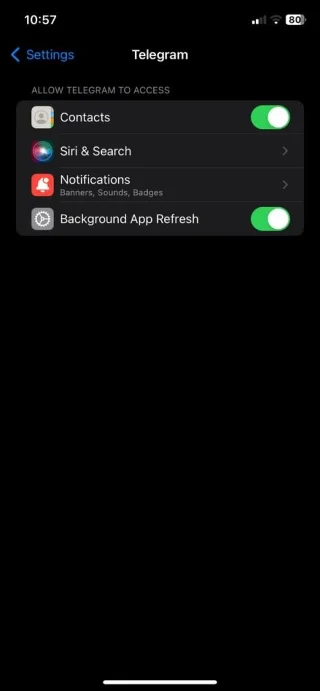
Android and iOS optimizes all installed applications to provide the best user experience. Consequently, it might limit certain messaging apps, such as Telegram, if they’re consuming too much mobile data. This can create a barrier, especially when sending large files over Telegram. Fortunately, you can enable Unrestricted Data Usage and Background App Refresh on Android and iPhones to solve the problem.
On Android
On iPhone
4. Disable Battery Saver Mode
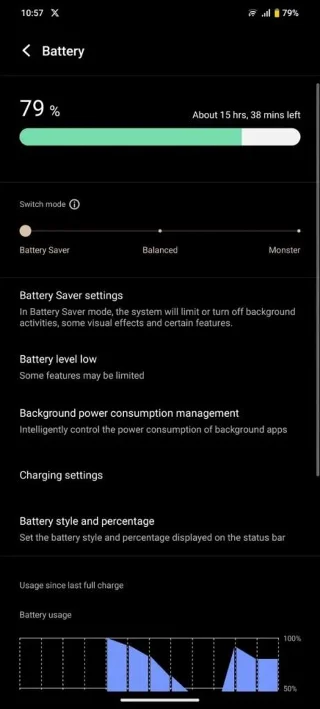
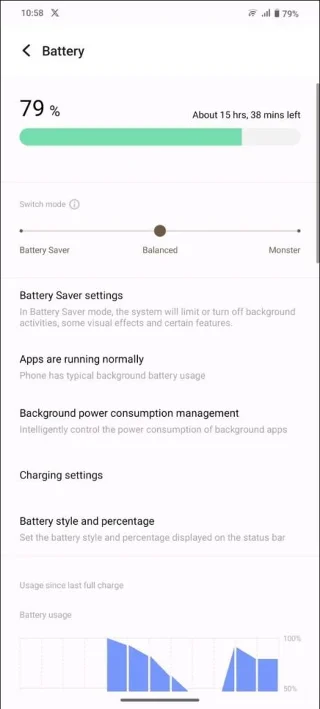
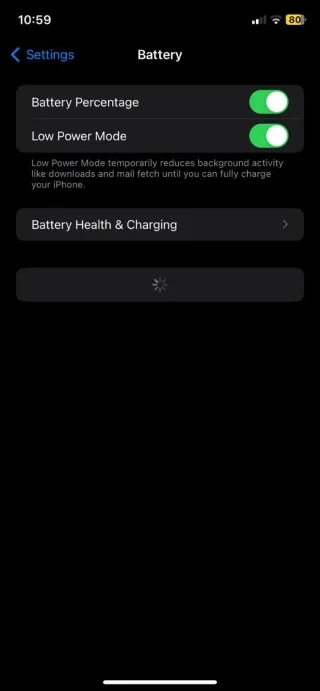
The battery-saver mode on your phone imposes certain data restrictions on installed apps to extend battery life. These restrictions can interfere with how Telegram works, causing issues when sending new messages. To resolve it, turn off your phone’s battery saver mode.
On Android
On iPhone
5. Delete Telegram Cache Files
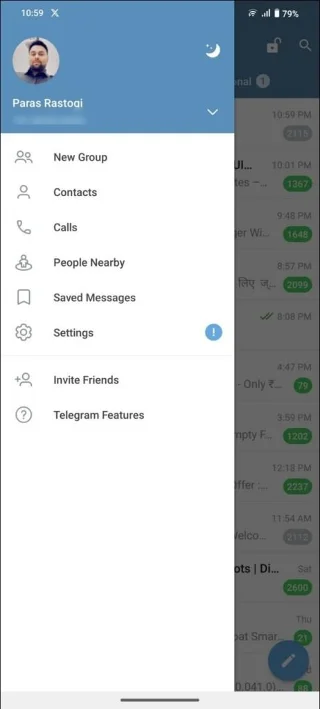
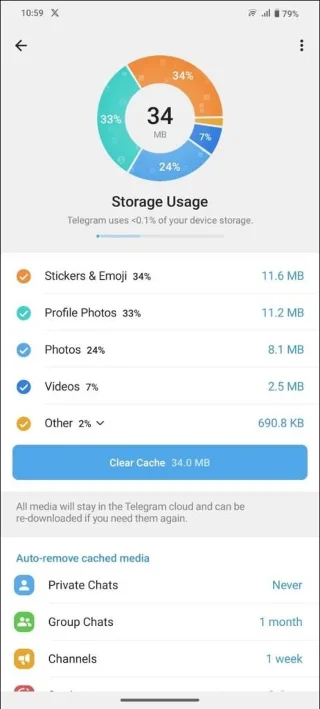
When obsolete cache files accumulate in large quantities, it hinders the basic app functionality, such as sending a new message. Thankfully, Telegram offers a dedicated in-app menu to clear cache files, but this is only available on the Android app.
It is not possible to delete an app’s cache on iPhone. So if you want to get rid of the Telegram app’s cache from your iPhone, delete the app and reinstall it again from the App Store.
6. Switch to Telegram X
Telegram X is an official alternative Telegram client that delivers a fluid browsing experience. Think of it as a trimmed-down version of the main Telegram app with a cleaner interface focusing on speed over everything else. If you cannot send new messages using the main Telegram app, you can give Telegram X a shot to see if that helps resolve the issue. Do note that Telegram X is unavailable for iPhones in certain regions.
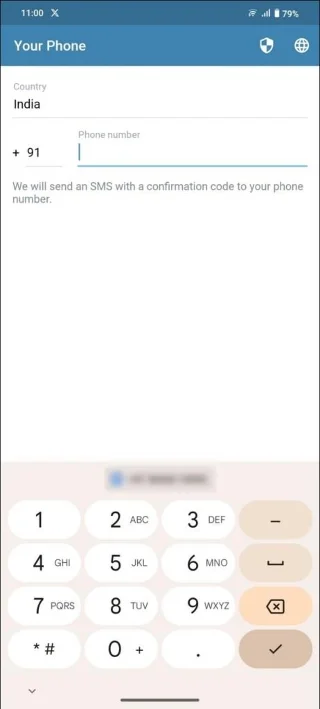
You can now access your Telegram account and send messages in the Telegram X app.
Besides Telegram X, you can use Telegram on a PC to try and send messages to your contacts. This is a good alternative if you are facing internet issues on your phone but not on your PC.
Send Messages Without Interruptions
Messaging errors are pretty common and can happen unexpectedly on Telegram. Thankfully, the above-discussed methods will help you sort them out in a jiffy.
Also, don’t forget to read our best Telegram tips and tricks to make the most of it and use its nifty features to your advantage.
FAQs
Telegram messages are stuck on sending. How do I fix it?
Soft reset your network settings using Airplane mode and disable an active battery saver mode on your smartphone. Additionally, try other advanced methods, such as deleting cache files and providing unrestricted data usage to Telegram to fix it.
Can I send messages to a contact who has blocked me on Telegram?
You can send new messages to a blocked Telegram contact, but they will never be delivered to the recipient. All such messages will be marked with a single sent tick within your conversation.
Why is Telegram taking so long to send messages?
It can happen due to an active server outage. If that isn’t the reason, you can manually clear cache files from the Telegram app to restore normalcy.
How to Use Google Lens on Chromebook lets you scan objects, translate text, and solve problems directly from your device. Follow these steps to get started quickly.
Learn how to clean a dehumidifier filter safely, when to use water or soap, how long to dry it, and when model-specific instructions matter.
Learn when cast iron grill grates need seasoning, how to clean, oil, heat, and maintain them, and when porcelain-coated grates should not be seasoned.
Learn how to clean a down or synthetic puffer jacket, restore loft, avoid heat damage, check the result, and know when professional care is safer.
Learn how to clean a grill pan without damaging it. This guide explains the safest method for seasoned cast iron, enameled cast iron, and nonstick pans, including stubborn burnt-on residue.
Clean purse linings safely by identifying the material, removing debris, spot-cleaning carefully, drying fully, and knowing when to stop.
Learn how to clean a GE dishwasher filter, identify removable filter types, avoid damaging the mesh, and know when to check your model manual.
Learn how to clean oven trays safely, from fresh grease to burnt-on residue, with separate guidance for natural aluminum and nonstick bakeware.
Learn how to clean a retainer case with mild soap and lukewarm water, when to avoid the dishwasher, how to dry it, and when an old case should be replaced.
Let nail glue dry, lift off the excess, then use acetone only on compatible, colorfast fabric. Learn safer alternatives, washing steps, and when to stop.