Stop Unwanted Printing and Downloads in ONLYOFFICE
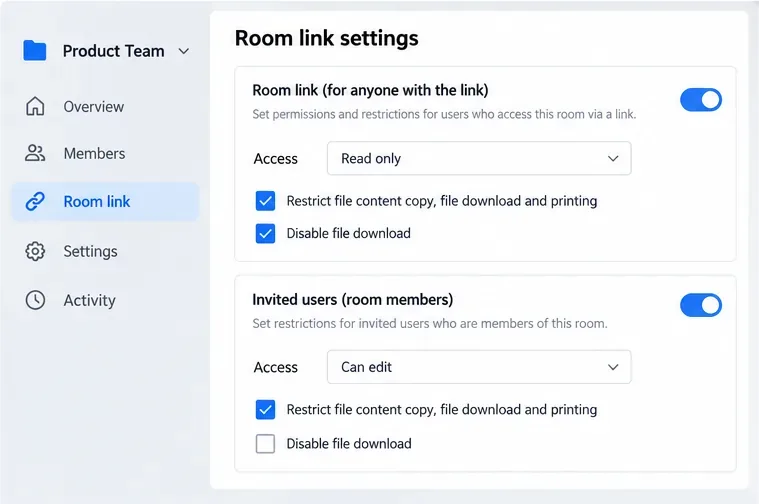
Set print and download limits for ONLYOFFICE links, room members, or Docs API sessions, then verify the restrictions from a recipient account.
How to Use Google Lens on Chromebook gives you instant access to visual search, text extraction, and object identification without installing extra apps. The feature works through the Chrome browser and integrates with Google services already present on Chrome OS. This guide walks through the exact process from opening the browser to completing your first scan.
Chromebooks run Chrome OS, so Google Lens operates inside the Chrome browser rather than as a standalone mobile app. You access it by visiting lens.google.com or triggering it from Google Search results. No additional software download is required, but you do need a stable internet connection and a working webcam or uploaded image file.
Before starting, make sure your Chromebook is signed in with a Google account that has Google Photos or Drive enabled if you plan to work with saved images. The browser should be updated to the latest version for full compatibility with the Lens interface.

Click the Chrome icon in the shelf or open a new tab. Type lens.google.com into the address bar and press Enter. The page loads with a camera viewfinder and an upload button in the center.

When prompted, click Allow for the site to access your webcam. Hold a physical item, document, or QR code up to the camera so it fills most of the viewfinder. Google Lens automatically detects text, logos, or objects and displays results on the right side of the screen.
Click the upload icon shaped like a picture. Navigate to the Downloads folder or Google Drive using the file picker. Select a photo or screenshot and click Open. Lens processes the image and returns matching information within seconds.

After analysis, Lens presents options such as Copy text, Translate, Search, or Shop. Click the button that matches your goal. For example, selecting Translate instantly shows the text in your chosen language directly below the original.
Click the three-dot menu next to any result to copy it to the clipboard, send it to Google Keep, or share via email. The data remains available in your Google account history for later review.
No. Google Lens requires an active internet connection to send images to Google servers for processing.
Direct integration is limited. The fastest method remains opening lens.google.com in a separate tab and copying text back into your document.
Chromebooks that support Android apps can install the Lens app from the Play Store, but the web version at lens.google.com works on every Chromebook model without extra setup.
How to Use Google Lens on Chromebook becomes straightforward once you know the direct web address and permission steps. Practice with a few everyday objects and you will quickly handle translations, homework help, and product lookups directly from your device.
Set print and download limits for ONLYOFFICE links, room members, or Docs API sessions, then verify the restrictions from a recipient account.
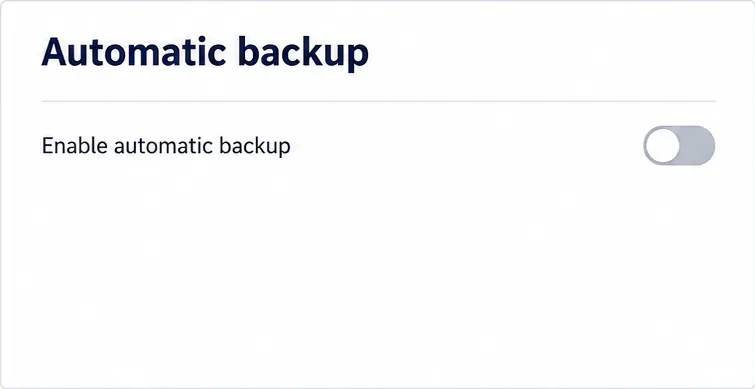
Set a backup destination, schedule, Mail coverage, and retention limit in ONLYOFFICE Workspace, then verify the archive is ready to restore.
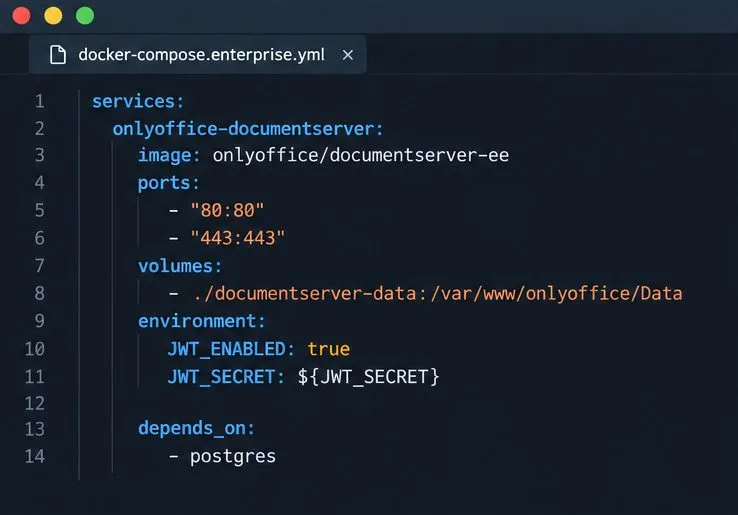
Start the Enterprise Docker Compose stack, persist its license and data, configure JWT safely, and confirm the editors are ready to integrate.
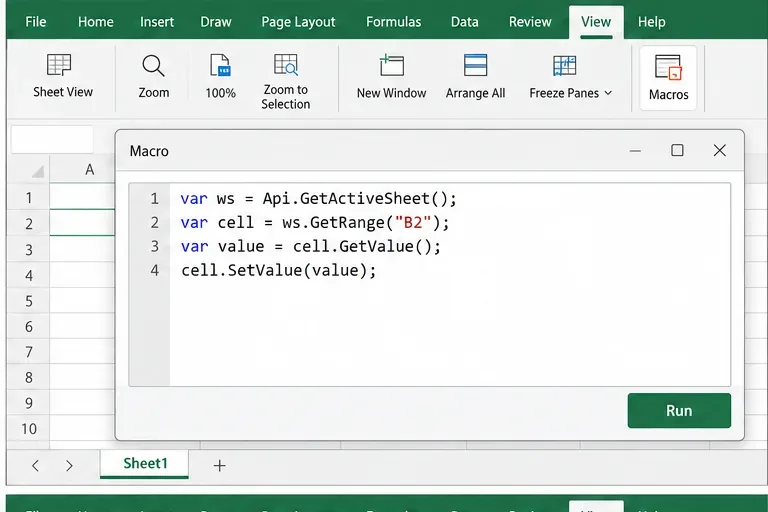
Use an ONLYOFFICE JavaScript macro to remove nonprinting characters and trim extra spaces from a defined spreadsheet range, with a safe review workflow.
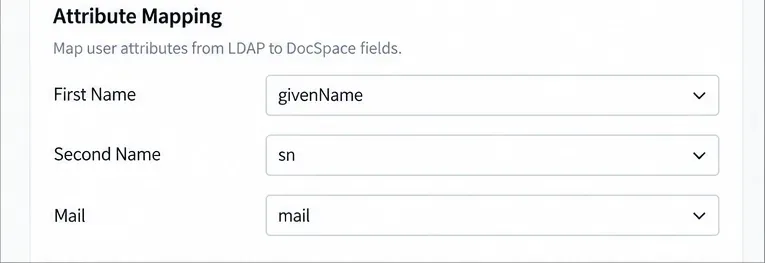
Connect ONLYOFFICE DocSpace to Active Directory or OpenLDAP, import users and groups safely, map account fields, and schedule reliable synchronization.
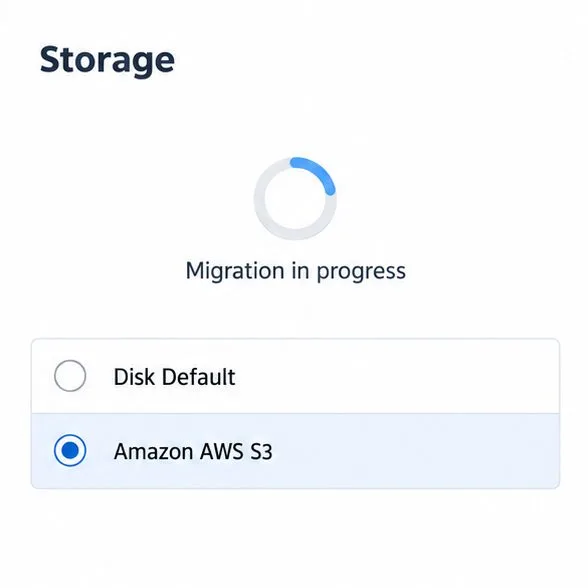
Move portal data from Disk Default to a supported cloud storage provider, or relocate Docker data safely by changing its host volume mapping.
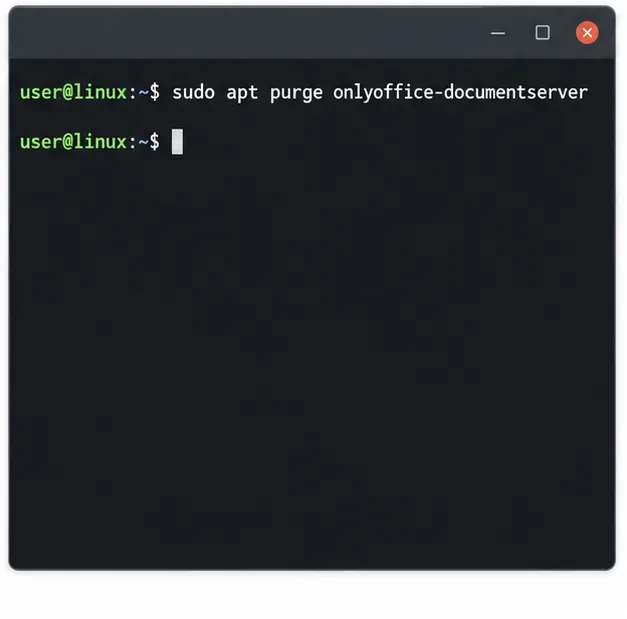
Identify whether Document Server uses a Linux package or Docker, remove only its components, and check remaining data without deleting shared services by mistake.
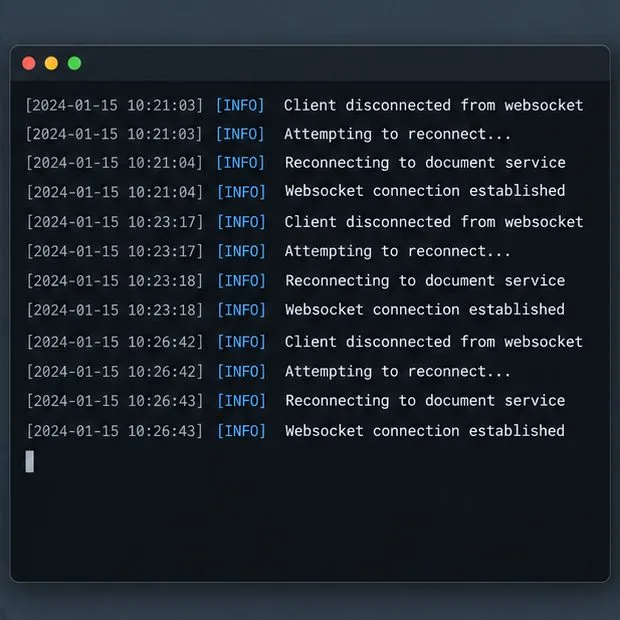
Trace slow collaborative editing to Docker resource pressure, proxy connections, or document load, then choose the fix that matches your measurements.
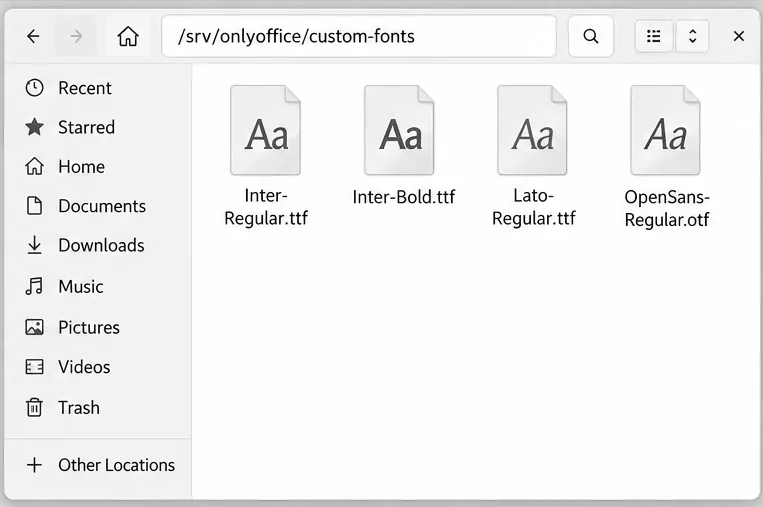
Install custom fonts in ONLYOFFICE Document Server, compare persistent Docker mounts with direct copies, rebuild the font list, and verify the result.
Choose where TLS should terminate, mount a trusted certificate and private key safely, and verify HTTPS access to a Dockerized ONLYOFFICE Docs server.