Stop Unwanted Printing and Downloads in ONLYOFFICE
Set print and download limits for ONLYOFFICE links, room members, or Docs API sessions, then verify the restrictions from a recipient account.
To limit printing and downloads in ONLYOFFICE, apply the restriction where access is granted: enable the sharing restriction in Workspace, turn on the link protection in DocSpace, or set document.permissions.print and document.permissions.download to false in a Docs API editor configuration. A Read Only role by itself is not enough in every setup; the exact control depends on whether you use Workspace, DocSpace, or an application integrated with ONLYOFFICE Docs.
These settings limit actions available through the supported sharing or editor interface. They do not prevent every possible copy: a recipient may photograph the screen or use tools outside the application. For sensitive documents, combine the restriction with narrowly assigned access and an appropriate review of who can open the file.
ONLYOFFICE has several products and integration patterns, and their controls are not interchangeable. In Workspace, advanced sharing settings apply to users with Read Only and Comment rights. In DocSpace, a restriction can be attached to a particular shared link or configured for a room link and people invited through that link. In a Docs integration, the host application supplies permissions in the editor configuration.
Before changing anything, open the file’s sharing panel and note who needs access, how they reach the file, and whether they are internal users, link recipients, or room members. This inventory helps you choose the relevant control and later test the same access path.
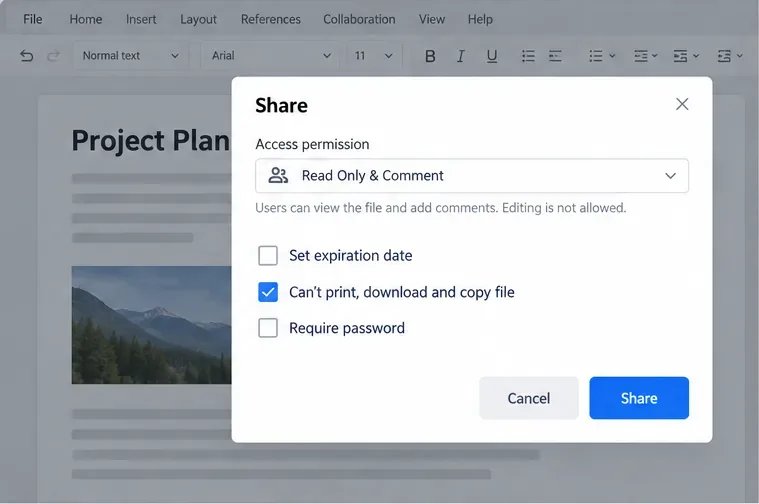
The official ONLYOFFICE Workspace sharing guide describes this option for both internal and public sharing. The same guide explains that Read Only and Comment permissions can normally include print and download actions, which is why assigning Read Only alone does not settle this question. If you need to restrict Full Access users from changing sharing settings, that is a separate advanced option; it is not a substitute for the print, download, and copy restriction.
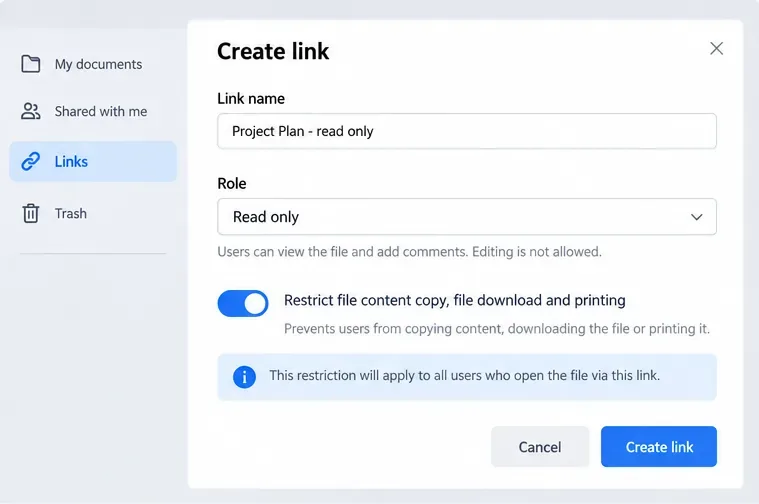
ONLYOFFICE documents this as a link setting that disables copying file content, downloading, and printing for users who open the file via that link. The DocSpace file-sharing guide also describes who can access a link and how to change its role. If your users access the same file through a room or another direct permission, test those routes separately rather than assuming the file-link setting covers them.
For public or custom rooms, room administrators can restrict copying content, downloading files, and printing for people who use a shared room link. The room settings also let administrators set restrictions for people invited through a link independently of the general room-link settings.
These controls are documented for room sharing in the ONLYOFFICE DocSpace room-management guide. The available role names and controls can vary with room type and product version, so use the labels shown in your current interface and consult your administrator if a setting is absent.
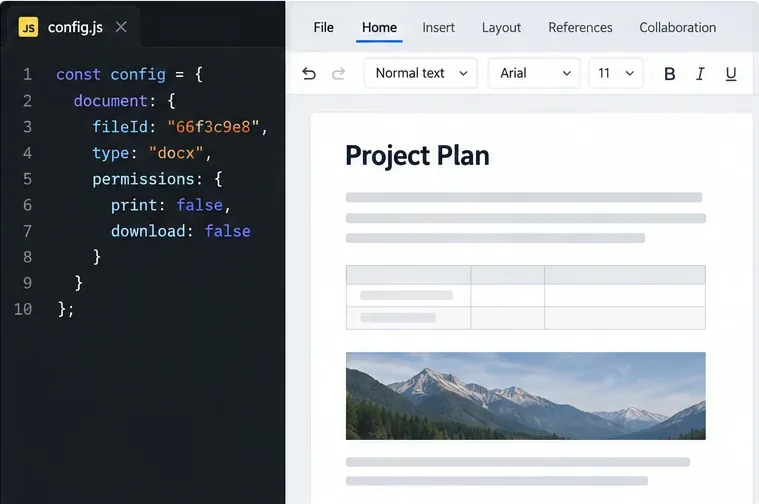
If your application embeds ONLYOFFICE Docs, the application that opens the editor must pass the permission values in the document configuration. For example:
const config = {
  document: {
    permissions: {
      print: false,
      download: false,
    },
  },
};
Set print and download to false for the relevant editor session, then initialize the editor with that configuration. The ONLYOFFICE Docs API sharing FAQ explains that these values remove the editor’s print and download options. The Docs API does not define your application’s complete authorization or file-storage policy: the integrator controls sharing and delivery. If your backend exposes the source file through a separate URL or endpoint, protect that route too. Hiding an editor command alone does not secure a separately accessible original file.
A successful check confirms that the relevant ONLYOFFICE interface is enforcing the setting for the tested access path. It does not prove that every copy method is impossible. If you cannot find the setting, your product edition, version, role, or integration may differ from the documented interface; check the current product documentation or ask the portal administrator before promising a restriction.
Set print and download limits for ONLYOFFICE links, room members, or Docs API sessions, then verify the restrictions from a recipient account.
Set a backup destination, schedule, Mail coverage, and retention limit in ONLYOFFICE Workspace, then verify the archive is ready to restore.
Start the Enterprise Docker Compose stack, persist its license and data, configure JWT safely, and confirm the editors are ready to integrate.
Use an ONLYOFFICE JavaScript macro to remove nonprinting characters and trim extra spaces from a defined spreadsheet range, with a safe review workflow.
Connect ONLYOFFICE DocSpace to Active Directory or OpenLDAP, import users and groups safely, map account fields, and schedule reliable synchronization.
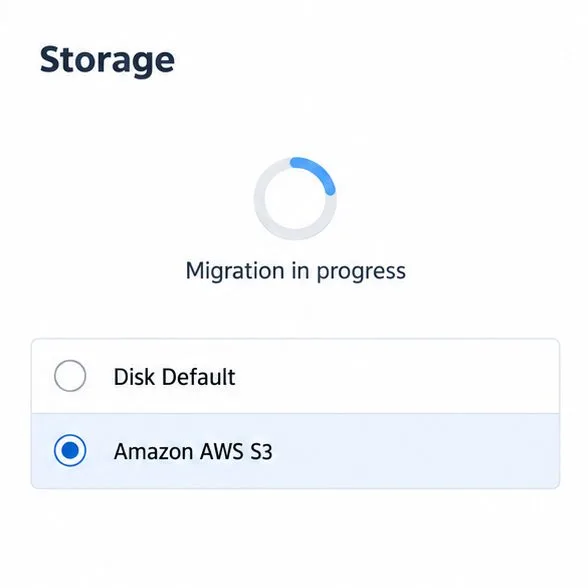
Move portal data from Disk Default to a supported cloud storage provider, or relocate Docker data safely by changing its host volume mapping.
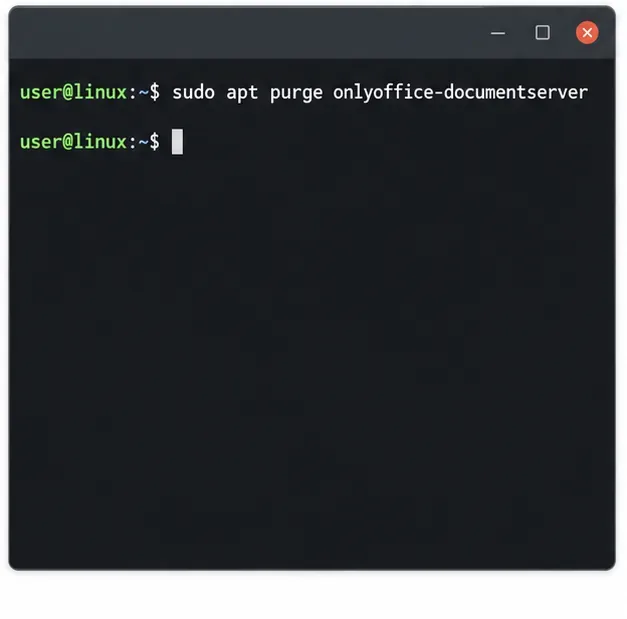
Identify whether Document Server uses a Linux package or Docker, remove only its components, and check remaining data without deleting shared services by mistake.
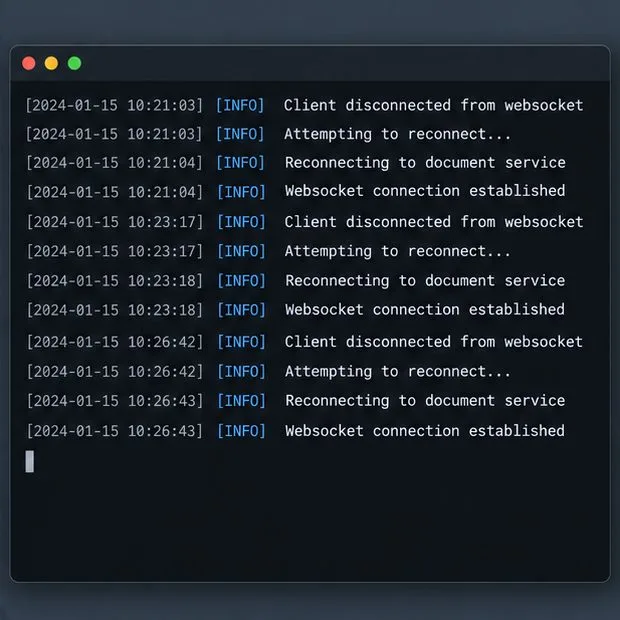
Trace slow collaborative editing to Docker resource pressure, proxy connections, or document load, then choose the fix that matches your measurements.
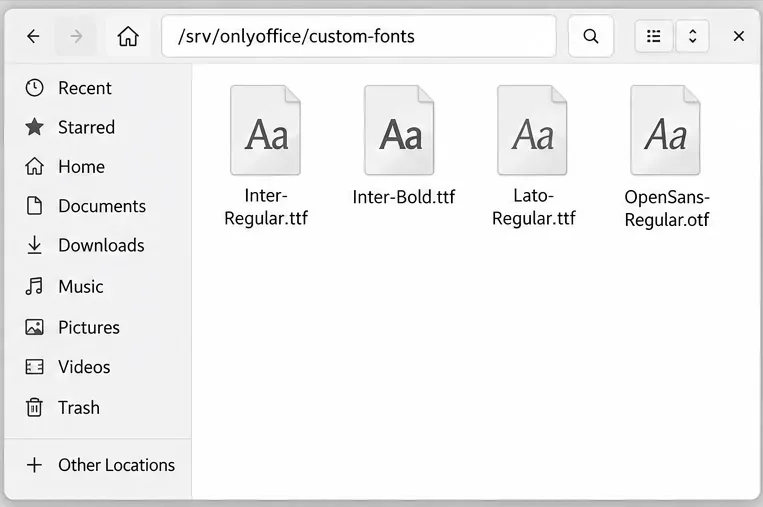
Install custom fonts in ONLYOFFICE Document Server, compare persistent Docker mounts with direct copies, rebuild the font list, and verify the result.
Choose where TLS should terminate, mount a trusted certificate and private key safely, and verify HTTPS access to a Dockerized ONLYOFFICE Docs server.