Add Fonts to ONLYOFFICE Document Server: Docker vs Linux
Install custom fonts in ONLYOFFICE Document Server, compare persistent Docker mounts with direct copies, rebuild the font list, and verify the result.
To add custom fonts to ONLYOFFICE Document Server, place the licensed font files in a directory accessible to the server and run /usr/bin/documentserver-generate-allfonts.sh. For Docker deployments, a bind-mounted font directory is usually preferable to copying files into a running container, because it survives container recreation.
The right installation method depends on where ONLYOFFICE Docs runs, how often you rebuild it, and whether you can accept a short service interruption while its font catalog is refreshed.
| Method | Best fit | Trade-off |
|---|---|---|
| Docker bind mount | Production containers managed with Docker Compose | Requires editing the container configuration and may require recreation |
docker cp into the running container | Quick test or temporary addition | Files can disappear when that container is replaced |
| Install fonts on the Linux host running the native Document Server package | DEB/RPM-style installation without Docker | Requires server-level administration and remains tied to that host |
The official Docker font instructions document copying files and rebuilding the font list. Docker's bind mount reference explains why mounting a dedicated host folder makes files available across container replacements. These are different deployment choices, not different font formats.
Run docker ps on the Docker host if the editor runs in containers. Find the Document Server container name in the NAMES column; the examples below use onlyoffice-documentserver. Replace that value if yours differs. A Nextcloud or ownCloud integration does not normally change the fact that the fonts must be installed on the ONLYOFFICE Docs server, not only on the storage server or the computer viewing the document.
docker ps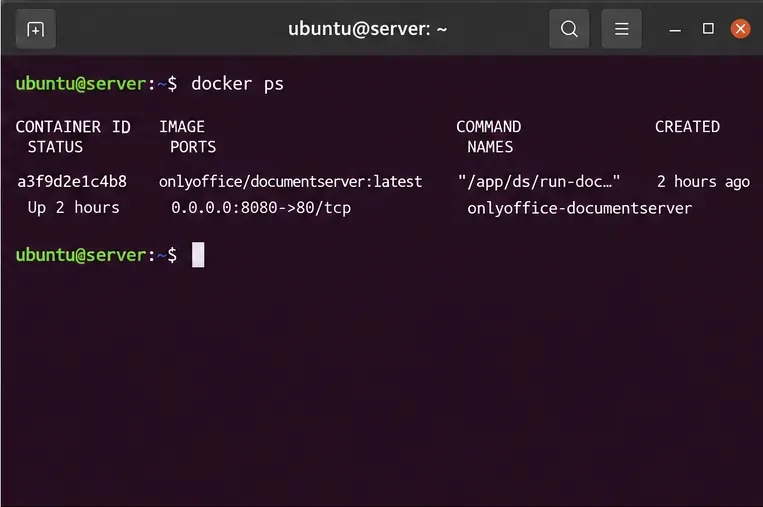
Choose complete, properly licensed font families, including the weights and styles your documents actually use. ONLYOFFICE lists TrueType and OpenType formats such as .ttf and .otf, plus other supported font extensions, in its Linux font documentation. For a predictable first deployment, use ordinary TTF or OTF files and verify the permitted server and client usage in the font license.
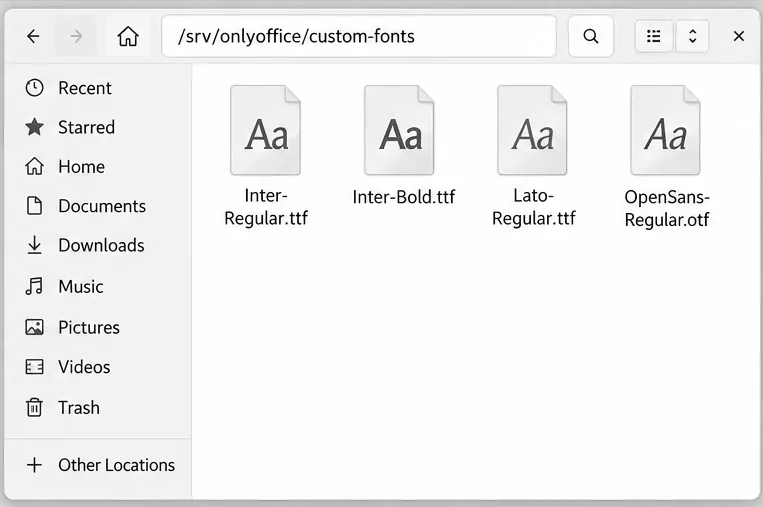
For the Docker example, stage the files in /srv/onlyoffice/custom-fonts on the Docker host. The example filenames Inter-Regular.ttf and Inter-Bold.ttf are illustrative; use the files you have a right to install.
sudo mkdir -p /srv/onlyoffice/custom-fonts
sudo cp Inter-Regular.ttf Inter-Bold.ttf /srv/onlyoffice/custom-fonts/
sudo chmod 644 /srv/onlyoffice/custom-fonts/*.ttf
Run these commands from the directory containing the font files. Check the folder contents before continuing. On a managed system, adapt ownership and permissions to your security policy rather than making the folder writable to everyone.
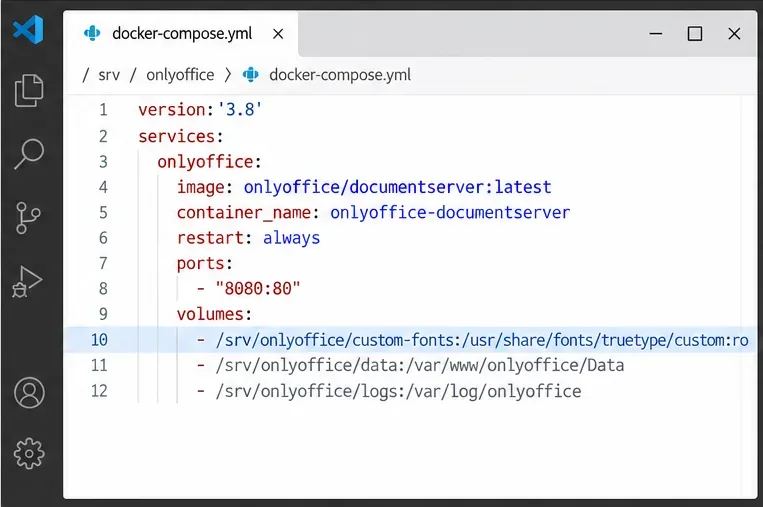
In the current Compose file, find the service that runs the ONLYOFFICE Document Server image. Add the following entry under its existing volumes list; retain the other volumes, ports, credentials, and environment variables already configured:
services:
  onlyoffice-documentserver:
    volumes:
      - /srv/onlyoffice/custom-fonts:/usr/share/fonts/truetype/custom:ro
The source path is on the Docker host; the destination is inside the container. The :ro suffix restricts container writes to the font directory. Mount the dedicated custom directory rather than replacing the entire /usr/share/fonts tree, which could hide fonts supplied by the image. The official ONLYOFFICE Dockerfile declares the custom TrueType font directory as a volume in its Community and Enterprise image stages.
Review the revised Compose configuration, then apply it with docker compose up -d from the project directory. This may recreate the service: schedule the change when editors can close documents safely. If you use a plain docker run deployment, add the equivalent read-only --mount type=bind,src=/srv/onlyoffice/custom-fonts,dst=/usr/share/fonts/truetype/custom,readonly argument when recreating the container.
After the service is running, inspect the mounted directory and, if available, the fontconfig listing. The family name reported by fontconfig may differ from the filename.
docker exec onlyoffice-documentserver ls -l /usr/share/fonts/truetype/custom
docker exec onlyoffice-documentserver fc-list | grep -i 'Inter'
For the sample Inter fonts, the second command should list a matching family if fontconfig detects them. If the files exist but the family does not appear, inspect permissions and run docker exec onlyoffice-documentserver fc-cache -f, then check fc-list again. Fontconfig discovery alone does not populate the ONLYOFFICE editor's menu.
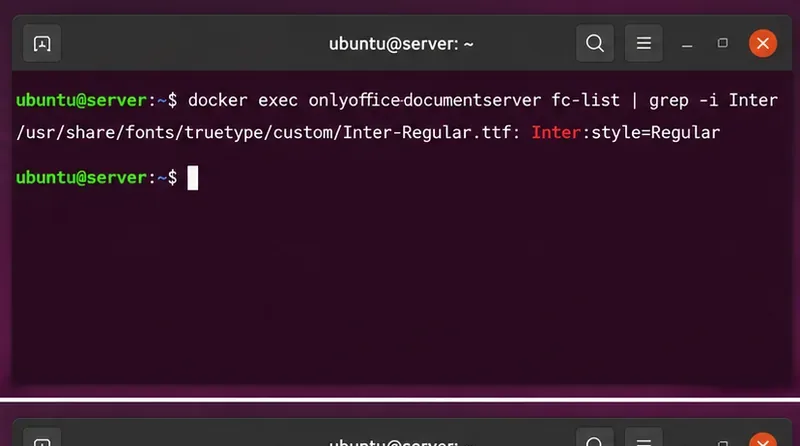
With the files present inside the container, run the document server's font generation script:
docker exec onlyoffice-documentserver /usr/bin/documentserver-generate-allfonts.shONLYOFFICE uses this step to refresh its font selection data and assets. It can affect active editor services, so run it during a suitable maintenance period. The documented Docker environment variable GENERATE_FONTS also defaults to true, regenerating font data at container startup; that is useful after a restart but is not a substitute for installing the files in a persistent location.
Do not change GENERATE_FONTS or force a restart solely to mask a missing volume. First verify that the expected files are actually mounted.
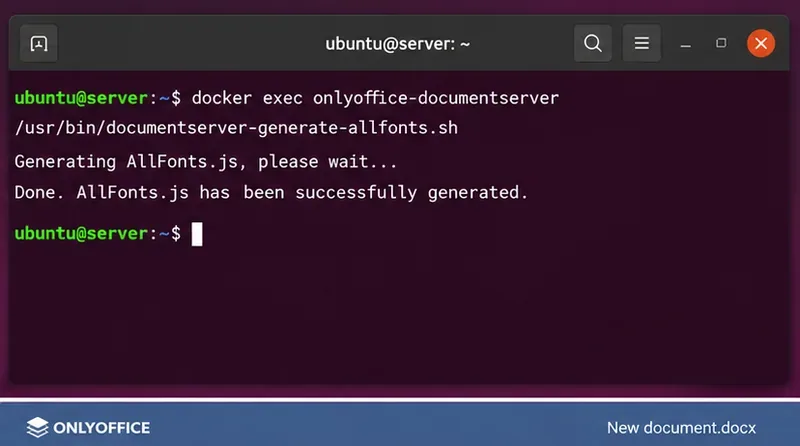
If you cannot change Compose immediately, copy a file into the current container and rebuild the catalog. This follows ONLYOFFICE's documented Docker approach and avoids rebuilding the container for a quick test:
docker cp ./Inter-Regular.ttf onlyoffice-documentserver:/usr/share/fonts/truetype/custom/
docker exec onlyoffice-documentserver /usr/bin/documentserver-generate-allfonts.sh
This is convenient for troubleshooting but less reliable as a deployment plan. An image update or a new container can remove the copied file; a restart of the same container is not the same as a recreation. Promote a successful test to a bind mount or a separately maintained custom image when the font is required for ongoing work.
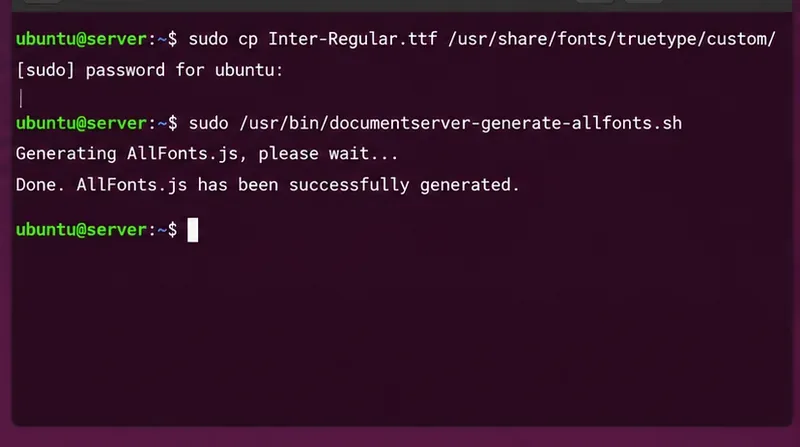
For a native Linux package installation, put the files in the server's system font directory and run the same regeneration script on that host. This is not a command to run on an ordinary user's desktop.
sudo install -d -m 755 /usr/share/fonts/truetype/custom
sudo install -m 644 Inter-Regular.ttf /usr/share/fonts/truetype/custom/
sudo /usr/bin/documentserver-generate-allfonts.sh
This approach leaves font files in the Linux installation instead of a Docker volume, but administrators must preserve them in configuration management or backups when rebuilding the host. Consult the official ONLYOFFICE Linux procedure for the package-installed server. If more than one Document Server node serves your editors, provision the same family and variants on each node.
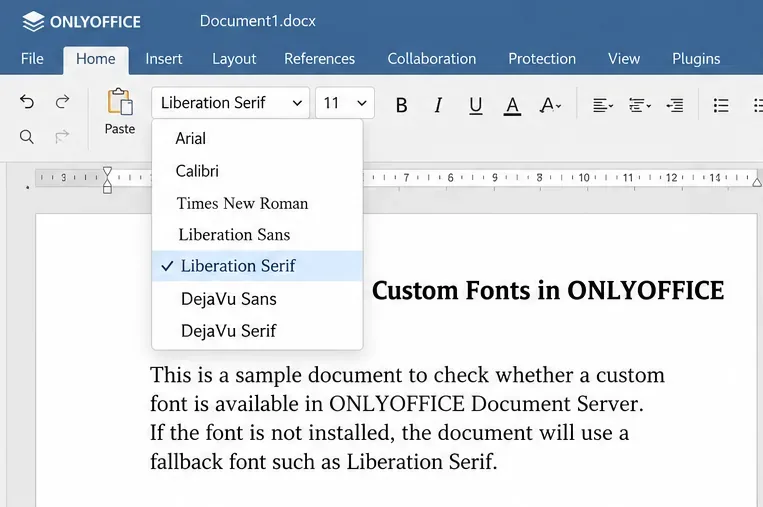
Open a new editing session in the application connected to Document Server. In a test DOCX, select the installed family from the font dropdown, enter a line of normal text, bold text, and representative non-English characters if the font is intended for multilingual use. Save, close, reopen, and export to PDF. Compare text width, line wraps, glyph coverage, and the bold/italic variants with a known reference document.
If a font is absent from the dropdown, check the server path, the output of fc-list, and the catalog-generation command in that order. If the family appears but layout shifts, verify that the document requests the exact family and that the necessary weights exist; otherwise the editor may substitute another face. Installing a font on a user's desktop alone does not add it to the server.
There is one version-specific browser caveat: ONLYOFFICE's font instructions say to clear the browser cache and reopen the editor on version 8.1.3 or earlier. On later versions this extra step is not required. If your installation is older, use that documented cache step before investigating more complex causes.
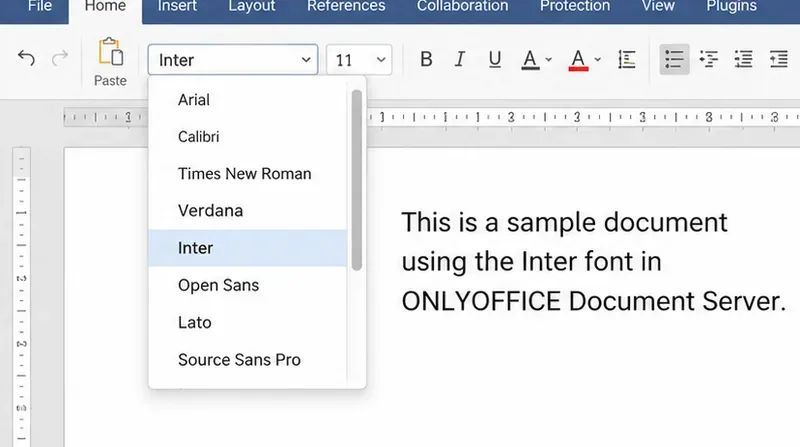
The fix is confirmed when the custom family remains selectable after reopening the editor, the saved document renders correctly, and—for Docker—the fonts still exist after the service is recreated from the same configuration. If one of these checks fails, investigate that layer rather than repeatedly copying fonts into the container.
Install custom fonts in ONLYOFFICE Document Server, compare persistent Docker mounts with direct copies, rebuild the font list, and verify the result.
Choose where TLS should terminate, mount a trusted certificate and private key safely, and verify HTTPS access to a Dockerized ONLYOFFICE Docs server.
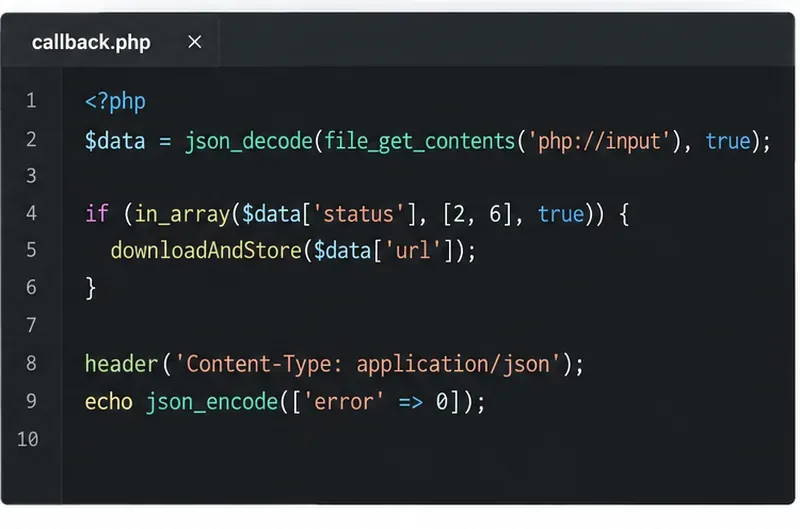
Embed the ONLYOFFICE editor in your PHP app, sign its configuration with JWT, and save edited files through a secure callback.
Set the proofing language for the whole document or selected text, confirm spell checking is active, and identify when a server dictionary is missing.
Enable persistent Track Changes for everyone in one ONLYOFFICE document, verify edits are recorded, and understand the limits of this setting.
Find whether Nginx, Docker networking, or an internal ONLYOFFICE service is returning 502, then verify the corrected upstream and health check.
Diagnose failed ONLYOFFICE saves by checking the Nextcloud callback route, proxy redirects, and storage logs, then verify the edited file persists.
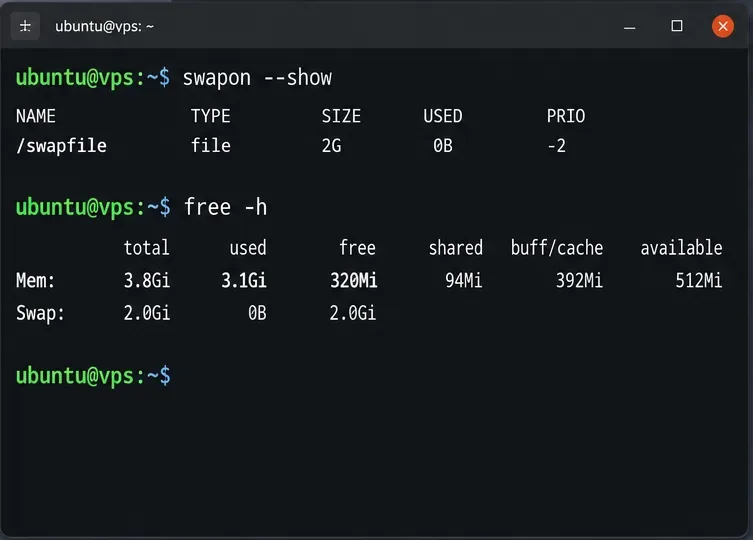
Find the cause of ONLYOFFICE memory crashes, check Docker limits, size VPS RAM correctly, add swap safely, and verify that documents open and save.
Separate browser download problems from server-side conversion errors and use the right log or access check to get your PDF export working.
Match the JWT secret used by ONLYOFFICE Docs and Nextcloud, apply it safely for Docker or Linux installs, and verify the connection without weakening authentication.