Trace a Failed ONLYOFFICE PDF Export to Its Source
Separate browser download problems from server-side conversion errors and use the right log or access check to get your PDF export working.
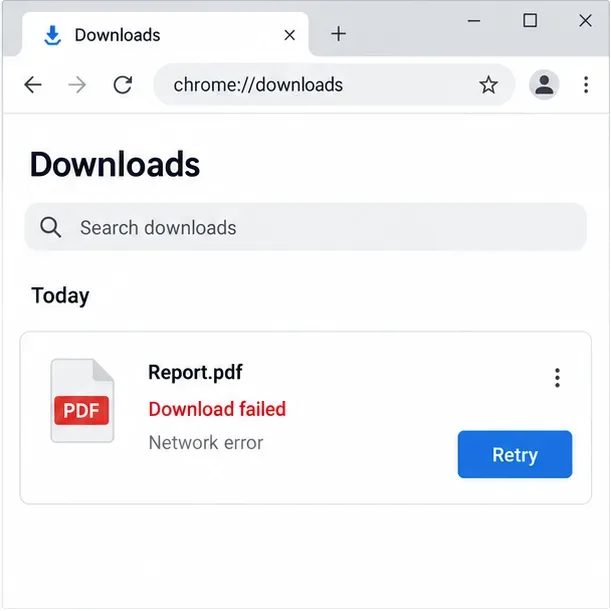
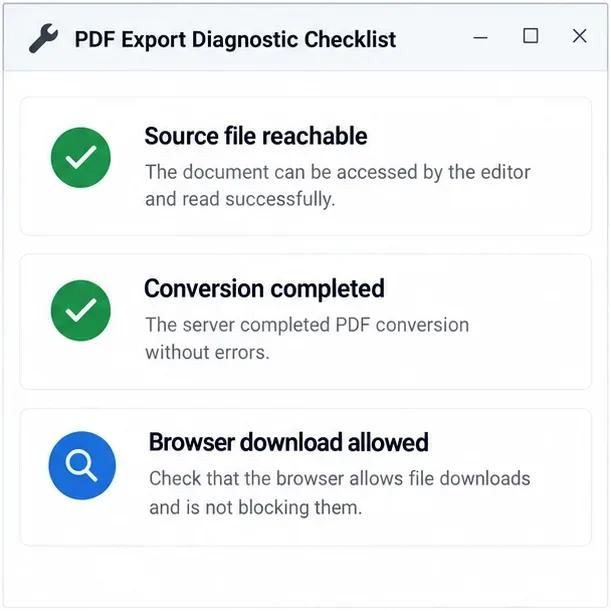
Save the source document first, then determine whether the failure occurs in ONLYOFFICE’s PDF conversion or in the browser’s final download. If the editor reports a conversion error, check the Document Server logs and confirm the server can reach the source file. If conversion succeeds but the browser shows “Download failed,” check the browser’s download state, site permissions, and available disk space instead.
Illustrative scenario: Imagine Jordan, an administrator using a self-hosted ONLYOFFICE Docs editor, selects File > Download as > PDF for a project report. The editor displays a failure and no PDF appears. This is a hypothetical example, not a tested incident; the same symptom can come from different stages, so the checks below follow the point where the process stops.
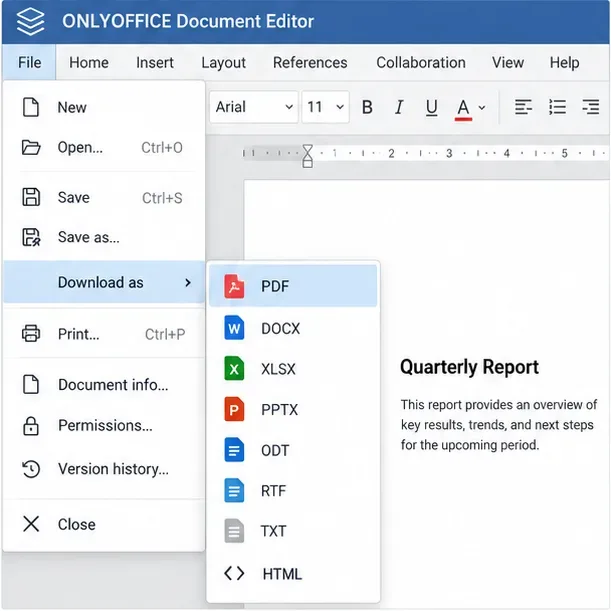
Before troubleshooting, use Save or Ctrl+S to save current edits. In the online Document Editor, ONLYOFFICE documents the PDF export path as File > Download as > PDF. The editor may first prepare the PDF and then hand the result to the browser, so a failed browser download does not always mean the conversion itself failed.
Use the same report to make one controlled retry. Note whether the editor shows an error dialog, whether the browser creates a failed download entry, and whether the issue affects just this file or every file. Avoid repeatedly clicking Export: duplicate jobs make it harder to match a timestamp to the corresponding server log entry.
Open the browser’s Downloads page and inspect the failed item. Retry it once. Check whether the browser blocked downloads from the ONLYOFFICE site, whether a download confirmation is waiting in another tab, and whether the destination drive has enough free space. If you manage the browser, test the same saved document in a current alternate browser or a clean browser profile. If that works, focus on browser settings, extensions, or local security software; don’t change the Document Server configuration yet.
Jordan’s hypothetical case would point to the browser when the editor finishes preparing the PDF but the download list reports a network or permission failure. A practical fallback is to use File > Print and choose the browser or operating system’s “Save to PDF” destination, if available. Check the resulting pages, fonts, and links because print output can differ from the editor’s direct PDF export. This workaround does not repair a server-side conversion error.
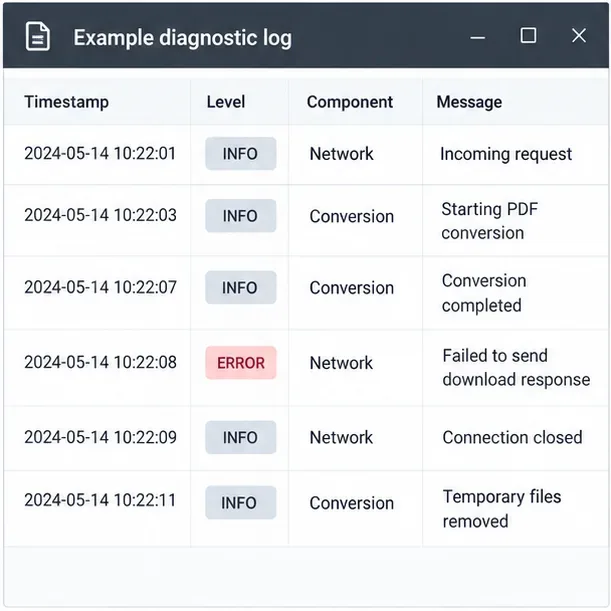
For a self-hosted installation, ask an administrator to inspect the Document Server logs at the time of the retry. ONLYOFFICE documents Linux logs under /var/log/onlyoffice/documentserver; for Docker, logs are available inside the container at that path, and Docker output can also be inspected with docker logs <container>. The exact component and log wording depend on installation and version. Look for conversion errors, timeouts, failed requests, HTTP status codes, or DNS and connection errors. Do not post full log lines publicly if they contain private URLs, access tokens, usernames, or document names.
When logs or the API identify a source-download problem, verify that the Document Server can reach the source document URL from its own network namespace. An administrator can test the authorized URL from the server or container and check DNS, routing, firewall rules, proxy settings, TLS certificates, and the storage app’s response. A URL that opens in your desktop browser may still be unreachable from the Document Server. Conversely, if the source downloads successfully but conversion fails, investigate the converter error rather than changing network access.
For API-based conversion workflows, use the returned error code to narrow the problem. ONLYOFFICE defines conversion error -4 as an error downloading the input file, -2 as a timeout, -3 as a conversion error, and -8 as an invalid token. These codes are specific to the conversion API response; the generic “Download failed” message in the editor does not by itself prove that a PDF conversion returned one of them.
If only files stored in one connected platform fail, verify the connector’s Document Server address and internal access settings. The editing service must be able to retrieve the file from its storage system. ONLYOFFICE’s troubleshooting documentation describes “Download failed” during editor loading as the editing service being unable to access the file URL. That guidance is useful when the report cannot open or load; if the editor opens normally and only PDF export fails, first inspect the export or download stage instead.
If the API reports an invalid token, compare the JWT secret, header, and token configuration on both sides. Do not disable JWT as a shortcut. If the API indicates a size limit, compare the file with the limits configured in your deployment. A large file or an unsupported/corrupt source may require a different remedy; changing the browser or network will not fix a conversion limit or a damaged document.
Enable debug logging only if ordinary logs do not show where the request stops, and turn it back off after collecting the needed evidence. Debug logs can contain sensitive request details. Follow ONLYOFFICE’s instructions for your installation type, and share a redacted log excerpt with your administrator or support team rather than exposing document URLs or tokens.
ONLYOFFICE’s documentation distinguishes PDF download steps from conversion errors. Consult the Document Editor download and print instructions, the official integration troubleshooting guide, the conversion API error codes, and the debug logging guide for details that match your deployment.
Separate browser download problems from server-side conversion errors and use the right log or access check to get your PDF export working.
Match the JWT secret used by ONLYOFFICE Docs and Nextcloud, apply it safely for Docker or Linux installs, and verify the connection without weakening authentication.
Install ONLYOFFICE Workspace Community on Ubuntu 24.04 with the official Docker script, check server requirements, skip Mail if needed, and verify the portal safely.
Configure matching JWT secrets for ONLYOFFICE Docs and its connector, with safe steps for Linux packages, Docker deployments, and verification.
Configure HAProxy HTTPS, forwarding headers, WebSocket timeouts, and health checks for ONLYOFFICE Docs, then verify editing and saves.
Give an embedded ONLYOFFICE Docs editor your company logo and interface colors with a custom theme file and editor configuration. See edition limits and deployment checks.
Track edits in Writer, preserve an editable ODT source, and check the exported DOCX in Word before sharing it.
Follow SUSE’s SP7 procedure to enable FIPS mode, reboot safely, verify the active policy, and check whether your compliance requirement calls for validated modules.
Compare YaST and cryptsetup for a new encrypted SLES data volume, choose LUKS1 or LUKS2, and verify unlock and mount behavior safely.
Create, refine, and verify a least-privilege AppArmor profile on SLES 15 SP7, with a clear note on SLES 16’s SELinux default.