Home
» How to
»
Brand ONLYOFFICE Docs with Your Logo and Theme Colors
Brand ONLYOFFICE Docs with Your Logo and Theme Colors
To customize an embedded ONLYOFFICE Docs editor, give the editor a branded color theme and pass your logo URLs in its initialization configuration. The theme is a JSON file installed on the Docs server; the logo is configured by the application that embeds the editor. The documented header-logo option is available only in ONLYOFFICE Docs Developer, so confirm your edition before preparing assets.
This applies to a self-hosted Docs integration, not DocSpace branding or Desktop Editors' local theme picker. ONLYOFFICE documents custom themes from Docs v7.0. These settings affect the embedded editor interface, not document content or your website navigation.
What should you prepare first?
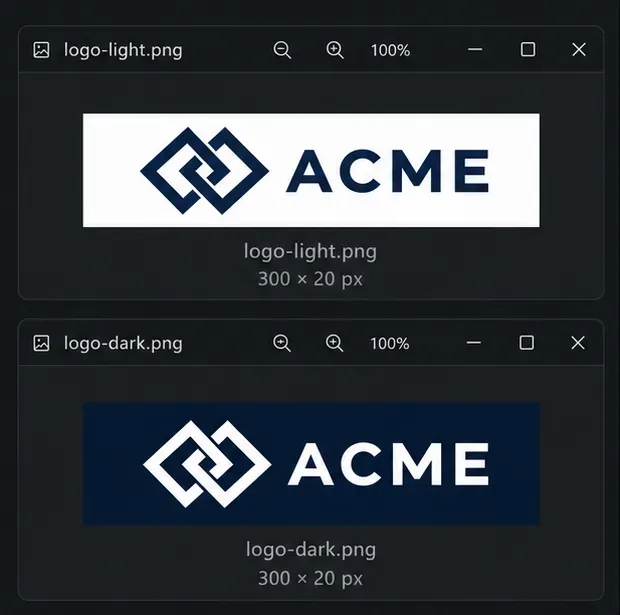
Gather two files for the logo: a version that reads clearly against a light header and an inverse version for a dark or colored header. The Docs API specifies a 300 × 20 pixel image for the editor-header logo. Use a transparent PNG if that suits your artwork, and keep a high-contrast mark with little fine detail because the image appears in a narrow strip. Host both files at stable HTTPS addresses that the editor user's browser can load.
You also need server write access, the code that builds the editor configuration, and a test document. For Docker, identify the running container name or ID. Test the change in a nonproduction environment first.
Prepare a light-header logo and a dark-header version in the 300 × 20 pixel size documented for the editor header.
1. Create a theme JSON file for your colors
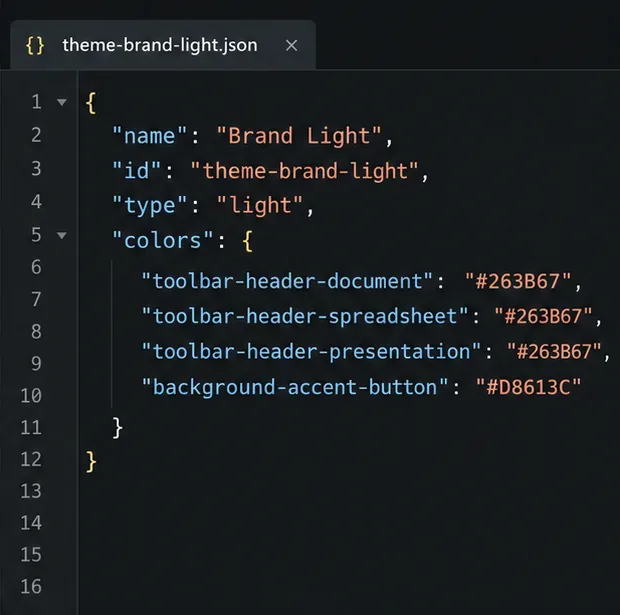
A theme JSON file is a settings file that maps named interface color tokens to color values. The id must be unique and begin with theme-; the name is what users see in the theme picker. Choose a light or dark base that matches the overall interface you want, then replace the header colors and selected accents. The sample below keeps the editor background light, uses indigo for each editor header, and uses coral for the document editor's accent button.
Save it as acme-brand-light.json. The header color tokens are separate for documents, spreadsheets, presentations, and PDFs; set each one if you want a consistent brand across file types. The accent token shown here affects the text document editor's accent button, not every colored element in Docs. ONLYOFFICE documents additional color tokens for backgrounds, borders, hover states, icons, text, and the editing canvas, so expand the palette only when you need those areas. Check text and icon contrast against your chosen backgrounds before release; a brand color alone does not guarantee readable controls.
The theme file maps named ONLYOFFICE color tokens to the colors you want in the interface.
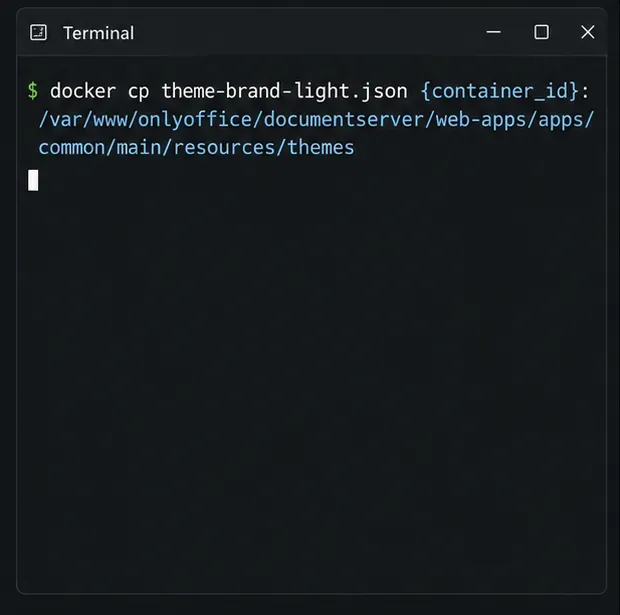
For a Docker deployment, put the file in the directory from which you will run the command, then replace CONTAINER_ID with the running Docs container's name or ID:
On Linux, copy the file to that path with a write-enabled account. On Windows, use the themes directory under %ProgramFiles%\ONLYOFFICE\DocumentServer; consult the installation guide for its full path. A custom theme is an added JSON file, not an edit to bundled application files.
Copy the theme JSON into the server-side themes directory; the container identifier must match your running Docs service.
ONLYOFFICE says the theme cache refreshes every five minutes. Refresh the editor after copying the file; if it is still missing, follow the Docker or Linux cache troubleshooting instructions and restart services only if needed. For production containers, include the file in your image or deployment automation so replacing a container does not remove it.
3. Apply the theme and set the editor logo
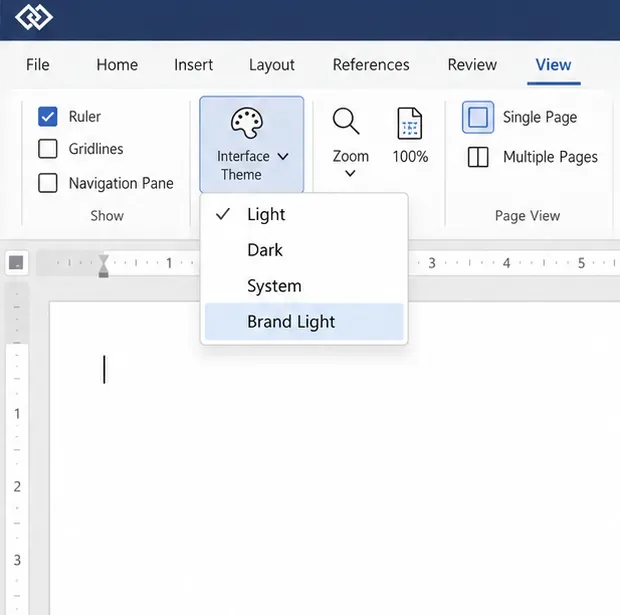
After the theme has been discovered, users can select it from View > Interface Theme. To make your embedded editor start with that theme, add its ID to the configuration object your application passes to the Docs API. Set the logo inside the same editorConfig.customization object:
Replace the example URLs with your actual public asset and destination URLs. logo.image is the standard logo path for common editor modes; the separate dark and light fields let you choose artwork for a dark or light header. The URL is where a click on the logo should go. The API lists this header-logo setting as a Docs Developer feature and specifies the 300 × 20 size. Do not confuse it with customer.logo, which is a larger image used in the editor's About information.
The View tab's Interface Theme picker is where the installed custom theme becomes selectable.
If your integration signs editor configurations with JWT, rebuild the signature after adding or changing these signed fields, and keep the signing secret on the server. The official ONLYOFFICE integration example explains that the token must match the configuration and be regenerated when signed parameters change. Also note that a user's previously selected theme can take precedence over uiTheme; test with a fresh browser profile or reset that user's saved theme preference if your requested default does not show.
Open the file types your users need. Confirm the header colors, readable text and icons, correct logo in light and dark headers, and the logo's click destination. Check edit and view modes in the actual embedded layout.
If the theme is missing, validate the JSON and ID, check the active server's themes directory, and wait for the cache refresh. If the logo is missing, check the Developer edition requirement, browser access to the image URL, and whether the initializing configuration includes logo. Regenerate the JWT on the backend if you changed signed fields.