Install and Sign Custom Kernel Modules on SLES 15 Secure Boot

Load a custom SLES 15 kernel module without disabling Secure Boot. Match the running kernel, sign the .ko file, enroll a MOK key, and verify loading.
A third-party driver on SUSE Linux Enterprise Server 15 may compile correctly but fail to load with “Required key not available” or “Key was rejected by service.” When UEFI Secure Boot enforces module signatures, the fix is to sign the custom kernel module with a trusted certificate, enroll that certificate through Machine Owner Key (MOK) management, and then load the module normally—without disabling Secure Boot.
This procedure assumes a standard SLES 15 UEFI system using SUSE shim, a kernel-default kernel, administrator access, and a trusted source for your driver. It addresses custom .ko modules, not signing a replacement kernel or changing firmware platform keys. The examples follow the SLES 15 SP6/SP7 administration model; check package and kernel-flavor differences on your installed service pack.
Log in with administrative access and identify the kernel you actually booted. A matching package name alone does not prove that a module can load into that kernel.
uname -r
mokutil --sb-state
ls -ld "/lib/modules/$(uname -r)/build"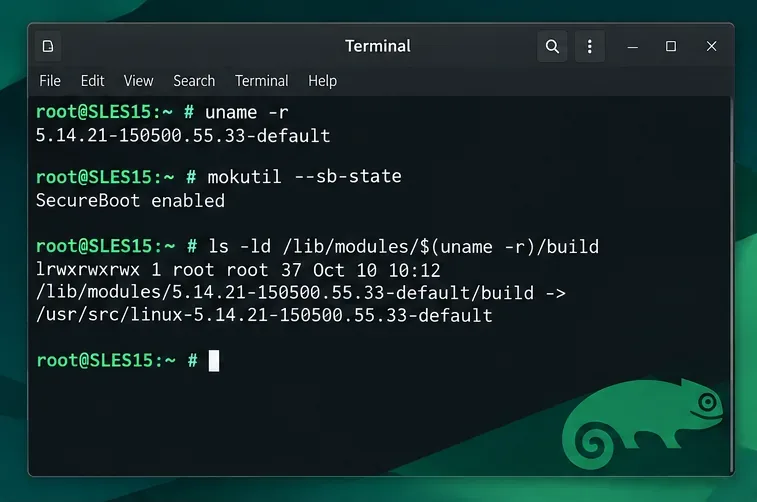
If mokutil reports Secure Boot enabled, an untrusted signature is a likely explanation for a key-related load failure. If it is disabled, investigate other causes before generating keys; explicit kernel signature enforcement can also matter. Check the kernel log after a failed load for the actual rejection message.
sudo journalctl -k -b --no-pager | tail -n 50Inspect the candidate module before installing it. Substitute the real filename for the example; its vermagic should match the running kernel release and compatible build properties.
modinfo -F name /path/to/mydriver.ko
modinfo -F vermagic /path/to/mydriver.ko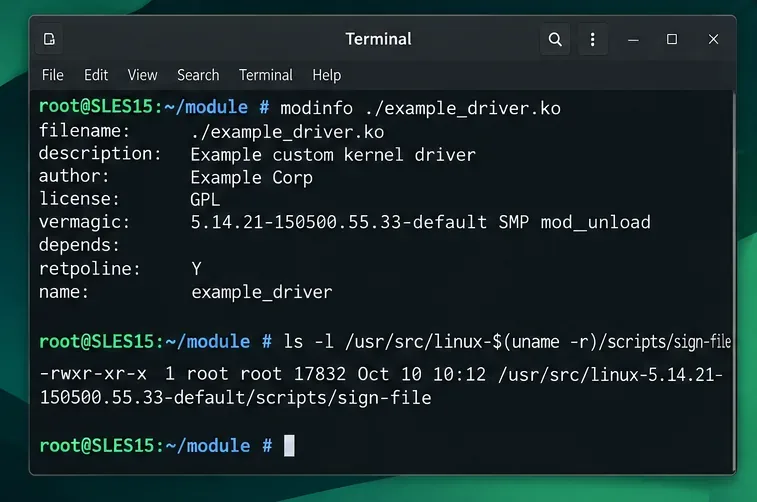
First ask the hardware or software vendor for a SLES-compatible, already-signed Kernel Module Package (KMP). This is preferable to hand-installing a binary: the vendor may provide kernel update handling and a documented certificate-enrollment process. A vendor signature is not automatically trusted on every Secure Boot machine.
If you must build the driver, install the development files matching your running kernel. For the kernel-default flavor, the usual SLES packages include the default kernel development package, kernel development files, and build tools. Repository availability and versions depend on registration and enabled SLES modules.
sudo zypper install gcc make openssl mokutil kernel-devel kernel-default-devel
rpm -q kernel-default-devel kernel-devel
readlink -f "/lib/modules/$(uname -r)/build"If the build directory is missing or the development package targets a different kernel release, fix the package/kernel mismatch first. A newly installed kernel may require a controlled reboot before building against it.
From the trusted driver source directory, use the vendor build instructions. For conventional kbuild-based modules, the command below builds against the running kernel; it does not download or create a driver by itself.
cd /path/to/driver-source
make -C "/lib/modules/$(uname -r)/build" M="$PWD" modules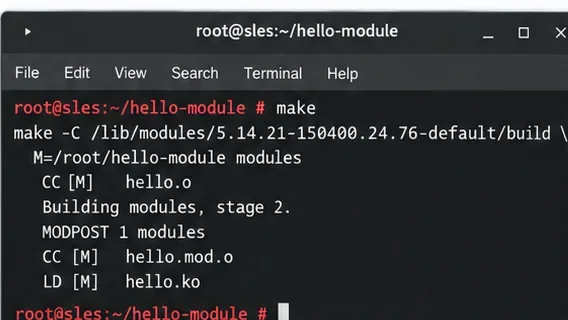
Skip compilation when you already have a compatible .ko from a trusted vendor. Never force-load a module with the wrong vermagic; a signature cannot repair an incompatible binary.
Generate a dedicated RSA key and X.509 certificate in a root-only directory. The public certificate will be enrolled; the private key must stay protected because whoever controls it can sign additional modules that this machine may trust.
sudo -i
umask 077
mkdir -p /root/module-signing
cd /root/module-signing
openssl req -new -x509 -newkey rsa:3072 -sha256 -days 3650 -nodes \
  -subj "/CN=SLES Custom Module Signing/" \
  -keyout MOK.priv -out MOK.pem
openssl x509 -in MOK.pem -outform DER -out MOK.der
chmod 600 MOK.priv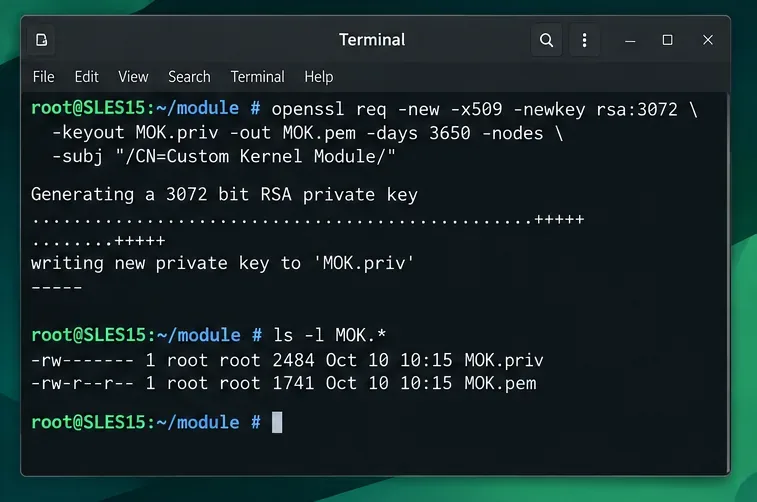
-nodes creates an unencrypted private key for a straightforward example; for a production signing pipeline, use an appropriately protected encrypted key or external signing service under your security policy. The ten-year validity shown here is illustrative, not an organizational certificate-lifetime recommendation.
Copy the finished module into the running kernel’s module directory. Sign the exact installed file after any packaging, stripping, or other file modifications. Replace mydriver and its path with the module’s actual basename and location.
install -D -m 0644 /path/to/mydriver.ko \
  "/lib/modules/$(uname -r)/extra/mydriver.ko"
SIGN_FILE="$(readlink -f /lib/modules/$(uname -r)/build)/scripts/sign-file"
test -x "$SIGN_FILE" || echo "Locate the sign-file binary for this kernel"
"$SIGN_FILE" sha256 /root/module-signing/MOK.priv \
  /root/module-signing/MOK.der \
  "/lib/modules/$(uname -r)/extra/mydriver.ko"
modinfo -F signer "/lib/modules/$(uname -r)/extra/mydriver.ko"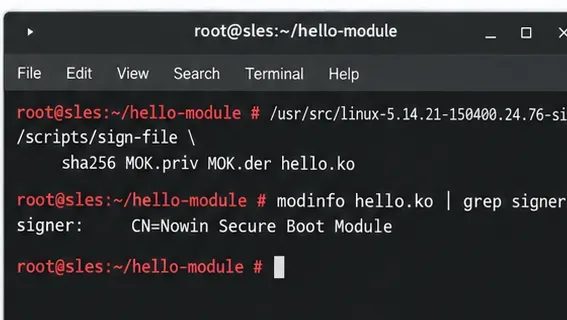
If sign-file is absent at that path, locate the tool shipped with your matching kernel build files rather than copying an unrelated version. A displayed signer means the file contains signature metadata; it does not prove the signer has been enrolled. Never strip or modify the module after signing.
Import the DER-formatted public certificate—not MOK.priv—and set the one-time enrollment password requested by mokutil. Arrange console access before rebooting; the authorization happens in the boot-time MokManager interface, not in an SSH shell.
mokutil --import /root/module-signing/MOK.der
mokutil --list-new
reboot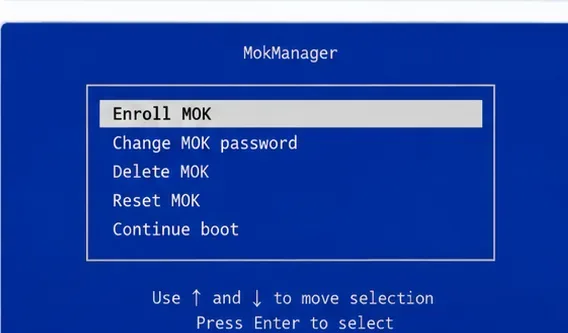
During the next boot, choose Enroll MOK, follow the confirmation prompts, enter the one-time password, and continue booting. Menu appearance depends on the firmware and shim version. Returning to Linux without confirming the enrollment leaves the new certificate untrusted.
After boot, verify that the specific certificate is enrolled:
sudo mokutil --test-key /root/module-signing/MOK.der
sudo mokutil --list-enrolledUpdate module dependency metadata and load the module by its name, not by the full file path. modprobe resolves dependencies and respects standard module configuration.
sudo depmod -a
sudo modprobe mydriver
lsmod | grep -w mydriver
modinfo -F signer mydriver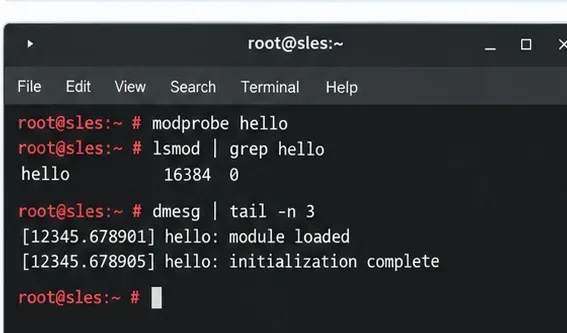
If loading still fails, choose the corrective action that matches the evidence:
mokutil --test-key; confirm the file you installed is the one signed and check whether a driver update replaced it.modinfo -F vermagic with uname -r, rebuild for the active kernel, and check CPU architecture.journalctl -k -b, the vendor’s required modules, and the kernel ABI; another signature will not fix missing symbols.For boot-critical storage or network drivers, test on a nonproduction system first and ensure a recovery console is available. Configure automatic loading only after the driver works reliably; SUSE documents /etc/modules-load.d/ for modules that do not otherwise load on device detection.
Reboot once more in your maintenance window if persistent loading matters. Confirm Secure Boot remains enabled, the public key is enrolled, the module is present, and the kernel reports no new verification or compatibility error. Rebuild or reinstall and sign the updated .ko after kernel or vendor driver upgrades.
mokutil --sb-state
sudo mokutil --test-key /root/module-signing/MOK.der
modinfo -F signer mydriver
lsmod | grep -w mydriver
sudo journalctl -k -b --no-pager | tail -n 30
Primary documentation: SUSE SLES 15 SP6: UEFI and Machine Owner Keys; SUSE: Managing kernel modules; Linux kernel: Module signing facility; Linux kernel: Building external modules. The SLES 15 SP6 Administration Guide was updated September 17, 2026; command behavior for third-party driver installers and nondefault kernel flavors must be confirmed with their maintainers.
Load a custom SLES 15 kernel module without disabling Secure Boot. Match the running kernel, sign the .ko file, enroll a MOK key, and verify loading.
SLES 15 SP5 can migrate online to SP6, but each node must reboot. Use a tested rolling upgrade or blue-green cutover to keep workloads reachable.
Use SUSE’s supported STIG profile to scan SLES 15, test remediation, review remaining findings, and retain assessment evidence.
Trace a failed Cockpit connection through DNS, port 9090, the systemd socket, firewalld, TLS, and login settings using current SUSE guidance.
Create a redundant Ethernet connection on SLES 15 with YaST and Wicked, configure active-backup bonding, and verify both ports and failover.
Turn an existing SLES 15 system into a reviewed AutoYaST profile, validate it, and use it to deploy a test server with fewer manual steps.
Install the SLES 15 KVM and libvirt tools, enable the right host service, and configure selected virtual machines to start after a reboot.
Use systemd jobs and the previous boot journal to locate a slow service, mount, or storage dependency, then correct it without masking the cause.
Use firewall-cmd to inspect the active zone, allow HTTP safely, preserve SSH access, and verify that the rule survives a reload on SLES 15.
Trace a PAM failure to its service, account policy, or identity provider, then repair the right SLES configuration while preserving a working admin session.