Keep Services Available During a SLES 15 SP5 to SP6 Upgrade

SLES 15 SP5 can migrate online to SP6, but each node must reboot. Use a tested rolling upgrade or blue-green cutover to keep workloads reachable.
A short maintenance window is hard to schedule when a SLES server runs a customer-facing service. SUSE supports online service-pack migration from SLES 15 SP5 to SP6, but the upgraded machine still needs a reboot; “online” does not mean reboot-free. To keep an application reachable, upgrade redundant nodes one at a time or build an SP6 replacement and move traffic to it. A single server cannot keep its own operating system available while it reboots.
Illustrative scenario: A fictional team runs a web application across three SLES 15 SP5 nodes behind a load balancer. The application can serve requests from the other two nodes while one node is maintained. The sequence below shows how that team could migrate the cluster; it is an example, not a claim that a test was performed or that every cluster can tolerate a node outage.
For a SLES 15 SP5 to SP6 move, SUSE documents both online and offline upgrade methods. The online method uses YaST migration or zypper migration while the operating system is running, then requires a system restart after the migration. Package changes may also restart services, so online migration alone cannot guarantee application continuity.
Use the SLE High Availability rolling-upgrade procedure only if your workload is already protected by a supported, healthy cluster. The cluster must retain quorum and enough capacity to run the service with a node offline. An ordinary load balancer without application redundancy, or a two-node cluster that loses quorum when one node stops, is not enough. If the server is standalone, use a parallel SP6 host and a tested workload/data cutover to maintain reachability; otherwise schedule downtime for its reboot.
Before touching the cluster, verify the starting release, registration, repositories, and supported extensions. SUSE lists SLES 15 SP5 to SP6 as a supported path. Online migration requires the machine to be registered with SUSE Customer Center or a local RMT server; SUSE Manager clients must use the Manager client-migration procedure instead of running zypper migration directly. The available target can depend on registered products and extensions.
As of January 1, 2026, SUSE’s release information says SLES 15 SP6 has moved to LTSS. Confirm that your subscription and registration source currently expose the SP6 target before scheduling this specific migration. If it is not offered, do not force a repository change to imitate a supported migration.
Back up application data and configuration using the application’s supported method, and confirm that you can restore them. Review the SLE HA upgrade guide and SP6 release notes for your extensions, databases, storage, and hardware. In the fictional cluster, the operator also checks quorum, fencing, replication health, spare capacity, load-balancer health checks, and a tested way to move traffic away from each node. A snapshot can aid rollback on supported Btrfs root setups, but it does not replace application or database backups.
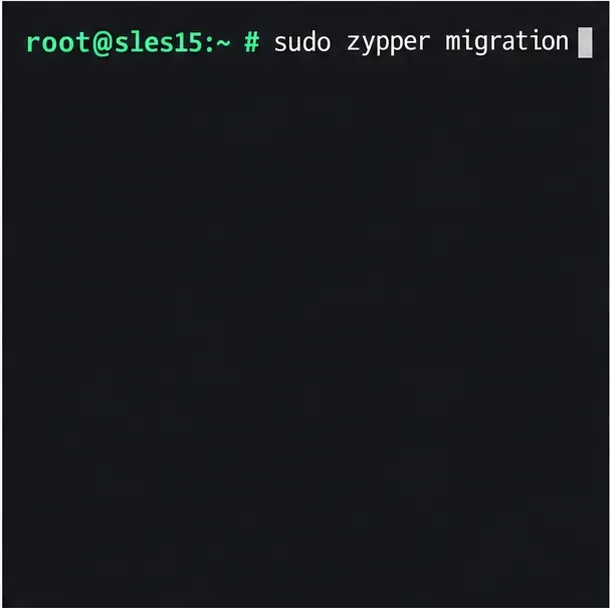
For each node, follow the SLE HA rolling-upgrade procedure and your cluster’s runbook. Never upgrade multiple nodes at once unless the product-specific procedure explicitly allows it.
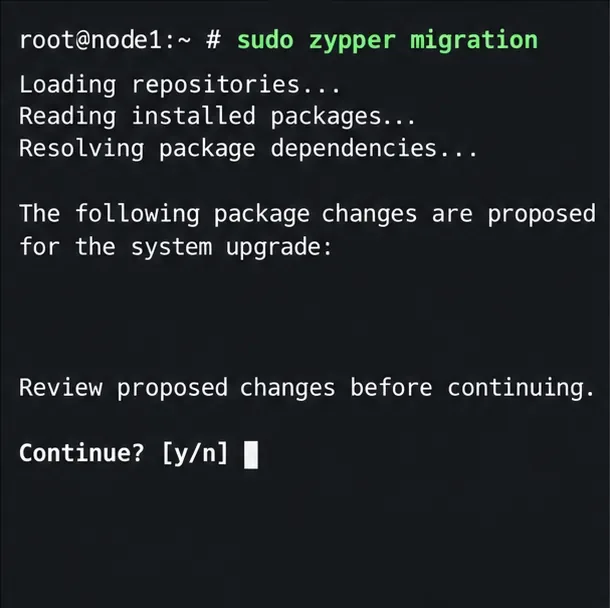
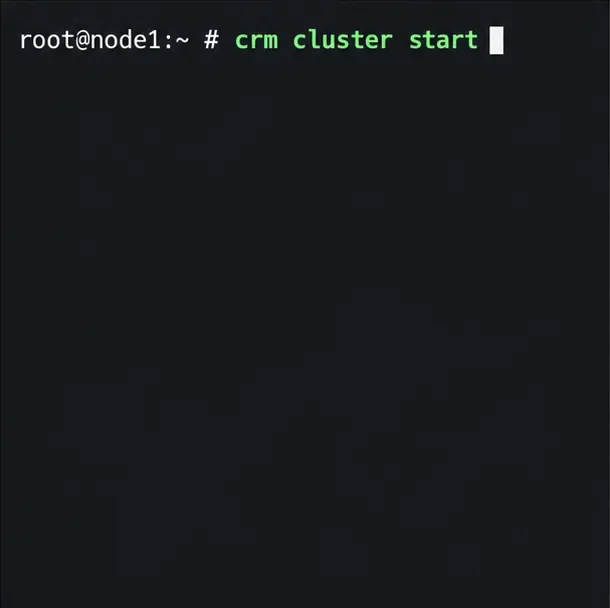
sudo crm cluster stopsudo zypper migrationSelect SLES 15 SP6 only if it appears as an available target. Read the repository and package plan, especially packages proposed for removal or downgrade, and stop if the changes are unexpected. Do not accept a plan you have not reviewed. The exact package list varies with installed software and registered extensions.
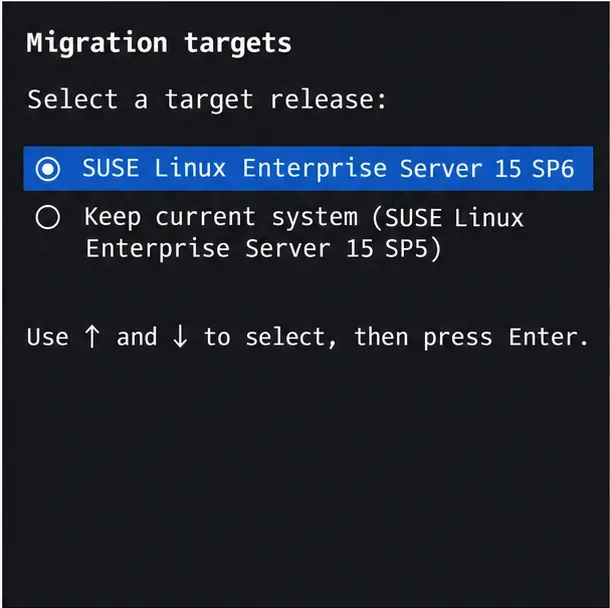
sudo reboot
sudo crm cluster start
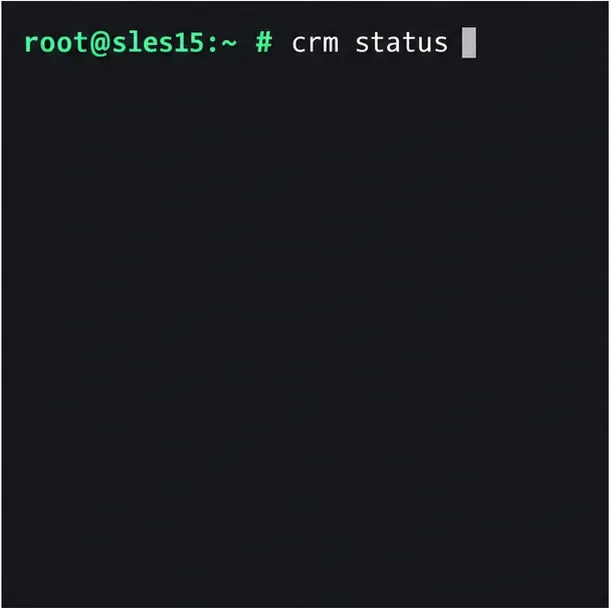
sudo crm status
Wait until the cluster reports the node joined and resources are healthy, then restore it to service according to your runbook. Check the application from outside the cluster. Only then repeat the process for the next node. SUSE permits mixed versions only briefly during a rolling upgrade and instructs administrators to complete the cluster upgrade within one week.
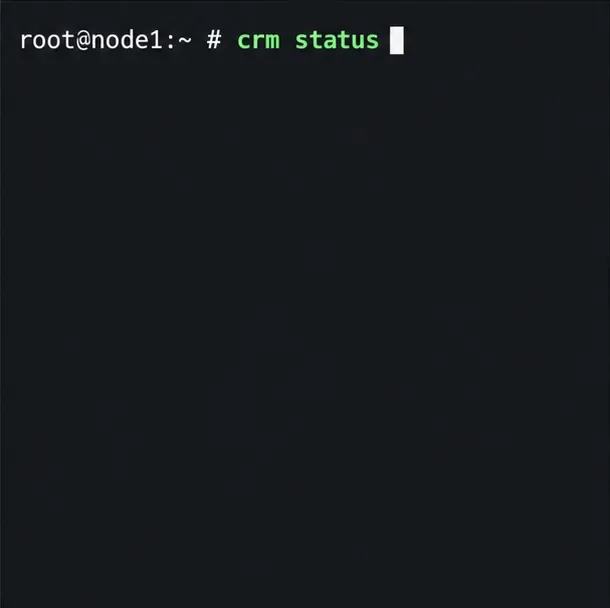
After all nodes are upgraded, confirm their release with cat /etc/os-release, inspect cluster health with crm status, and check failed systemd units with systemctl --failed. Then test the actual application through its normal client-facing address, including the health checks, database or storage access, and any scheduled jobs that matter to users. Review migration logs and confirm the expected repositories and extensions are active on every node.
A successful OS migration does not prove that every application dependency is compatible or that no request was interrupted. If the application cannot tolerate a node failover, use a blue-green deployment with validated data replication and a controlled endpoint switch, or plan a maintenance window. For exact command options and support conditions, consult SUSE’s SLES 15 SP6 online-upgrade guide, supported upgrade paths, SLE HA rolling-upgrade procedure, and the SUSE Multi-Linux Manager 5.1 release notes for the SP6 lifecycle transition note.
SLES 15 SP5 can migrate online to SP6, but each node must reboot. Use a tested rolling upgrade or blue-green cutover to keep workloads reachable.
Use SUSE’s supported STIG profile to scan SLES 15, test remediation, review remaining findings, and retain assessment evidence.
Trace a failed Cockpit connection through DNS, port 9090, the systemd socket, firewalld, TLS, and login settings using current SUSE guidance.
Create a redundant Ethernet connection on SLES 15 with YaST and Wicked, configure active-backup bonding, and verify both ports and failover.
Turn an existing SLES 15 system into a reviewed AutoYaST profile, validate it, and use it to deploy a test server with fewer manual steps.
Install the SLES 15 KVM and libvirt tools, enable the right host service, and configure selected virtual machines to start after a reboot.
Use systemd jobs and the previous boot journal to locate a slow service, mount, or storage dependency, then correct it without masking the cause.
Use firewall-cmd to inspect the active zone, allow HTTP safely, preserve SSH access, and verify that the rule survives a reload on SLES 15.
Trace a PAM failure to its service, account policy, or identity provider, then repair the right SLES configuration while preserving a working admin session.
Trace a failed kernel module at SLES startup, correct an obsolete boot entry or repair the required driver, and verify the next boot.