Home
» How to
»
Enable SLES Live Patching and Verify a Kernel Fix
Enable SLES Live Patching and Verify a Kernel Fix
A SLES kernel update can still show “reboot required” after Live Patching is enabled. That does not automatically mean the setup failed: live patches cover only fixes SUSE can safely deliver for the currently running kernel, while a replacement kernel or fixes that cannot be live-patched still require a reboot. SUSE's SLES 16.0 Kernel Live Patching guide, published October 8, 2026, gives a newer setup path: install the kernel_livepatching pattern under the standard SLES subscription. SLES 15 SP7 uses a separate Live Patching extension and the lp_sles pattern.
Use the procedure for your exact release, apply updates through the normal SUSE package workflow, and verify the active patch with klp -v patches. These steps assume a registered SLES host with access to its supported update repositories.
Configure the Live Patching path for your SLES release
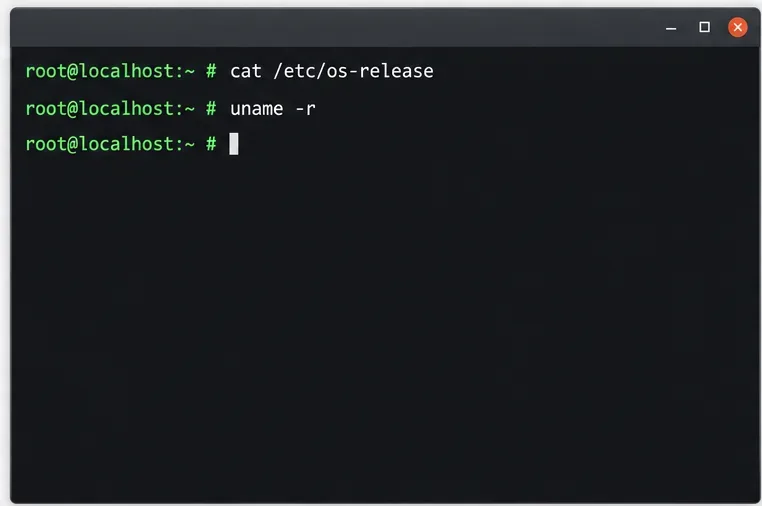
Identify the release and running kernel. Run:
cat /etc/os-release
uname -r
uname -m
Illustrative terminal view of checking the operating system release and running kernel before choosing a live-patching procedure.
Record the SLES release, kernel version, and architecture. Live patch packages match a specific kernel revision, so a package for a different running kernel does not prove that the active kernel is patched. The commands below use the current SLES 16.0 and SLES 15 SP7 instructions; do not copy a release-specific pattern or activation path to a different version.
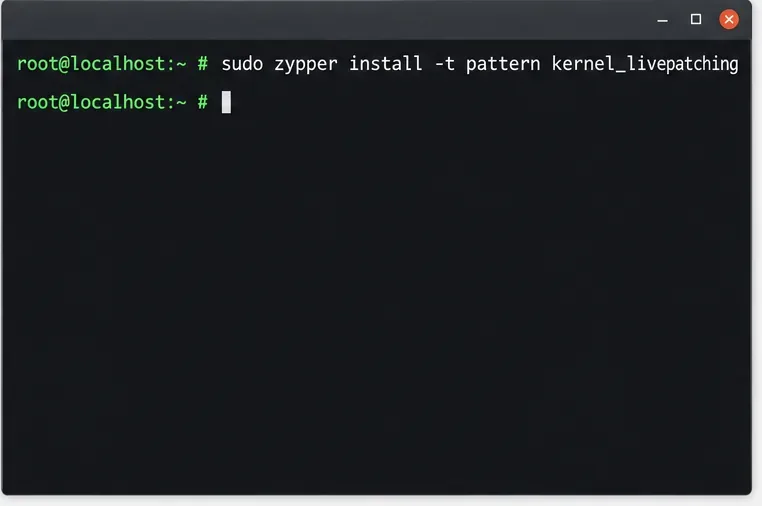
On SLES 16.0, install the included pattern. SUSE's current guide says Kernel Live Patching is included in the standard SLES subscription. Install its pattern:
Illustrative terminal command from the SLES 16.0 procedure for installing the kernel_livepatching pattern.
If your repositories contain an eligible live patch for the installed kernel, the package manager selects it during installation; SUSE documents that the kernel is live-patched as part of this process. There is no extra Live Patching registration code in this SLES 16.0 procedure.
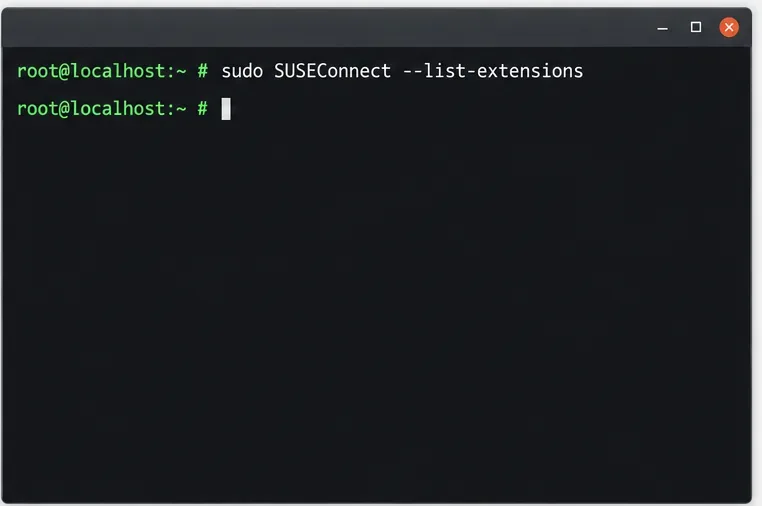
On SLES 15 SP7, activate the extension first. This release requires active SLES and SLES Live Patching subscriptions. List available extensions and use the exact architecture-specific activation command it prints:
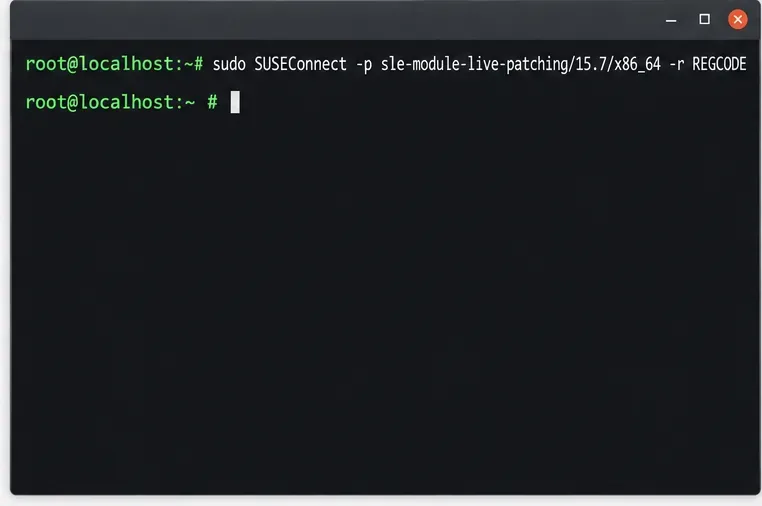
Illustrative terminal view of checking the available SUSE extensions on a SLES 15 SP7 system.Illustrative terminal command for activating the Live Patching extension; use the exact architecture-specific command shown on your host.
The second command is an x86_64 example. Replace it with the exact product path shown by your own --list-extensions output and provide the valid Live Patching registration code. Then install the required pattern:
sudo zypper install -t pattern lp_sles
Illustrative terminal command for installing the Live Patching pattern after activating the SLES 15 SP7 extension.
Activation alone does not install the patterns or packages; complete both steps before expecting live patch packages from the update channels.
Apply regular system updates. Kernel live patches arrive as packages through the regular update mechanism. For a manual patch run, use the same approved maintenance workflow as the rest of the host, for example:
sudo zypper refresh
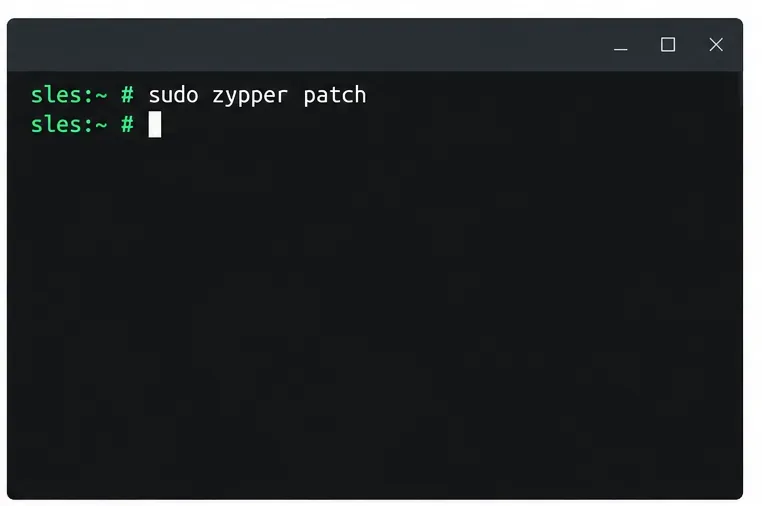
sudo zypper patch
Illustrative terminal command for the regular package patch workflow that can deliver eligible kernel live-patch packages.
Review the package plan before confirming it, especially on production systems. A live-patch package can update eligible fixes for the running kernel without restarting workloads, but the same update transaction can also offer a new base kernel package. Installing that kernel package can still trigger a reboot recommendation. Live patches are cumulative for their target kernel revision; they do not replace ordinary kernel maintenance.
Check whether a live patch is active. After the update completes, inspect the patch details:
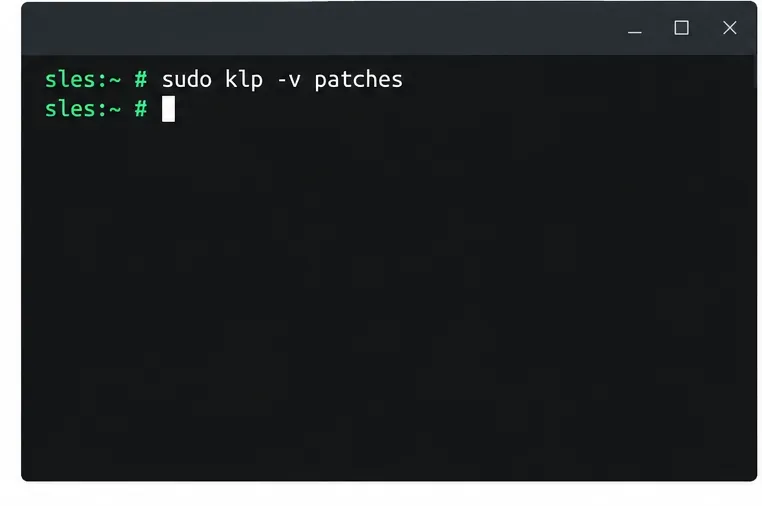
sudo klp -v patches
Illustrative terminal command for checking which live patches and addressed fixes are associated with the running kernel.
SUSE documents this command for checking patching status and viewing the CVEs or defects addressed by the active live patch. Confirm that the listed patch corresponds to the running kernel recorded in Step 1. An initial or seed live-patch package may contain no fixes; it prepares that kernel revision for future patches. Its presence alone does not mean a specific security fix has been applied.
Troubleshoot an empty or mismatched status. Check whether a live-patch package exists for the running kernel and whether lifecycle data is available:
sudo zypper se --details 'kernel-livepatch-*'
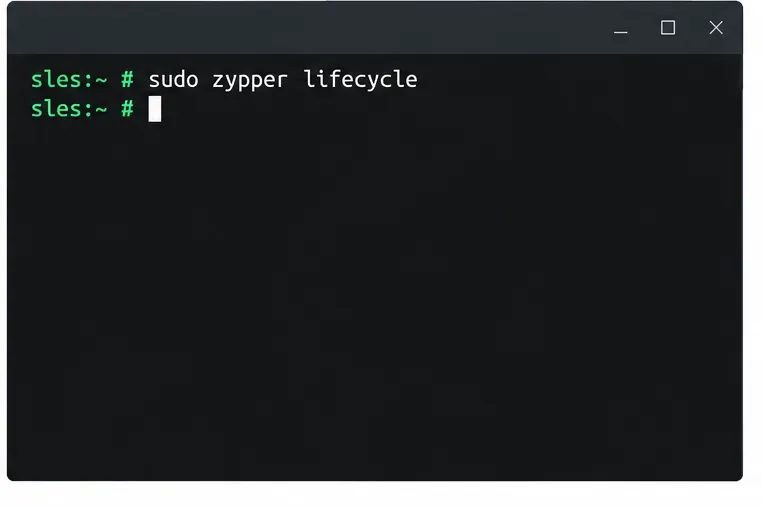
sudo zypper lifecycle
Illustrative terminal command for reviewing lifecycle data when the Live Patching lifecycle-data package is installed.
For lifecycle dates, SUSE says the lifecycle-data-sle-module-live-patching package must be installed. If there is no patch package for the exact running kernel, confirm that the correct Live Patching repositories or channels are enabled and that the relevant fix is eligible for live patching. Do not infer failure from an empty patch list when no qualifying update has been released.
Schedule the reboot that a full kernel update requires. SUSE cannot convert every fix into a live patch; some changes require replacing kernel data structures or otherwise cannot be applied safely at runtime. Keep normal kernel updates in your maintenance plan and reboot when the update requires it. Avoid hiding reboot notices by indefinitely locking kernel packages: that postpones full kernel fixes rather than applying them live.
For a no-reboot maintenance window, proceed only when the update contains a compatible live-patch package for the running kernel and your change policy permits it. Treat a full kernel package update as pending until the host has booted the new kernel.
Verify the result
The check is successful when klp -v patches identifies the active live-patch information for the kernel shown by uname -r, and the expected fix appears in the patch details. The host should remain on the same running kernel version because no reboot occurred. If the update manager still requests a reboot, inspect whether it installed a new base kernel or a fix outside Live Patching's scope; that request is a maintenance requirement, not something the live-patch status command can cancel.