Keep Writer Revisions Visible When Exporting to DOCX
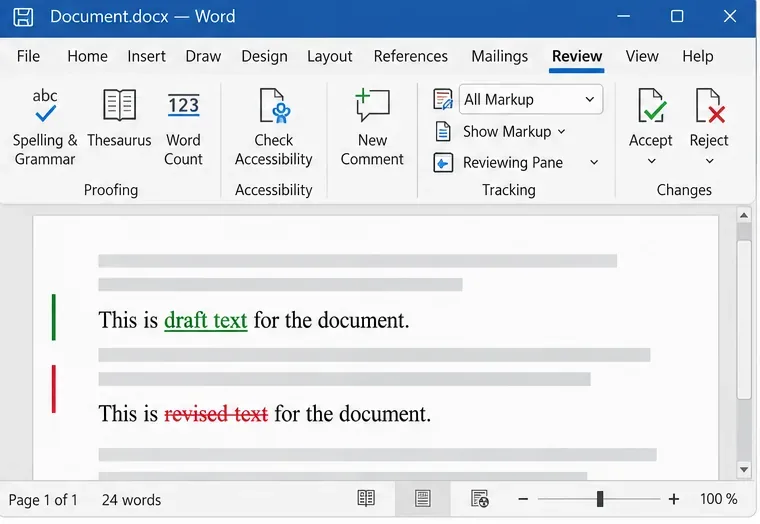
Track edits in Writer, preserve an editable ODT source, and check the exported DOCX in Word before sharing it.
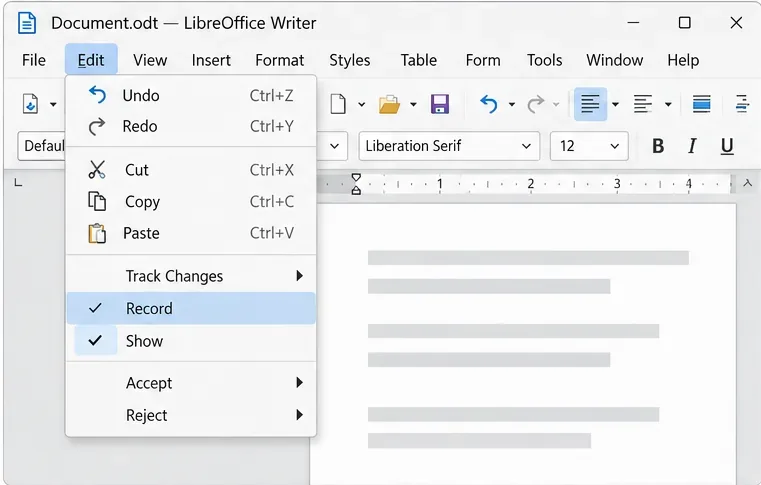
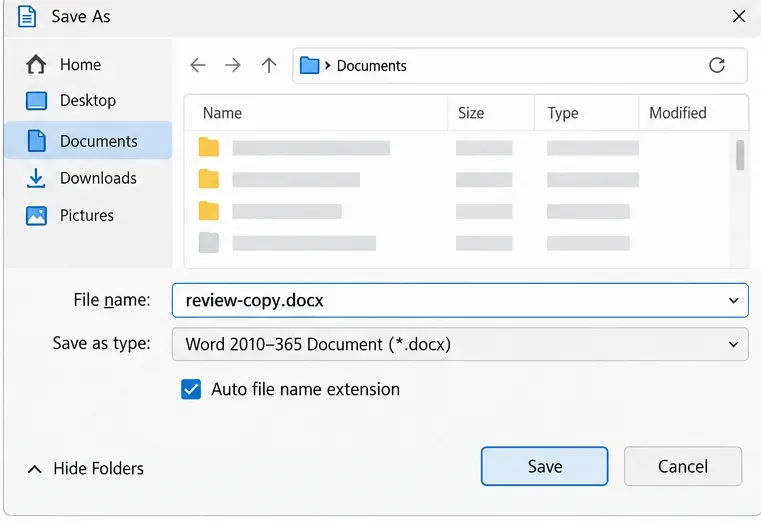
To send a reviewable DOCX from LibreOffice Writer, save a working copy as ODT, turn on Track Changes > Record, make sure Show is on, and use File > Save As to create a separate Word DOCX file. Then open that DOCX in the version of Microsoft Word your recipient uses and check it with Review > All Markup. This preserves an editable source and catches conversion problems before you share the file, but no export setting can guarantee identical formatting in every document.
The controls below reflect the LibreOffice 26.8 Help documentation checked October 9, 2026. Menu placement can vary by operating system, interface mode, and release; if a label differs, use the equivalent command in the Edit or Review interface.
Record tells Writer to capture new edits, including who made them and when. Show controls whether tracked changes are visible in the document. Hiding changes does not delete them, and turning recording off does not accept or remove changes already stored in the file. These are separate controls, so check both before editing and exporting.
In the standard menu, choose Edit > Track Changes > Record. In tabbed mode, the corresponding control is on the Review tab. To display existing marks, choose Edit > Track Changes > Show. The Track Changes toolbar also separates the Record and Show controls. See the LibreOffice instructions for recording changes and the Track Changes toolbar reference.
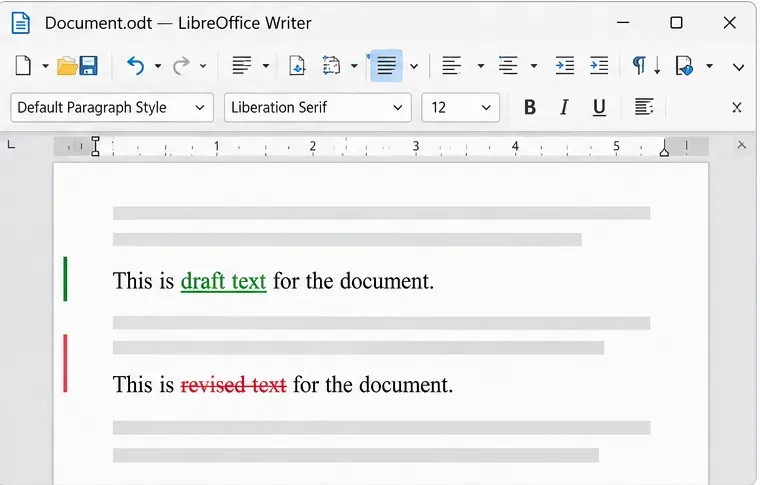
For example, if a sentence says “The review starts Monday” and you change it to “The review starts Tuesday,” the recipient should be able to inspect the removed word and the replacement separately. If the sentence simply appears as “Tuesday” with no revision mark, pause and confirm that Record was on while editing. A visible difference in the final text by itself is not proof of an editable tracked change.
LibreOffice documents that it can load and save Microsoft Office formats, while also warning that complex layout and formatting may be handled differently or unsupported. It specifically lists revision marks as one of the possible conversion challenges. That is why “Save As DOCX” is a format conversion, not a promise of pixel-for-pixel or feature-for-feature equivalence. Review the LibreOffice guide to saving in Microsoft Office formats, its document filter list, and its notes on Microsoft Office import and export limitations.
Open the exported file in Word, not only back in Writer, if Word is the recipient’s target application. On the Review tab, select All Markup so insertions, deletions, and other supported revisions are displayed. Microsoft explains that a view such as No Markup can hide changes without removing them; accepting or rejecting changes is the action that removes them from the document. See Microsoft’s Track Changes guidance for Word.
Check one insertion and one deletion, then scan the parts of the document most likely to shift: headings, tables, numbered lists, images, page breaks, headers, footers, and section boundaries. A short text-only memo may need only a quick pass. A long report with columns, complex tables, anchored images, or many sections deserves a page-by-page comparison because these structures make conversion differences more consequential. This is a risk-based check, not a guarantee that every possible feature has been tested.
If Word shows no marks, first confirm that you opened the intended DOCX and that All Markup is selected. If the marks still do not appear, return to the ODT source, verify Record and Show, and export a fresh copy. Do not accept every change just to make the file look clean if the reviewer is expected to decide which edits to keep.
If the review marks survive but layout changes matter, use Word for the final formatting pass when Word is the required delivery environment, then save a new DOCX and recheck the revisions. For documents whose appearance must remain fixed, a PDF can accompany the editable DOCX, but it does not replace the reviewable file. The suitable workflow depends on the document’s complexity and the recipient’s software; simple text is generally easier to compare than a document built around elaborate page layout.
The DOCX is ready when it opens in Word, All Markup reveals the expected edits, individual changes can be reviewed, and the important page elements remain in place. Keep the ODT source and the exported DOCX together until the recipient confirms the file is usable. If either the revision marks or a critical layout element is missing, treat that as a conversion issue and revise the DOCX in the target application before sending it.
Track edits in Writer, preserve an editable ODT source, and check the exported DOCX in Word before sharing it.
Follow SUSE’s SP7 procedure to enable FIPS mode, reboot safely, verify the active policy, and check whether your compliance requirement calls for validated modules.
Compare YaST and cryptsetup for a new encrypted SLES data volume, choose LUKS1 or LUKS2, and verify unlock and mount behavior safely.
Create, refine, and verify a least-privilege AppArmor profile on SLES 15 SP7, with a clear note on SLES 16’s SELinux default.
Set up RMT on SLES 15, mirror entitled repositories, and verify HTTPS registration and package access from a test client.
Connect SLES 15 to AD with YaST’s SSSD-based logon management, then verify directory lookup, domain login, and Kerberos tickets.
Set up the right Live Patching path for SLES 16.0 or 15 SP7, apply eligible kernel fixes, and confirm what is active without confusing it with a reboot-required kernel update.
Load a custom SLES 15 kernel module without disabling Secure Boot. Match the running kernel, sign the .ko file, enroll a MOK key, and verify loading.
SLES 15 SP5 can migrate online to SP6, but each node must reboot. Use a tested rolling upgrade or blue-green cutover to keep workloads reachable.
Use SUSE’s supported STIG profile to scan SLES 15, test remediation, review remaining findings, and retain assessment evidence.








