Home
» How to
»
Join SLES 15 to Active Directory with SSSD in YaST
Join SLES 15 to Active Directory with SSSD in YaST
For a typical SLES 15 workstation or server that needs AD-backed users and logins, use YaST’s User Logon Management module and select Microsoft Active Directory for both identity and authentication; this is SUSE’s SSSD-based path. For example, this walkthrough uses a fictional host named linux01 and domain ad.example.com. It applies when the client can reach the AD DNS and time services and you have an authorized computer-enrollment credential.
This procedure follows SUSE’s SLES 15 SP7 Security and Hardening Guide. Earlier service packs can have different YaST screens or package details, so use the guide that matches the installed SP. If your requirement specifically needs NTLM support or cross-forest trusts, SUSE identifies the separate Windows Domain Membership module, based on Winbind, as the better fit.
Before joining: check DNS, time, and host identity
AD discovery relies on DNS records, and Kerberos authentication depends on an accurate clock. Point the SLES client at DNS that can resolve the AD domain and its domain controllers; in a common setup, that means using the AD DNS server rather than a public resolver. Synchronize the client with the time source approved for your domain.
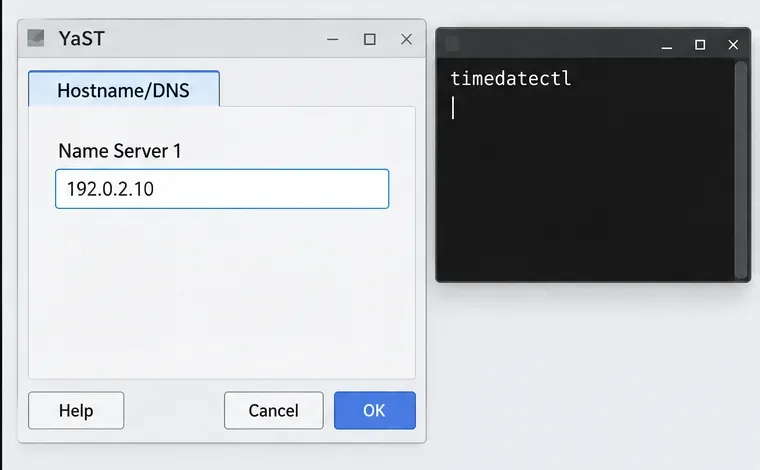
YaST Hostname/DNS shows the Name Server 1 field with a sample address, beside a terminal displaying timedatectl. This is an interface illustration, not a captured configuration result.
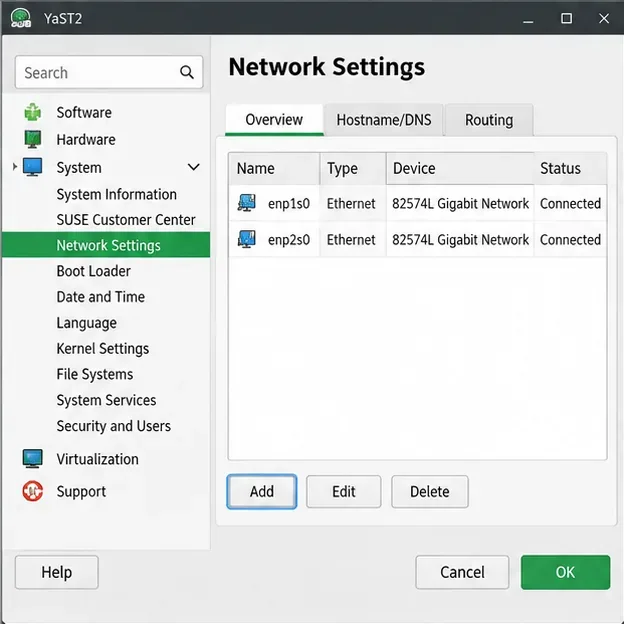
In YaST, open Network Settings, select Hostname/DNS, and set Name Server 1 to the AD DNS server address. The address in the illustration is only a placeholder. Then confirm the local host name and time status:
hostname
timedatectl status
Compare the computer name with the name registered for it in AD. If they differ, SUSE’s join dialog provides an AD hostname field. Do not disable the firewall as a discovery shortcut; ask the network team to allow the required client-to-domain-controller traffic under your organization’s rules. SUSE also warns that names ending in .local can conflict with multicast DNS, so check your DNS design if that is your domain suffix.
Choose the SSSD module and add the AD domain
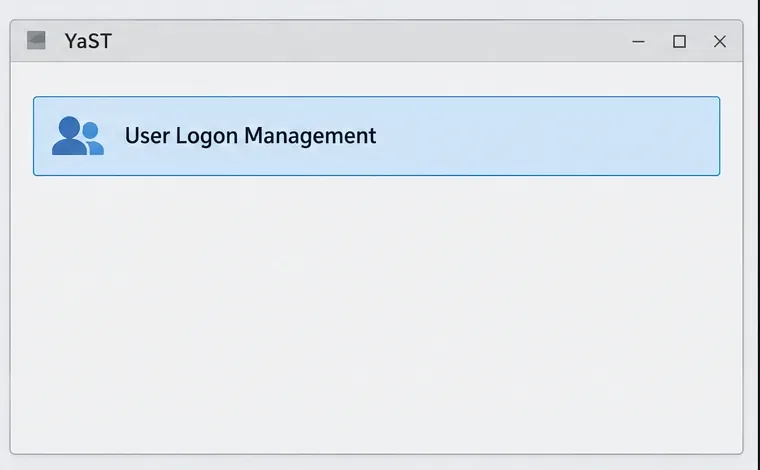
In YaST, open User Logon Management. Do not choose Windows Domain Membership for this procedure: SUSE documents that module as Winbind-based, while User Logon Management is the option based on SSSD and is generally preferred for AD authentication.
The YaST module selection highlights User Logon Management. This is an interface illustration, not a captured configuration result.
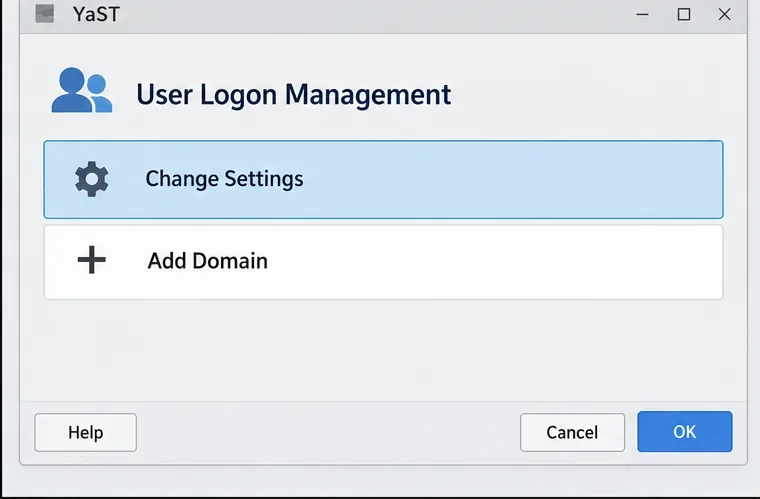
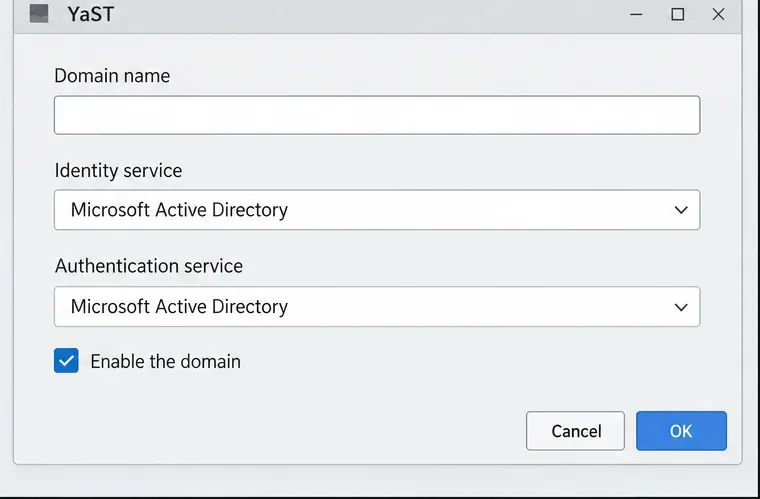
Open Change Settings, select Add Domain, and enter the domain’s DNS name, such as ad.example.com. Set both the identity service and authentication service to Microsoft Active Directory, and make sure Enable the domain is selected.
The User Logon Management screen shows Change Settings and Add Domain. This is an interface illustration, not a captured configuration result.The Add Domain dialog shows Microsoft Active Directory selected for identity and authentication, with Enable the domain checked. This is an interface illustration, not a captured configuration result.
Keep the other defaults unless your environment requires a specific AD host name or a fixed list of domain controllers. If DNS auto-discovery is not appropriate, enter the domain-controller host names provided by your AD team. Select OK so YaST can install any missing software and check whether a controller is reachable.
Enroll the host and enable domain logins
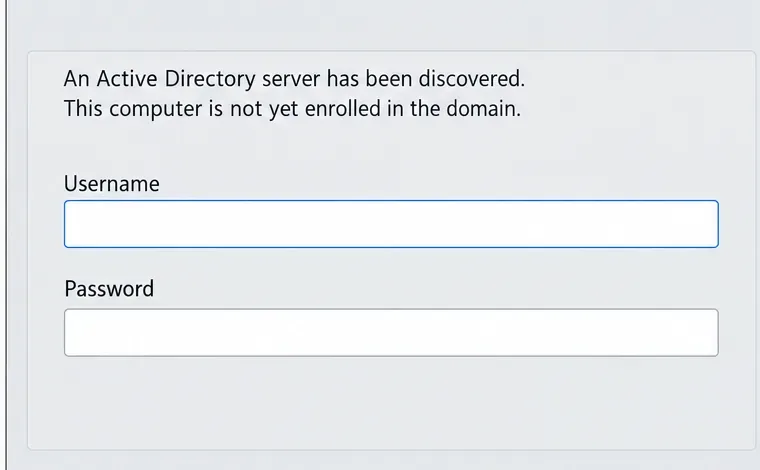
When YaST reports that it discovered an AD server but the computer is not yet enrolled, enter the authorized enrollment account and password. SUSE’s documented dialog uses an AD administrator account; follow your directory team’s approved process for computer enrollment and never put the password in a script or article. If the dialog cannot discover a server, return to DNS and host-name checks before retrying.
The enrollment dialog says an Active Directory server was discovered and shows empty Username and Password fields. This is an interface illustration, not a captured configuration result.
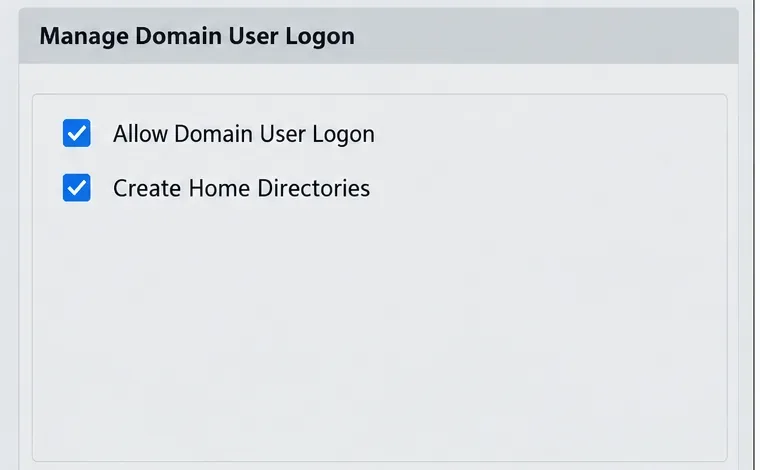
After enrollment, enable Allow Domain User Logon. Decide whether to enable Create Home Directories based on the server’s user-data policy. This creates local home directories for AD users at first login; it is useful for a machine that should retain local home data, but it does not create or manage the user account in AD.
Manage Domain User Logon shows the Allow Domain User Logon and Create Home Directories options. This is an interface illustration, not a captured configuration result.
If AD already provides each user’s UnixHomeDirectory attribute, confirm that it is populated and available as required by your directory design. When the client needs a fallback path, use Service Options > Name switch > Extended Options to configure fallback_homedir, for example /home/%u. SUSE documents that a fallback path is used when an AD path is not provided; override_homedir instead makes the client value take precedence. Choose one only after checking your home-directory policy.
The Name switch extended options show fallback_homedir set to /home/%u. This is an interface illustration, not a captured configuration result.
Save the settings and review the resulting configuration summary. If the system also uses Samba, only select an option to overwrite Samba configuration when that integration is intended; it is separate from enabling SSSD-based user logon.
Verify SSSD, user lookup, and Kerberos login
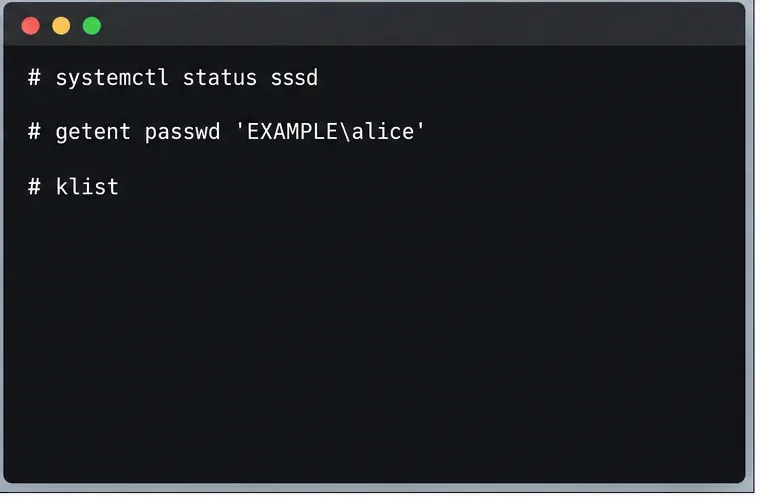
Check that SSSD is active, then query a real domain account using the name format approved for your domain. In this example, replace EXAMPLE and alice with the short domain name and an existing test account:
A terminal lists commands to check the SSSD service, look up an example domain user, and inspect the Kerberos ticket cache. This is an interface illustration, not a captured configuration result.
systemctl status sssd
getent passwd 'EXAMPLE\alice'
A returned passwd entry confirms that NSS can resolve the account; it does not alone prove that the user can authenticate or access applications. Test an interactive login with the domain credentials, using the documented form DOMAIN_NAME\USER_NAME at the console or display manager. After login, run klist to check whether the session has a Kerberos ticket.
If SSSD is running but the user lookup fails, recheck the fully qualified domain name, DNS server, host name, and the identity and authentication selections in YaST. If lookup works but login fails, verify the account is enabled, its password is valid, and the client can reach the domain controller. Finish only after a permitted test user can log in, the expected home-directory behavior is confirmed, and the server’s required services still work.