Set Up ONLYOFFICE JWT Secrets Across Server and Connector
Configure matching JWT secrets for ONLYOFFICE Docs and its connector, with safe steps for Linux packages, Docker deployments, and verification.
Use one strong JWT secret consistently: configure it on ONLYOFFICE Docs, copy the same value into the connected platform’s ONLYOFFICE settings, and keep JWT validation enabled. Docs 7.2 and later enable JWT by default and generate a secret automatically; changing the secret means every integration must be updated to match it. The exact server-side method depends on whether Docs runs as a Linux package or a Docker container.
JWT (JSON Web Token) lets ONLYOFFICE Docs verify signed requests. The document platform and Docs must use the same secret and compatible header settings. The server uses separate token settings for browser configuration and incoming and outgoing service requests; the shared secret values protect those exchanges. Do not put the secret in a public web page, a client-side JavaScript bundle, a support ticket, or a publicly readable source repository.
Before editing, identify your deployment type and record the Docs URL used by your connector. Generate a long, unpredictable secret with a password manager or a cryptographically secure generator. Treat it as a credential, and store it in a restricted configuration store.
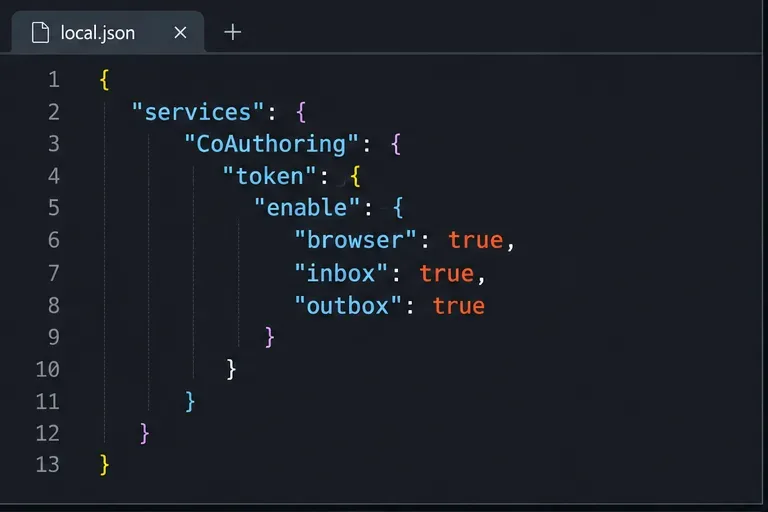
For a package-based Linux installation, edit /etc/onlyoffice/documentserver/local.json. Preserve any existing settings: merge the following keys into the existing JSON rather than replacing the whole file. The example shows the token-validation structure and the three matching secret locations described in the official configuration guide:
{
  "services": {
    "CoAuthoring": {
      "token": {
        "enable": {
          "request": {
            "inbox": true,
            "outbox": true
          },
          "browser": true
        }
      },
      "secret": {
        "inbox": { "string": "REPLACE_WITH_YOUR_SECRET" },
        "outbox": { "string": "REPLACE_WITH_YOUR_SECRET" },
        "session": { "string": "REPLACE_WITH_YOUR_SECRET" }
      }
    }
  }
}
Replace every placeholder with the exact same secret value. Do not paste the sample placeholder itself. The browser, inbox, and outbox switches are separate; enabling only one does not enable all request validation. Docs 7.2 and later have JWT enabled by default, but explicitly checking these settings helps when auditing an existing configuration or aligning behavior across nodes. For versions before 7.2, the official guide says to enable all three switches.
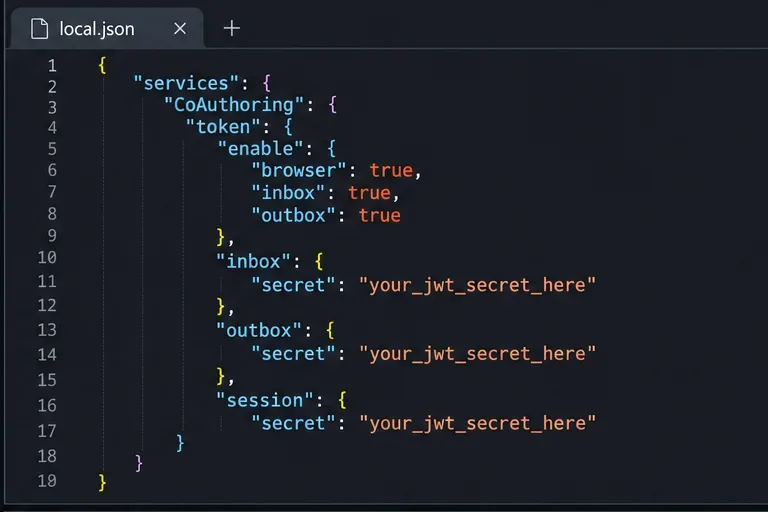
Validate the JSON syntax before restarting. Then restart the Document Server services so the changes load:
sudo systemctl restart ds-converter ds-docservice ds-metricsRun the command with an account allowed to manage system services. On Windows, the configuration file is %ProgramFiles%\ONLYOFFICE\DocumentServer\config\local.json; use the Windows restart instructions in the official guide instead of the Linux command.
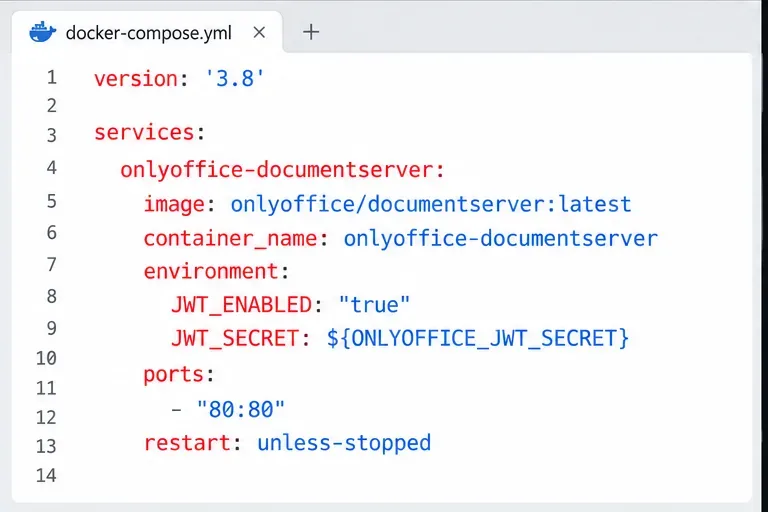
For the official Document Server Docker image, set JWT through container environment variables. The official guide warns that manually changing the generated local.json can be undone when the container restarts. Set JWT_ENABLED=true and JWT_SECRET in the container creation command or Compose service, then recreate the container so the environment takes effect. Keep the secret in a protected environment file or secret manager and restrict that file’s permissions; avoid committing it to version control.
services:
  onlyoffice:
    image: onlyoffice/documentserver:YOUR_PINNED_TAG
    environment:
      JWT_ENABLED: "true"
      JWT_SECRET: ${ONLYOFFICE_JWT_SECRET}
Define ONLYOFFICE_JWT_SECRET in the deployment environment or protected .env file. Pin a tested image tag rather than relying on latest, and check the documentation for the exact tag you run. After changing environment values, recreate the container using your normal deployment process. A simple restart may leave the old environment in place.
Open the integration settings in the platform that connects to ONLYOFFICE Docs, such as Nextcloud or another supported connector. Enter the same JWT secret in its secret-key field and save. Also confirm the configured Document Server URL and, if the connector exposes it, the authorization header. The default header in ONLYOFFICE Docs is Authorization; change it only when both sides are configured to use the same alternative.
A secret mismatch commonly appears as an invalid-token or authorization error when opening or saving a document. A mismatch can also happen when only one Docs node behind a load balancer has been updated. If you operate multiple nodes, synchronize the same secret and token settings across all nodes before sending traffic to them. Roll out changes in a controlled window: update Docs and the connector together, and expect existing editor sessions or requests signed with the old value to fail during the transition.
Anyone who can read the secret can create tokens that the server may accept. Limit access to configuration files and deployment variables, use encrypted transport for the connector-to-Docs connection, and rotate the secret if it may have been exposed. Rotation requires updating all Docs nodes and the connector to the new value; do not leave old credentials in checked-in files or logs.
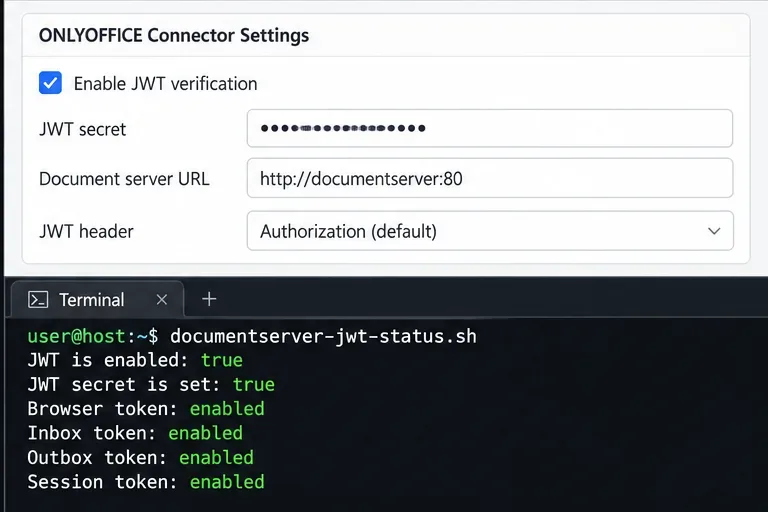
sudo docker exec <container_name> sudo documentserver-jwt-status.sh to inspect JWT status. Use the actual container name. This helper is documented for Docker; do not assume it is available in every package installation.The official configuration guide is the authority for supported settings and version behavior. Consult ONLYOFFICE’s JWT configuration documentation and the official Docker installation parameters for the precise version you deploy.
Configure matching JWT secrets for ONLYOFFICE Docs and its connector, with safe steps for Linux packages, Docker deployments, and verification.
Configure HAProxy HTTPS, forwarding headers, WebSocket timeouts, and health checks for ONLYOFFICE Docs, then verify editing and saves.
Give an embedded ONLYOFFICE Docs editor your company logo and interface colors with a custom theme file and editor configuration. See edition limits and deployment checks.
Track edits in Writer, preserve an editable ODT source, and check the exported DOCX in Word before sharing it.
Follow SUSE’s SP7 procedure to enable FIPS mode, reboot safely, verify the active policy, and check whether your compliance requirement calls for validated modules.
Compare YaST and cryptsetup for a new encrypted SLES data volume, choose LUKS1 or LUKS2, and verify unlock and mount behavior safely.
Create, refine, and verify a least-privilege AppArmor profile on SLES 15 SP7, with a clear note on SLES 16’s SELinux default.
Set up RMT on SLES 15, mirror entitled repositories, and verify HTTPS registration and package access from a test client.
Connect SLES 15 to AD with YaST’s SSSD-based logon management, then verify directory lookup, domain login, and Kerberos tickets.
Set up the right Live Patching path for SLES 16.0 or 15 SP7, apply eligible kernel fixes, and confirm what is active without confusing it with a reboot-required kernel update.