If Nextcloud reports “Token is not valid” when it connects to ONLYOFFICE Docs, make the connector’s JWT secret match the secret that Document Server is actually using. In ONLYOFFICE Docs 7.2 and later, JWT validation is on by default and a secret is generated automatically; changing only the Nextcloud setting, or editing a Docker container’s generated configuration file, can leave the two sides out of sync.
Keep JWT enabled. First identify the active secret and deployment type, update the correct configuration, then run the connector’s connection check. The check should report a successful connection; a browser editor opening alone does not prove that document downloads and callbacks work.
What does the error tell you?
JWT (JSON Web Token) is a signed token used to verify that a request between Nextcloud and ONLYOFFICE Docs is trusted. The connector signs requests with its configured secret, while Document Server validates them using its configured secret. If the signing secrets differ, the token signature cannot be validated and the request is rejected.
The most common causes are a secret copied from an old installation, an automatically generated secret that was never entered in Nextcloud, a changed Docker environment variable that was not applied by recreating the container, or inconsistent secret values in the Document Server configuration. A custom JWT header can also cause a mismatch if the connector and Document Server do not use the same header name.
This article addresses JWT mismatch. If the error instead says that the server cannot be reached, the certificate is invalid, or a document cannot be downloaded, investigate the server addresses, TLS certificate, and Nextcloud-to-Document-Server network path separately. A JWT correction will not repair those conditions.
1. Find the active Document Server secret
Use the configuration belonging to the running Document Server. Do not assume a secret remembered from a previous container or server is still active.
- Linux: inspect
/etc/onlyoffice/documentserver/local.json.
- Windows: inspect
%ProgramFiles%\ONLYOFFICE\DocumentServer\config\local.json.
- Docker: read the secret from the running container. The official image also supports reading the session secret with this command:
sudo docker exec <containerID> /var/www/onlyoffice/documentserver/npm/json -f /etc/onlyoffice/documentserver/local.json 'services.CoAuthoring.secret.session.string'
Replace <containerID> with the actual container name or ID. Treat the returned value as a credential: do not paste it into support forums, screenshots, or public logs.
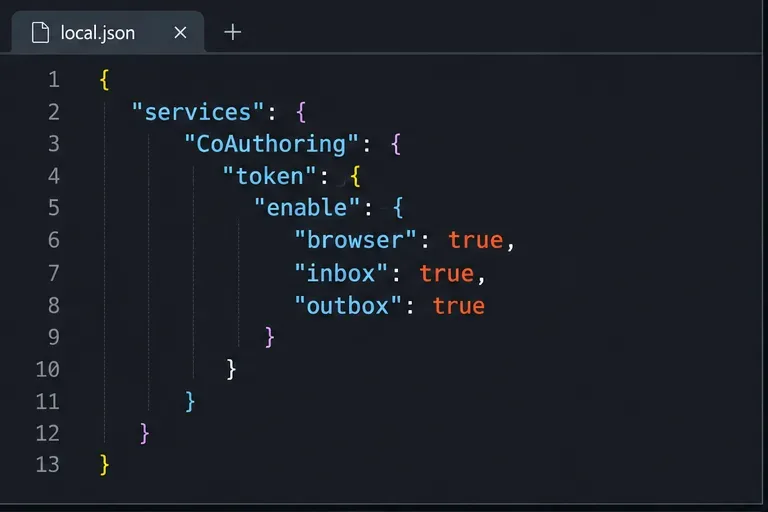
In local.json, compare the values in services.CoAuthoring.secret.inbox.string, services.CoAuthoring.secret.outbox.string, and services.CoAuthoring.secret.session.string. They should all be identical for this standard setup. Also confirm that token validation is enabled for browser, request inbox, and request outbox. Docs versions before 7.2 require token validation to be enabled explicitly; later versions enable it by default.
2. Update Nextcloud’s ONLYOFFICE connector
- Sign in as a Nextcloud administrator and open Settings > Administration > ONLYOFFICE.
- In the server settings, enter the exact secret found on the running Document Server in the Secret key field. Avoid leading or trailing spaces and do not add quotation marks unless they are part of the secret itself.
- Check the JWT header setting if your deployment uses a custom header. The connector’s
jwt_header setting and Document Server’s configured token header must agree. If you have not intentionally customized the header, do not change it as part of this repair.
- Save the settings. Keep JWT enabled on both sides.
The documented connector setting can also be changed with Nextcloud’s occ command from the Nextcloud installation directory:
sudo -u www-data php occ config:app:set onlyoffice jwt_secret --value='YOUR_SECRET'
Replace YOUR_SECRET with the actual value. Shell quoting helps preserve punctuation, but secrets that contain a single quote require a safer method than inserting them directly into a command line. Command-line arguments may also be visible to privileged process inspection or shell history. Prefer the administrator interface where practical, then verify the stored value without exposing it.
3. Apply the change the right way for your installation
Docker or Docker Compose
For Docker deployments, configure JWT through the container environment rather than manually editing the automatically generated local.json. Set the same secret in the Document Server service definition:
environment:
  - JWT_ENABLED=true
  - JWT_SECRET=YOUR_SECRET
After changing the Compose file, recreate the Document Server container so the environment takes effect. For example, from the directory containing the Compose file:
docker compose up -d --force-recreate <documentserver-service>
Substitute the service name from your own Compose file. A plain restart does not apply a changed environment value to an existing container. If you use docker run, recreate the container with the updated JWT_ENABLED and JWT_SECRET values, preserving its existing ports, volumes, and other required options. Do not delete a production container until you have confirmed those settings and persistent data mounts.
When the container starts, re-read its active secret with the command above and make sure the value still matches Nextcloud. Avoid placing a production secret in a publicly shared Compose file or source repository.
Linux package or Windows installation
If you intentionally set a custom secret in local.json, ensure the three secret fields match and that the required token validation values are enabled. Apply the change by restarting the relevant Document Server services. The current ONLYOFFICE instructions list ds-converter, ds-docservice, and ds-metrics on Linux; installations managed by a different service supervisor may need the restart method appropriate to that setup. On Windows, restart the ONLYOFFICE services after saving the configuration.
A mismatch that returns after restart usually means a generated configuration or deployment environment is overriding the edited file. For Docker, move the correction into environment variables and recreate the container. For packaged deployments, inspect the active configuration and the service’s startup configuration before changing more settings.
Verify the repair
- In the Nextcloud installation directory, run the official connector check:
sudo -u www-data php occ onlyoffice:documentserver --check
Use the web server account appropriate for your installation if it is not www-data. The command should report a successful connection. If it still reports an invalid token, confirm again that the running Document Server’s active secret matches Nextcloud exactly and that any custom JWT header agrees.
- Open a small test document from Nextcloud with ONLYOFFICE. Confirm that the editor loads, make a minor change, save it, close the editor, and reopen the file to confirm the change persisted.
- If the check now reports a network or certificate error, stop changing JWT values. Verify that Nextcloud can reach the Document Server address and that Document Server can reach the Nextcloud callback address. Use a trusted TLS certificate where possible; disabling certificate verification is an insecure workaround and does not fix token validation.
These checks establish that the configured connection and a basic save path work. They do not prove every reverse-proxy route, external-storage configuration, or multi-server topology is correct; test those paths separately if your deployment uses them.
Official references
Configuration details were checked against the official ONLYOFFICE documentation and connector repository on October 9, 2026. UI labels and service management can vary by connector, operating system, and deployment method.