Keep ONLYOFFICE Spell Check on the Language You Choose
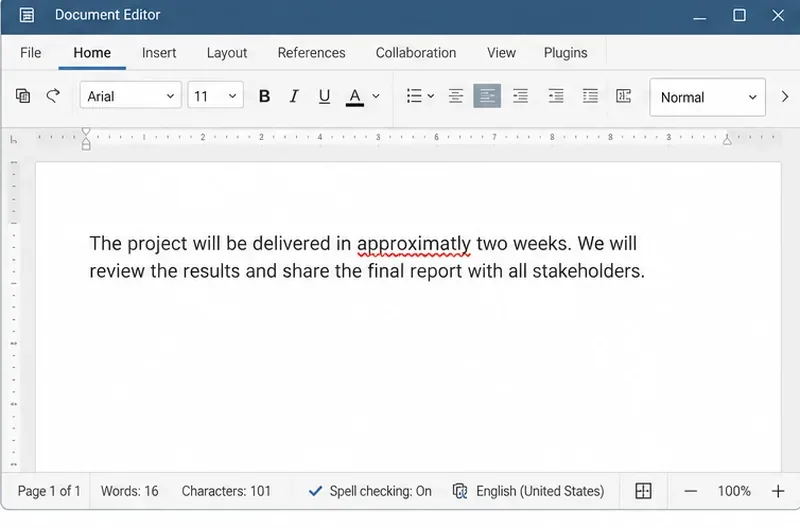
Set the proofing language for the whole document or selected text, confirm spell checking is active, and identify when a server dictionary is missing.
To make ONLYOFFICE Docs keep using the spelling language you choose, set the language on the document or on the selected text using the language controls in the editor’s status bar. Then confirm spell checking is enabled. The interface language, proofing language, and dictionary availability are separate settings, so changing the menus’ display language will not fix spelling for the text.
Illustrative example: Jordan is editing a bilingual English-Spanish project report in ONLYOFFICE Document Server. Jordan changes the document to Spanish, but English text still gets flagged and a new paragraph appears to use English again. This is a hypothetical example, not a reported support case or test result. The steps below show how Jordan can identify which setting is mismatched.
ONLYOFFICE has a document-wide language setting and a Text Language setting for selected passages. The document-wide control applies the chosen language to the whole document; the text selector applies a different language to a selected passage. Spell checking can also be turned off, and a server administrator may need to add a dictionary if the required locale is not available.
For Jordan’s report, changing the whole document to Spanish would also mark its English sections as Spanish. Instead, Jordan should set the document’s main language, then assign English specifically to English passages. This is useful for bilingual documents because spelling rules belong to the text, not just to the editor interface.
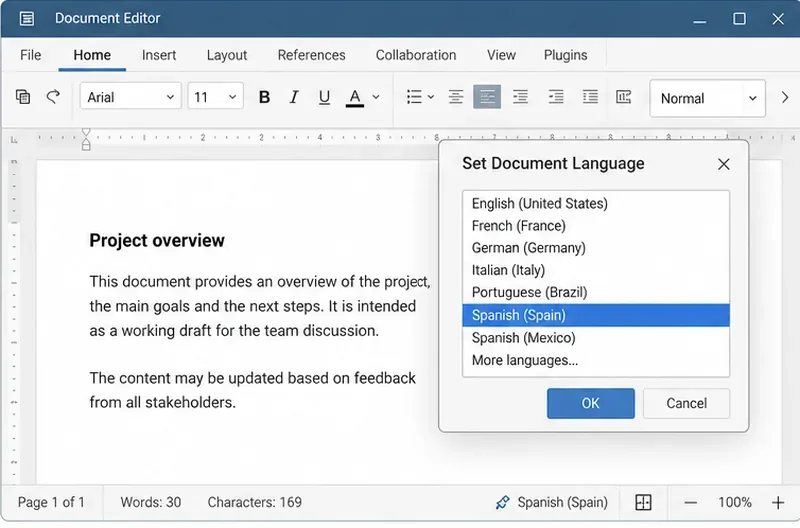
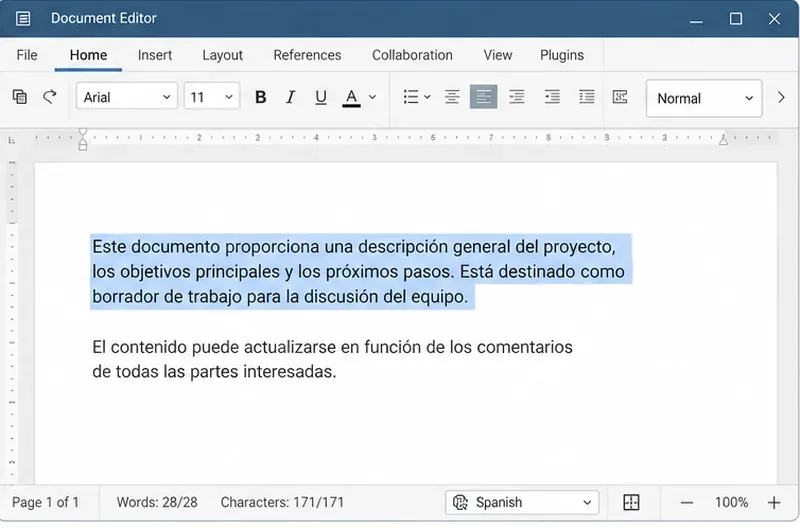
Do not select only the insertion point when you mean to correct an existing passage. The language may follow the formatting at the cursor or the text run you are typing into. Select the full paragraph when you need to repair its existing language, and check that the status bar shows the intended choice before continuing.
ONLYOFFICE’s Document Editor spell-checking instructions describe both language controls and how to enable checking. The language assigned to text is also stored as a text property; developers who set up documents programmatically can review the ONLYOFFICE SetLanguage API reference.
In Jordan’s case, the first practical check is whether the whole paragraph or just the document default was changed. If the paragraph is part of a mixed-language file, select it and assign Text Language directly. Then type a test word in that paragraph and verify the status bar still reflects the intended language.
If Jordan is actually using ONLYOFFICE Desktop Editors rather than Document Server in a browser, there is a version-specific caveat: ONLYOFFICE’s current desktop troubleshooting page says there is no simple built-in way to change the default document language when it switches back as a character is typed. The page points to a third-party workaround. That note is about Desktop Editors and does not establish the same limitation for every server deployment. For a shared server document, first verify the language on the affected text; avoid relying on a browser or application display-language change to override its text properties.
Also confirm spell checking is on. Click the Spell checking icon on the status bar, or open File > Advanced Settings, select Turn on spell checking, and apply the setting. Misspelled words should then be underlined in red when the selected language’s dictionary recognizes the spelling difference.
As Jordan checks the Spanish and English sections, a red underline is a useful signal, but it is not a translation or grammar verdict. A name, technical term, or regional spelling may be absent from the dictionary even when the language assignment is correct.
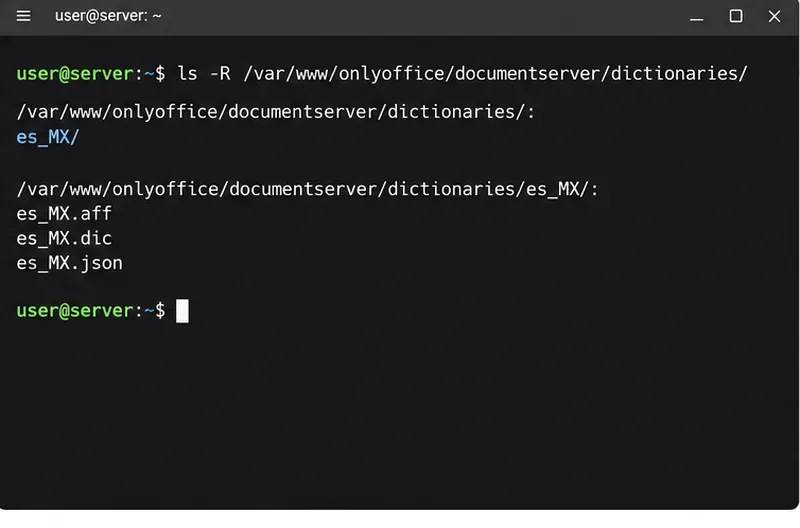
If the language does not appear in the selector, or the correct language is selected but spell checking has no effect, ask the ONLYOFFICE administrator to verify that the server has the required dictionary. ONLYOFFICE provides a separate procedure for custom server dictionaries; it is an administrator task, not a user preference toggle.
The official procedure uses /var/www/onlyoffice/documentserver/dictionaries/ on Linux. Create a locale-named folder, such as es_MX, and place the matching .dic word list, .aff affix rules, and .json configuration in it. The configuration needs the locale’s LCID code, and the files must use matching locale names. The administrator then runs ONLYOFFICE’s dictionary update script from the server’s dictionaries directory, restarts ONLYOFFICE services (or the Docker container), and clears the browser cache. Follow the exact ONLYOFFICE custom dictionary instructions; do not rename an unrelated dictionary to make its locale appear.
Return to Jordan’s report, select a known English paragraph, and confirm the status bar’s Text Language is English. Select a Spanish paragraph and confirm it is Spanish. Check that spell checking is on, type a harmless test word in each passage, and confirm the status bar language remains appropriate. If only one locale is missing or unrecognized, send the administrator the locale name and the relevant server version so they can check the matching dictionary files.
For a separate reference, the ONLYOFFICE Desktop Editors troubleshooting page documents the default-language reversion limitation mentioned above. Its scope matters: Jordan’s hypothetical example concerns a server-based editor, so desktop-specific behavior should not be assumed to explain a Document Server issue.
Set the proofing language for the whole document or selected text, confirm spell checking is active, and identify when a server dictionary is missing.
Enable persistent Track Changes for everyone in one ONLYOFFICE document, verify edits are recorded, and understand the limits of this setting.
Find whether Nginx, Docker networking, or an internal ONLYOFFICE service is returning 502, then verify the corrected upstream and health check.
Diagnose failed ONLYOFFICE saves by checking the Nextcloud callback route, proxy redirects, and storage logs, then verify the edited file persists.
Find the cause of ONLYOFFICE memory crashes, check Docker limits, size VPS RAM correctly, add swap safely, and verify that documents open and save.
Separate browser download problems from server-side conversion errors and use the right log or access check to get your PDF export working.
Match the JWT secret used by ONLYOFFICE Docs and Nextcloud, apply it safely for Docker or Linux installs, and verify the connection without weakening authentication.
Install ONLYOFFICE Workspace Community on Ubuntu 24.04 with the official Docker script, check server requirements, skip Mail if needed, and verify the portal safely.
Configure matching JWT secrets for ONLYOFFICE Docs and its connector, with safe steps for Linux packages, Docker deployments, and verification.
Configure HAProxy HTTPS, forwarding headers, WebSocket timeouts, and health checks for ONLYOFFICE Docs, then verify editing and saves.