Trace the Save Callback When ONLYOFFICE Won’t Save to Nextcloud

Diagnose failed ONLYOFFICE saves by checking the Nextcloud callback route, proxy redirects, and storage logs, then verify the edited file persists.
Hypothetical example: Mina edits a project plan in ONLYOFFICE from a Nextcloud folder. The editor opens and accepts her changes, but Nextcloud later reports “Document could not be saved.” This example is illustrative, not a report of a real test. In this situation, keep the editor open, preserve a local copy of the unsaved work, and check whether ONLYOFFICE Docs can reach Nextcloud’s save callback directly. Then use the logs to distinguish a callback routing failure from a Nextcloud storage or permission problem.
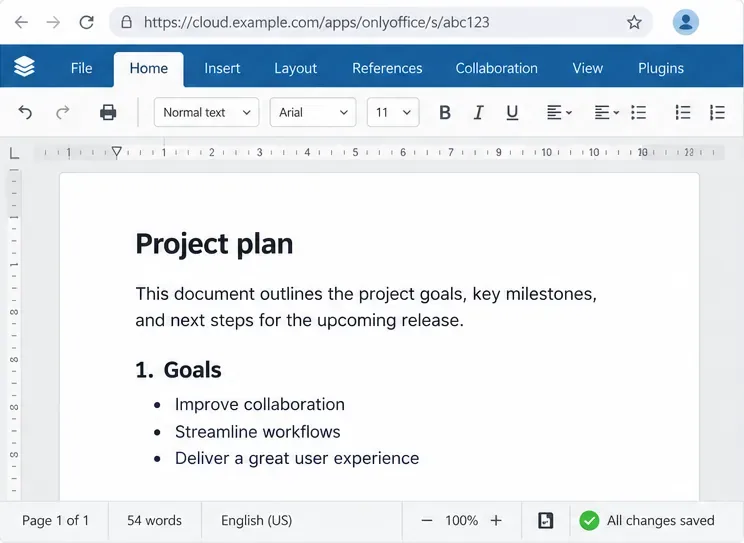
Do not close or refresh the editor while it still contains changes that Nextcloud has not saved. Use the editor’s Download as option to keep a local recovery copy, if the editor remains responsive. Note the failed-save time and filename so the administrator can match the logs.
Test a small DOCX file in a standard Nextcloud folder. If it saves, focus on the original file’s permissions, share status, storage, or format. If all files fail, start with the shared callback route and server health.
ONLYOFFICE Docs sends a POST request to the callback URL supplied by the Nextcloud connector. Nextcloud then retrieves the edited file and updates its stored version. The editor can open normally yet fail to save if Document Server cannot post back to Nextcloud.
Reproduce the issue with a test file, then compare DocService and Nextcloud logs at that time. On Linux, ONLYOFFICE logs are under /var/log/onlyoffice/documentserver/; in Docker, check the container logs or mounted log directory. Nextcloud’s default file log is nextcloud.log in its data directory, unless log_type or logfile changes it.
In Nextcloud, open Settings > Administration > ONLYOFFICE. Confirm that the public ONLYOFFICE Docs address is the URL that users’ browsers should load. If the two servers cannot reach each other through their public addresses, set the documented internal fields: ONLYOFFICE Docs address for internal requests from the server and Server address for internal requests from ONLYOFFICE Docs. The first must work from Nextcloud to Document Server; the second must work from Document Server to Nextcloud.
In Mina’s hypothetical setup, the callback uses http://cloud.example.com and redirects to HTTPS. Configure the final HTTPS address directly, then ensure DNS, firewall rules, and certificate trust let Document Server reach it. The proxy should pass the callback to Nextcloud without redirecting its scheme, hostname, or path. The sample hostname is not for real installations.
ONLYOFFICE’s connection check can help verify configured service addresses:
sudo -u www-data php occ onlyoffice:documentserver --checkRun it from the Nextcloud directory as the appropriate web-server account. A successful check does not prove the callback POST works. A manual HEAD request or browser page at the same hostname is not proof either.
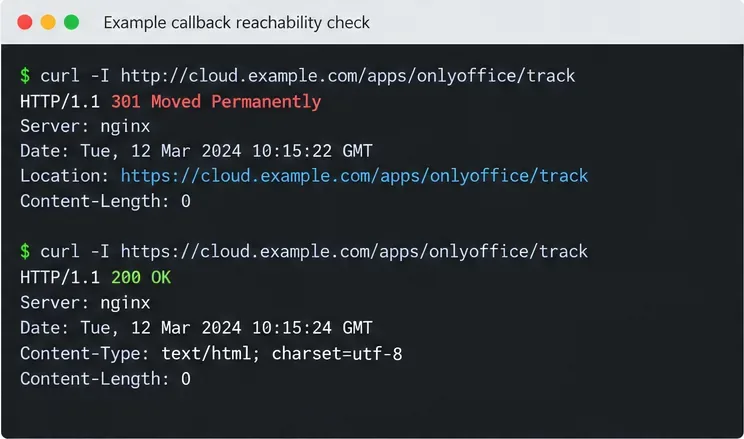
If the callback reaches Nextcloud but the file still does not update, inspect Nextcloud’s log for the matching request. Confirm the user has edit permission, the storage mount is available, the account is not over quota, and the data volume has free space and inodes. If the problem affects a shared file, ask whether another user or sync client is changing it at the same time, then test with a copy in a private folder.
Nextcloud’s transactional file locking coordinates writes; do not disable it as a quick fix. If logs point to lock or database errors, verify the locking backend and Redis or Valkey service. Do not delete oc_file_locks rows or lock files, which may disrupt active writes.
If a standard-folder test works but an externally stored file fails, investigate that mount’s availability and authentication mode. ONLYOFFICE documents limitations for some external-storage modes; avoid changing credentials until you isolate the mount.
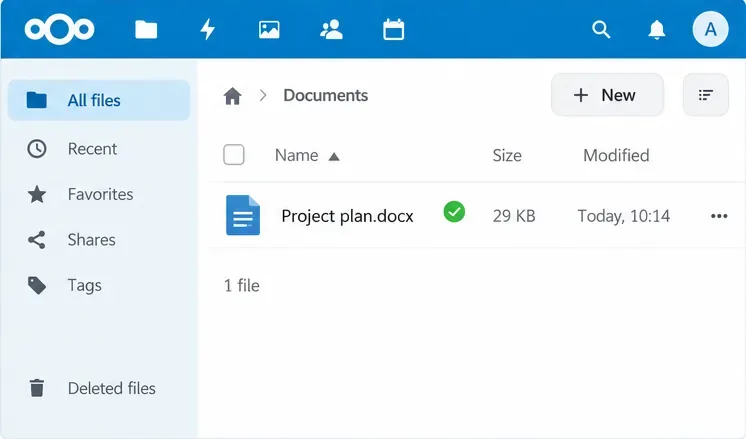
After changing one setting, make a distinct edit in a small test document, wait for saving to finish, then close and reopen it from Nextcloud. Confirm the edit persists and the matching logs show no redirect, connection failure, or storage exception.
If the test succeeds but the original still fails, check its permissions, external mount, or concurrent edits. If all callbacks fail, preserve the local copy and escalate with the timestamp, HTTP status, versions, and sanitized logs. Redact JWTs, cookies, signed URLs, and personal filenames.
These steps address the common callback, routing, and storage causes of a save error. The exact fix depends on the first failing point in the logs; a successful connection check alone cannot certify the full save workflow.
Documentation checked October 9, 2026. Connector fields and log destinations can vary by installed app version and deployment configuration.
Diagnose failed ONLYOFFICE saves by checking the Nextcloud callback route, proxy redirects, and storage logs, then verify the edited file persists.
Find the cause of ONLYOFFICE memory crashes, check Docker limits, size VPS RAM correctly, add swap safely, and verify that documents open and save.
Separate browser download problems from server-side conversion errors and use the right log or access check to get your PDF export working.
Match the JWT secret used by ONLYOFFICE Docs and Nextcloud, apply it safely for Docker or Linux installs, and verify the connection without weakening authentication.
Install ONLYOFFICE Workspace Community on Ubuntu 24.04 with the official Docker script, check server requirements, skip Mail if needed, and verify the portal safely.
Configure matching JWT secrets for ONLYOFFICE Docs and its connector, with safe steps for Linux packages, Docker deployments, and verification.
Configure HAProxy HTTPS, forwarding headers, WebSocket timeouts, and health checks for ONLYOFFICE Docs, then verify editing and saves.
Give an embedded ONLYOFFICE Docs editor your company logo and interface colors with a custom theme file and editor configuration. See edition limits and deployment checks.
Track edits in Writer, preserve an editable ODT source, and check the exported DOCX in Word before sharing it.
Follow SUSE’s SP7 procedure to enable FIPS mode, reboot safely, verify the active policy, and check whether your compliance requirement calls for validated modules.