Stop ONLYOFFICE Document Server from Running Out of VPS Memory
Find the cause of ONLYOFFICE memory crashes, check Docker limits, size VPS RAM correctly, add swap safely, and verify that documents open and save.
If ONLYOFFICE Document Server crashes or restarts because your VPS runs out of memory, first confirm an out-of-memory event and check for an undersized Docker memory limit. Then provide enough physical RAM for the workload and add swap only as a safety buffer; repeatedly restarting the editor will not fix a persistent capacity shortage.
Start on the Linux VPS, not in the ONLYOFFICE integration settings. A browser message such as “Document cannot be loaded” can also be caused by networking or authentication, so it is important to establish whether the Linux out-of-memory (OOM) killer actually terminated a process.
Run these commands through SSH. Replace onlyoffice-document-server with the container name shown by docker ps -a:
free -h
docker ps -a
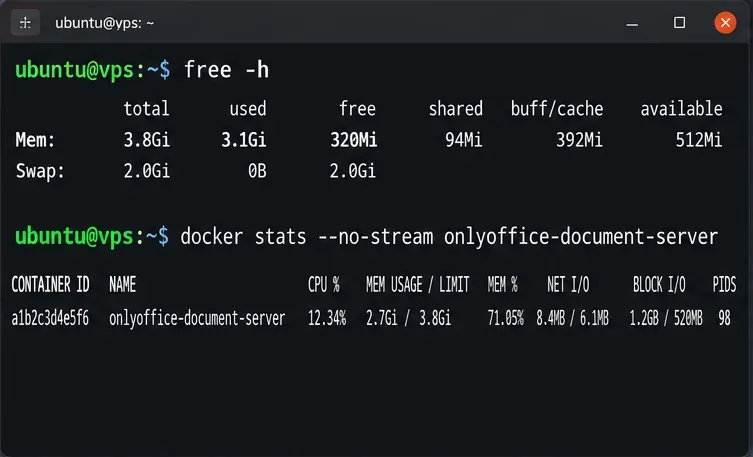
docker stats --no-stream onlyoffice-document-server
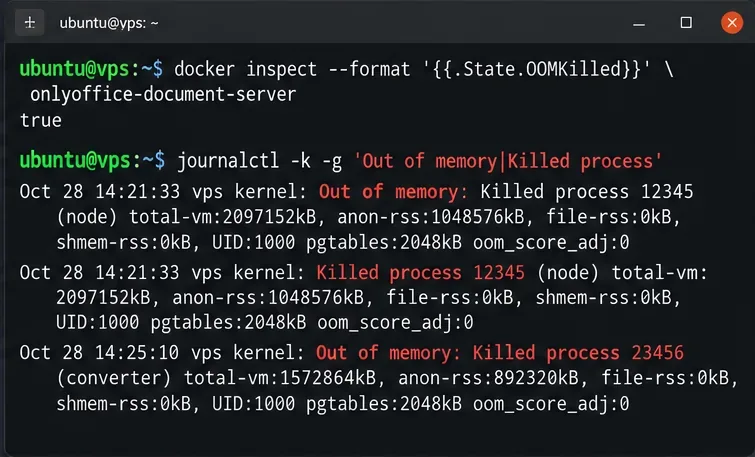
docker inspect --format '{{.State.OOMKilled}} {{.State.ExitCode}} {{.HostConfig.Memory}} {{.HostConfig.MemorySwap}}' onlyoffice-document-server
free -h shows available host RAM and swap. docker stats measures a running container, while the inspect command reports the container's OOM-killed state, last exit code, and configured resource limits in bytes. A nonzero HostConfig.Memory value indicates an explicit memory cap. Docker's memory statistic may exclude certain file caches, so it should be compared with host measurements rather than treated as a complete picture. See the Docker stats reference.
If the container has stopped, docker stats cannot show its former peak. Check the kernel log and recent application messages instead:
sudo journalctl -k --since "-2 hours" | grep -Ei 'out of memory|killed process|oom'
docker logs --tail 100 onlyoffice-document-server
Kernel messages mentioning “Out of memory” or “Killed process” help identify the process involved. OOMKilled=true is strong evidence of a container OOM event, but false does not rule out the host kernel killing a child process while the container stays up. Likewise, exit code 137 only establishes a SIGKILL termination, not its cause. If no OOM evidence exists, investigate logs and connection failures before buying more RAM.
As of October 2026, ONLYOFFICE's official Docker Document Server README lists 4 GB or more of RAM and at least 2 GB of swap among its recommended requirements. The separate official one-click installer documentation identifies 4 GB RAM for Docker test environments, recommends 8 GB or more for production, and specifies at least 4 GB swap in its installer requirements. These documents describe different deployment contexts, so do not interpret 4 GB as a guarantee of reliable production performance.
If your VPS has only 1–2 GB of RAM, upgrading its plan is the most defensible fix for a Docker-based installation. If it already has 4 GB, check how much is consumed by the operating system, database, reverse proxy, Nextcloud, and other containers. A server that looks comfortable while idle may still run out of memory when several people open documents or convert large spreadsheets at once.
On a busy host, use ps aux --sort=-rss | head to identify memory-heavy processes, and repeat docker stats during a representative editing session. Reserve headroom for the rest of the machine instead of assigning all available RAM to ONLYOFFICE. If sustained demand exceeds the host's capacity, move competing services or upgrade the VPS; an application-level tweak cannot create missing physical memory.
Docker containers have no hard memory limit by default, but a deployment may set one with --memory or Compose's mem_limit. For example, a 2 GB container cap can cause OOM kills even when an 8 GB host has free RAM. Inspect the actual limit before changing it. If the cap is unnecessarily low, adjust the original Docker run or Compose configuration to a value justified by measurements and the host's remaining capacity. See Docker's resource-constraint documentation and Compose service specification.
Do not blindly set an unlimited memory allocation on a shared VPS: that can expose other services to host-wide OOM kills. Also check --memory-swap or Compose's memswap_limit; Docker counts combined RAM and swap in that setting. Equal RAM and combined limits effectively disable swap for the container. If you manage ONLYOFFICE with Compose, make the change in its Compose file so the setting survives container recreation.
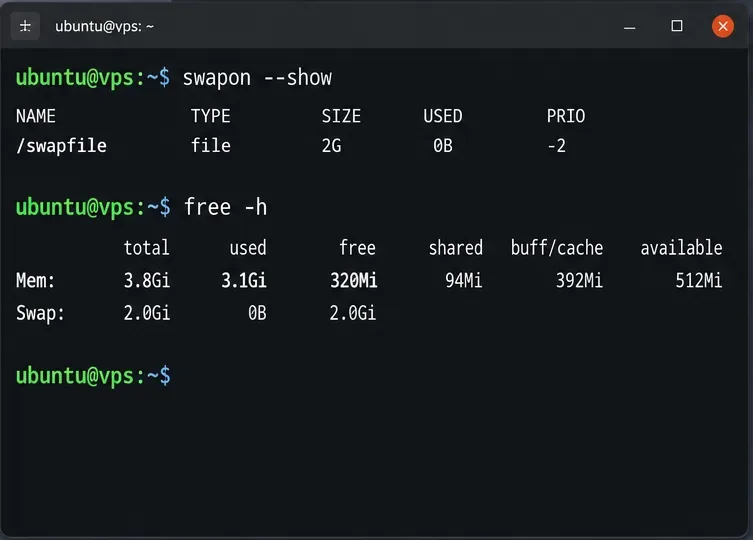
Swap can absorb a temporary memory spike but is stored on disk and is much slower than RAM. Check swapon --show and df -h / first. The following example adds a 2 GiB swap file to a VPS using a compatible local filesystem such as ext4, when /swapfile does not already exist and the provider permits swap:
sudo fallocate -l 2G /swapfile
sudo chmod 600 /swapfile
sudo mkswap /swapfile
sudo swapon /swapfile
swapon --show
free -h
Only make the new swap file persistent after swapon succeeds. Check for an existing entry with grep -F '/swapfile' /etc/fstab; if none exists, add it once:
echo '/swapfile none swap sw 0 0' | sudo tee -a /etc/fstabCreating swap files on Btrfs, network filesystems, and some other configurations requires different handling. Do not run these commands over an existing swap file or assume fallocate works everywhere. The Linux swapon manual explains the filesystem restrictions. If the VPS is regularly swapping under normal editing load, prioritize more RAM rather than a larger swap file.
Changing a VPS plan or enabling swap often needs no ONLYOFFICE configuration edit. If you changed a Docker deployment setting, schedule maintenance and preserve the existing mounts, secrets, certificate paths, and integration settings when applying it. The ONLYOFFICE Docker README documents documentserver-prepare4shutdown.sh for planned shutdowns and warns that disconnecting editors can take several minutes. Do not casually recreate or restart an actively used document server, because unsaved changes may be affected.
When the service is ready, verify the container is running and inspect its memory again:
docker ps --filter name=onlyoffice-document-server
docker stats --no-stream onlyoffice-document-server
docker inspect --format '{{.State.OOMKilled}}' onlyoffice-document-server
docker exec onlyoffice-document-server curl -fsS http://localhost:8000/info/info.json
The last check uses the internal information endpoint shown in the official ONLYOFFICE Docker Compose healthcheck; run it inside the container because port 8000 may not be published on the VPS. The endpoint responding shows service availability, not necessarily that every storage integration or saving callback works.
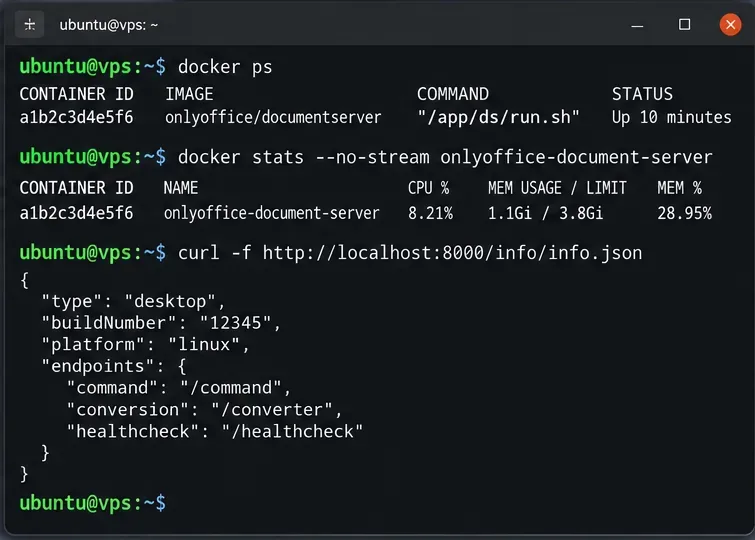
Reopen a small document and then one representative large document through your actual Nextcloud, ownCloud, or other integration. Save a harmless edit and confirm that it appears after reopening the file. Keep watching free -h, docker stats, and kernel OOM logs during the usage period that previously triggered failures.
A successful fix means normal documents continue to open and save, memory use stays within the VPS and container limits, and no new OOM kills appear. If crashes stop only when activity is light, the VPS still lacks headroom for peak usage; size RAM for that peak rather than relying on continuous swapping. If RAM remains available and no new OOM messages occur but documents still fail, switch the investigation to ONLYOFFICE logs, the reverse proxy, or your storage connector instead of making further memory changes.
Find the cause of ONLYOFFICE memory crashes, check Docker limits, size VPS RAM correctly, add swap safely, and verify that documents open and save.
Separate browser download problems from server-side conversion errors and use the right log or access check to get your PDF export working.
Match the JWT secret used by ONLYOFFICE Docs and Nextcloud, apply it safely for Docker or Linux installs, and verify the connection without weakening authentication.
Install ONLYOFFICE Workspace Community on Ubuntu 24.04 with the official Docker script, check server requirements, skip Mail if needed, and verify the portal safely.
Configure matching JWT secrets for ONLYOFFICE Docs and its connector, with safe steps for Linux packages, Docker deployments, and verification.
Configure HAProxy HTTPS, forwarding headers, WebSocket timeouts, and health checks for ONLYOFFICE Docs, then verify editing and saves.
Give an embedded ONLYOFFICE Docs editor your company logo and interface colors with a custom theme file and editor configuration. See edition limits and deployment checks.
Track edits in Writer, preserve an editable ODT source, and check the exported DOCX in Word before sharing it.
Follow SUSE’s SP7 procedure to enable FIPS mode, reboot safely, verify the active policy, and check whether your compliance requirement calls for validated modules.
Compare YaST and cryptsetup for a new encrypted SLES data volume, choose LUKS1 or LUKS2, and verify unlock and mount behavior safely.