Keep Track Changes On When a Document Reopens

Enable persistent Track Changes for everyone in one ONLYOFFICE document, verify edits are recorded, and understand the limits of this setting.
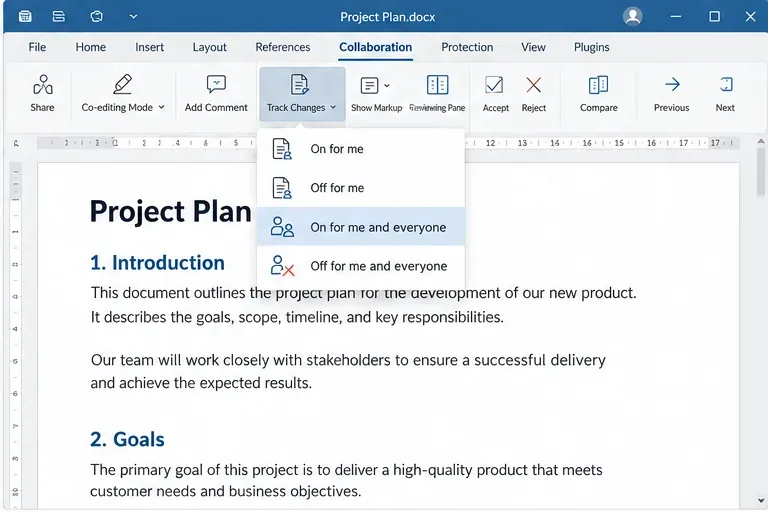
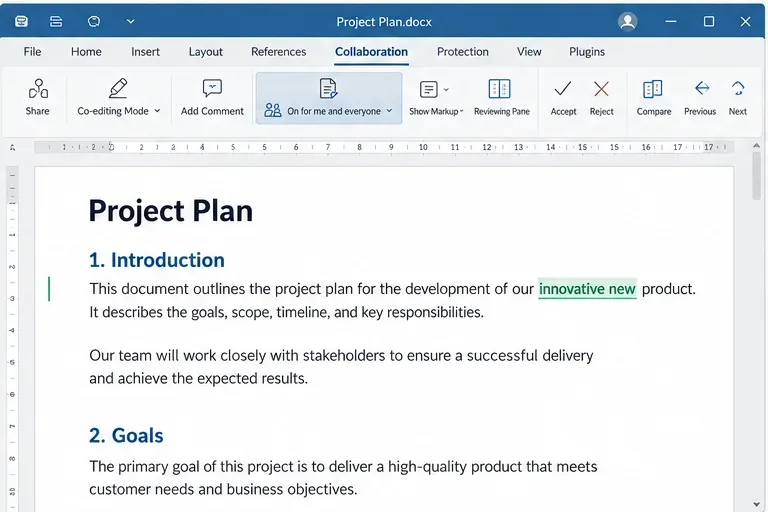
To keep Track Changes enabled after a document is reopened, open the document, choose On for me and everyone from the Track Changes menu, and save or allow the editor to save the document. The choice applies to the current document and all its users; it is not a personal, account-wide default for every file. If you only need tracking for your own current session, choose On for me instead.
The distinction matters when a shared draft must capture edits consistently. In the example below, a team is reviewing a project plan. The screenshots are interface illustrations; the menu labels and behavior follow ONLYOFFICE’s current documentation.
ONLYOFFICE provides two ways to turn tracking on: a session-level choice and a persistent choice for the document. On for me enables tracking for your current editing session, but the setting turns off for you when you reload or open the document again. On for me and everyone enables tracking for all users and keeps it on when the document is reloaded or reopened.
That persistence is document-level behavior. The official user guide describes the “for me and everyone” setting as applying to all users when the document is reloaded. It also says another user can turn the general setting off for everyone. So this is suitable for an editorial draft or shared policy document, but it is not an unchangeable lock or a tenant-wide preference. The guide does not describe a universal per-user default that automatically starts Track Changes in every new document.
No. The shared setting persists across reopen, but another user can choose Off for me and everyone. ONLYOFFICE documents that such a change turns tracking off for all users, and the corresponding alert is shown to coauthors. If your process requires an audit trail, agree who is allowed to change this setting and review the document’s version history or your storage platform’s controls. The “On for everyone” choice should not be described as an administrative enforcement policy.
Review-only access is a different case. ONLYOFFICE says Track Changes is enabled by default for a reviewer and cannot be disabled while a document is shared with Review-only rights. That mode is designed for suggestions: reviewers submit changes, while someone with the appropriate rights accepts or rejects them. Use it when the reviewer should suggest edits without directly editing the base text.
For an embedded Docs integration, the host application controls the editor configuration. ONLYOFFICE’s API FAQ explains that document.permissions determines how the document opens with Track Changes/review mode. To allow both editing and reviewing (including the ability for users to switch into review mode), the configuration includes:
document: {
  permissions: {
    edit: true,
    review: true
  }
},
editorConfig: {
  mode: "edit"
}
With edit: false and review: true, the document opens for review only. These are access permissions supplied by the integration, not a global preference that a regular user can set in the editor. Administrators should apply the option in the host’s document configuration and verify it in the integrated editor. Use the current API documentation for the integration and Docs version before deploying configuration changes.
For ordinary use in ONLYOFFICE Workspace, Nextcloud, ownCloud, or another connected platform, use the editor menu’s shared option rather than editing API configuration. The host application may control permissions, saving, templates, and which toolbar features are available.
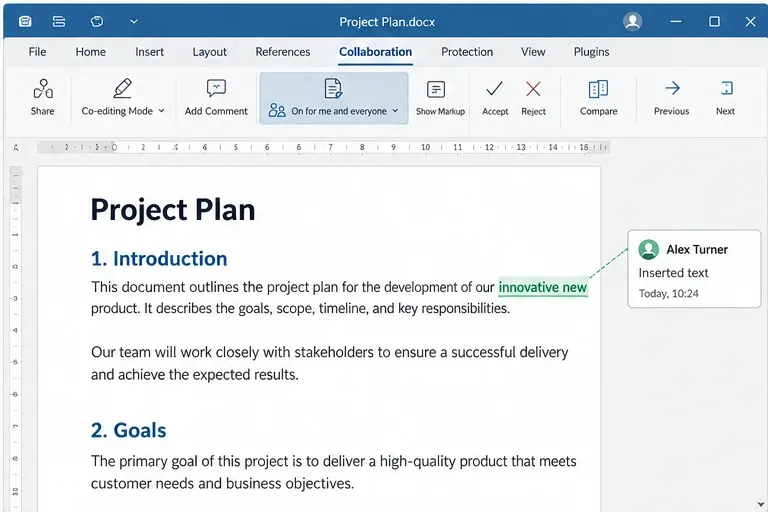
Reopen the same shared document and check the Track Changes control. Then make one harmless edit and confirm the inserted or deleted text is marked for review. If the control shows tracking on but the edit is not marked, verify that you are in an editable document and that the change was made after tracking became active. If you need tracking to start on every newly created file, use a host-level template or integration configuration only if your platform supports and documents that workflow; the editor’s “On for me and everyone” option applies to the current document.
Enable persistent Track Changes for everyone in one ONLYOFFICE document, verify edits are recorded, and understand the limits of this setting.
Find whether Nginx, Docker networking, or an internal ONLYOFFICE service is returning 502, then verify the corrected upstream and health check.
Diagnose failed ONLYOFFICE saves by checking the Nextcloud callback route, proxy redirects, and storage logs, then verify the edited file persists.
Find the cause of ONLYOFFICE memory crashes, check Docker limits, size VPS RAM correctly, add swap safely, and verify that documents open and save.
Separate browser download problems from server-side conversion errors and use the right log or access check to get your PDF export working.
Match the JWT secret used by ONLYOFFICE Docs and Nextcloud, apply it safely for Docker or Linux installs, and verify the connection without weakening authentication.
Install ONLYOFFICE Workspace Community on Ubuntu 24.04 with the official Docker script, check server requirements, skip Mail if needed, and verify the portal safely.
Configure matching JWT secrets for ONLYOFFICE Docs and its connector, with safe steps for Linux packages, Docker deployments, and verification.
Configure HAProxy HTTPS, forwarding headers, WebSocket timeouts, and health checks for ONLYOFFICE Docs, then verify editing and saves.
Give an embedded ONLYOFFICE Docs editor your company logo and interface colors with a custom theme file and editor configuration. See edition limits and deployment checks.