Keep Track Changes On When a Document Reopens

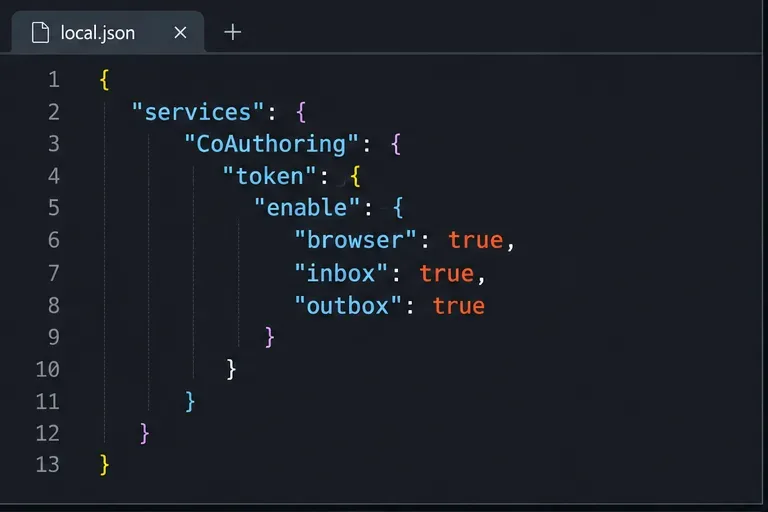
Enable persistent Track Changes for everyone in one ONLYOFFICE document, verify edits are recorded, and understand the limits of this setting.
Start by checking the connection between Nginx and ONLYOFFICE Docs, then read the error log that corresponds to the 502 response. A 502 Bad Gateway means a gateway could not get a valid response from its upstream server; it does not, by itself, prove that the public Nginx configuration is the cause. In Docker, the usual fix is to send Nginx to the Document Server service name on its internal port 80 and ensure both containers share a network.
A reverse proxy is a server that accepts a client request and forwards it to another server. In a common deployment, public Nginx handles HTTPS and forwards requests to ONLYOFFICE Docs over HTTP. ONLYOFFICE Docs also runs its own Nginx internally, so a 502 page can be generated by the outer proxy or by the Document Server container itself.
First identify which server emitted the response. Compare the page’s server header and timestamp with the outer proxy log and Document Server logs. For a Docker setup, check container status and recent startup messages:
docker ps --filter name=onlyoffice-documentserver
docker logs --tail 100 onlyoffice-documentserver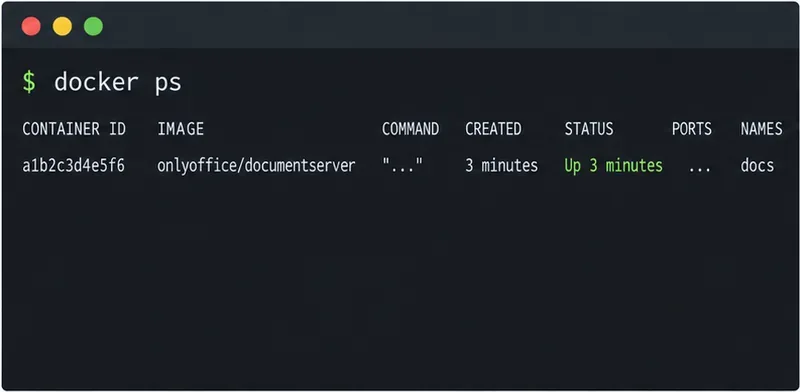
If the container is restarting or has only just started, inspect the log before changing proxy settings. ONLYOFFICE notes that first startup can take a minute or two while its database initializes. For a native Linux installation, check ds-docservice and ds-converter with systemctl status; the Document Server logs are under /var/log/onlyoffice/documentserver/.
Use the matching official ONLYOFFICE Linux troubleshooting instructions if a service is stopped.
Test from the Nginx container or host, not only from your laptop. Containers on separate Docker networks cannot resolve each other by service name, even when both are running. When Nginx and ONLYOFFICE share a user-defined Docker network, use the Compose service name or a resolvable container name and the container’s listening port. The official Docker installation guide identifies port 80 as the default Document Server listener; a published host port such as 8080:80 does not change the internal port.
From the proxy container, run:
curl -I http://onlyoffice-documentserver:80/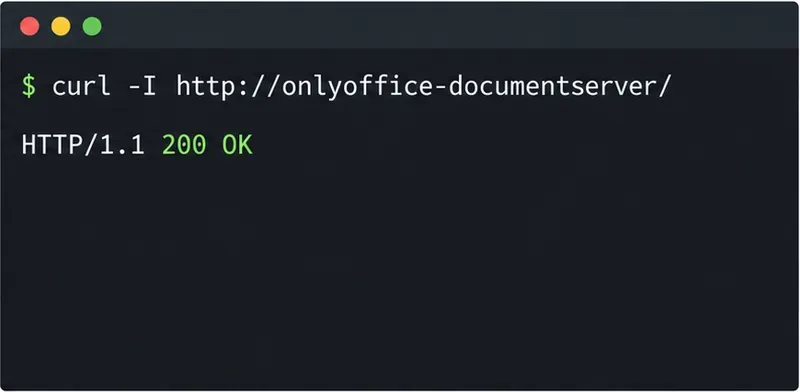
Replace onlyoffice-documentserver with your actual Compose service name. If the request says “Could not resolve host,” attach both containers to the same Docker network or correct the upstream name. “Connection refused” usually means the target host resolved but nothing is accepting connections on that port, the container is not ready, or the wrong port was used. If this is a native install, test the local address and configured port instead, for example curl -I http://127.0.0.1/.
ONLYOFFICE’s Docker guide covers the default port, port mappings, startup delay, and container logs: Docker installation and verification.
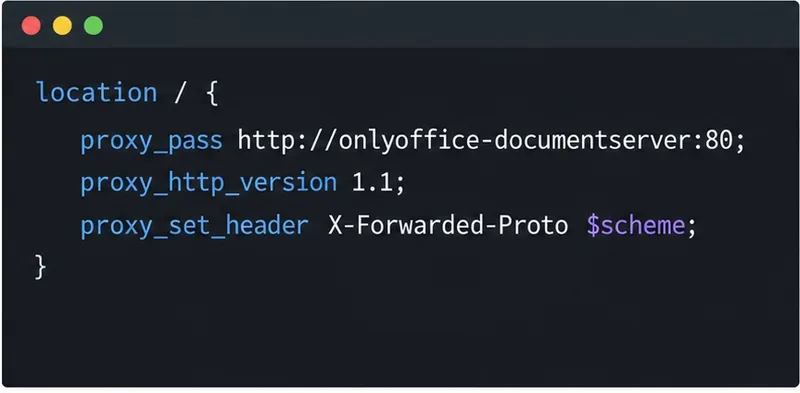
In the HTTPS virtual host for the ONLYOFFICE hostname, make proxy_pass point to the reachable upstream. This example assumes a shared Docker network and the service name shown above; change it to match your deployment:
location / {
    proxy_pass http://onlyoffice-documentserver:80;
    proxy_http_version 1.1;
    proxy_set_header Host $host;
    proxy_set_header X-Forwarded-Host $host;
    proxy_set_header X-Forwarded-Proto $scheme;
    proxy_set_header X-Forwarded-For $proxy_add_x_forwarded_for;
    proxy_set_header Upgrade $http_upgrade;
    proxy_set_header Connection "upgrade";
}
Do not point a containerized proxy at 127.0.0.1:8080 unless Document Server is actually listening in the same container or the host address is intentionally configured and reachable. Inside a container, 127.0.0.1 means that container itself. Also avoid sending HTTPS to the upstream when the Document Server endpoint is plain HTTP.
The forwarded protocol and host tell ONLYOFFICE which public URL the client used, and the upgrade headers allow WebSocket connections used for live editor communication. ONLYOFFICE provides maintained examples for running Docs behind a proxy, including its Nginx HTTPS-to-HTTP configuration. Compare against that full example if your environment has multiple proxy hops or uses a URL path prefix.
Before applying changes, validate the configuration with nginx -t, then reload Nginx using the method for your host or container. Do not restart every service at once; a controlled reload makes it easier to see whether the upstream fix changed the result.
If the outer proxy can reach the Document Server welcome page but /healthcheck returns 502, the problem may be inside Document Server rather than in public Nginx. Check the Document Server container logs and internal service logs. For native Linux installs, review the service status commands and log directory above. If /welcome/ responds but health check does not, treat those as separate signals: a static welcome page does not prove that the document service and its dependencies are healthy.
Do not “fix” this by disabling JWT. JSON Web Token (JWT) validation authenticates integration requests; a JWT mismatch usually causes an authorization error, not a network-level inability to connect to an upstream. Check JWT settings only if the proxy responds but the integration reports an authorization or token error.
Finally, confirm Nginx is routing the correct hostname to the correct virtual host. A typo in server_name, upstream DNS name, or port can send traffic elsewhere or leave the proxy using a stale configuration. Check the Nginx error log for lines such as host not found in upstream, connect() failed, or upstream timed out; each points to a different layer.
Retest the upstream from the proxy network, then check the public health endpoint and open a document through the connected platform:
curl -I https://docs.example.com/healthcheck
A successful health-check response should no longer be a 502, and an actual document should open and stay connected while editing. If the upstream test succeeds but the public request still fails, focus on the selected Nginx virtual host, its loaded configuration, and its logs. If the public welcome page works but health check remains 502, continue with ONLYOFFICE’s internal service diagnosis.
For Nginx directive behavior, consult the official Nginx proxy module documentation. The exact commands and service names can vary by Docker Compose project, Linux distribution, and ONLYOFFICE version, so substitute your actual names and check the logs from the component that generated the response.
Enable persistent Track Changes for everyone in one ONLYOFFICE document, verify edits are recorded, and understand the limits of this setting.
Find whether Nginx, Docker networking, or an internal ONLYOFFICE service is returning 502, then verify the corrected upstream and health check.
Diagnose failed ONLYOFFICE saves by checking the Nextcloud callback route, proxy redirects, and storage logs, then verify the edited file persists.
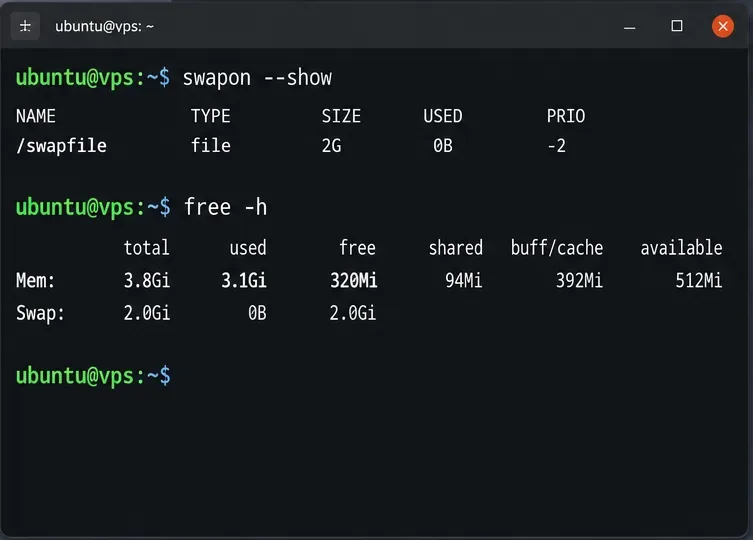
Find the cause of ONLYOFFICE memory crashes, check Docker limits, size VPS RAM correctly, add swap safely, and verify that documents open and save.
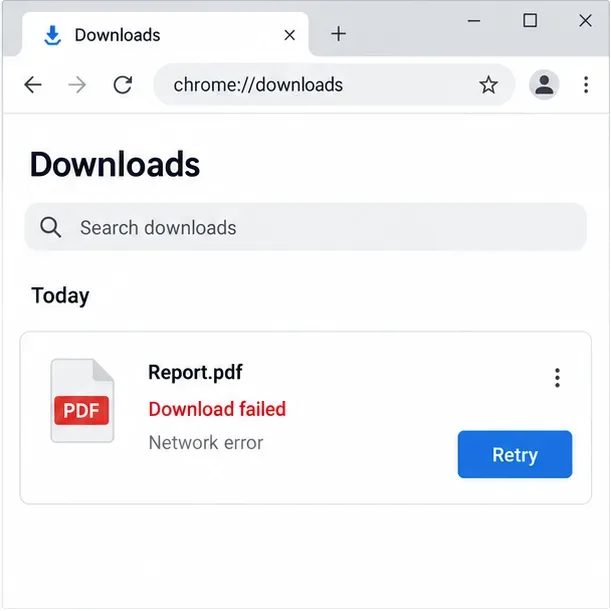
Separate browser download problems from server-side conversion errors and use the right log or access check to get your PDF export working.
Match the JWT secret used by ONLYOFFICE Docs and Nextcloud, apply it safely for Docker or Linux installs, and verify the connection without weakening authentication.
Install ONLYOFFICE Workspace Community on Ubuntu 24.04 with the official Docker script, check server requirements, skip Mail if needed, and verify the portal safely.
Configure matching JWT secrets for ONLYOFFICE Docs and its connector, with safe steps for Linux packages, Docker deployments, and verification.
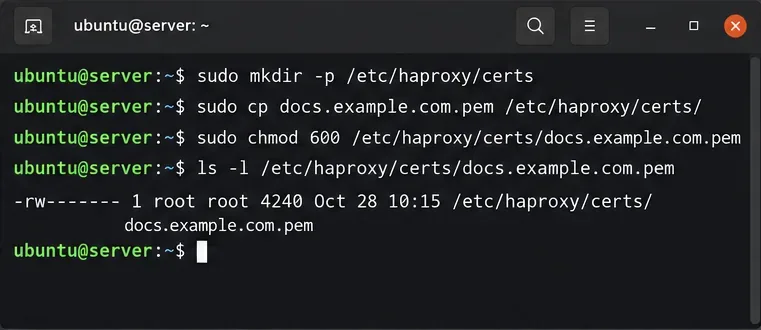
Configure HAProxy HTTPS, forwarding headers, WebSocket timeouts, and health checks for ONLYOFFICE Docs, then verify editing and saves.
Give an embedded ONLYOFFICE Docs editor your company logo and interface colors with a custom theme file and editor configuration. See edition limits and deployment checks.