Configure HTTPS for ONLYOFFICE Docs in Docker

Choose where TLS should terminate, mount a trusted certificate and private key safely, and verify HTTPS access to a Dockerized ONLYOFFICE Docs server.
For a direct connection to ONLYOFFICE Docs, publish container port 443, persist the certificate files under the mounted data directory, and point the container at those files. If a reverse proxy already provides HTTPS, keep TLS at that proxy and forward the original host and protocol to ONLYOFFICE instead of enabling a second TLS endpoint by default.
For example, if the public hostname is docs.example.com, first determine whether it points directly to Document Server or to a proxy. Use only the matching configuration below.
TLS terminates where HTTPS is decrypted: either in the ONLYOFFICE container or at a reverse proxy. Choose the component that receives the public connection.
https://docs.example.com on the host’s port 443, which is mapped to container port 443. The Document Server container needs a certificate and its matching private key.X-Forwarded-Proto and X-Forwarded-Host headers so the application can identify the public request scheme and hostname.Port mapping 443:443 does not create HTTPS; it only maps ports. For direct access, the container must also read the certificate and key. If the proxy owns the public URL, use ONLYOFFICE’s official reverse-proxy instructions.
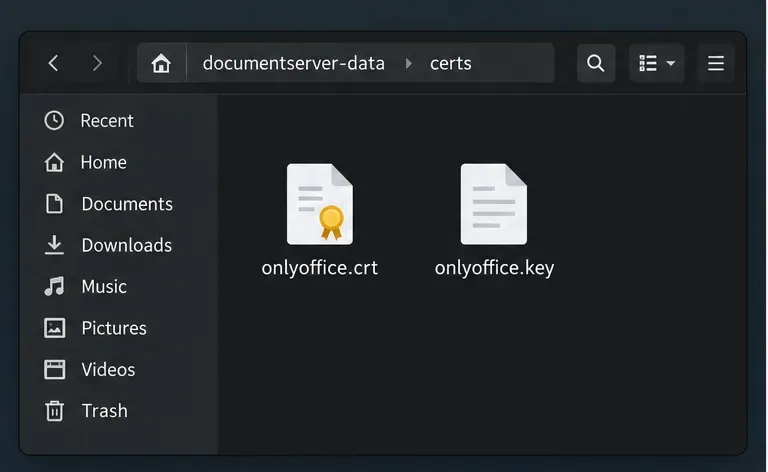
Use this path when the container serves HTTPS directly. For public access, use a certificate trusted by clients for the public hostname. A self-signed certificate can encrypt traffic, but clients will warn about identity unless they are separately configured to trust it.
ONLYOFFICE Docs stores certificates below /var/www/onlyoffice/Data/certs by default, and its current Docker configuration lists tls.crt and tls.key as the default certificate and key paths. The documentation examples have not always used identical filenames, so this example sets both paths explicitly.
services:
  documentserver:
    # Keep your existing image, environment, networks, and other settings.
    ports:
      - "443:443"
    volumes:
      - ./documentserver-data:/var/www/onlyoffice/Data
    environment:
      SSL_CERTIFICATE_PATH: /var/www/onlyoffice/Data/certs/tls.crt
      SSL_KEY_PATH: /var/www/onlyoffice/Data/certs/tls.key
This is an excerpt, not a replacement service definition. Keep existing image, JWT, network, and volume settings. Relative to the Compose file, place the certificate at ./documentserver-data/certs/tls.crt and its matching key at ./documentserver-data/certs/tls.key. Include the certificate chain supplied by your provider, and ensure the certificate covers docs.example.com.
The bind mount keeps the files outside a replaceable container. Restrict private-key access while ensuring the container can read it; otherwise HTTPS may fail to start. Never share the key in a support request.
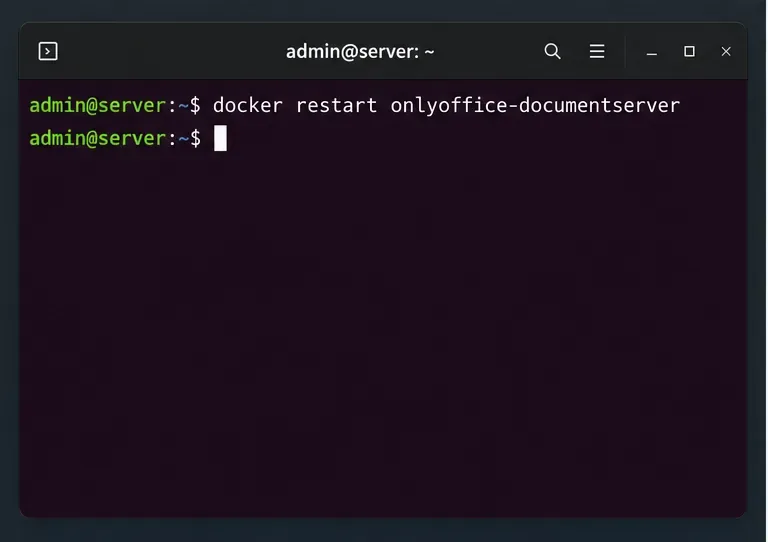
docker compose up -d documentserver from the directory containing the Compose file, substituting your actual service name. If you only replaced certificate files in an already-mounted directory, restart the existing container so the server reloads the files: docker restart <container_name>.docker logs <container_name>. Look for missing-file, permission, or certificate/key errors before changing unrelated settings.A restart cannot add a mount or change published ports; recreate the service for those edits. Replacing files in an existing persistent mount does not require a Compose change.
If a reverse proxy already terminates https://docs.example.com, keep its private key at the proxy. Forward traffic over a controlled network and set X-Forwarded-Proto: https plus X-Forwarded-Host to the public hostname. Use the official sample for your proxy software.
The browser padlock covers the client-to-proxy connection, not necessarily every internal hop. HTTP on a controlled Docker network may fit some deployments; secure the proxy-to-container hop if it crosses an untrusted network.
Another limit: changing TLS does not repair an invalid JWT, a blocked firewall port, or an incorrect public Document Server address in the integration settings. If the certificate is valid but document loading or editing still fails, check the relevant application and proxy logs rather than repeatedly regenerating certificates.
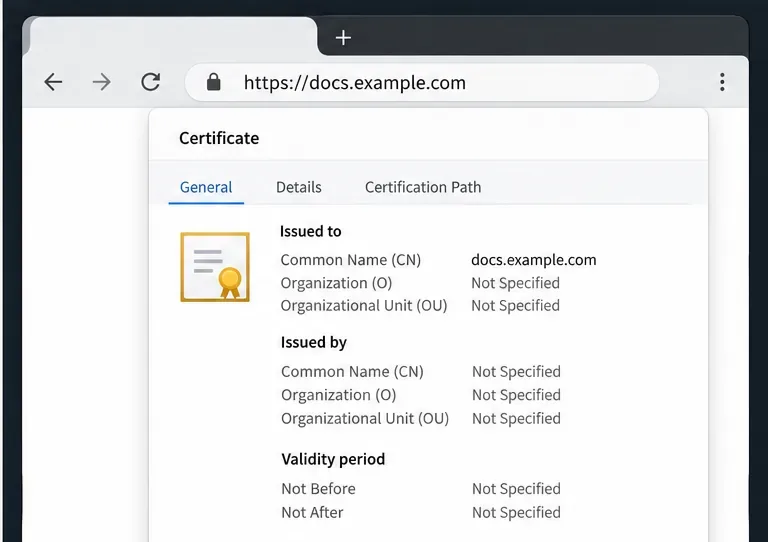
From a client that can reach the public service, open https://docs.example.com and inspect the browser’s certificate details. Confirm that the hostname matches, the certificate is within its validity period, and the browser does not report an untrusted issuer or name mismatch. You can also inspect the TLS handshake from a terminal with curl -Iv https://docs.example.com; review the certificate and connection output rather than relying only on whether a page loads.
Finally, open a document from the integrating application. Browser success confirms the public endpoint, not every integration setting or internal route. For certificate warnings, recheck hostname, chain, paths, permissions, and TLS termination. If HTTPS verifies but editing fails, check logs and authentication or routing settings.
For details on the supported Docker paths, certificate variables, and built-in Let’s Encrypt options, see ONLYOFFICE’s Docker installation and HTTPS documentation. The exact command to update an existing deployment depends on how it was originally created; preserve that deployment’s current volumes and integration settings while applying the relevant TLS changes.
Choose where TLS should terminate, mount a trusted certificate and private key safely, and verify HTTPS access to a Dockerized ONLYOFFICE Docs server.
Embed the ONLYOFFICE editor in your PHP app, sign its configuration with JWT, and save edited files through a secure callback.
Set the proofing language for the whole document or selected text, confirm spell checking is active, and identify when a server dictionary is missing.
Enable persistent Track Changes for everyone in one ONLYOFFICE document, verify edits are recorded, and understand the limits of this setting.
Find whether Nginx, Docker networking, or an internal ONLYOFFICE service is returning 502, then verify the corrected upstream and health check.
Diagnose failed ONLYOFFICE saves by checking the Nextcloud callback route, proxy redirects, and storage logs, then verify the edited file persists.
Find the cause of ONLYOFFICE memory crashes, check Docker limits, size VPS RAM correctly, add swap safely, and verify that documents open and save.
Separate browser download problems from server-side conversion errors and use the right log or access check to get your PDF export working.
Match the JWT secret used by ONLYOFFICE Docs and Nextcloud, apply it safely for Docker or Linux installs, and verify the connection without weakening authentication.
Install ONLYOFFICE Workspace Community on Ubuntu 24.04 with the official Docker script, check server requirements, skip Mail if needed, and verify the portal safely.