Stop ONLYOFFICE Co-Editing Lag by Finding the Bottleneck
Trace slow collaborative editing to Docker resource pressure, proxy connections, or document load, then choose the fix that matches your measurements.
When ONLYOFFICE co-editing feels slow on a self-hosted Docker server, first determine whether the delay follows the server, the network path, or a particular document. Measure the same editing session before changing anything: check container and host resource use, then confirm that your reverse proxy passes the live editor connection correctly. Add CPU, memory, or more infrastructure only when those measurements show a capacity limit.
Ask two editors to open the same document and make a small change at the same time. Note whether typing lags for both users, whether one user sees updates late, and whether the issue occurs with every file or only one large or complex file. This simple comparison helps separate a general service problem from a document-specific workload.
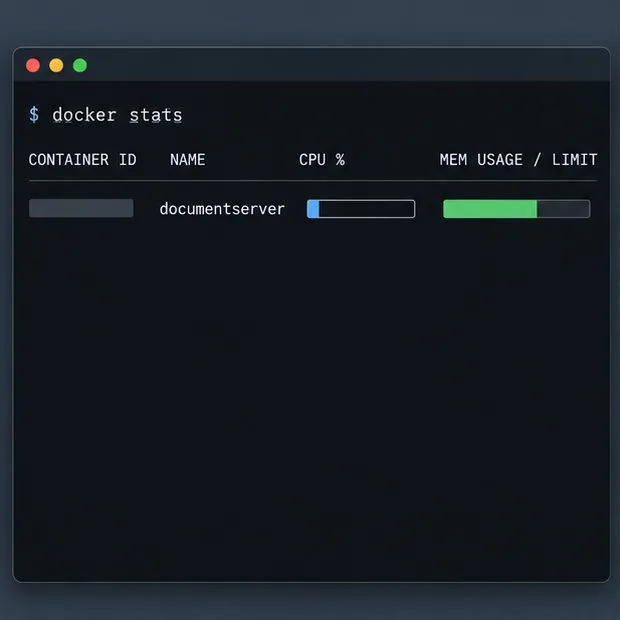
On the Docker host, identify the Document Server container and watch its resource use while the lag occurs:
docker ps
 docker stats <container_name_or_id>
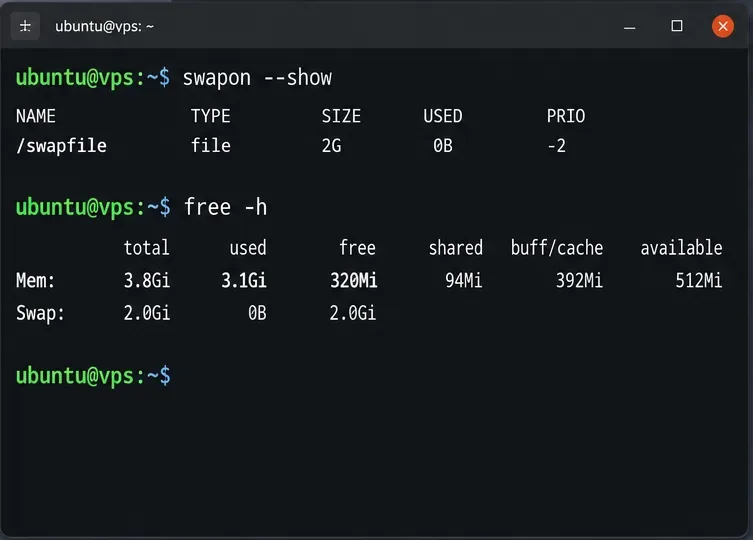
Look for sustained CPU saturation, memory approaching the host or container limit, swap activity, or a container that restarts. Also check host disk space and I/O if saves or document loading pause. A short spike is less conclusive than a bottleneck that lines up with the slow edits. The ONLYOFFICE Docker troubleshooting page notes that memory use rises with open documents and concurrent users; it gives 2–4 GB as normal for a server with a few dozen active users, but that is not a universal sizing guarantee.
Remember that ONLYOFFICE counts a concurrent active user as someone with a document open, whether editing or viewing. Compare your peak open-editor count with the edition-specific Community Docker system requirements. The published figures are reference configurations, and the documentation says actual capacity depends on document type and size.
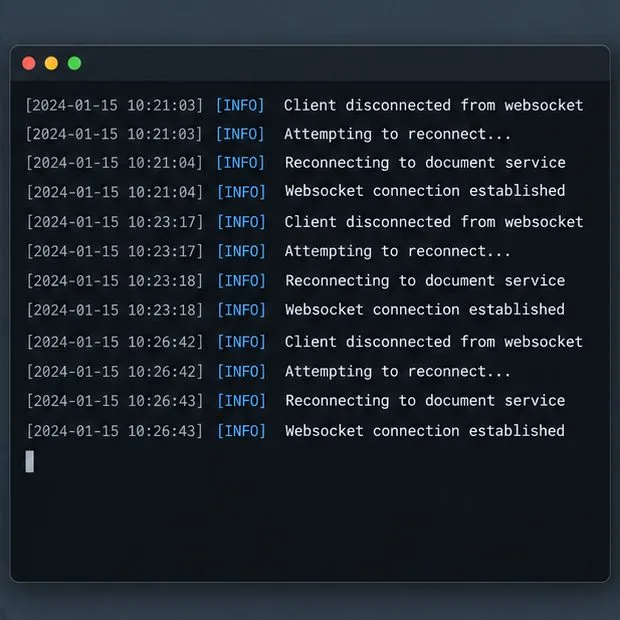
If the editor loads but co-editors repeatedly disconnect, or the delay appears only through your public URL, inspect the reverse proxy before adding server resources. WebSocket is the persistent connection used for live editor traffic. A proxy that closes or fails to upgrade that connection can make edits appear delayed or cause reconnects.
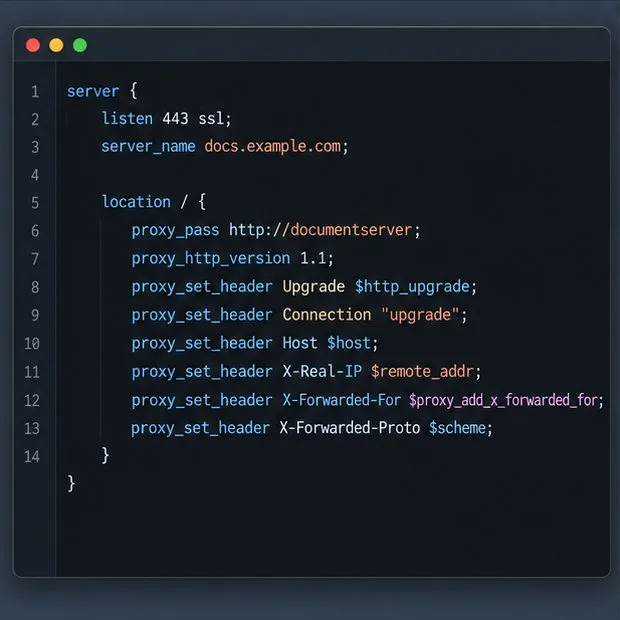
Check the proxy’s access and error logs during one laggy session. Confirm that your configuration forwards the HTTP Upgrade and Connection headers and preserves the original host and protocol. For NGINX, compare your setup with ONLYOFFICE’s official proxy examples; the documentation specifically calls out forwarded X-Forwarded-Proto and X-Forwarded-Host headers. Do not paste a sample wholesale if your TLS termination, path prefix, or proxy topology differs.
Also test from a client on the same LAN and from the normal remote route. If the LAN session is responsive while the public route is slow, investigate proxy, firewall, VPN, DNS, or WAN latency. If both routes lag at the same time, server-side load becomes more likely. Browser developer tools can help: repeated WebSocket disconnects point toward connection handling, while a stable connection with slow editing on a saturated host points toward capacity or workload.
ONLYOFFICE offers Fast co-editing, which is the default and shows other users’ edits in real time, and Strict co-editing, which holds changes until a user saves them. The co-editing documentation describes the difference in how changes are displayed. Strict can suit teams that prefer to review and apply changes in batches; Fast is the natural choice when immediate shared visibility matters.
Changing modes does not repair a saturated CPU, a constrained memory limit, or a broken WebSocket route. Treat the mode as a collaboration preference, then compare the same file and user count in each mode only if your team is deciding which workflow fits. Avoid presenting a mode switch as a guaranteed performance improvement.
If lag occurs across documents and users while CPU remains saturated, memory is constrained, or containers restart, first give Document Server adequate host resources and verify that Docker limits do not undercut the host. Then retest. The published Community Edition Docker reference lists 4 GB RAM and storage requirements that vary by concurrent-user band; for more than 400 concurrent active users it recommends a cluster deployment and points to Kubernetes. Use those figures as a planning reference, not a promise that a given server will support a specific workload.
For a small installation, increasing available CPU or memory is usually simpler to operate than splitting services across hosts. For sustained high concurrency, separate or clustered services can offer more headroom, but they add network dependencies, configuration, monitoring, and failure points. ONLYOFFICE’s current official Compose example includes a health check for the Document Server endpoint; use container health and application responsiveness together rather than assuming that a running container means a healthy editing path. Keep the image version pinned during diagnosis so that a deployment update does not confound before-and-after measurements.
Repeat the original two-user edit using the same document, client route, and approximate load. Confirm that typing feels responsive for both editors, changes appear consistently in the selected co-editing mode, and reconnects or container restarts have stopped. Watch docker stats during the retest and check proxy logs if the issue was connection-related. If a small test works but peak-hour sessions still lag, collect the container image/version, host and Docker versions, mounted volumes, resource graphs, and relevant logs before changing more settings; the official debug logging guide explains how to enable temporary debug logs in Docker. Turn verbose logging back down after collecting evidence because it adds log volume.
Use the outcome to choose the trade-off: correct the proxy when connections break, add capacity when measurements show sustained resource pressure, and leave the server alone when only one complex document is affected until you have isolated that workload.
Trace slow collaborative editing to Docker resource pressure, proxy connections, or document load, then choose the fix that matches your measurements.
Install custom fonts in ONLYOFFICE Document Server, compare persistent Docker mounts with direct copies, rebuild the font list, and verify the result.
Choose where TLS should terminate, mount a trusted certificate and private key safely, and verify HTTPS access to a Dockerized ONLYOFFICE Docs server.
Embed the ONLYOFFICE editor in your PHP app, sign its configuration with JWT, and save edited files through a secure callback.
Set the proofing language for the whole document or selected text, confirm spell checking is active, and identify when a server dictionary is missing.
Enable persistent Track Changes for everyone in one ONLYOFFICE document, verify edits are recorded, and understand the limits of this setting.
Find whether Nginx, Docker networking, or an internal ONLYOFFICE service is returning 502, then verify the corrected upstream and health check.
Diagnose failed ONLYOFFICE saves by checking the Nextcloud callback route, proxy redirects, and storage logs, then verify the edited file persists.
Find the cause of ONLYOFFICE memory crashes, check Docker limits, size VPS RAM correctly, add swap safely, and verify that documents open and save.
Separate browser download problems from server-side conversion errors and use the right log or access check to get your PDF export working.