Home
» How to
»
Completely Remove ONLYOFFICE Document Server from Linux
Completely Remove ONLYOFFICE Document Server from Linux
To remove ONLYOFFICE Document Server completely, first identify whether it was installed as a DEB/RPM package or as a Docker container. Stop active editing sessions, remove only the matching package or container, and then review remaining data, volumes, and images separately; deleting the application does not automatically remove every dependency or persistent file.
Use the checklist below before running any deletion command. The official ONLYOFFICE removal instructions warn that the process deletes Document Server data. If you may need to restore the service, preserve its configuration, database, logs, and mounted data before proceeding.
1. Identify the installation and protect active work
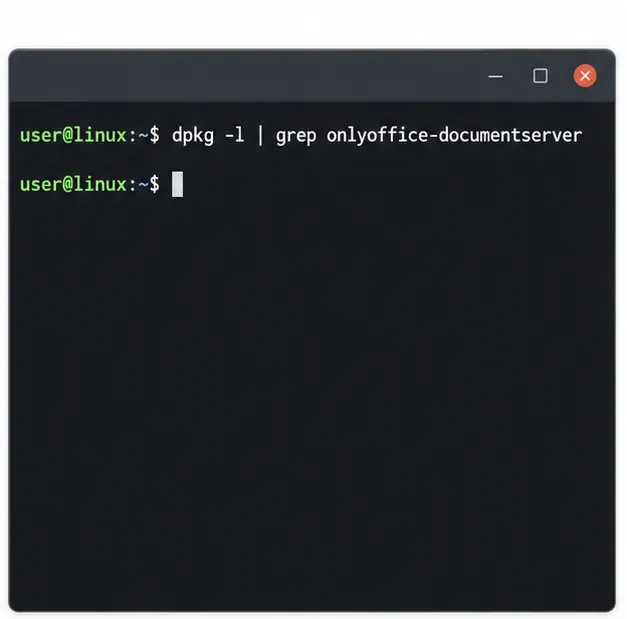
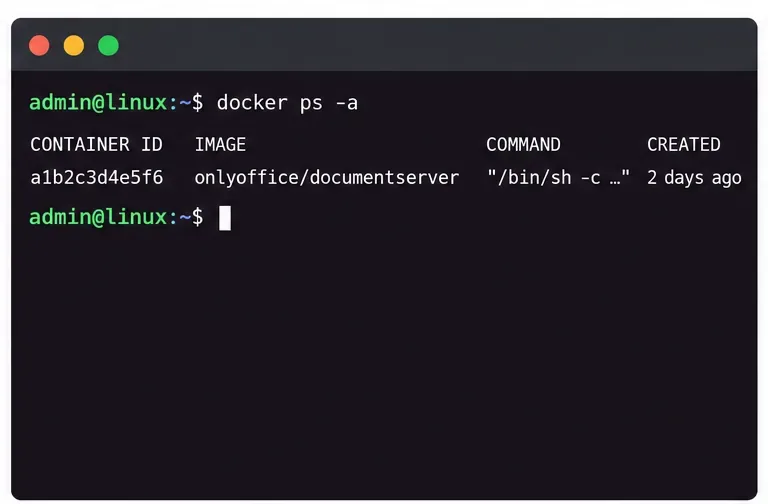
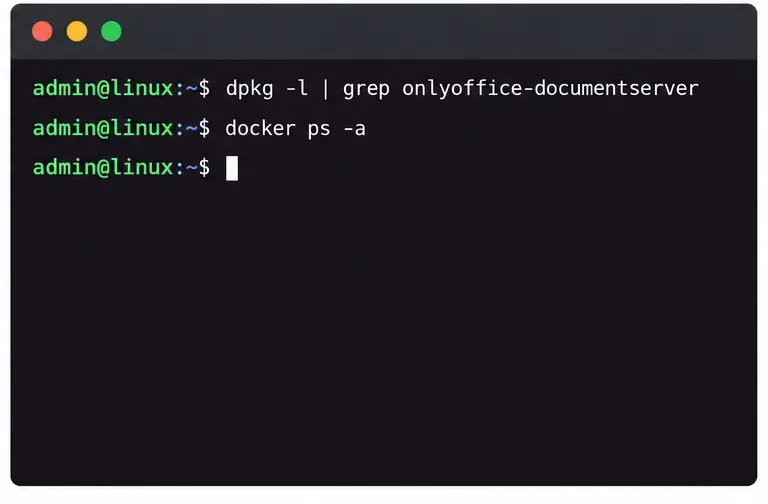
Check for both installation types because a host can have a package and Docker container at the same time. On Debian or Ubuntu, inspect the package list with dpkg -l | grep onlyoffice-documentserver. The Community package is named onlyoffice-documentserver; Developer and Enterprise editions use different package names. Check the installed package name before copying a purge command. On a Docker host, use sudo docker ps -a to review stopped as well as running containers, and look for the Document Server image or a container name you recognize.
The package query helps distinguish a Linux package installation from a Docker-only deployment.
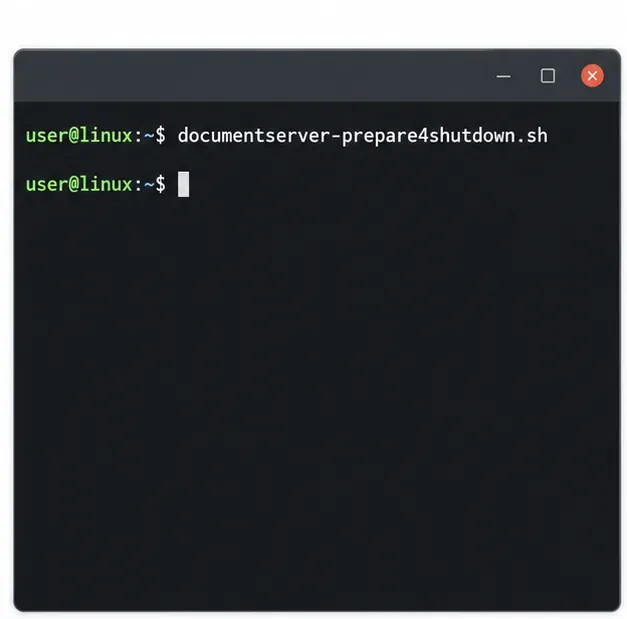
Tell users to save and close open documents before shutdown. ONLYOFFICE documents that its preparation script can take up to five minutes while active sessions are handled. For a package installation, run:
documentserver-prepare4shutdown.sh
For Docker, run the same script inside the identified container:
Replace the placeholder with the actual container name or ID. If the script is unavailable, do not assume open edits have been saved; wait for users to close documents and make a backup before stopping the server.
Run the preparation script before disconnecting users from an active Document Server.
2. Remove a native Linux package
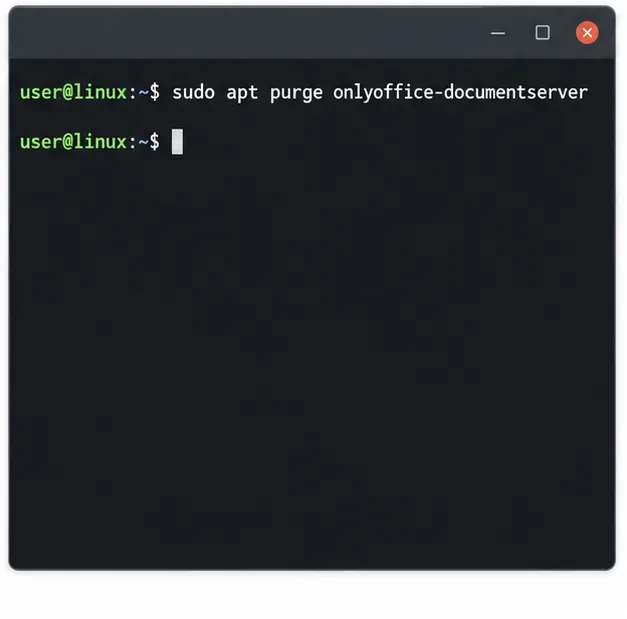
On Ubuntu or Debian, the Community Edition removal command in ONLYOFFICE’s guide is:
sudo apt purge onlyoffice-documentserver
For Community Edition on CentOS, ONLYOFFICE documents:
sudo yum remove onlyoffice-documentserver
Edition-specific packages differ. The official Developer Edition guide uses onlyoffice-documentserver-de, while the Enterprise Edition guide uses onlyoffice-documentserver-ee. Use the package name shown by your installed package list; do not run all variants blindly. Read the package manager’s confirmation summary before accepting it, especially if it proposes removing a database or another service you still use.
On Debian-based systems, purge the exact Document Server package that is installed.
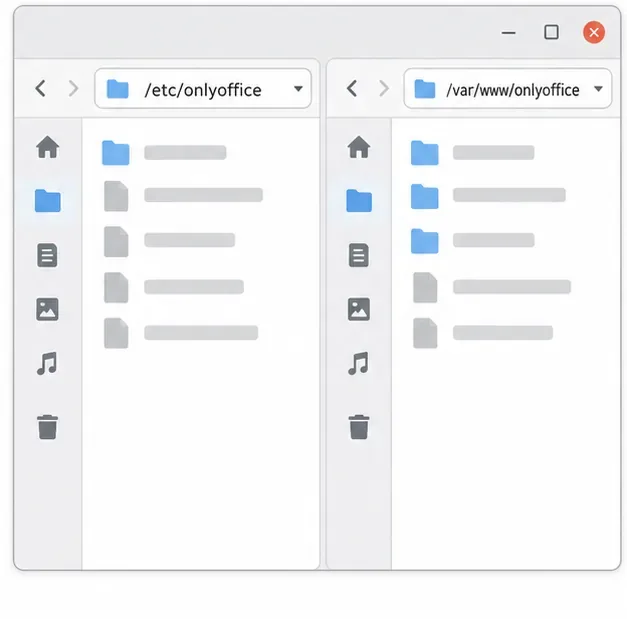
ONLYOFFICE says package removal deletes the server binaries and configuration but leaves dependencies installed. If the package manager reports that ONLYOFFICE directories are not empty, inspect them first. Its removal guide lists /etc/onlyoffice and /var/www/onlyoffice as directories that may be removed manually:
sudo rm -rvf /etc/onlyoffice /var/www/onlyoffice
This command is irreversible. Run it only after checking that those paths contain no custom configuration, logs, certificates, or data you need. For a narrower cleanup, remove only the verified Document Server subdirectory rather than the parent directory.
Inspect these paths before manually removing directories left behind by a package purge.
3. Remove a Docker deployment
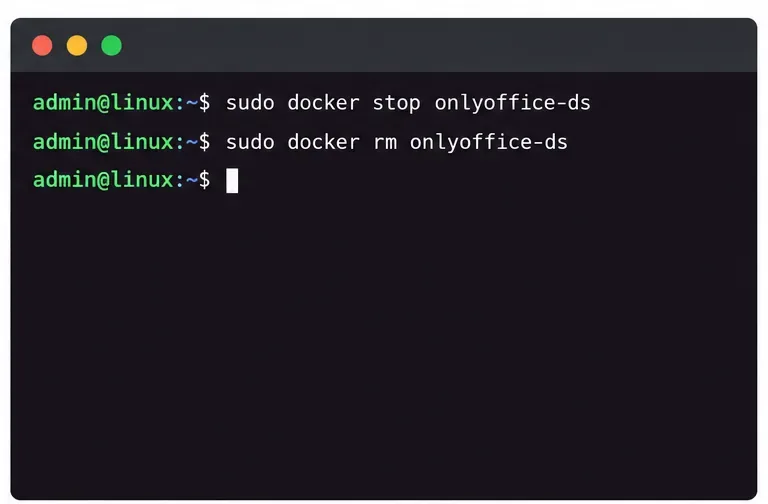
Start with sudo docker ps -a and identify the specific ONLYOFFICE container. Do not use commands that remove every container or image on the host. If the container is named onlyoffice-ds, stop and remove that container with:
Substitute your real container name or ID. For a Compose deployment, review docker compose ps and the Compose file first. You may stop and remove the ONLYOFFICE service by its actual service name, but avoid bringing down an entire project if that project also runs Nextcloud, a database, or a reverse proxy that should remain.
Inspect all containers, including stopped ones, and select only the Document Server instance.Stop and remove the identified Document Server container without touching unrelated containers.
Removing a container does not automatically delete host bind-mount directories or named volumes. Inspect the container’s mounts with sudo docker inspect <container_name>, or check the volumes entries in its Compose file. Back up anything needed, then remove only the verified ONLYOFFICE data path or named volume. Docker Compose’s down -v removes project volumes; use it only when the Compose project and every volume it declares belong exclusively to this installation. Docker’s documentation notes that external volumes are not removed by Compose.
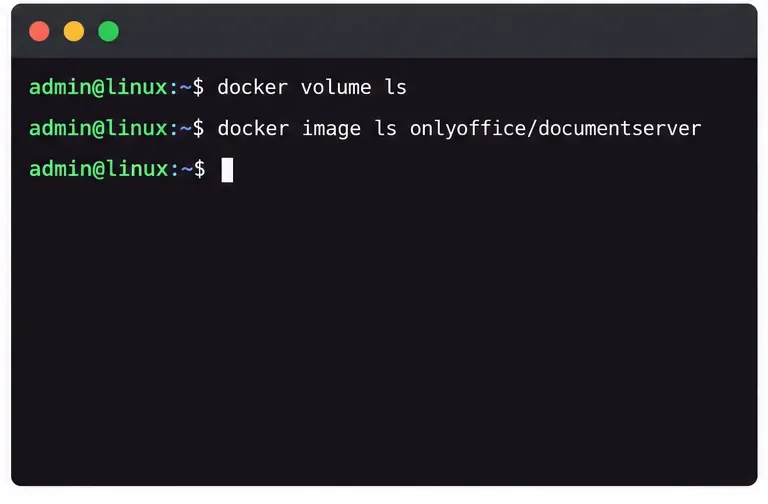
After removing the container, you can remove the ONLYOFFICE image if no other container uses it:
sudo docker image ls
sudo docker image rm onlyoffice/documentserver
If you used a specific image tag, use that exact repository and tag. Docker may retain an image that is still referenced by another container, which is a reason to check before forcing removal.
Review volume names and image tags before removing any Docker data or cached image.
4. Remove optional leftovers and verify
If you installed from the official APT repository and no other ONLYOFFICE package on the host needs it, you may remove its repository entry and signing key. The installation guide identifies /etc/apt/sources.list.d/onlyoffice.list and /usr/share/keyrings/onlyoffice.gpg. Check their contents and confirm they are dedicated to ONLYOFFICE before deleting them. On Debian or Ubuntu, sudo apt autoremove --purge can offer to remove dependencies no longer needed; review the proposed package list carefully and cancel if it includes software used by other services. Dependency cleanup is optional, not required to stop Document Server.
Verify the result with the package manager and Docker inventory:
dpkg -l | grep onlyoffice-documentserver
sudo docker ps -a
No matching installed package or Document Server container should remain. If you also deleted its image and data, check the relevant image list, volume list, and host paths you identified earlier. Do not treat an empty package query as proof that Docker data has been removed, or a missing container as proof that its image and volumes are gone.
Check package and container inventories separately because they represent different installation methods.