Home
» How to
»
Sync Active Directory Users with ONLYOFFICE DocSpace via LDAP
Sync Active Directory Users with ONLYOFFICE DocSpace via LDAP
To sync LDAP or Microsoft Active Directory accounts with ONLYOFFICE DocSpace, enable LDAP Authentication under Settings > Integration > LDAP Settings, enter the directory connection and search parameters, then save and confirm the import. Enable Auto sync afterward so directory changes continue to reach DocSpace without repeating the initial setup.
This procedure applies to DocSpace's LDAP integration, not to a standalone ONLYOFFICE Docs document-editing server. For ONLYOFFICE Workspace, the equivalent settings are under Control Panel > Portal Settings > LDAP. According to the current ONLYOFFICE documentation checked in October 2026, LDAP is a paid Business feature in the DocSpace SaaS offering; check the capabilities of your particular self-hosted edition separately. See the official DocSpace LDAP reference and the Workspace server instructions.
Plan a small directory import first
Illustrative scenario: Acme Corp has an Active Directory domain named acme.local. Its IT administrator wants a DocSpace account for each employee in the Employees organizational unit (OU), while optionally importing security groups from a separate Groups OU. The names, paths, and account examples below are hypothetical configuration values, not results from a deployed environment.
Before touching DocSpace, confirm that its server can reach a domain controller, determine which accounts must be included, and arrange a directory account with read access. Use a dedicated read-only service identity rather than a domain administrator. Record the exact LDAP distinguished names (DNs), which identify directory locations, and the login and email attributes already used in AD.
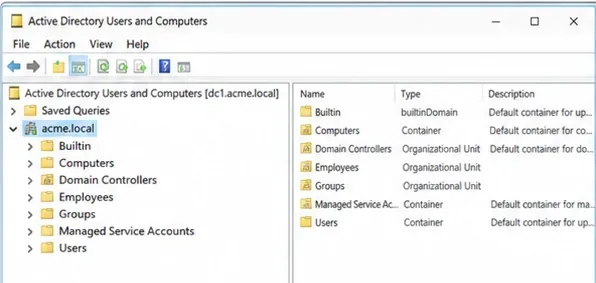
The sample Active Directory tree helps identify the employee and group search bases before importing accounts.
Acme's example search base is OU=Employees,DC=acme,DC=local. Starting at this OU reduces the chance of importing service accounts or unrelated users. For an existing portal with users or documents, create a suitable backup and verify recovery procedures before changing LDAP filters: ONLYOFFICE warns that changes to server, user, or group search settings can affect previously imported accounts and their data. Review its backup and restore documentation.
Connect DocSpace to the directory
1. Open LDAP Settings and enable authentication
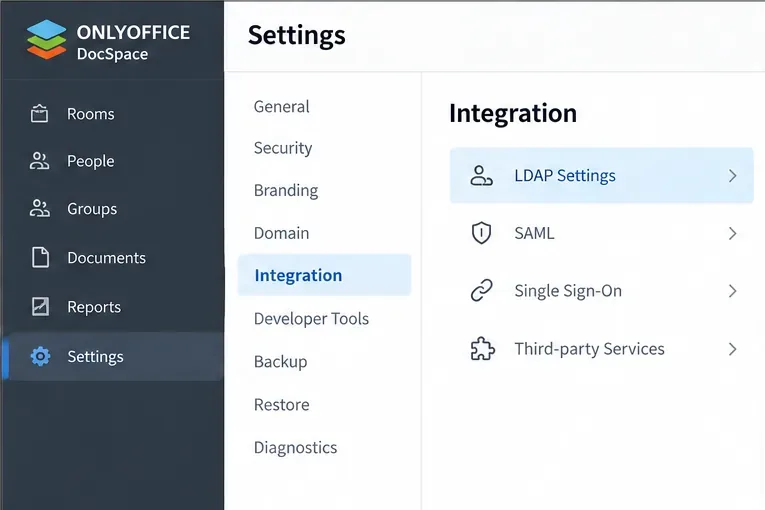
Sign in as a DocSpace administrator. From the lower-left options menu, choose Settings, then open Integration > LDAP Settings. Turn on LDAP Authentication; if the configuration form is collapsed, use Show to expand it. Do not mistake the separate SAML single sign-on page for LDAP synchronization.
Open Integration and choose LDAP Settings in DocSpace before enabling directory authentication.
2. Select a protected LDAP transport
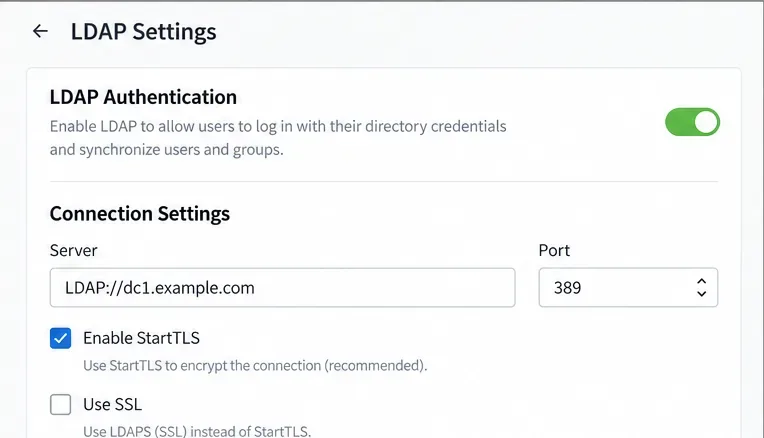
Choose Enable StartTLS for an LDAP connection upgraded to TLS, normally on TCP port 389, or Enable SSL for LDAPS, normally on TCP port 636. For the Acme scenario, suppose its domain controller is configured for LDAPS with a valid server certificate: use LDAPS://dc1.acme.local and 636. Choose one supported secure method; do not send bind passwords over unprotected LDAP.
The LDAP configuration area shows the StartTLS option and the corresponding default port 389.
LDAPS on an AD domain controller requires an appropriate certificate, a matching DNS name, and network access. Microsoft documents these requirements in Configure certificates for LDAP over SSL. Resolve certificate trust problems on the server rather than weakening TLS validation.
3. Enter the server and bind credentials
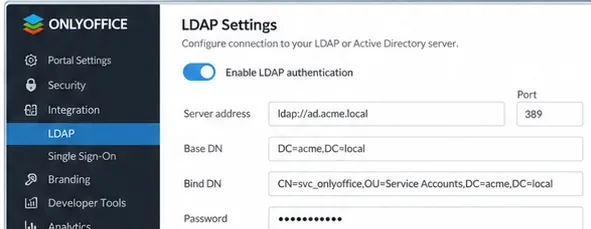
Set Server to the LDAP or LDAPS URL and Port Number to the selected port. Enable the form's Authentication option when a directory account is needed to read user and group records, and enter the authorized login and password. The sample service identity might be svc_docspace@acme.local; use your directory's actual accepted bind format. Passwords and real account names should never be placed in a published guide or screenshot.
Review the server address and example bind credentials without exposing an actual service account password.
Choose exactly which users to import
4. Define the search base and filter
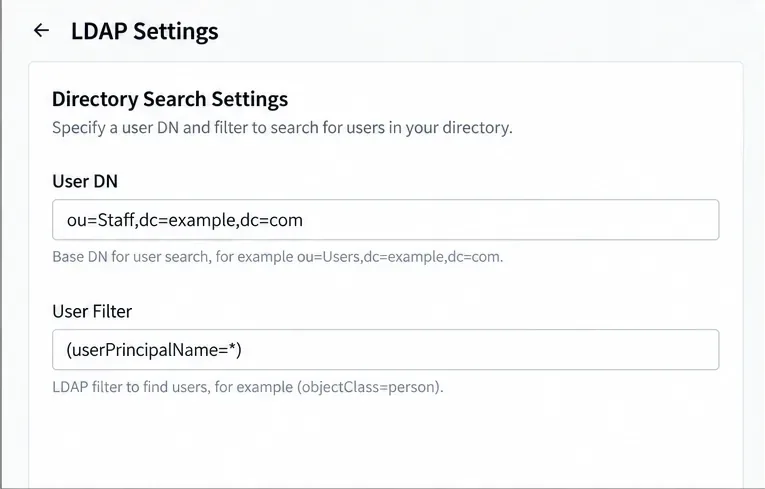
Enter OU=Employees,DC=acme,DC=local in User DN. For Active Directory, the ONLYOFFICE-recommended starting filter is (userPrincipalName=*). This selects records with a user principal name within the selected search scope; it is not, by itself, a guarantee that every result is an enabled human employee. Review the OU contents or use a carefully validated filter if your organization requires narrower membership.
Set the user search DN and an Active Directory user filter to limit which records may be imported.
In an OpenLDAP directory, the documented defaults are different: (uid=*) for User Filter and uid for Login Attribute. Do not copy those defaults unchanged into an Active Directory deployment.
5. Set the login attribute and map profile data
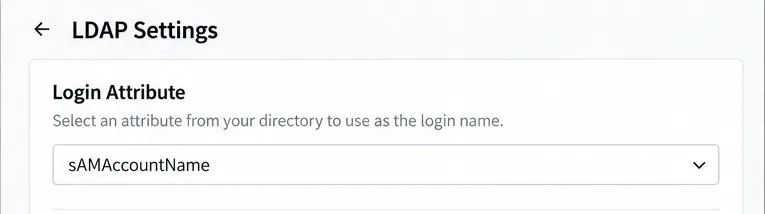
For AD, set Login Attribute to sAMAccountName, as the ONLYOFFICE instructions specify. The configured login attribute determines what users type at the DocSpace sign-in page; supported formats include the simple login, login plus LDAP domain, and domain backslash login. Test the format with a nonadministrator employee account after import.
The sAMAccountName value is the documented starting login attribute for Active Directory.
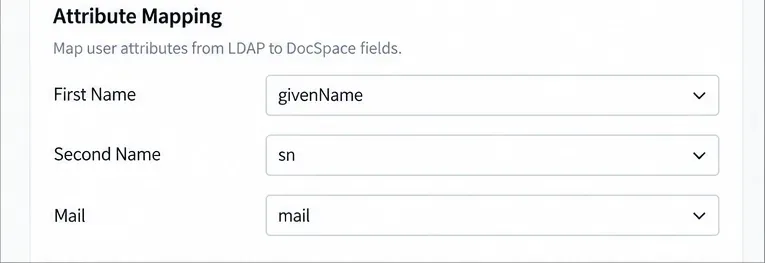
In Attribute Mapping, map First Name to givenName, Second Name to sn, and Mail to mail when those fields exist in your AD schema. These are example mappings to check against your actual directory, not assumed values for every environment. Email matters: ONLYOFFICE says the Mail mapping is used for the DocSpace email address; missing mail data may produce an address derived from the login and LDAP domain and can prevent notifications from reaching the user.
Match first name, last name, and email fields to the corresponding LDAP attributes.
Import groups, then turn on ongoing synchronization
6. Configure optional group membership
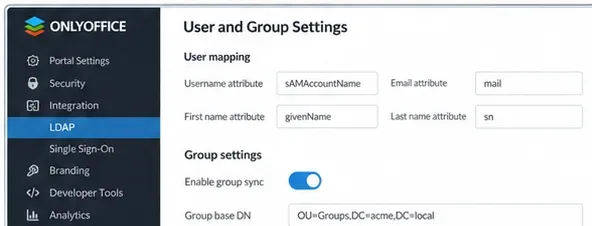
If Acme also wants directory groups, enable Group membership. In this example, use OU=Groups,DC=acme,DC=local for Group DN and (objectClass=group) for Group Filter. The AD mapping documented by ONLYOFFICE uses distinguishedName as User Attribute and member as Group Attribute; use the existing Group Name Attribute appropriate for the directory.
Configure optional group membership only after confirming that intended users belong to matching groups.
Check membership before saving: ONLYOFFICE explicitly notes that enabling group import restricts the imported users to those who belong to at least one matching group. If Acme's pilot employees do not belong to the selected groups, leave group import off initially or correct the directory scope before import. Do not expand the group filter across the entire domain merely to make the user count larger.
7. Save the configuration and confirm the import
Review the search bases, account mappings, and intended directory membership, then click Save. In the Confirmation of import dialog, select OK to begin. Allow time for the directory search and import; the duration depends on the environment. For a large AD deployment, the ONLYOFFICE documentation calls out a 1,000-entry AD query limit. Coordinate any paging or directory-limit changes with the AD administrator rather than changing domain-controller settings without review.
Check the imported accounts in Accounts; LDAP-linked profiles have an LDAP indicator in the administrator view. Keep the first run deliberately narrow so a wrong filter, mail mapping, or group rule can be corrected before adding the full organization. Avoid claiming that a successful save proves users can authenticate.
8. Schedule Auto sync and run one manual sync
Back on LDAP Settings, enable Auto sync and choose an interval supported by your DocSpace version: hourly, daily, weekly, or monthly. Save the schedule. For an immediate update, select Sync users at the bottom of the LDAP page. ONLYOFFICE also documents per-user updates after an LDAP user logs in; that login behavior is not a substitute for regular directory-wide synchronization when groups and account records need refreshing.
Verify sign-in and the next update
Use a pilot employee account to sign in with its AD credentials, then confirm that the DocSpace profile shows the expected name and email address. If groups were enabled, verify the employee belongs to an imported group and can access only the rooms granted through DocSpace permissions. Finally, change a noncritical directory field on the pilot account, run Sync users, and check that its DocSpace profile reflects the change.
No users appear: recheck User DN, the filter, the service account's read access, and whether enabling Group membership excluded the pilot users.
Authentication fails: confirm the login attribute, the account's directory status, network access, and TLS certificate trust.
Names or email are wrong: compare the mapped LDAP attributes with the actual directory record before changing an established search scope.
Later changes do not appear: verify Auto sync was saved, run Sync users manually, and check whether the modified account remains within the configured filters.
The setup is confirmed only when the selected users are imported, a pilot user can authenticate with directory credentials, the intended group restrictions apply, and at least one later profile change synchronizes correctly.