Change ONLYOFFICE Workspace’s Default Storage Location
Move portal data from Disk Default to a supported cloud storage provider, or relocate Docker data safely by changing its host volume mapping.
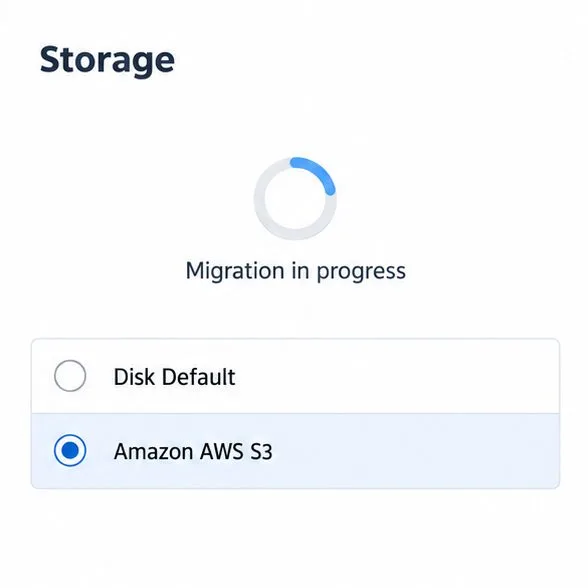
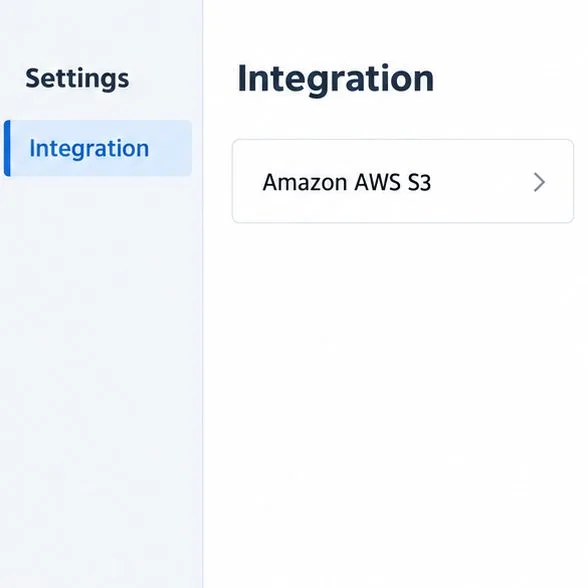
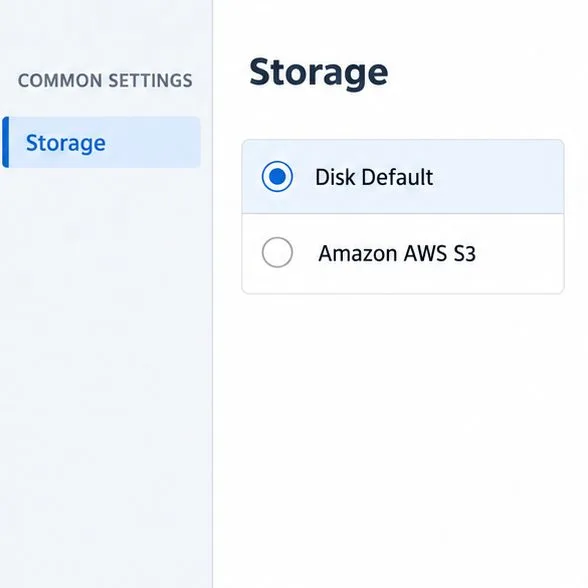
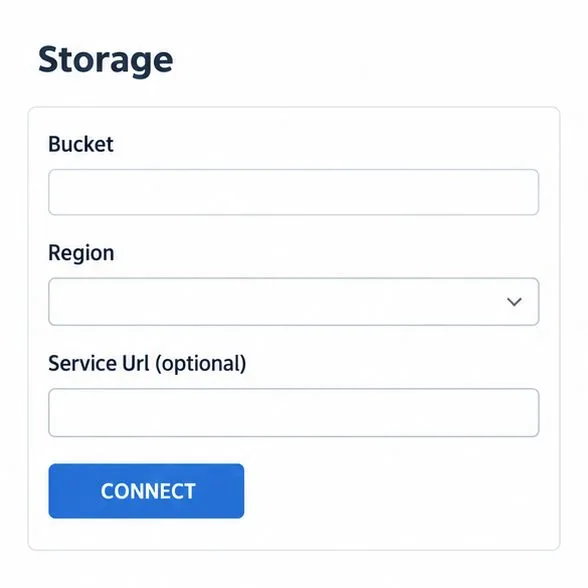
To move ONLYOFFICE Workspace portal data from the local disk to a supported cloud storage service, connect that service under portal Settings → Integration, then open Control Panel → Common Settings → Storage, configure it, and click CONNECT. ONLYOFFICE says the connection starts a data migration and may take some time. If by “storage location” you mean the host directory used by a Docker installation, change the Community Server data volume in your deployment instead; that is a separate operation.
ONLYOFFICE uses the phrase “storage” for more than one thing. The Control Panel’s Storage page can switch portal data from Disk Default to supported third-party storage for static data. This is the admin setting most people mean when they want to move Workspace portal data off the server’s local disk. It is not the same as choosing a folder inside the Documents module, connecting an external drive for an individual user, changing a backup destination, or relocating Docker’s data directory.
| Your goal | Use this setting | Trade-off |
|---|---|---|
| Move portal static data to object storage | Control Panel → Storage | Requires prior provider integration and starts migration. |
| Put Community Server data on another host disk | Docker bind mount or volume | Requires a planned file copy and container restart. |
| Let users browse an external account in Documents | Documents module third-party connection | Adds an external resource; it does not replace the portal’s default storage. |
The Control Panel documentation lists Google Cloud Storage, Amazon AWS S3, Rackspace Cloud Storage, and Selectel Cloud Storage for portal storage. Only Amazon S3 and Selectel are listed there as CDN choices. A CDN is a separate setting intended to distribute static portal content for delivery; it is not a substitute for the Storage selection. Review the current ONLYOFFICE storage instructions for the provider options and fields shown in your installation.
You need an administrator account that can access the Control Panel. Connect the chosen provider in the portal’s Integration settings first; otherwise, its storage option will be unavailable or grayed out. Prepare the destination’s required details, such as an S3 bucket name and region, and confirm that the credentials and bucket permissions allow the Workspace server to use it.
Make a current backup before changing the storage destination. The Control Panel backup guide describes backup destinations and how to create a portal backup. If this is a production portal, choose a quieter period and tell users that storage migration is starting. The documentation says migration may take time; it does not provide a fixed duration, so do not schedule around an assumed completion time.
The portal’s Storage selector does not change Docker’s bind-mounted data directory. The ONLYOFFICE Community Server Docker documentation identifies /var/www/onlyoffice/Data as the container path for Community Server data and shows it mapped to a host folder such as /app/onlyoffice/CommunityServer/data. To use another disk, edit the host-side source path in your Compose file while keeping the container destination the same. For example:
services:
  communityserver:
    volumes:
      - /srv/onlyoffice/community-data:/var/www/onlyoffice/Data
Do not point the running container at a new empty directory and expect existing data to appear there. Back up the current data, stop the relevant stack, copy the old mounted data to the new host directory while preserving ownership and permissions, update the bind mount, and restart. Confirm the portal loads and that files and settings are present before removing the old copy. Exact service names and volume mappings vary by Compose file and install method; inspect your actual configuration first. The vendor’s Docker Community Server data-volume documentation explains the supported container path and host mount approach.
For a cloud storage change, revisit Control Panel → Storage and confirm the intended provider is selected after migration. Open the Documents module and test a few existing files and a newly uploaded file using an administrator and a regular user. For a Docker host-path change, inspect the running container’s mounts and verify the expected host directory maps to /var/www/onlyoffice/Data; then confirm the portal can still read and write files after restart. If migration does not complete or data is missing, keep the original backup and storage copy intact, collect the portal and container logs, and consult ONLYOFFICE support before repeating a migration.
Move portal data from Disk Default to a supported cloud storage provider, or relocate Docker data safely by changing its host volume mapping.
Identify whether Document Server uses a Linux package or Docker, remove only its components, and check remaining data without deleting shared services by mistake.
Trace slow collaborative editing to Docker resource pressure, proxy connections, or document load, then choose the fix that matches your measurements.
Install custom fonts in ONLYOFFICE Document Server, compare persistent Docker mounts with direct copies, rebuild the font list, and verify the result.
Choose where TLS should terminate, mount a trusted certificate and private key safely, and verify HTTPS access to a Dockerized ONLYOFFICE Docs server.
Embed the ONLYOFFICE editor in your PHP app, sign its configuration with JWT, and save edited files through a secure callback.
Set the proofing language for the whole document or selected text, confirm spell checking is active, and identify when a server dictionary is missing.
Enable persistent Track Changes for everyone in one ONLYOFFICE document, verify edits are recorded, and understand the limits of this setting.
Find whether Nginx, Docker networking, or an internal ONLYOFFICE service is returning 502, then verify the corrected upstream and health check.
Diagnose failed ONLYOFFICE saves by checking the Nextcloud callback route, proxy redirects, and storage logs, then verify the edited file persists.